Employee Guide – How to View and Filter Your Schedule
Own your schedule! Learn how to customize your schedule view so you can quickly find your own shifts, everyone’s shifts, or specific departments, roles, employees, and open shifts.
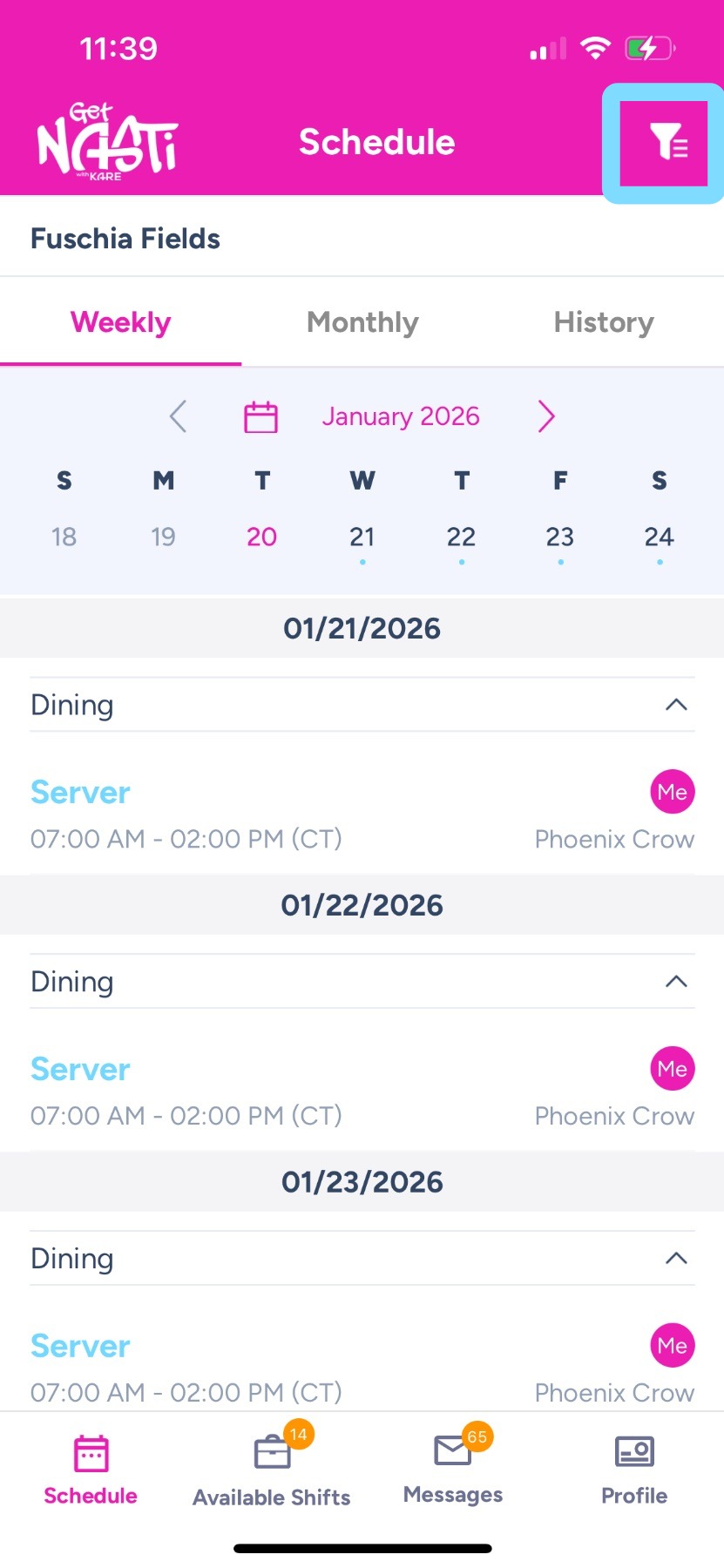
1. Upon logging into the app, you will see your schedule a week at a time. The dot under the dates indicates dates you have schedule shifts.
Select Filter icon at top right of screen to filter your schedule view.
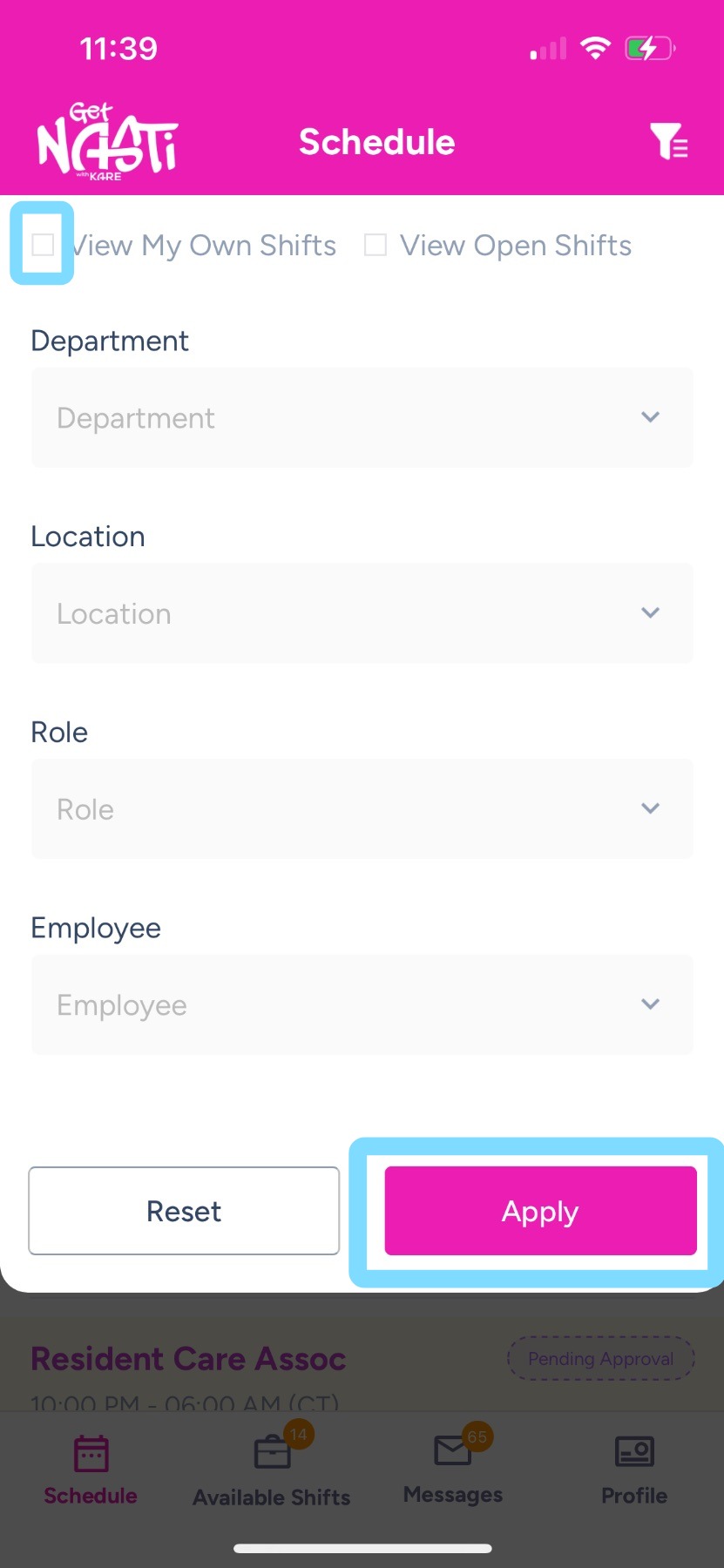
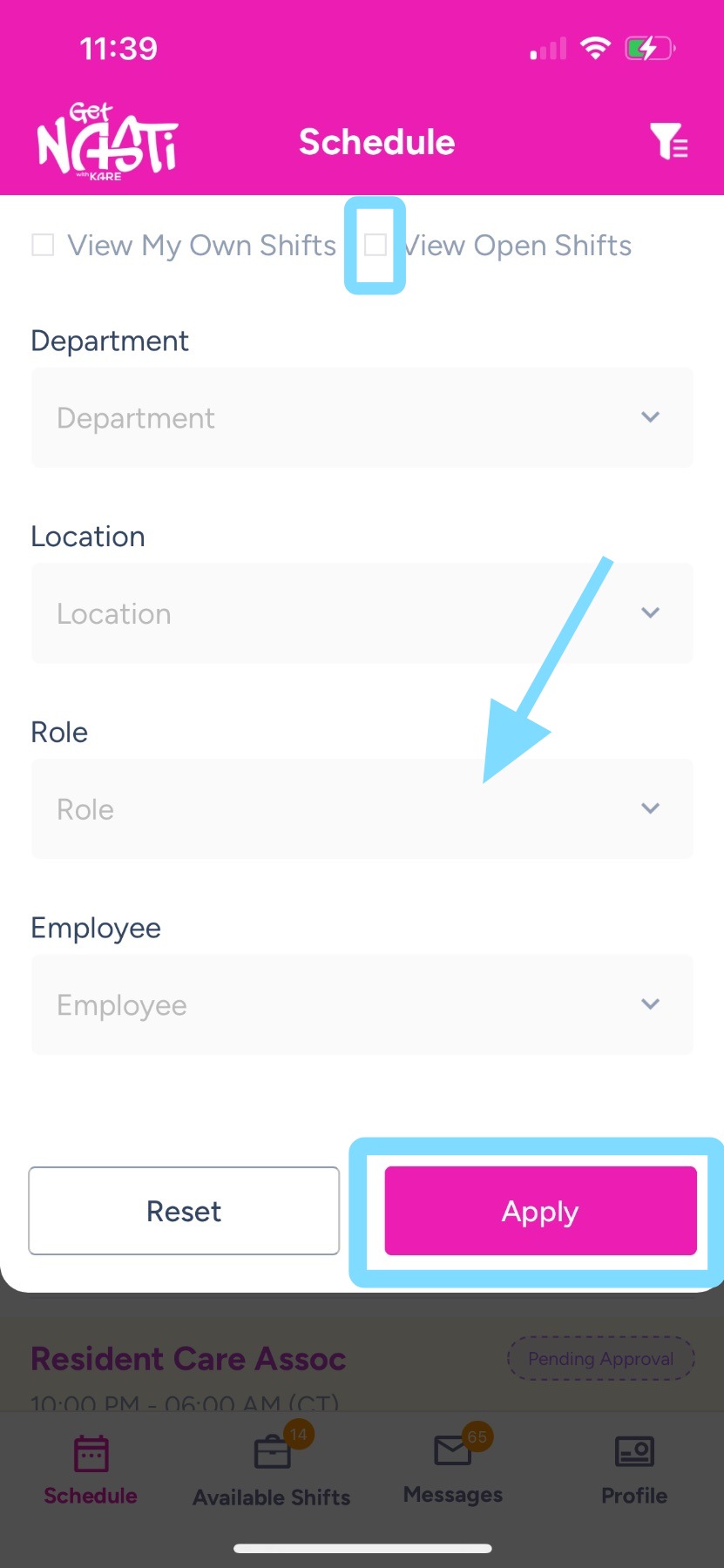
2. – By default, the “View My Own Shifts” checkbox is selected, so the schedule is filtered to display only your shifts.
-
Tap the checkbox to clear it.
-
Tap Apply to view the full schedule with everyone’s shifts.
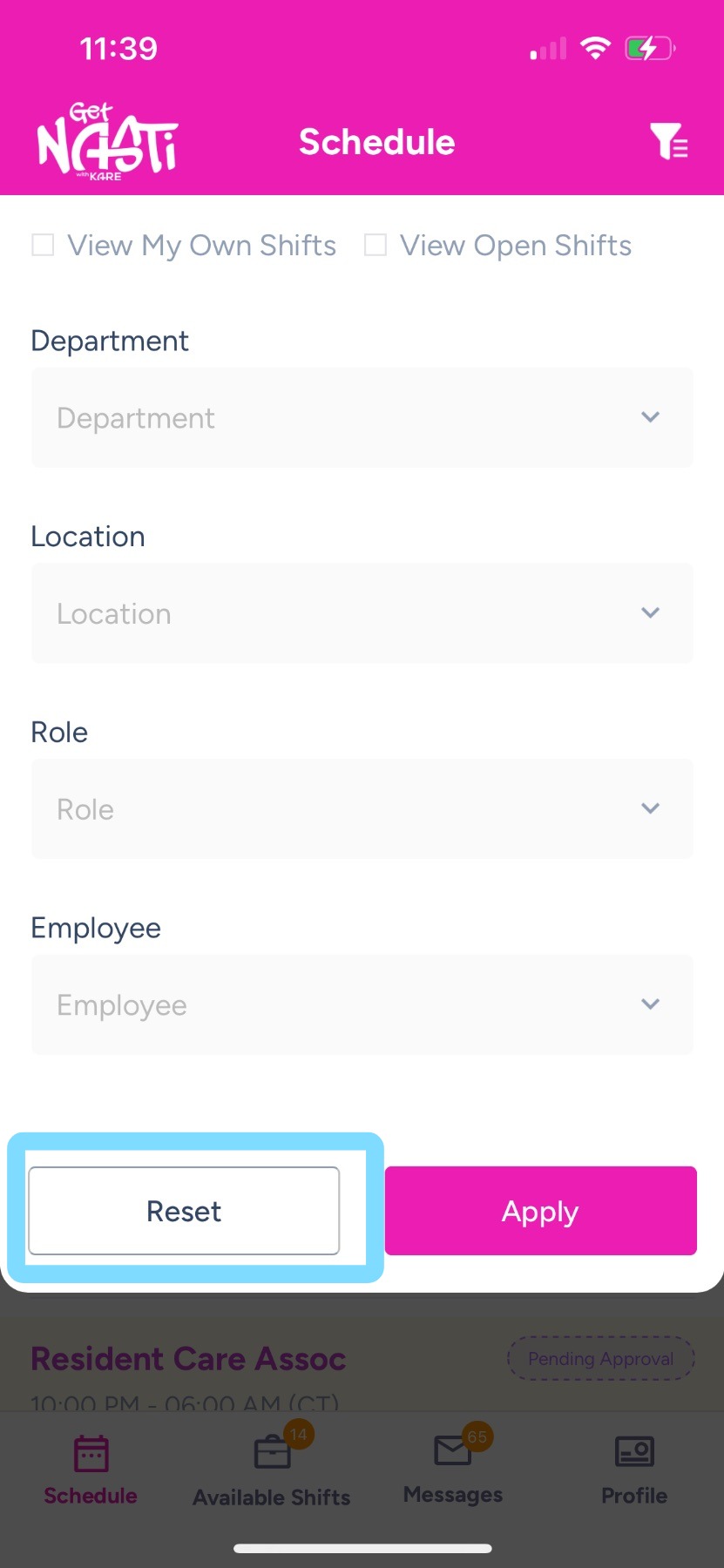
3. Tap Reset to remove all filters and return to only viewing your assigned shifts.
4. – To further customize your view:
- Tap View Open Shifts the Apply to display only available open shifts.
- Use the Department, Location, Role, or Employee filters then Apply to narrow the schedule.
- Example: Select Role → Caregiver to view only Caregiver shifts.
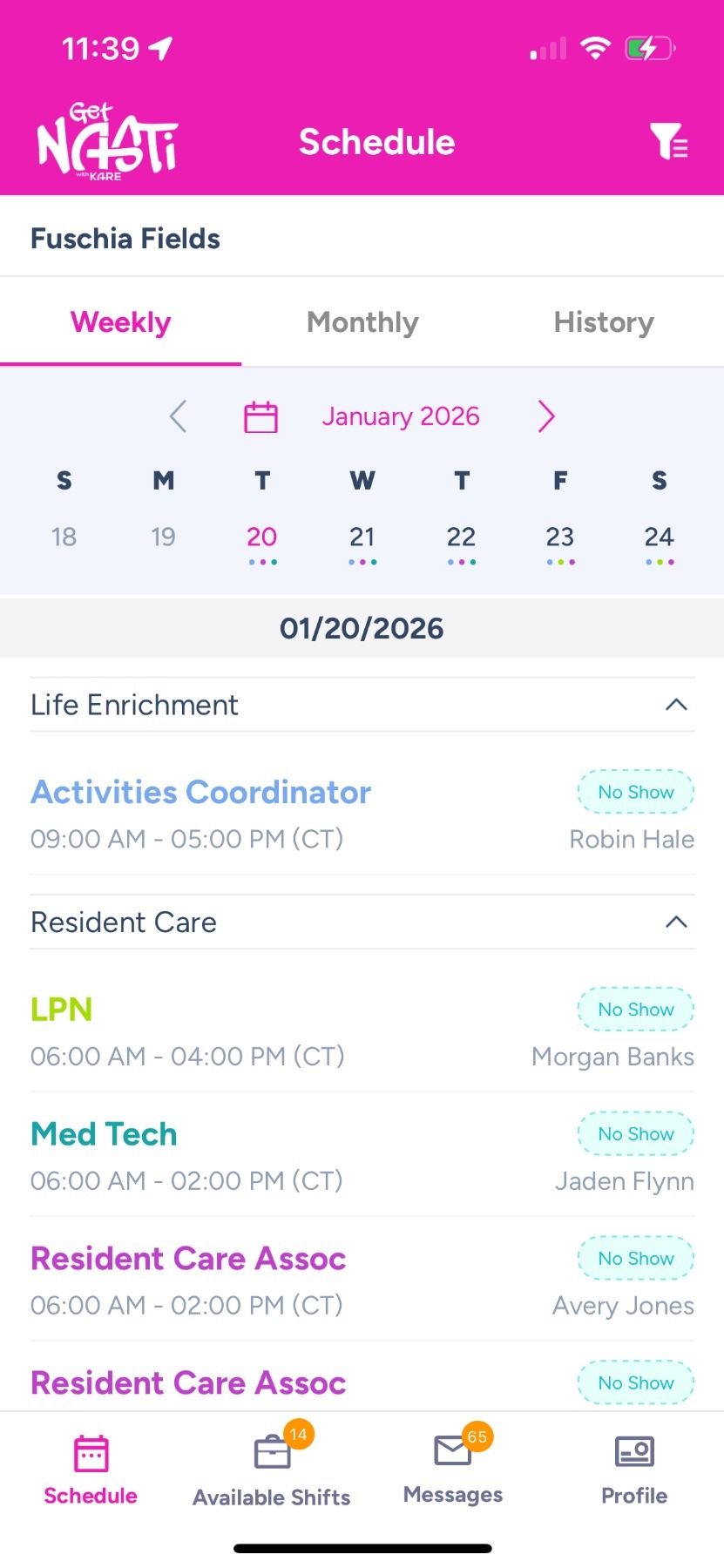
5. Here’s an example of viewing everyone’s assigned shifts for that week (done by unchecking the View My Own Shifts box).
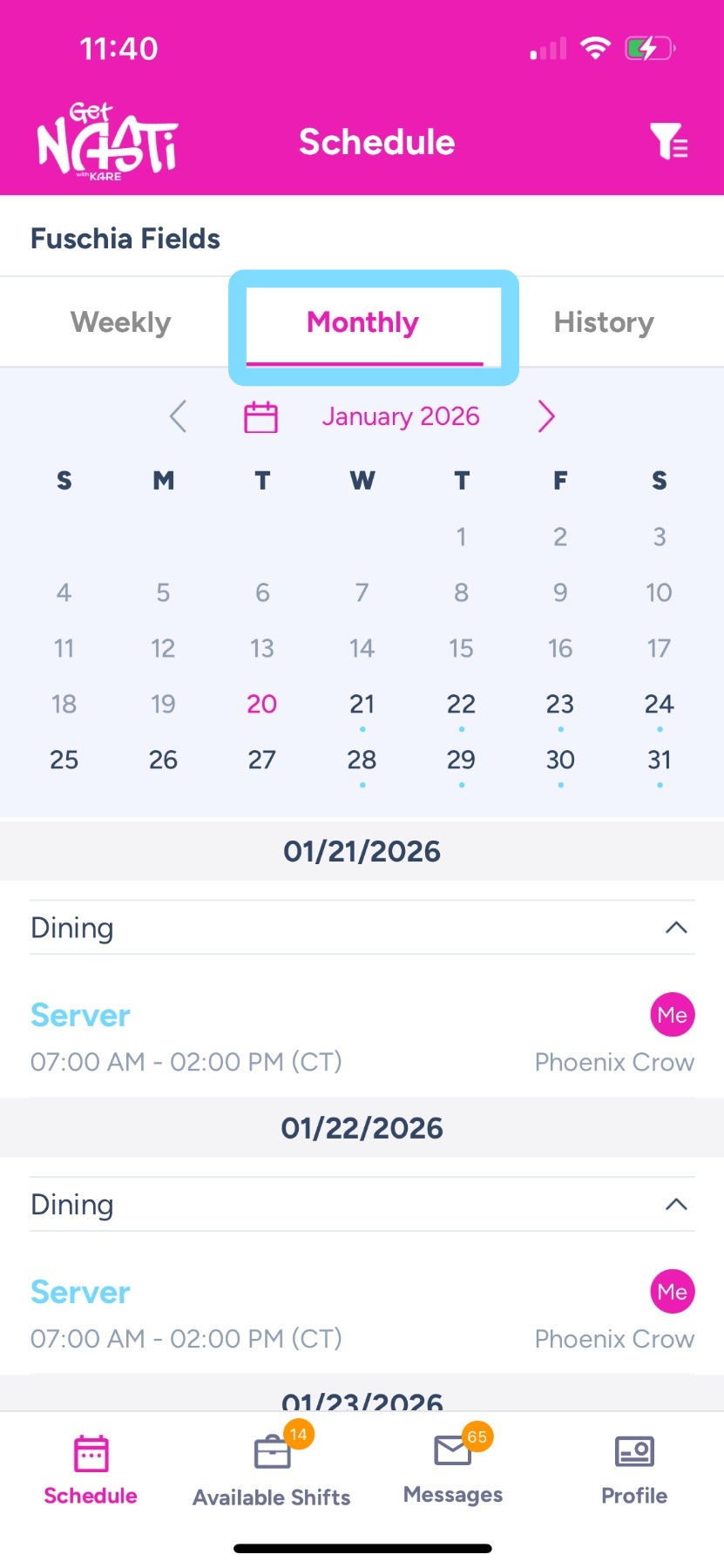
6. Tap Monthly to switch to a month-by-month view of the schedule.
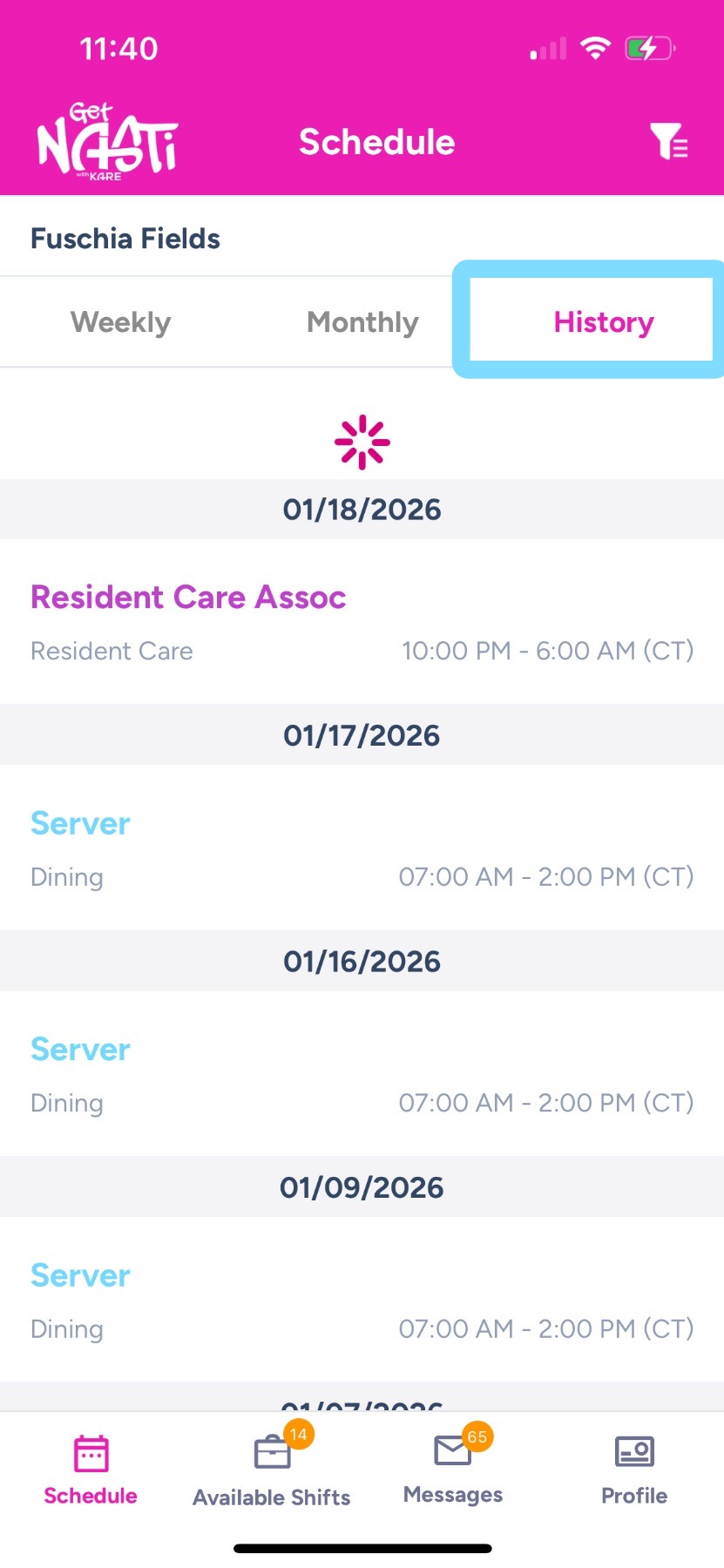
7. Tap History to see the history of each of your shifts.