Employee Guide – How to View, Edit and Cancel Time Off Requests
Own your time off. Track it. Change it. Cancel it. This guide shows how to manage time off requests so availability stays up to date and schedules stay on point.
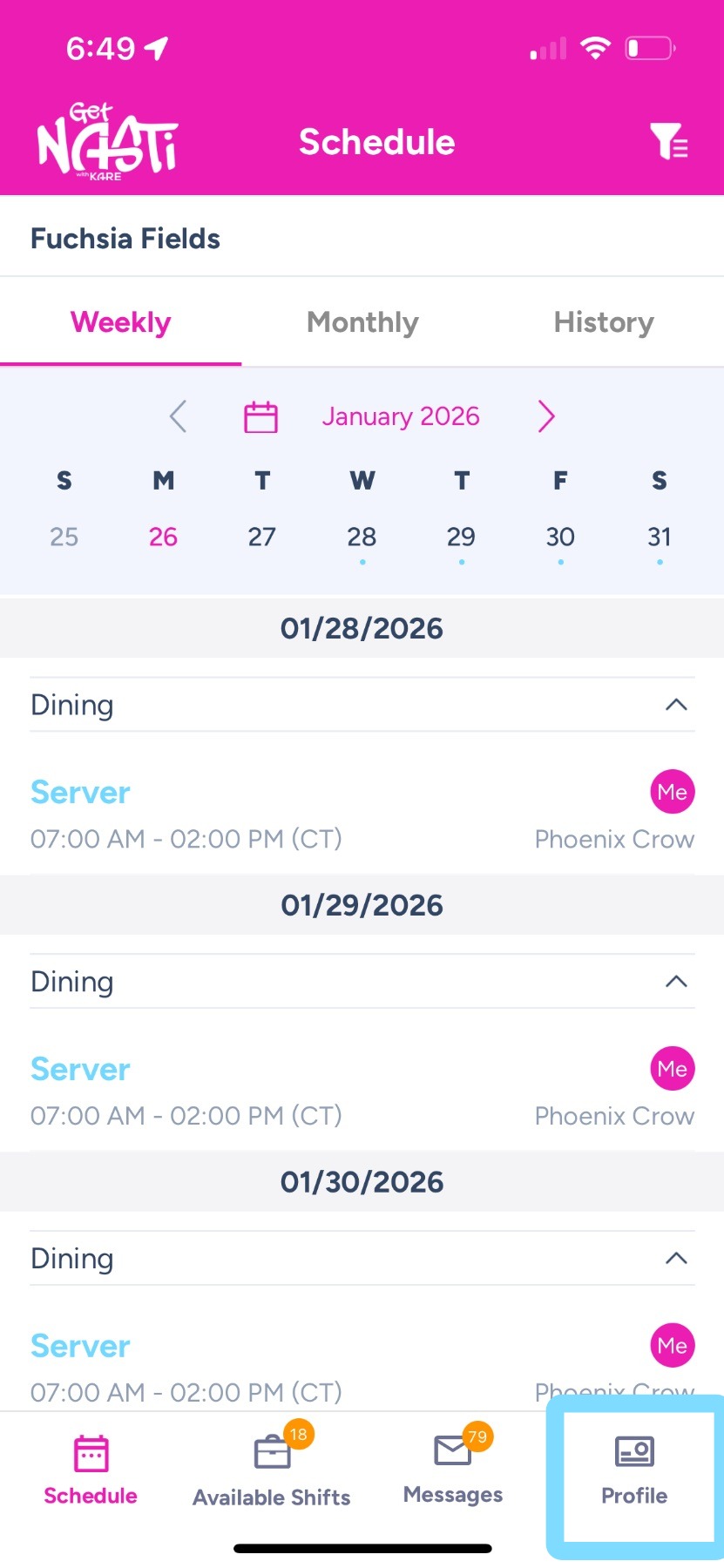
1. To view and edit time off, tap on Profile.
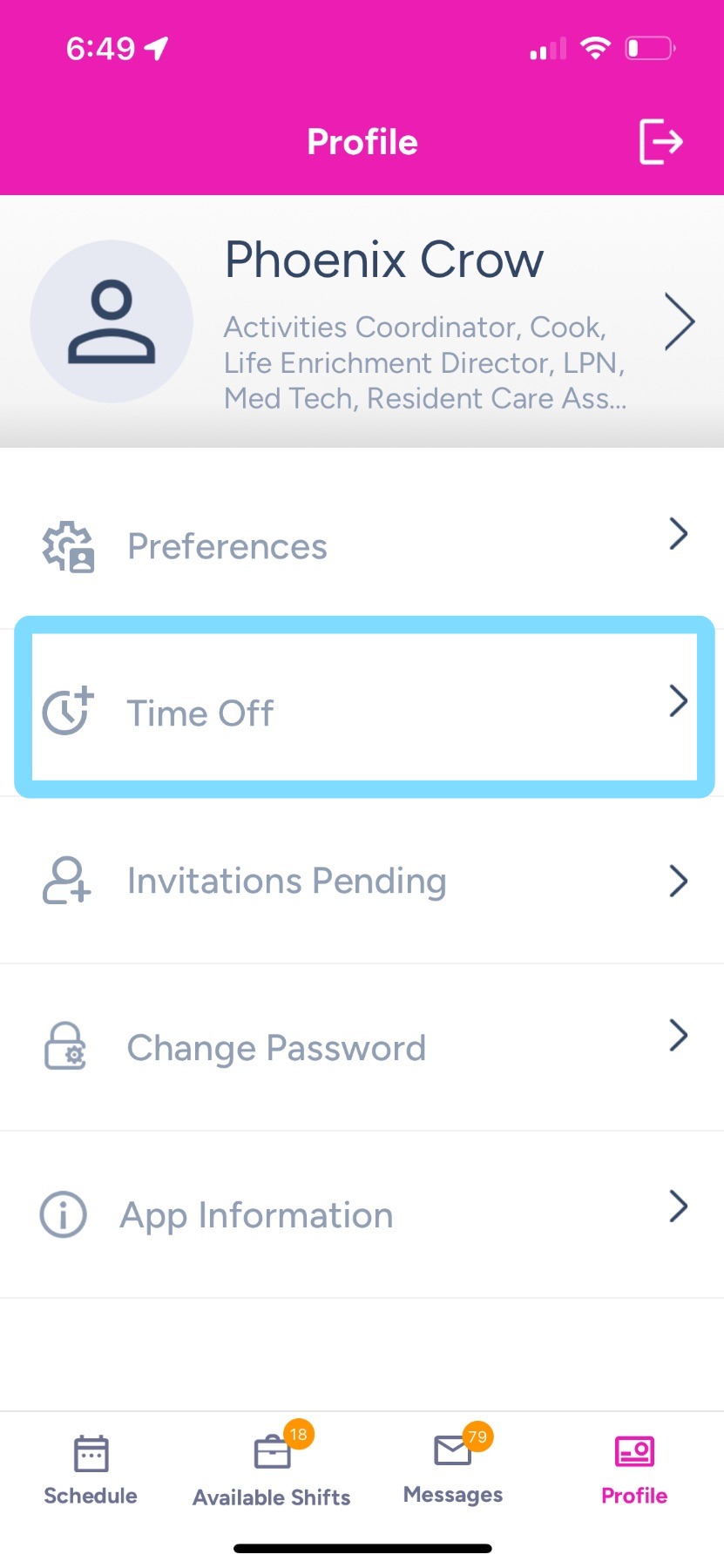
2. Tap Time Off.
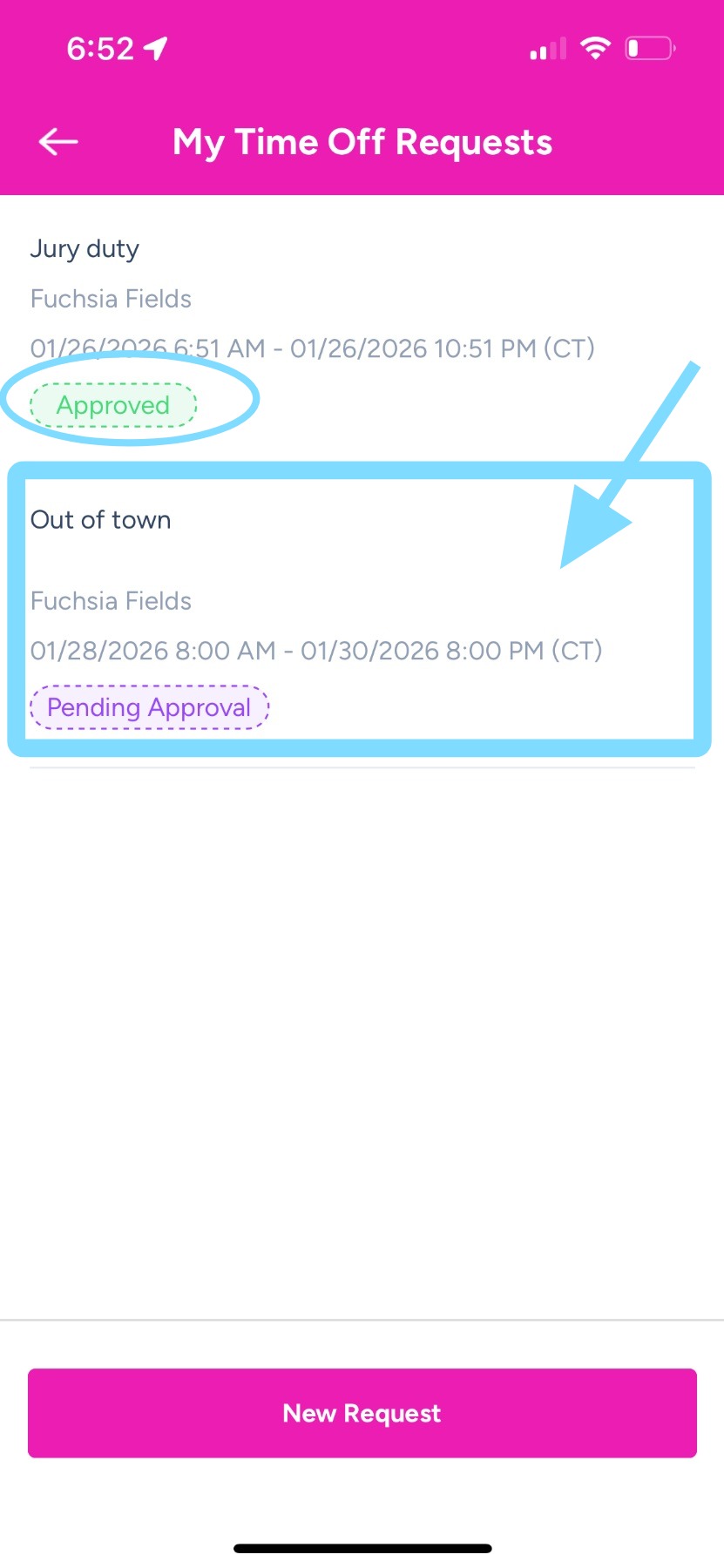
3. View time off requests and note the Approved and Pending Approval badges.
Requests with a Pending Approval badge can be edited. Requests that are Approved can be cancelled (see step 7).
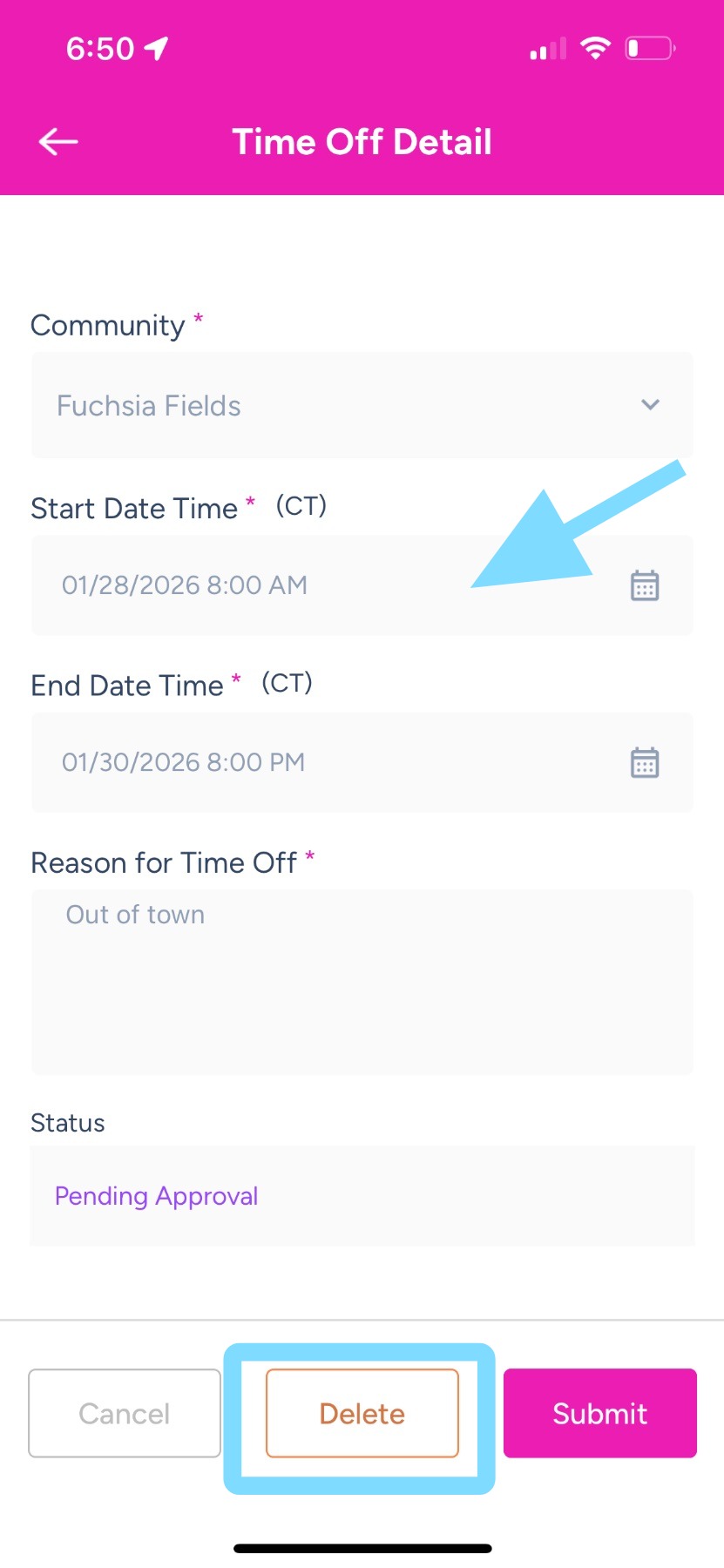
To edit a pending request, select the time off request.
4. You may tap on the any of the fields to edit, or delete the request by tapping Delete.
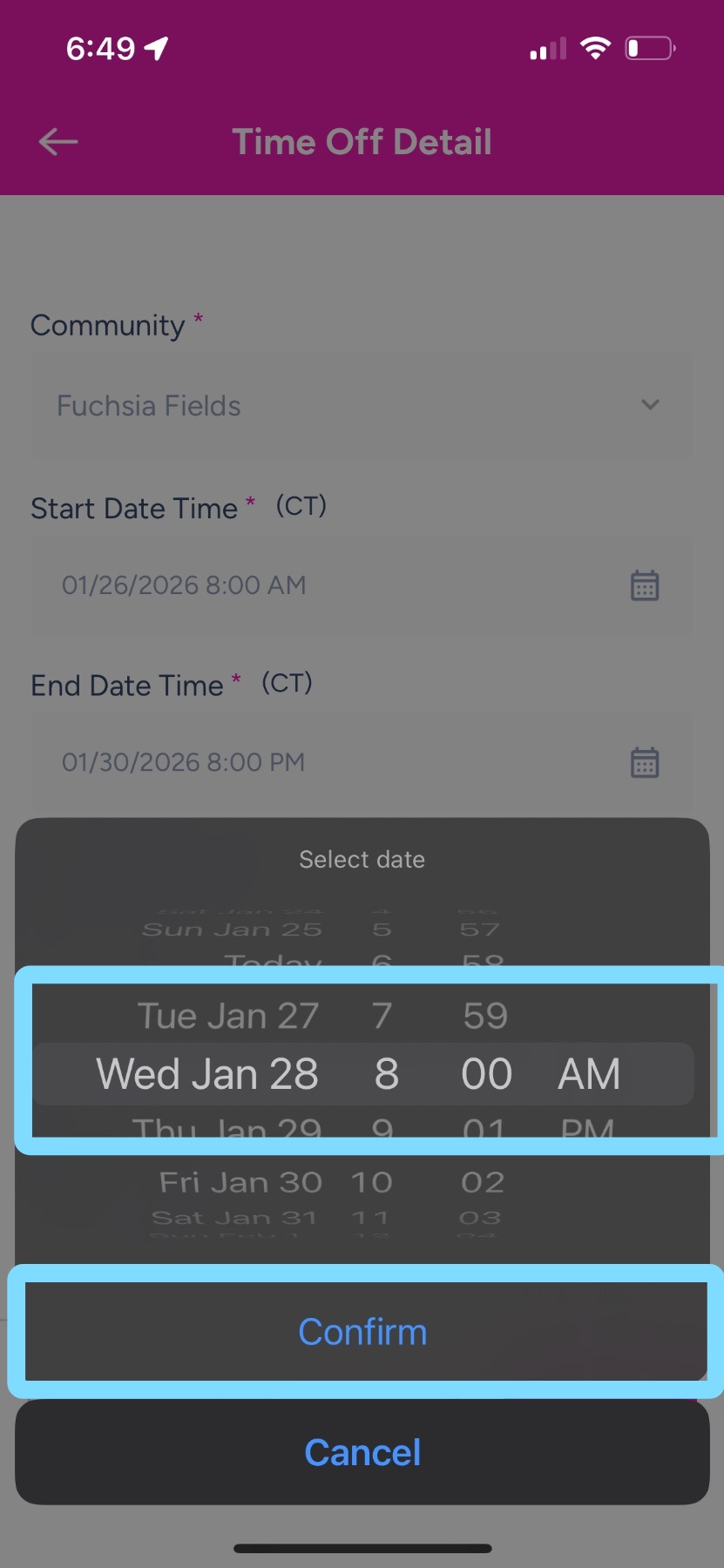
5. If editing, make edits as needed. Tap Confirm when finished.
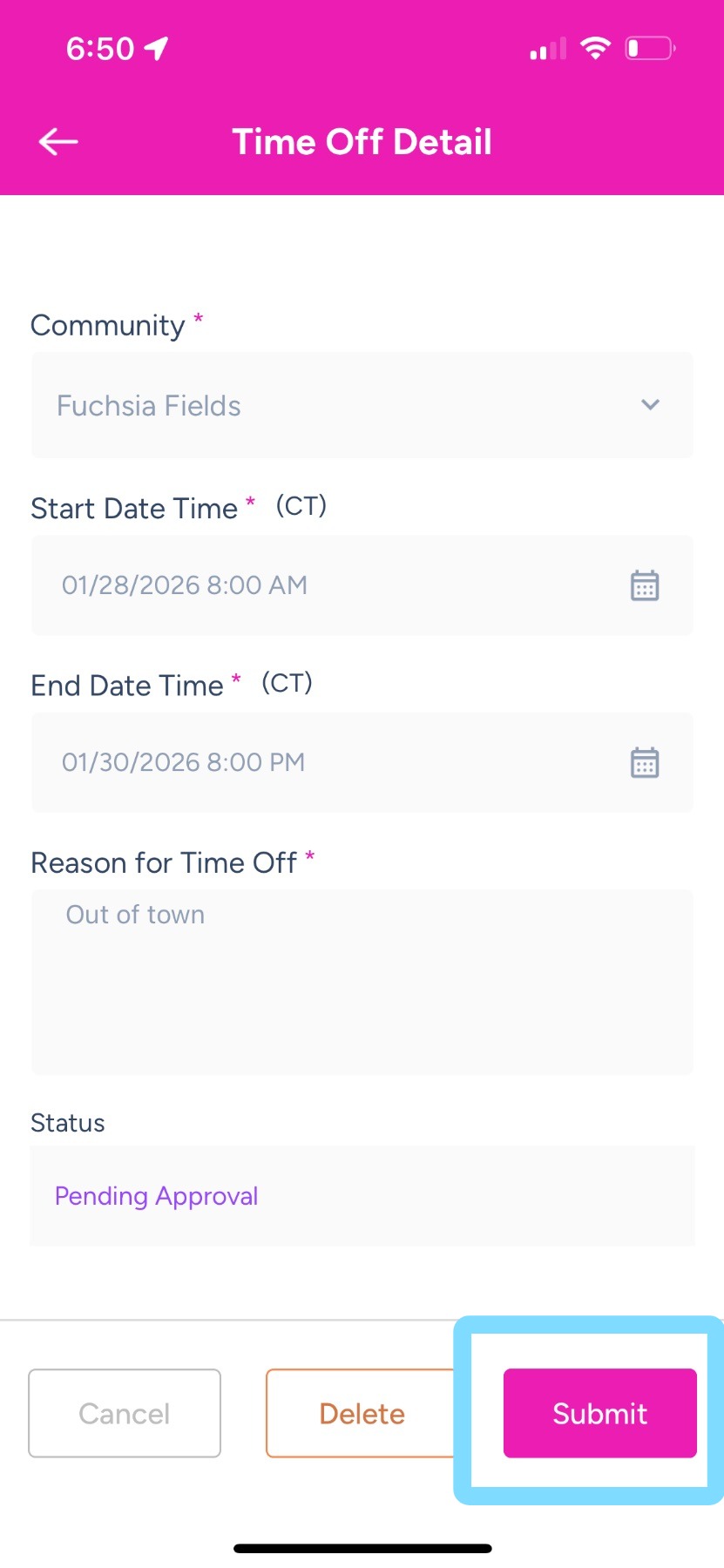
6. Tap Submit to send an edited time off request for approval.
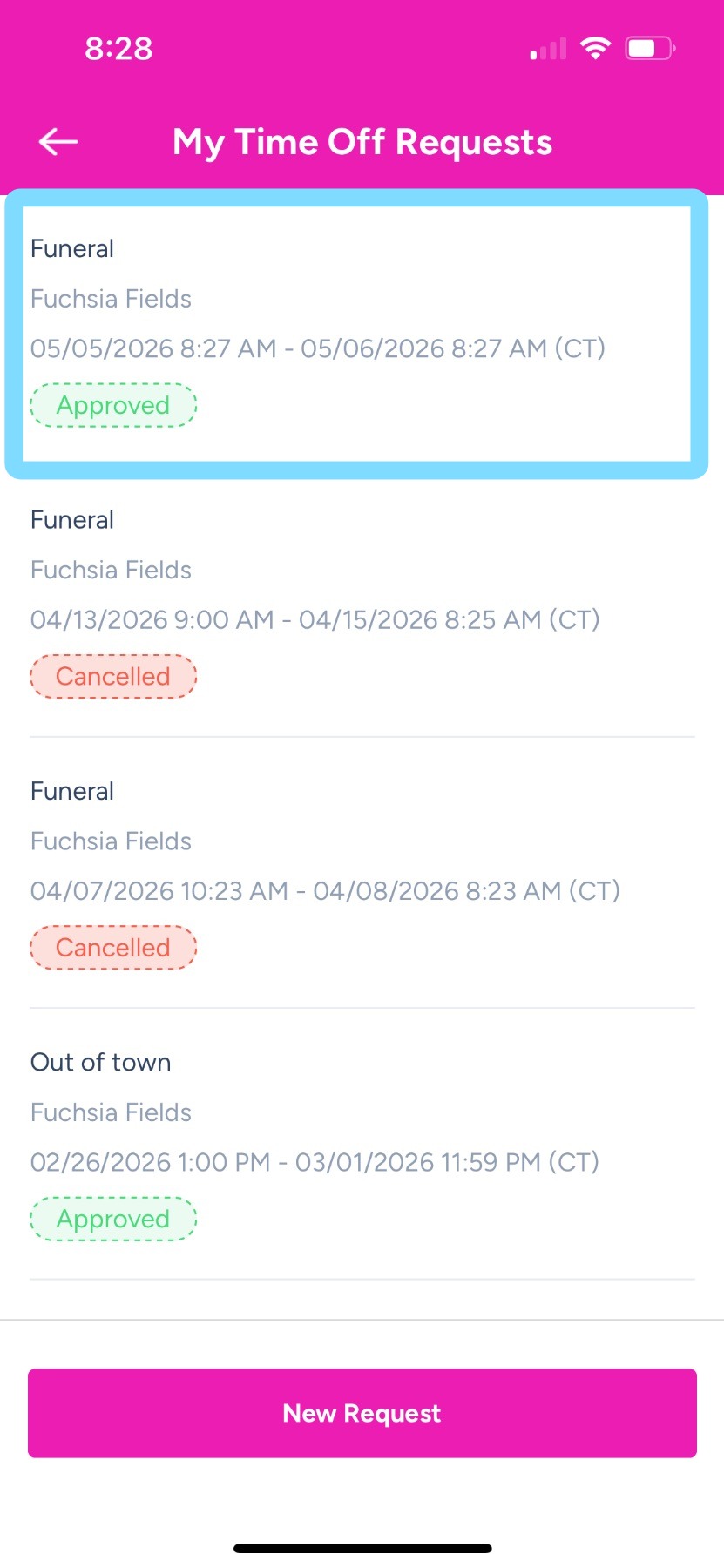
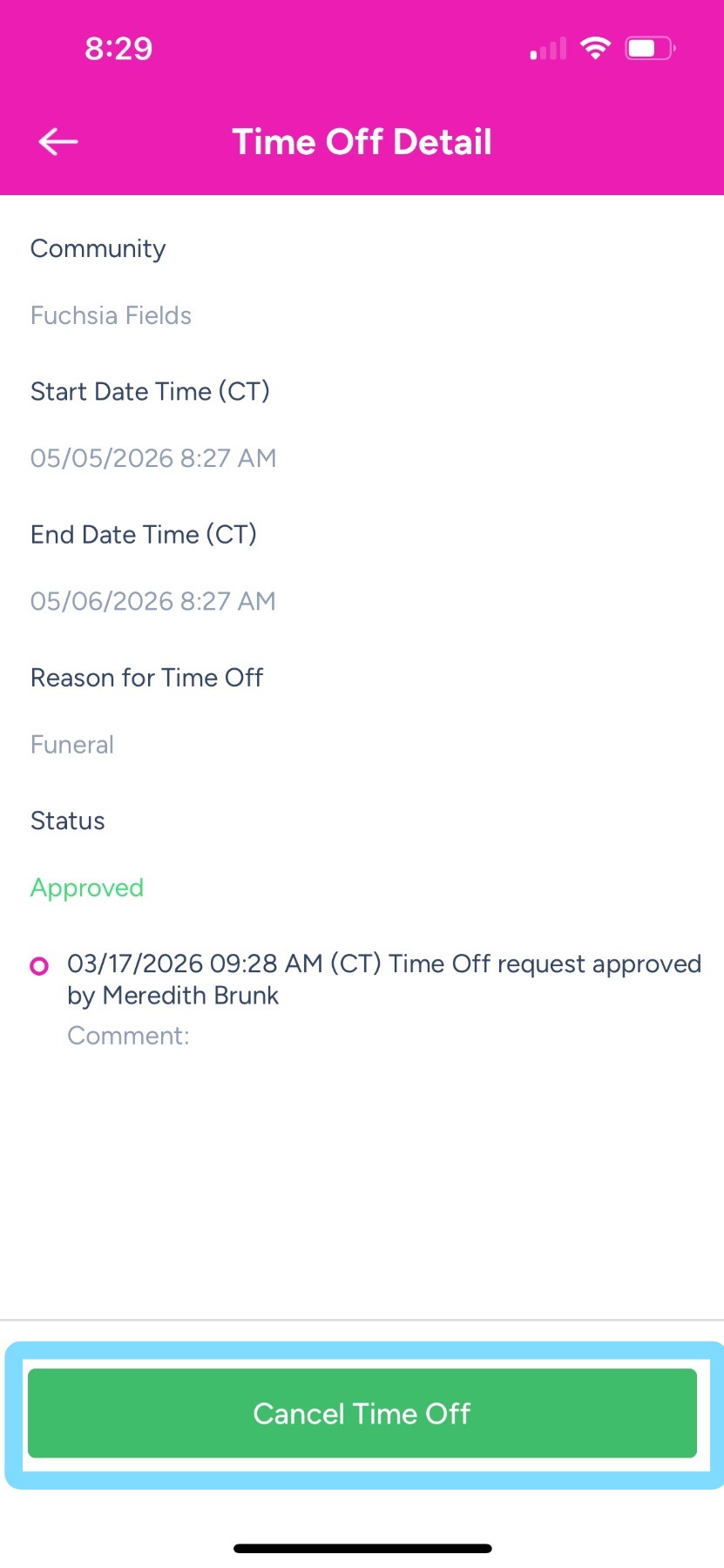
7. To cancel an approved time off request, find the request to be cancelled.
Tap on that request.
8. Tap Cancel Time Off.
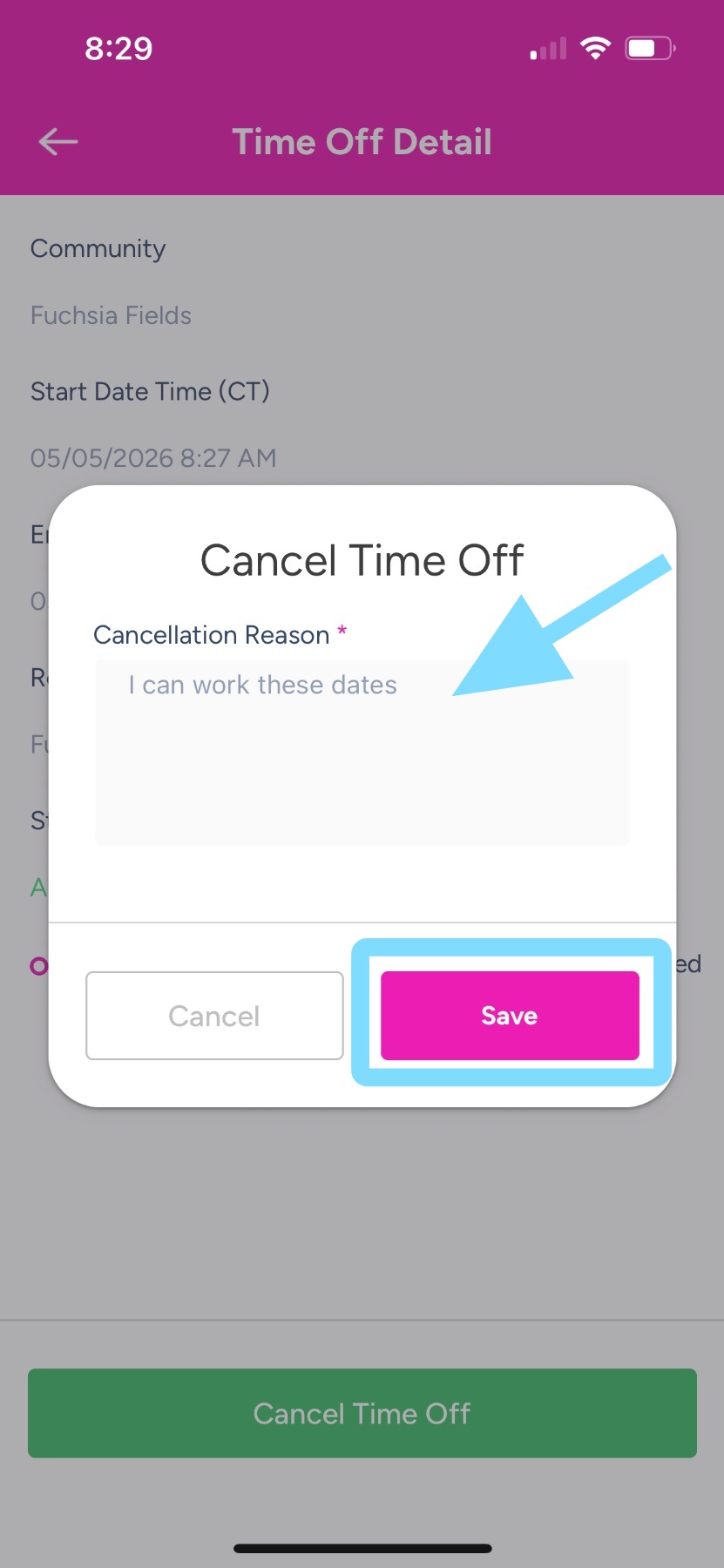
9. Indicate a reason for the cancellation in the comment box.
Tap Save.