How to Set Up Time & Attendance Rules
This guide shows you how to configure Time & Attendance Rules to keep employee time accurate and payroll clean. It covers geofencing, check-in and check-out rules, and exception management—helping you reduce time clock errors and improve day-to-day operations while staying compliant.
1. You’ve arrived at the last step in the community set-up process: configuring Time & Attendance Rules!
If you are utilizing Time and Attendance, continue through these steps. If Time and Attendance is turned off for your community, you’ll only be prompted to edit Break Time Rules for shift time-keeping and report purposes.
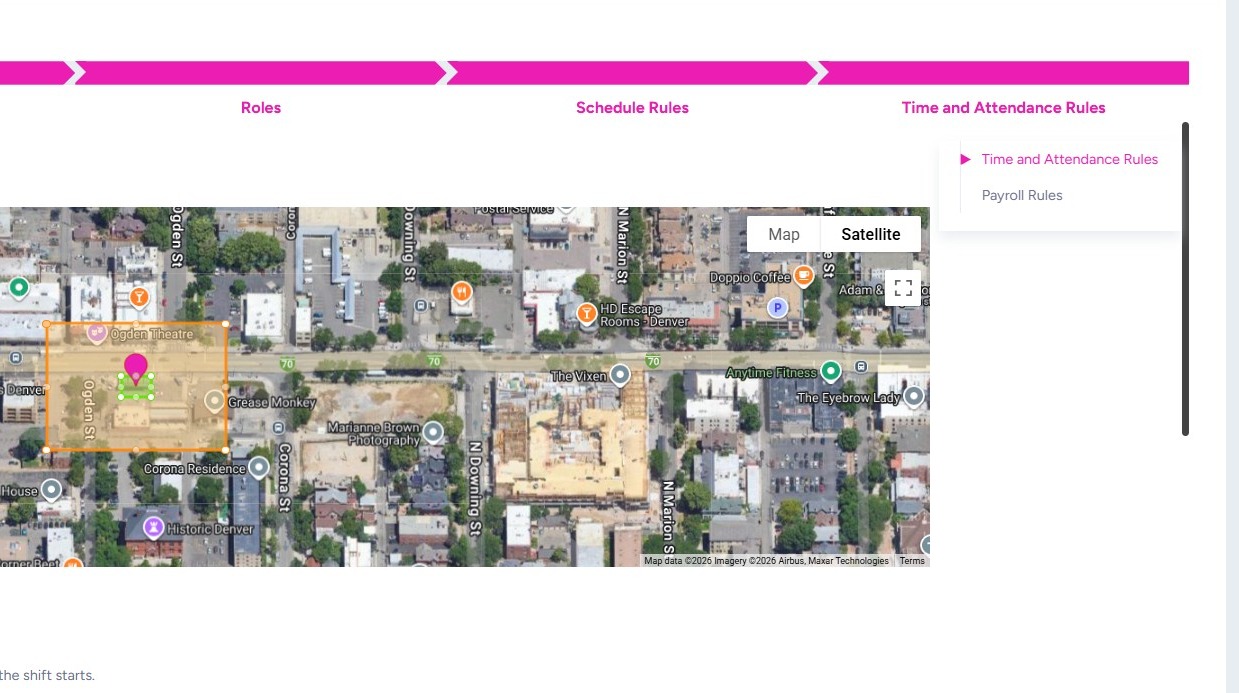
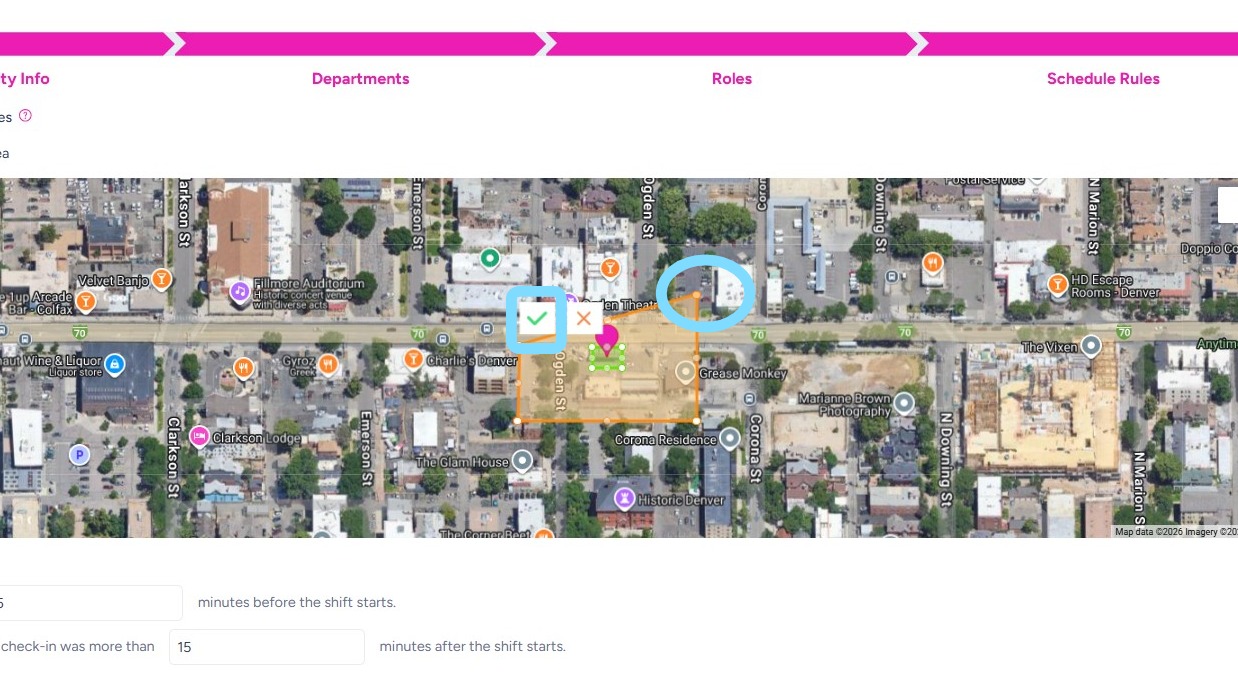
2. Set up your geofence boundaries by clicking and dragging the corners of the green and orange areas. Select the green checkmark to save your changes.
-
Green area: Check-in boundary
-
Orange area: Check-out boundary
How geofenced automatic check-in and check-out works:
-
When employees enter the green area during their scheduled shift time, they are automatically checked in.
-
When employees exit the orange area at the end of their shift, they are automatically checked out.
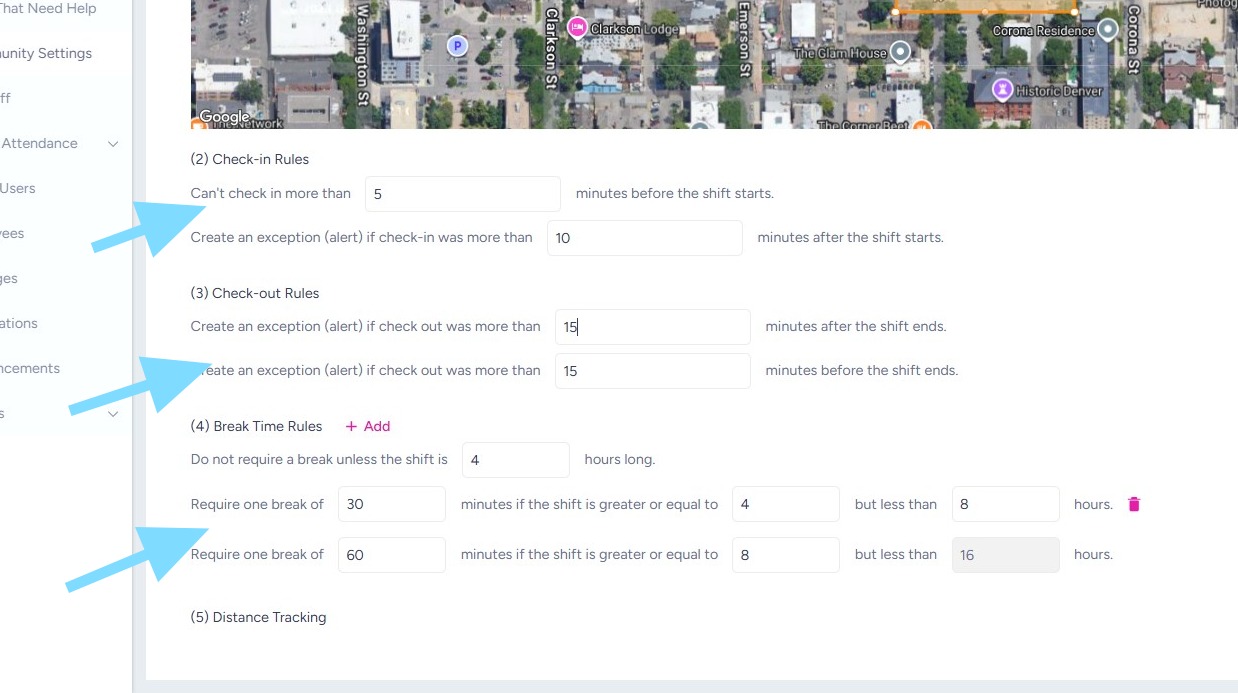
3. Once the boundaries are set, configure your Check-In and Check-Out Rules and Break Time Rules. These rules help prevent time clock leakage by keeping punches aligned with scheduled shift times.
Note: Exceptions are alerts sent to a Scheduler or Admin for review and approval.
For example, per this check-out rule, if an employee checks out more than 15 minutes after their shift ends, an exception is generated and sent to an Admin to approve the late check-out.
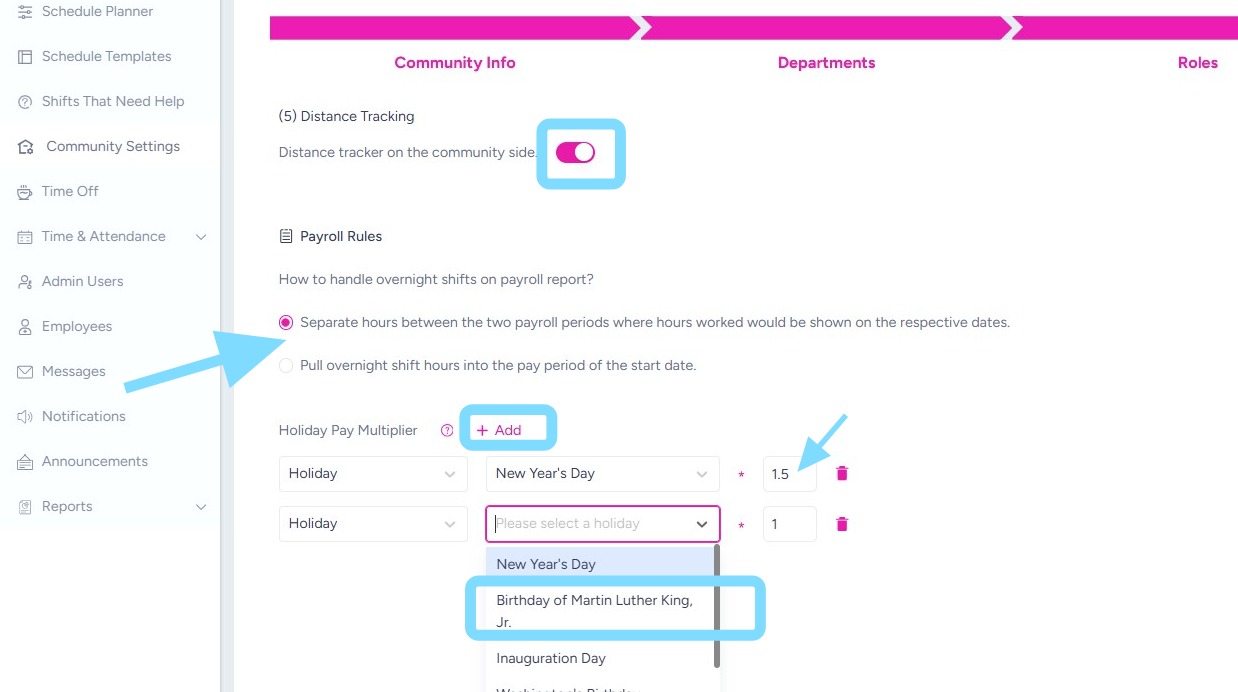
4. Turn Distance Tracking on or off. This allows an Admin User to see how many miles away an employee is after they’ve hit “Ready to Go” for their shift.
Indicate how to pull overnight shifts into payroll
Add Holiday Pay Multipliers by selecting +Add and from the drop downs. Enter the pay multiplier amount as 1.5, 2, etc.
5. Select Save when finished editing Time and Attendance Rules
Congrats, you did it!