How to Send Shifts to KARE
This guide walks you through how to send open shifts to KARE—quickly and confidently.
1. When the NASTi <> KARE integration is set up and roles are mapped, you’re ready to send open shifts to KARE.
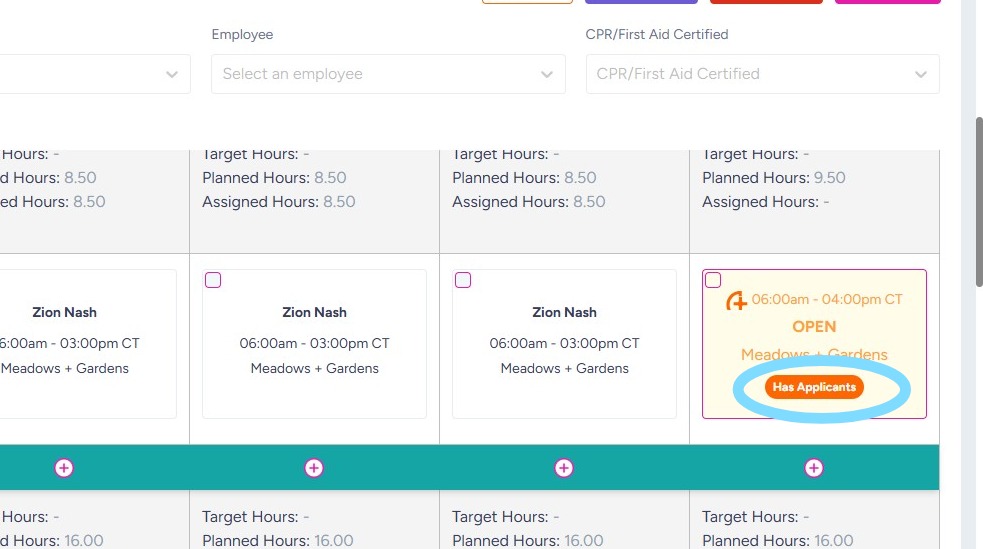
If Send to KARE Rules (Under Community Settings > Schedule Rules) are set to send automatically send shifts to KARE, you’ll see OPEN shifts that were sent to KARE are marked with a KARE logo. To manually send shifts to KARE, follow the steps below.
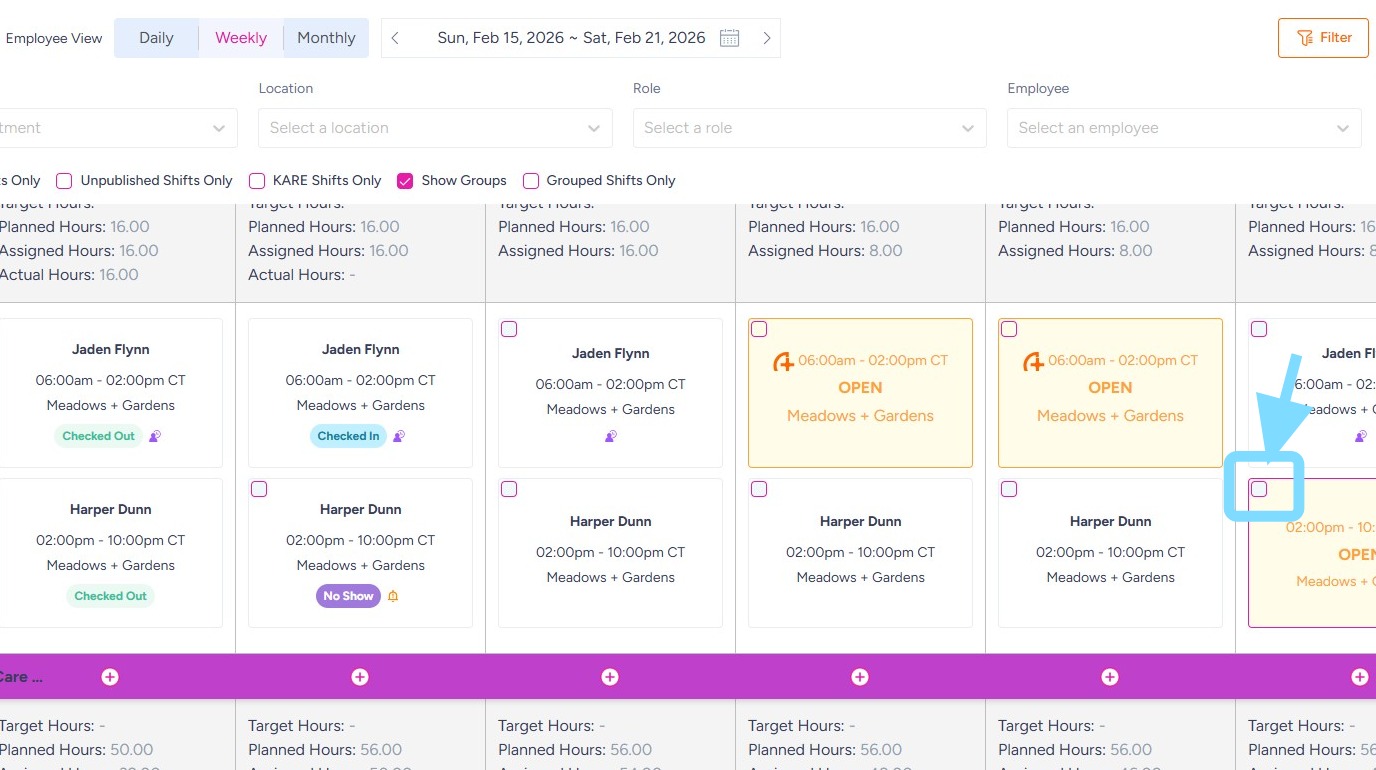
2. Select the box in the corner of the shift.
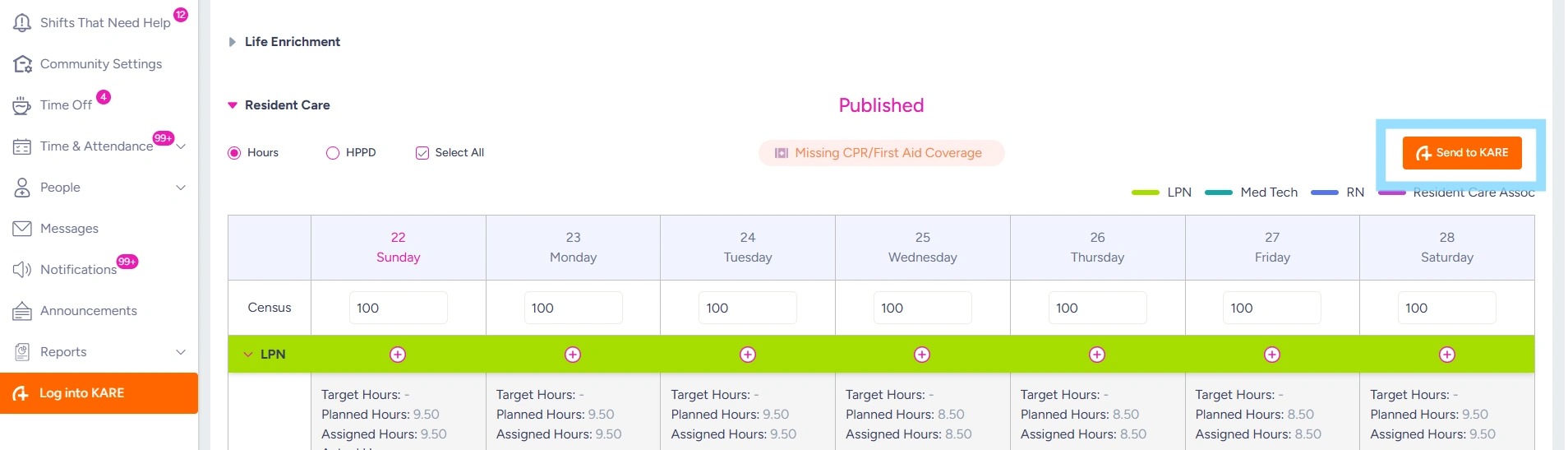
3. Select Send to KARE
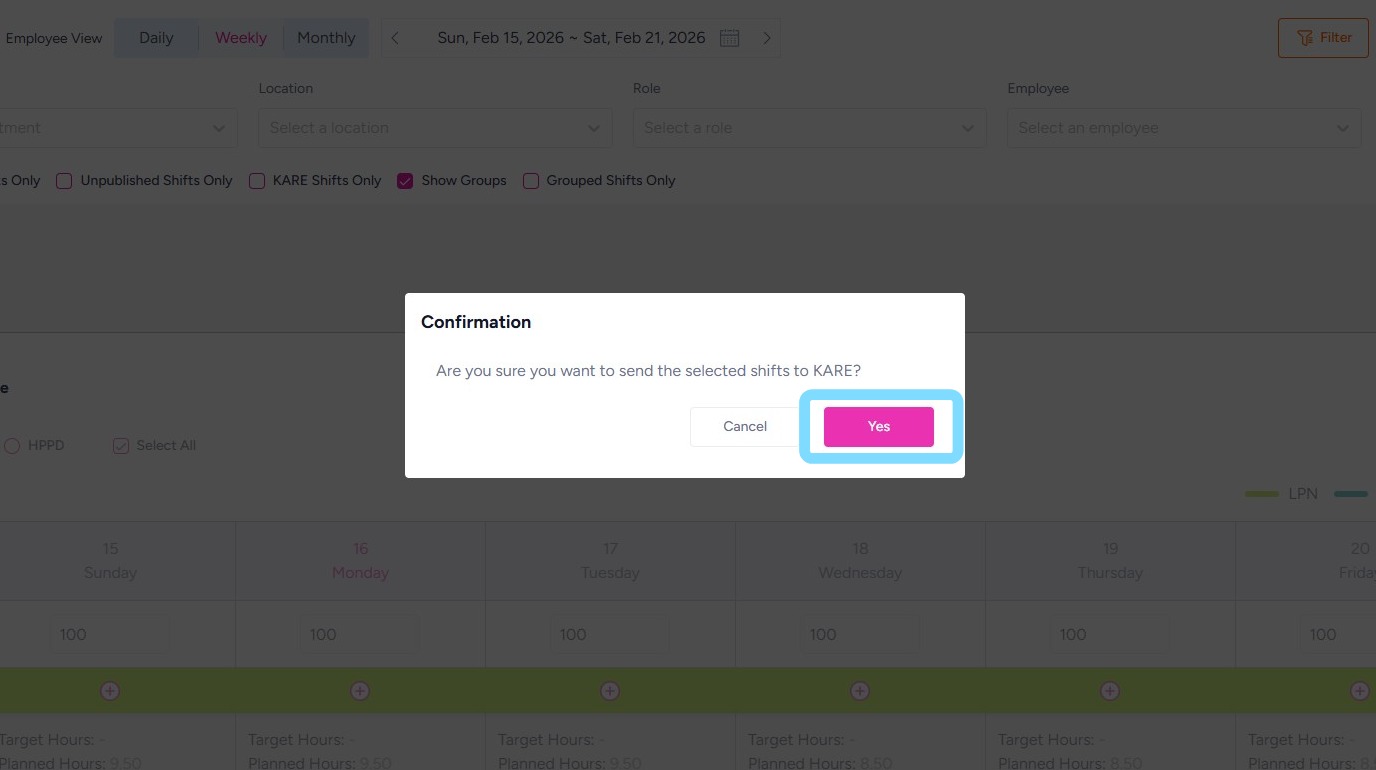
4. Select Yes to confirm sending shifts.
5. A slide-out panel will appear, allowing you to review and edit the shift details before sending to KARE.
-
Select the Supervisor Name from the dropdown list
-
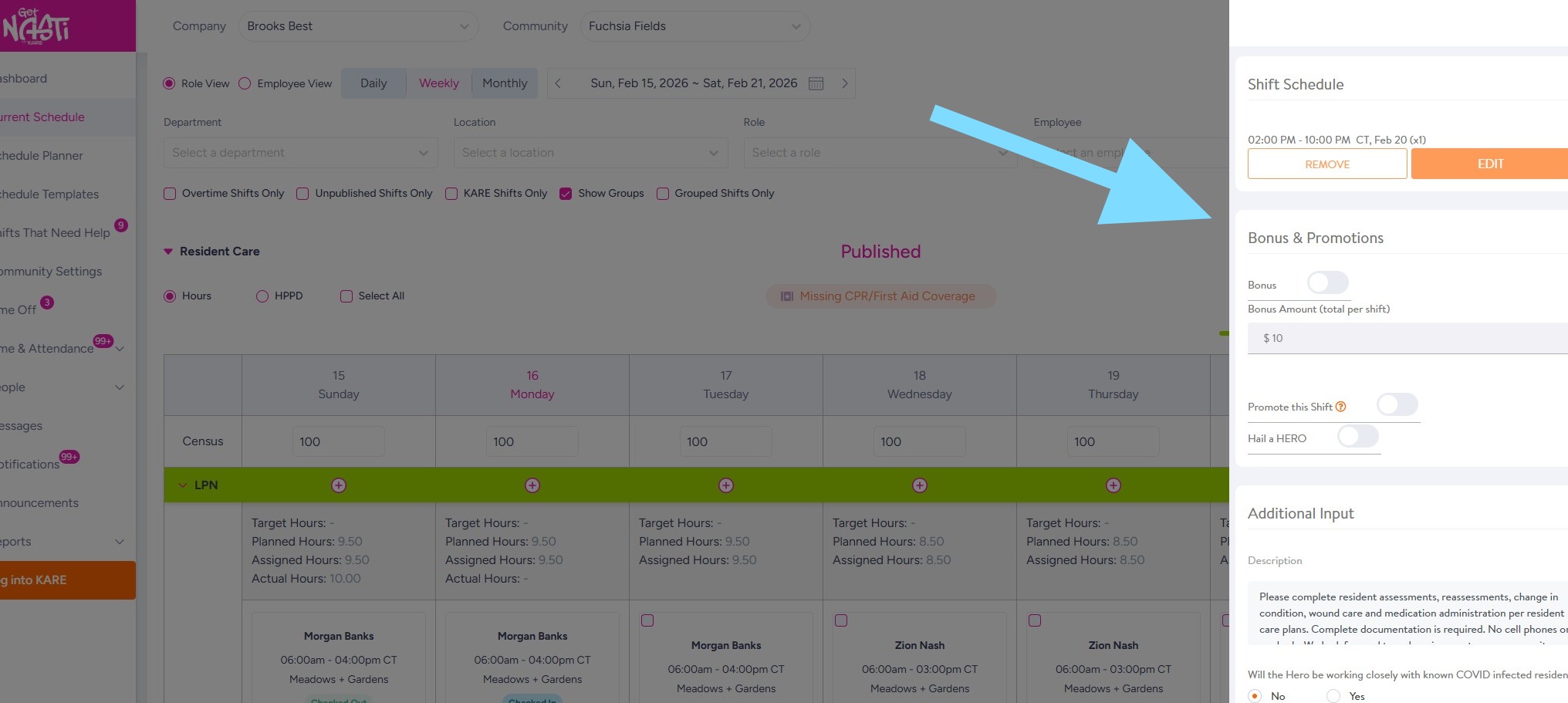
Make any additional edits as needed
-
Select Send to KARE
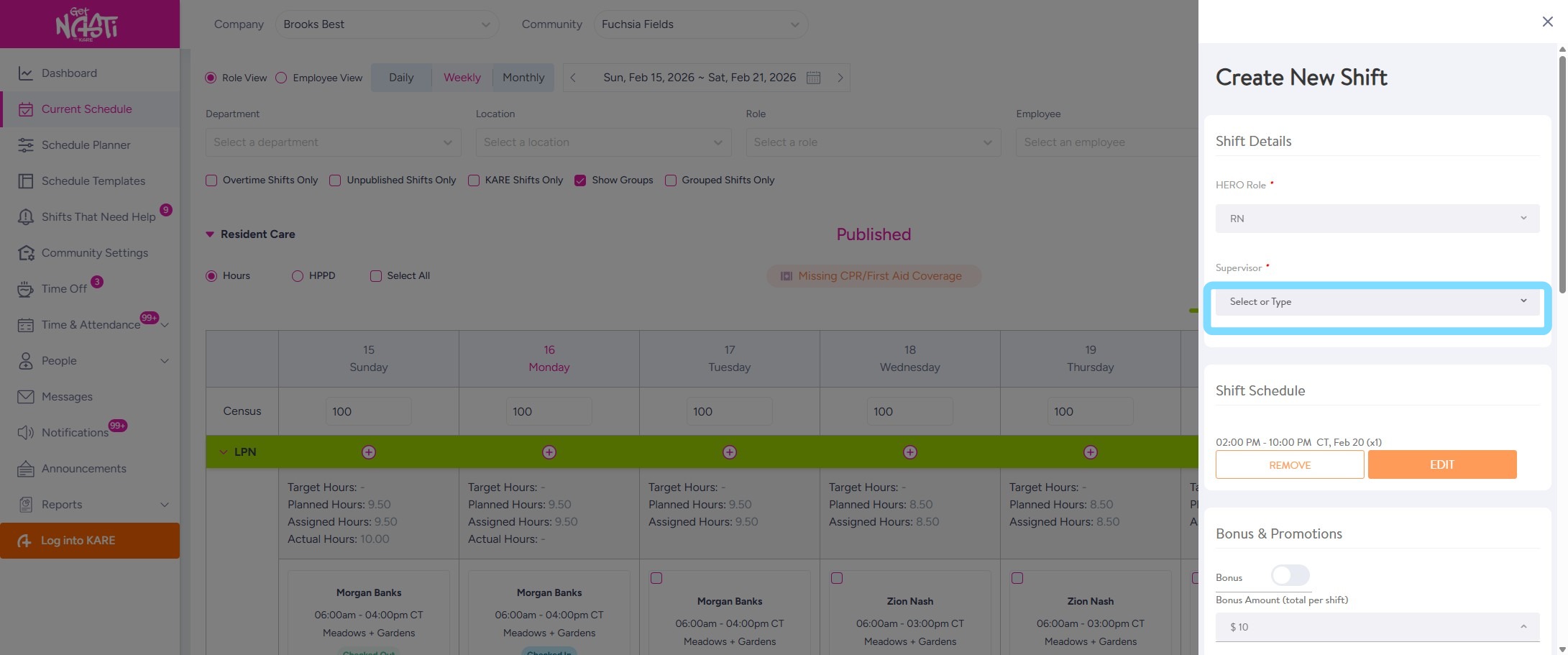
6. Make shift edits as needed.
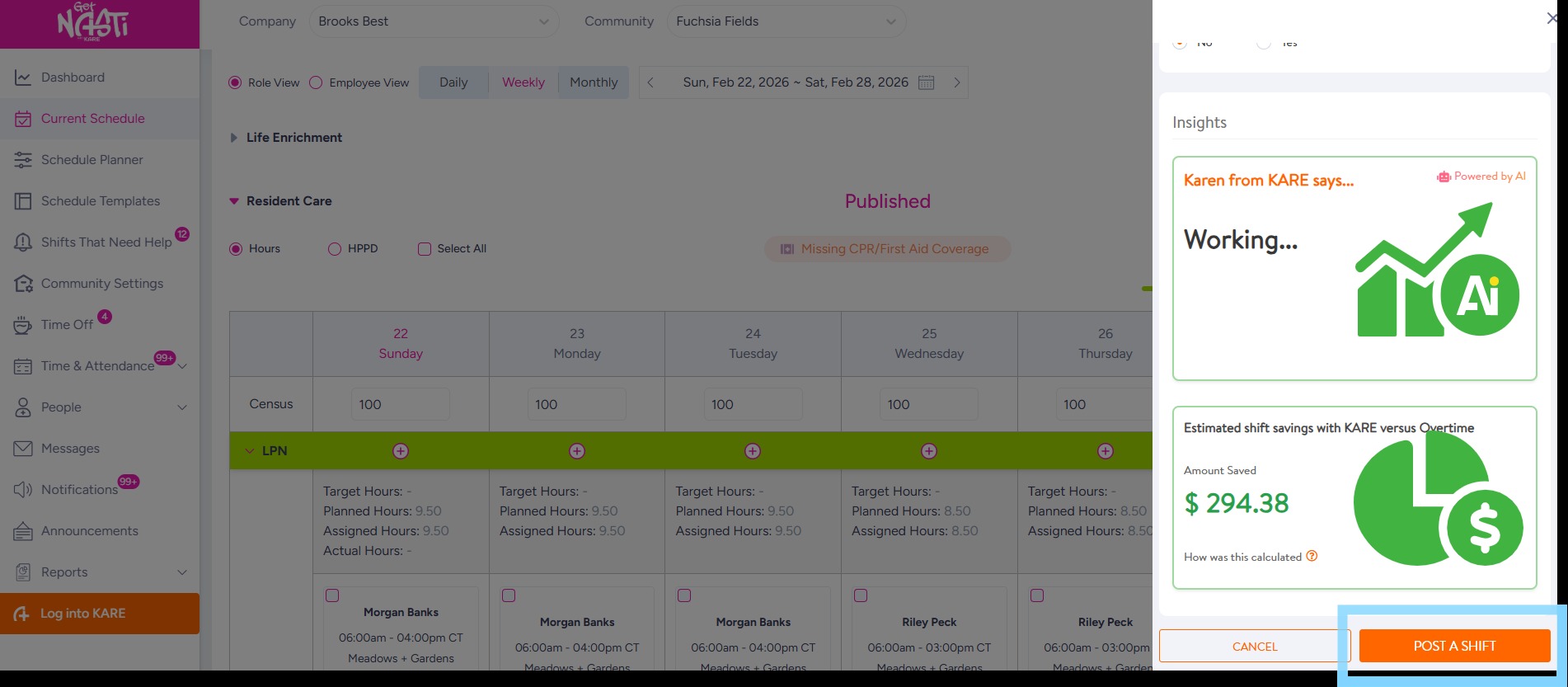
7. To finalize sending the shift to KARE, select POST A SHIFT.
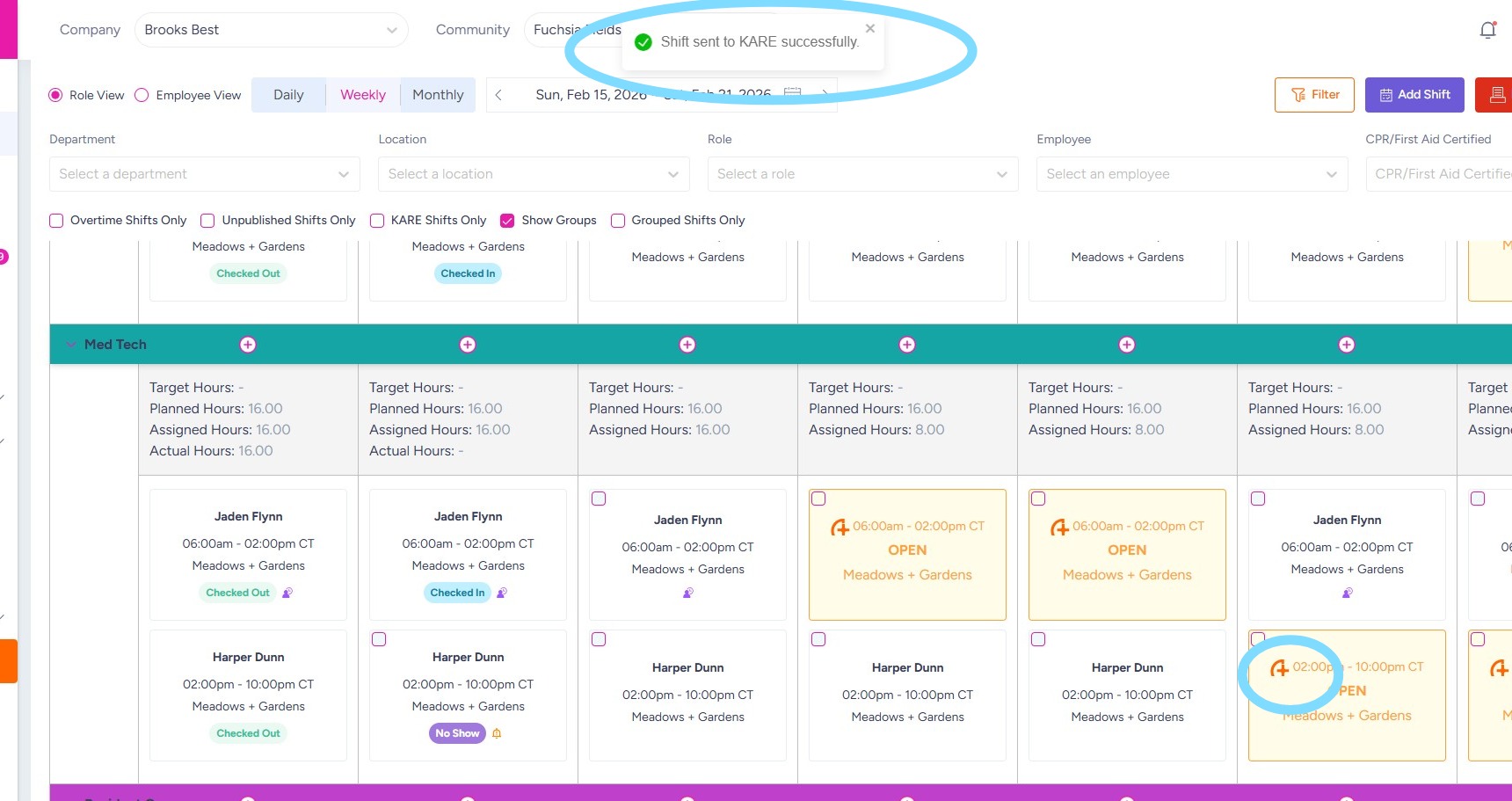
8. A confirmation message will appear indicating the shift was successfully sent to KARE. The shift card will also display the KARE icon, confirming it has been posted.
9. You did it!
Monitor the shift card for applications from KARE HEROs. When a HERO applies, the shift card will display the Has Applicants badge, indicating the shift is awaiting approval.