Employee Guide – How to Reset Password
This guide walks you through resetting your password so you can quickly and securely regain access to your account. It clearly outlines each step, from starting the reset to creating a new password that meets security requirements — helping you get back in without delays.
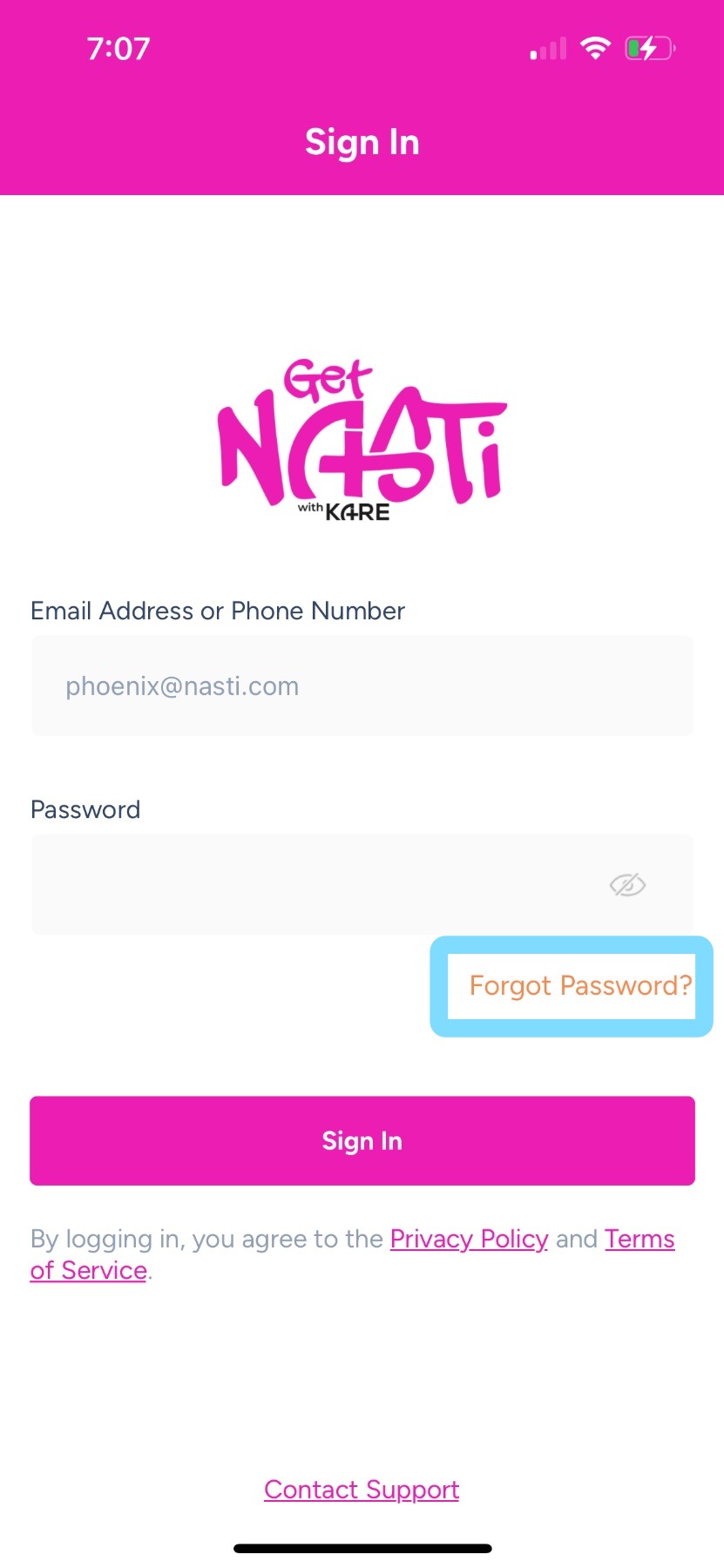
1. If you’ve forgotten your password or are having trouble logging in, tap Forgot Password?
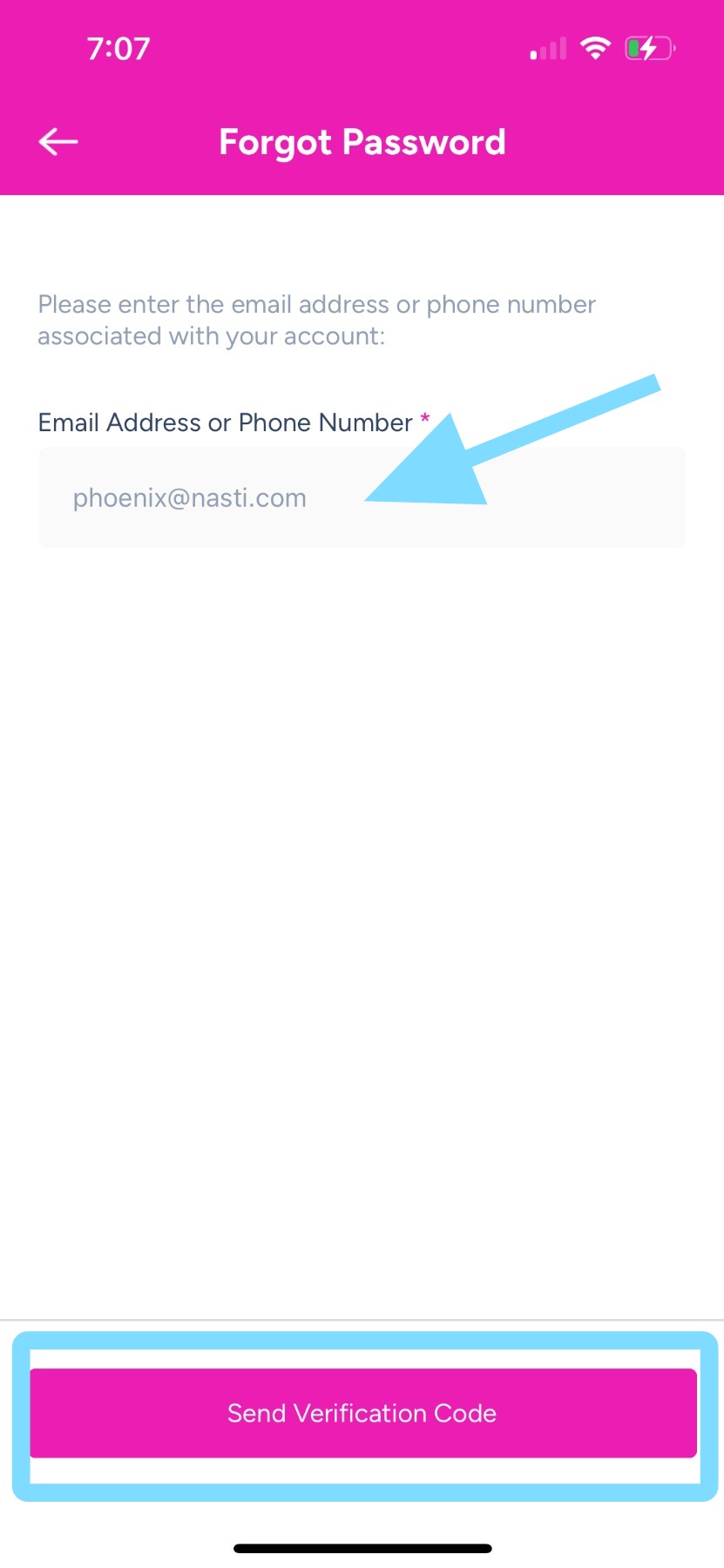
2. Enter email address or phone number.
Tap Send Verification Code
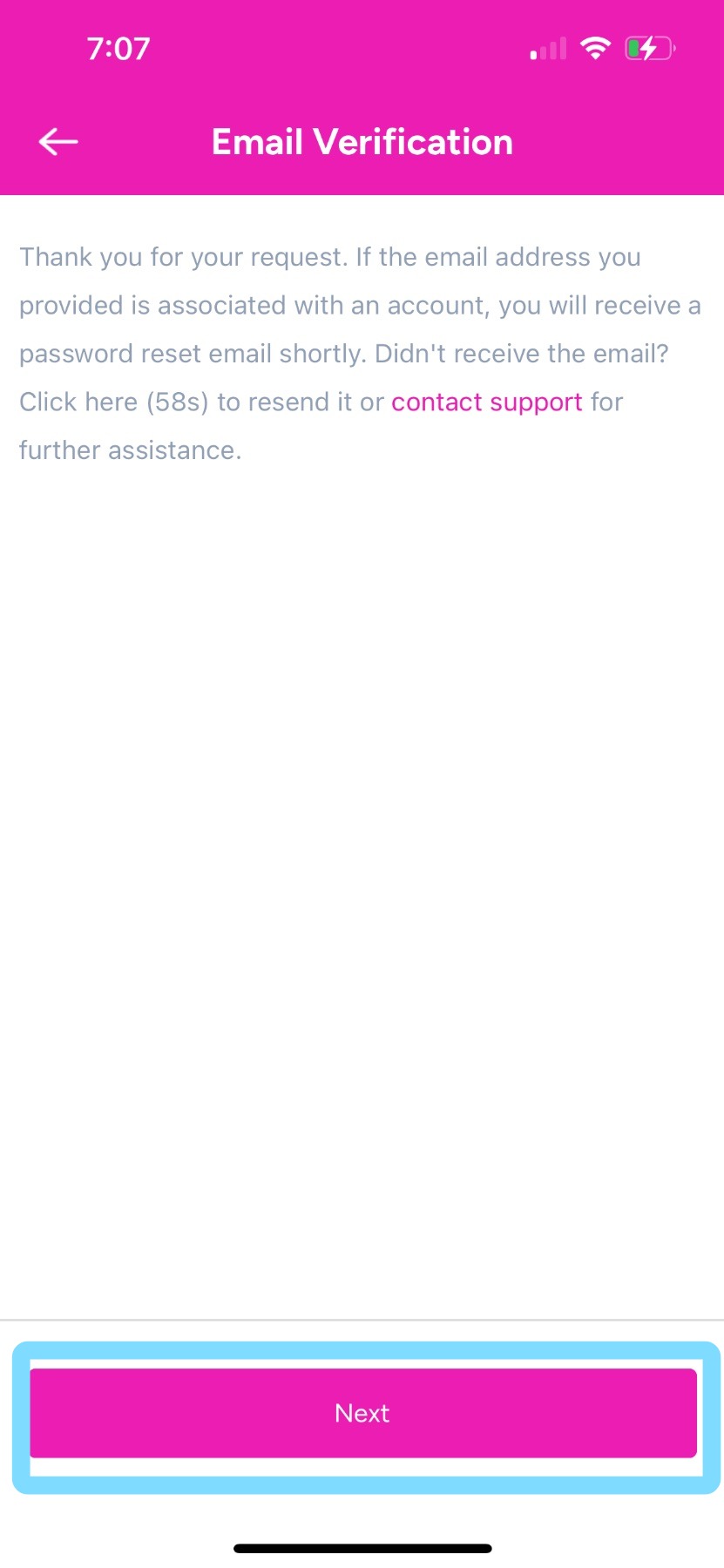
3. Tap Next
4. Find your verification code from your email or text and copy it.
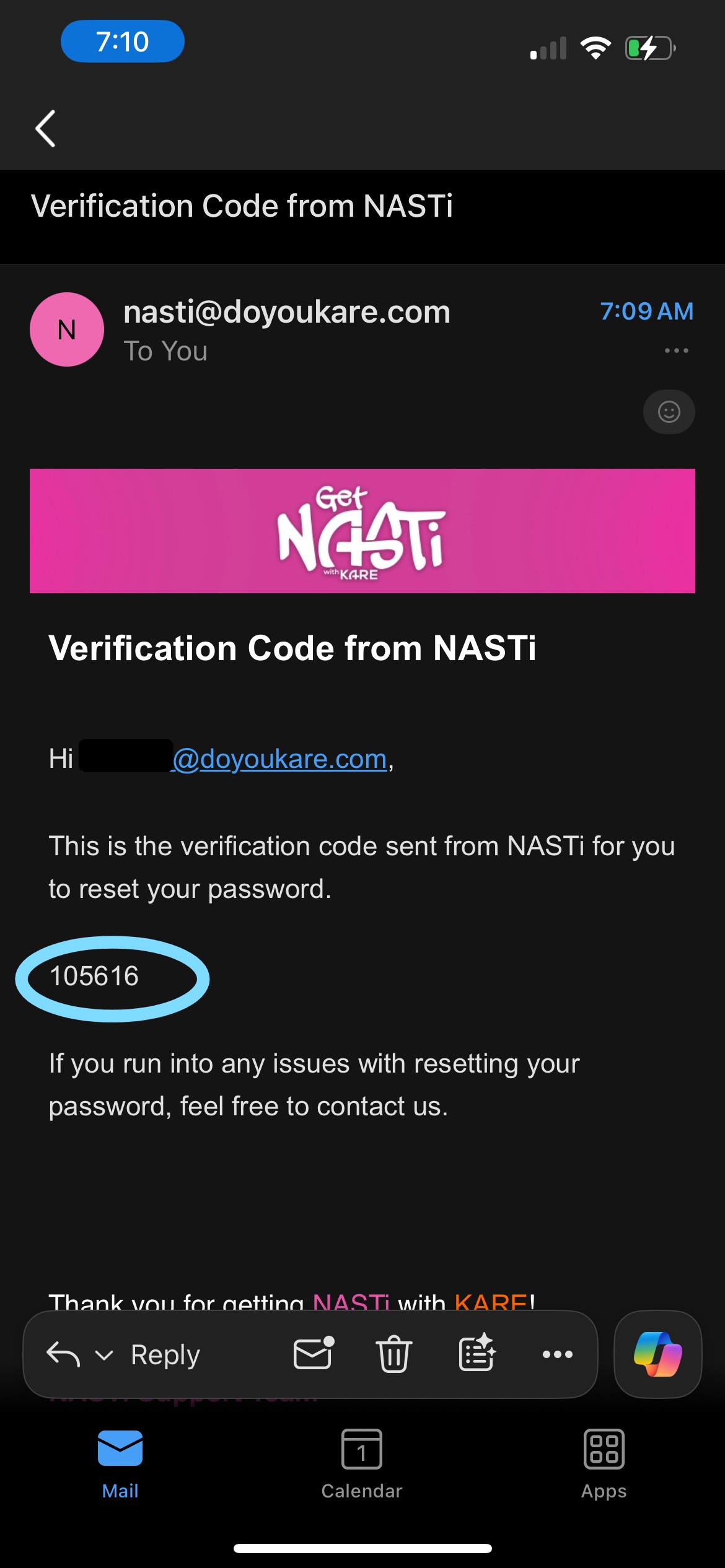
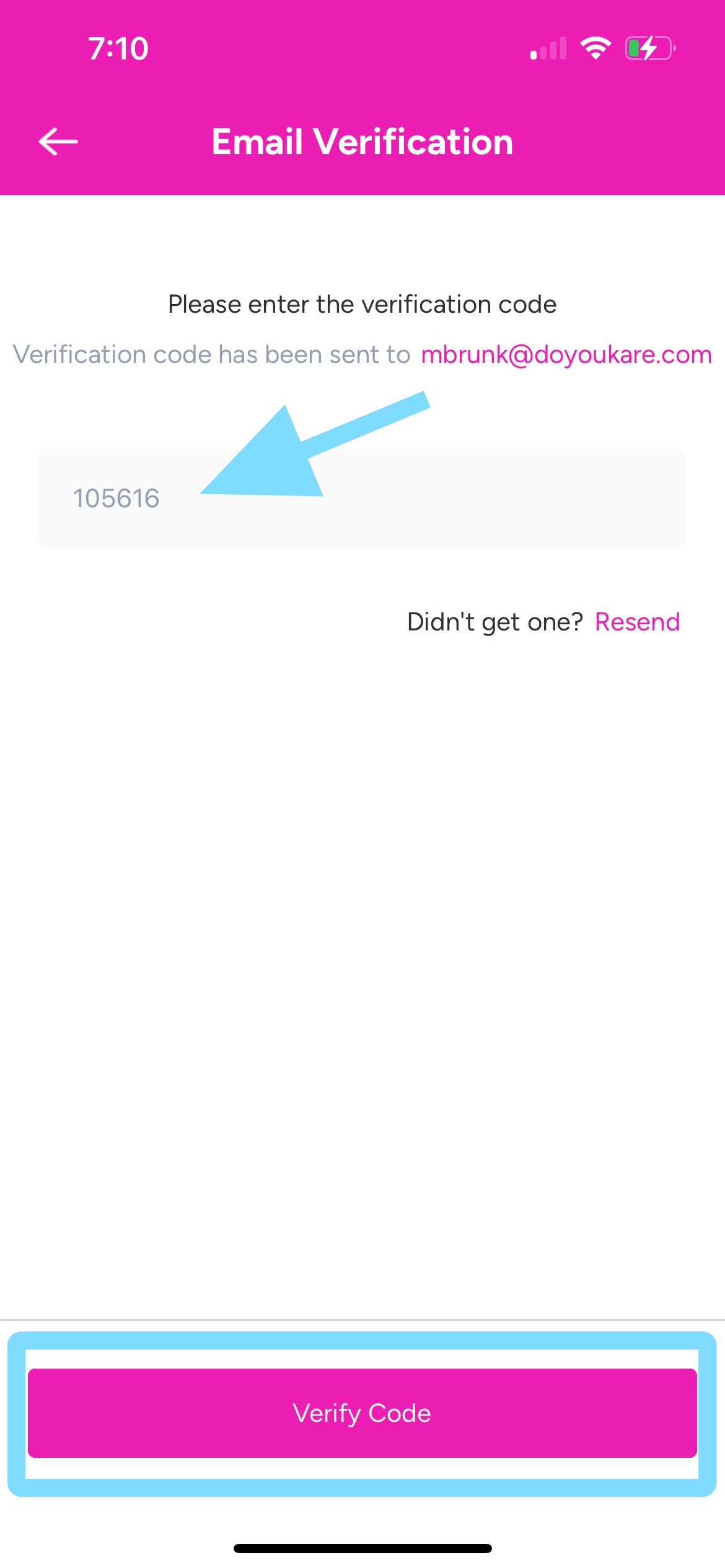
5. Return to NASTi app and enter verification code copied from email or text.
Tap Verify Code
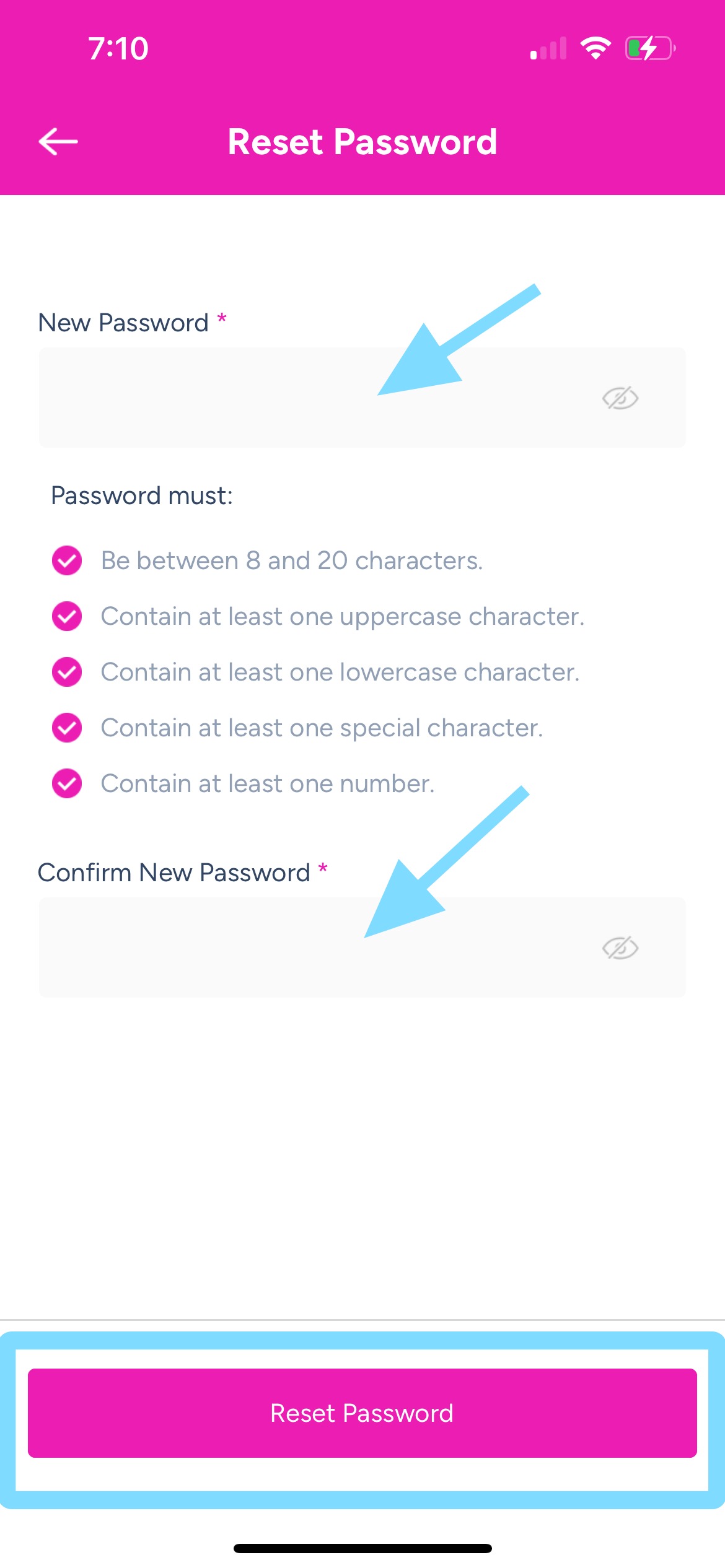
6. Enter a new password, then re-enter it.
Note: The app will only accept passwords that follow the listed requirements.
Tap Reset Password.
Yay, password reset complete!