Employee Guide – How to Request and Manage a Shift Swap
This guide walks employees through requesting and managing shift swaps in the app. It clearly outlines each step and explains the approval process so you know what to expect. Follow this guide to stay flexible with your schedule while working within your community’s rules.
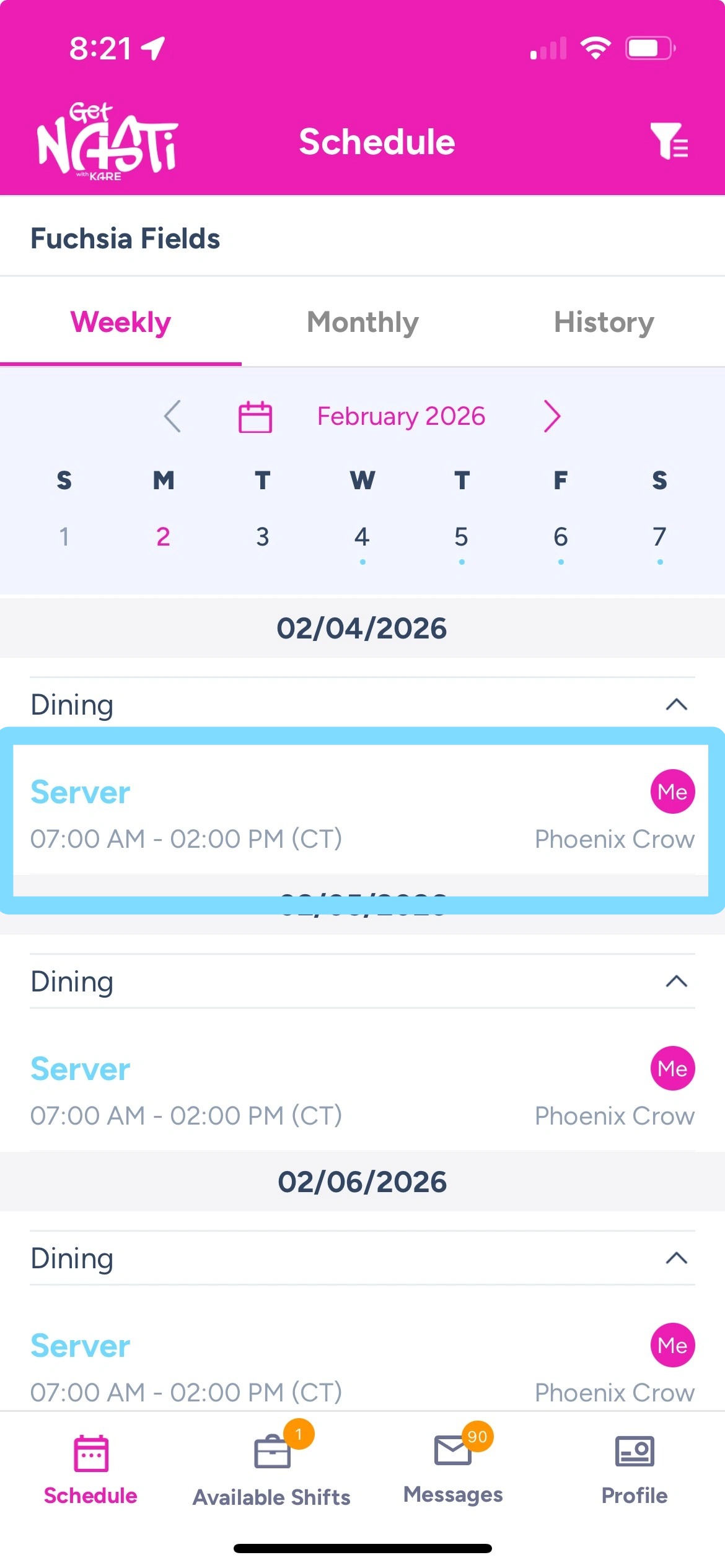
1. Within the app, tap on the shift you need coverage for.
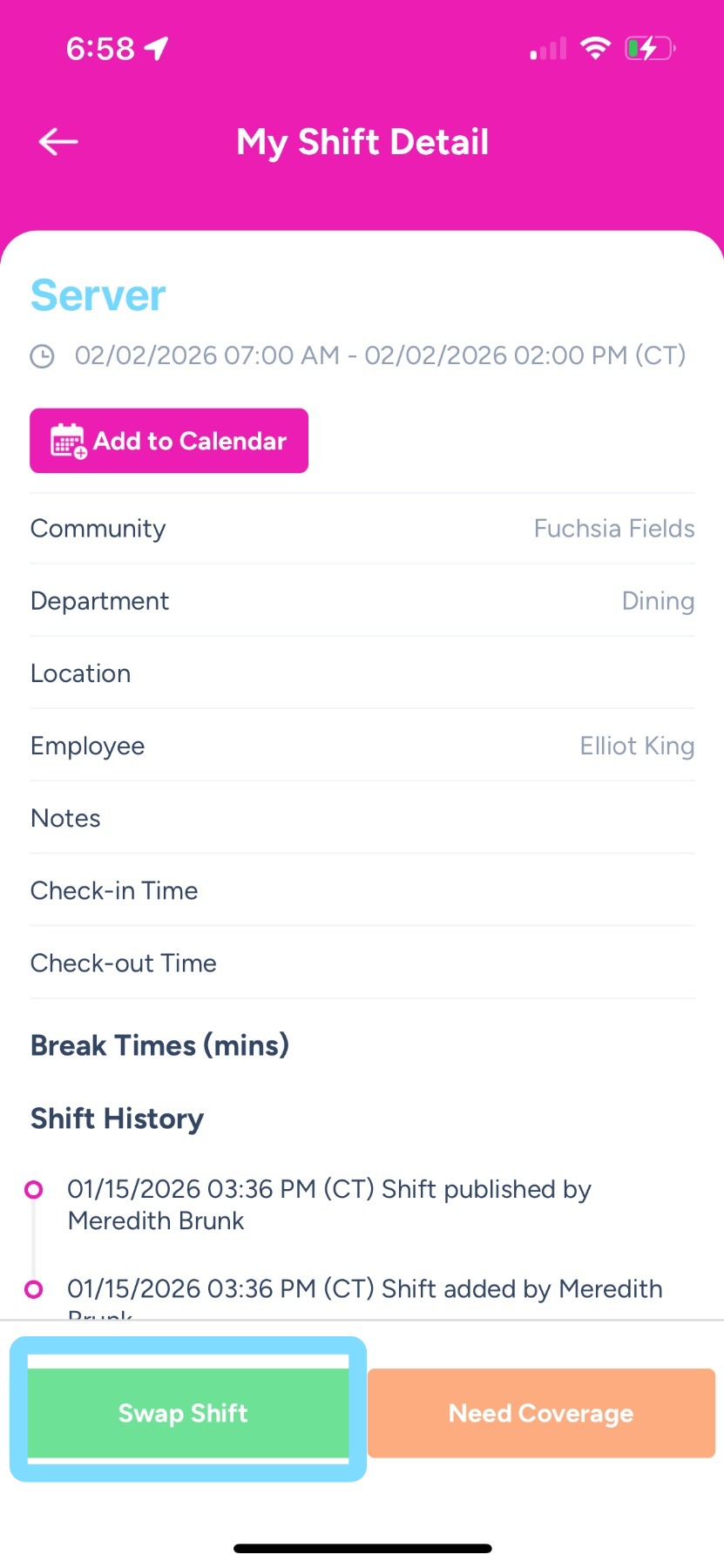
2. Tap Swap Shift.
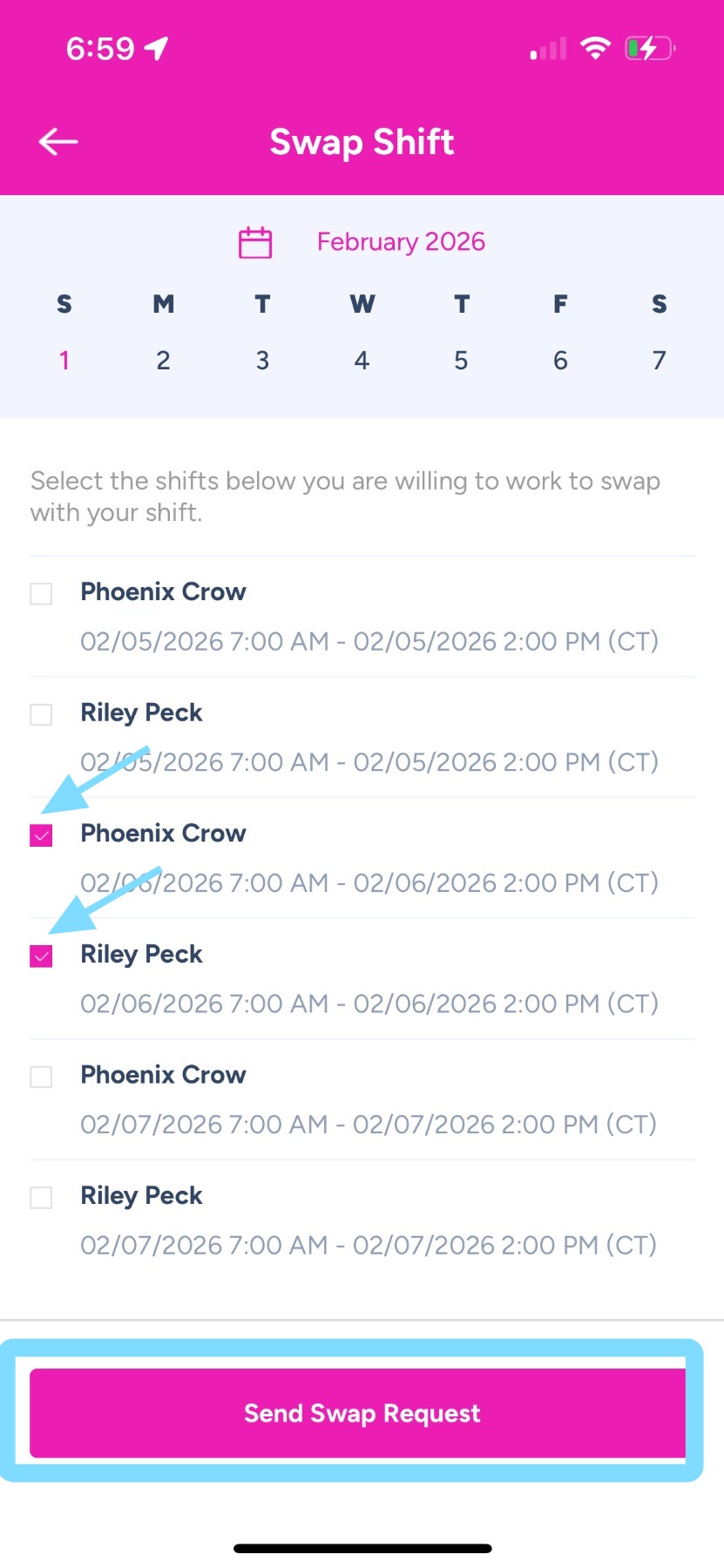
3. You’ll see a list of available shifts to swap. Tap the boxes next to the shifts you’re interested in swapping for yours.
Then tap Send Swap Request.
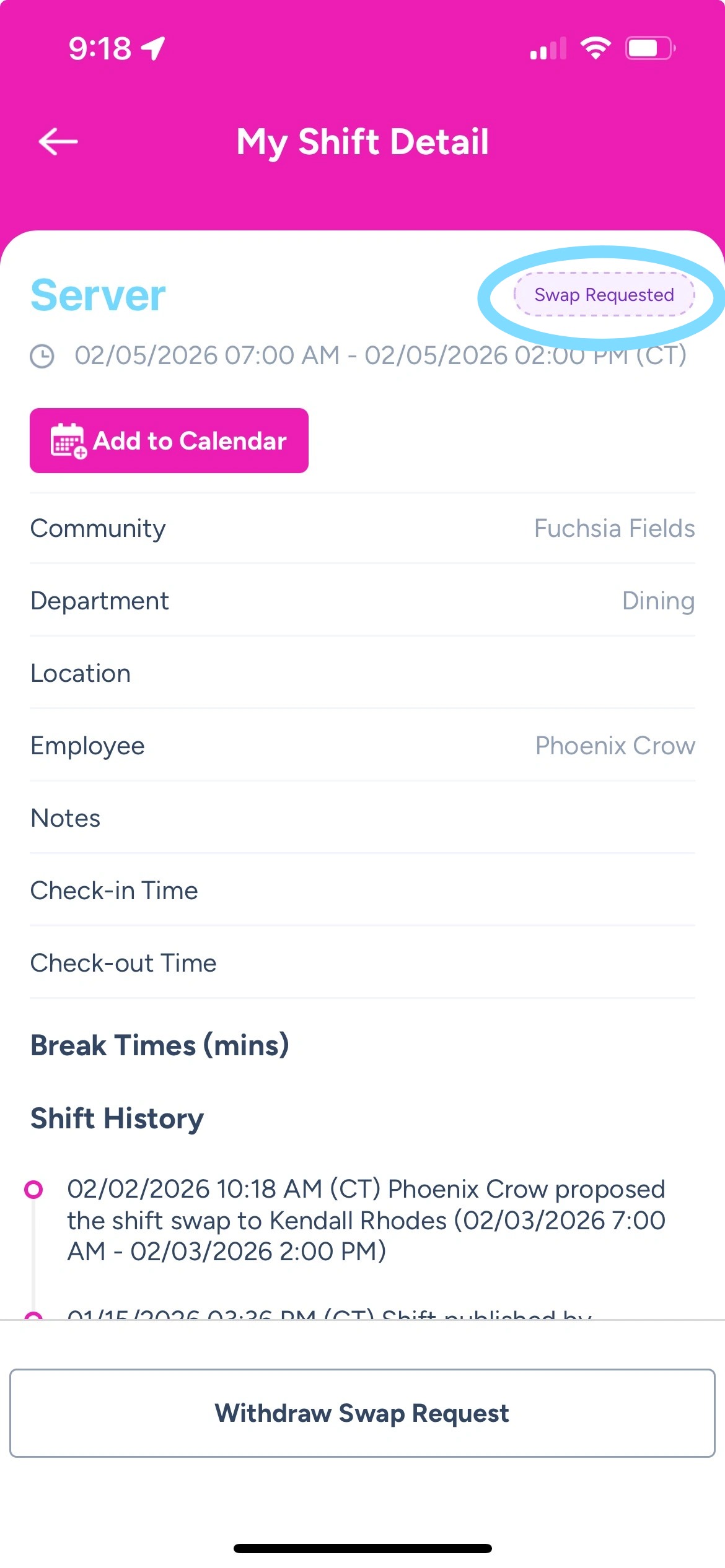
4. Great! Now you’ll see a Swap Requested badge on your shift, showing the swap has been sent to other employees for them to accept.
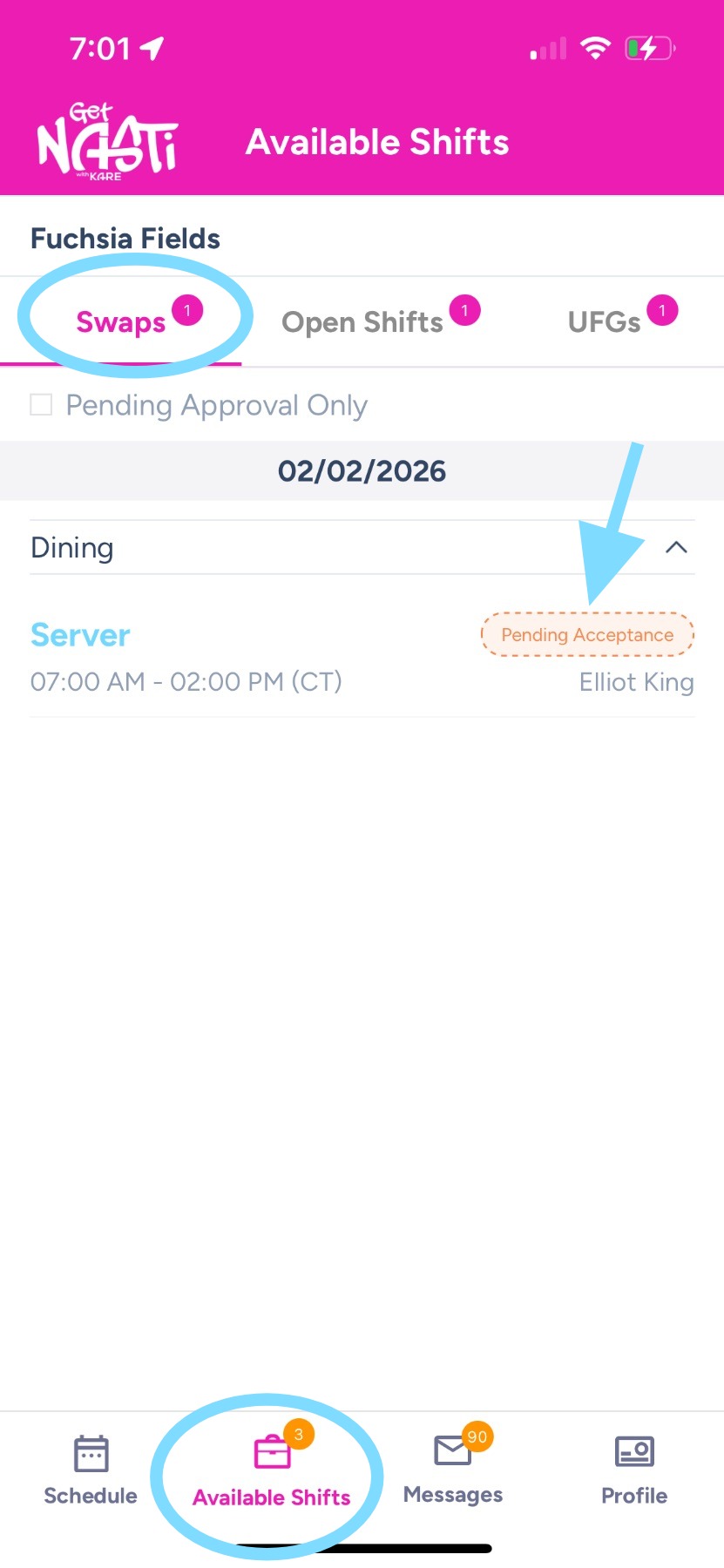
5. Under Available Shifts and Swaps, you’ll see your swaps that are pending acceptance by another employee.
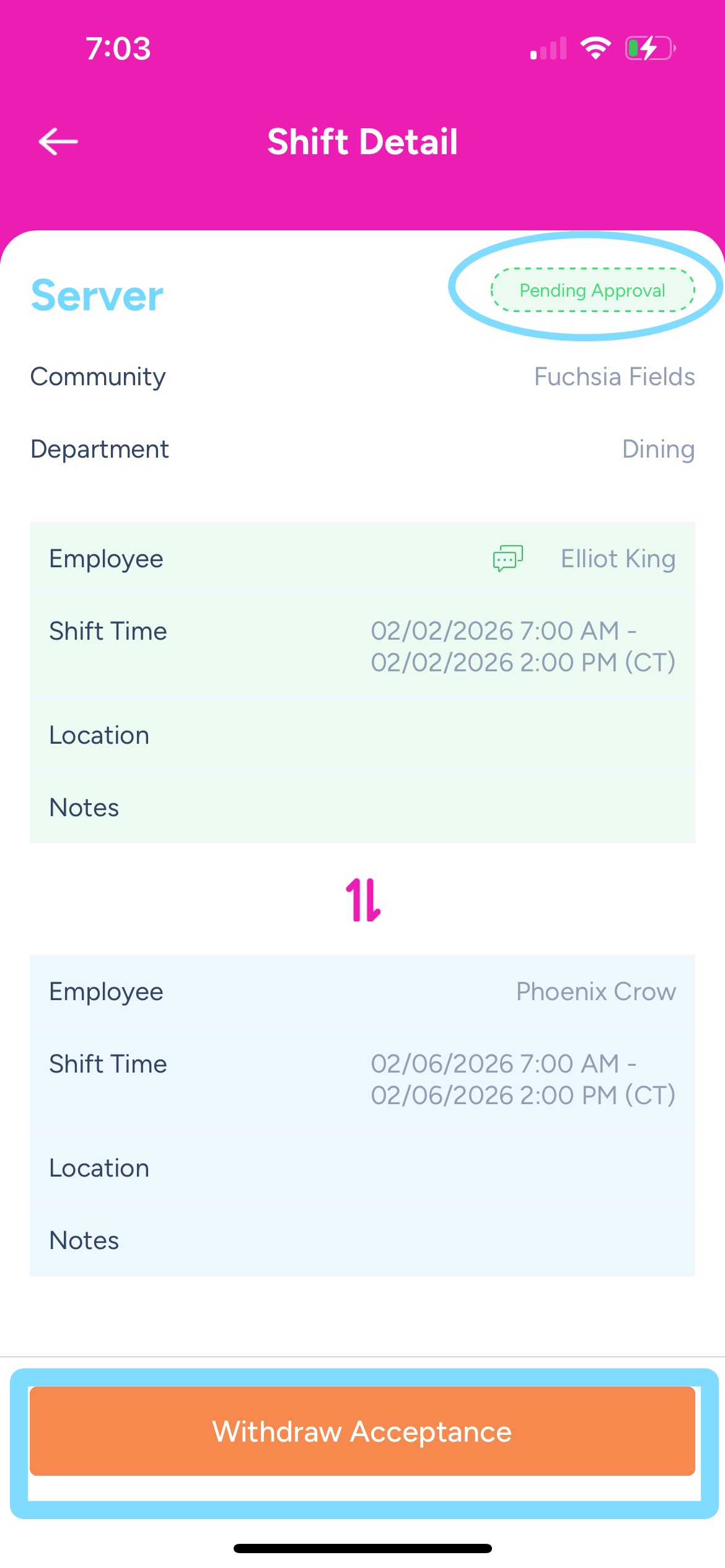
6. If another employee accepts your swap, it may still require approval from a scheduler or admin, depending on your community’s rules. When approval is required, the shift will show a Pending Approval badge.
Once the swap is approved, the new shift will be added to your schedule and your original shift will be added to your teammate’s schedule.
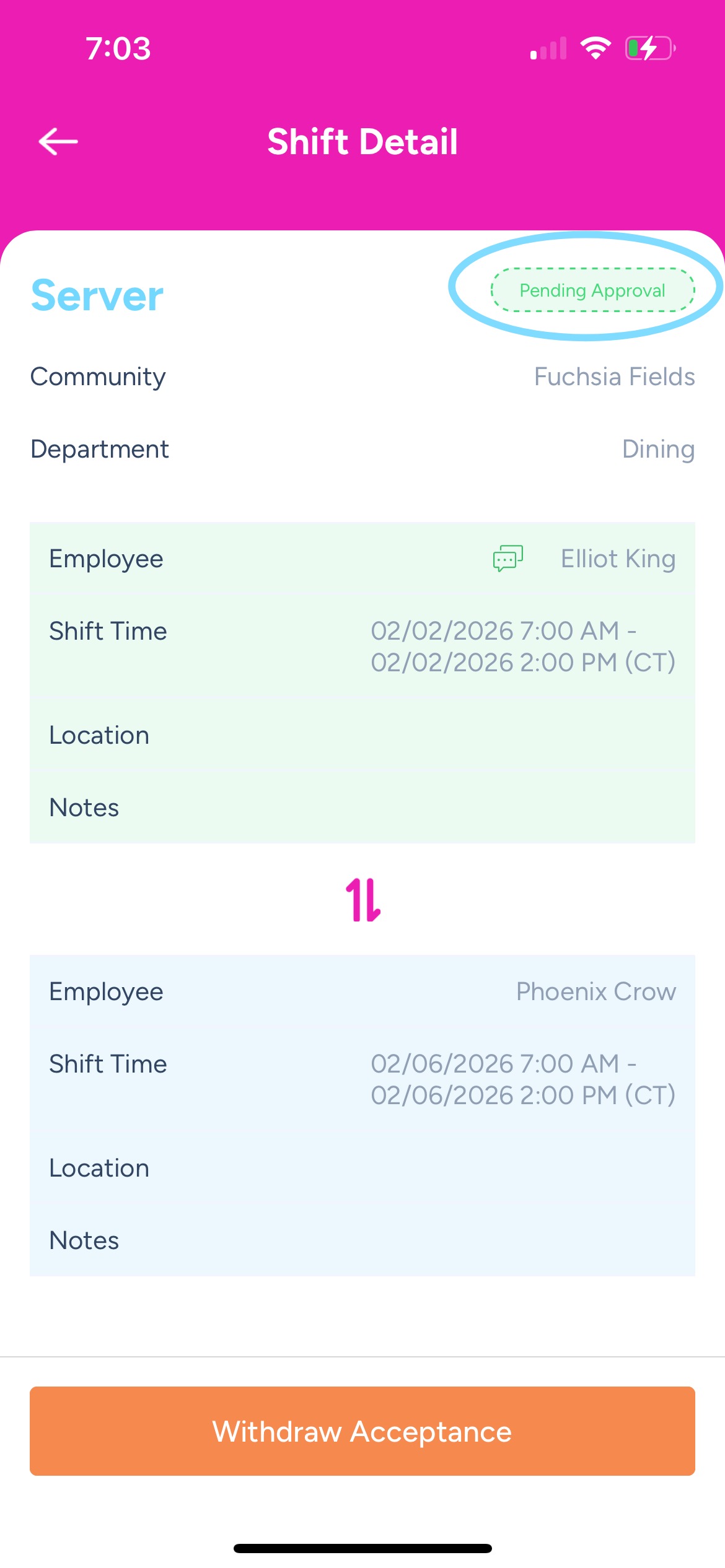
7. If your swap is still pending and you change your mind about the swap and plan to work your original shift, you may tap Withdraw Acceptance.