Employee Guide – How to Manage Shift Swaps (Accept and Decline Shift Swaps)
Got a shift swap request? This guide shows you how to accept or decline swaps in the app and explains what happens next. You’ll learn how approvals work so your schedule updates when you expect it to.
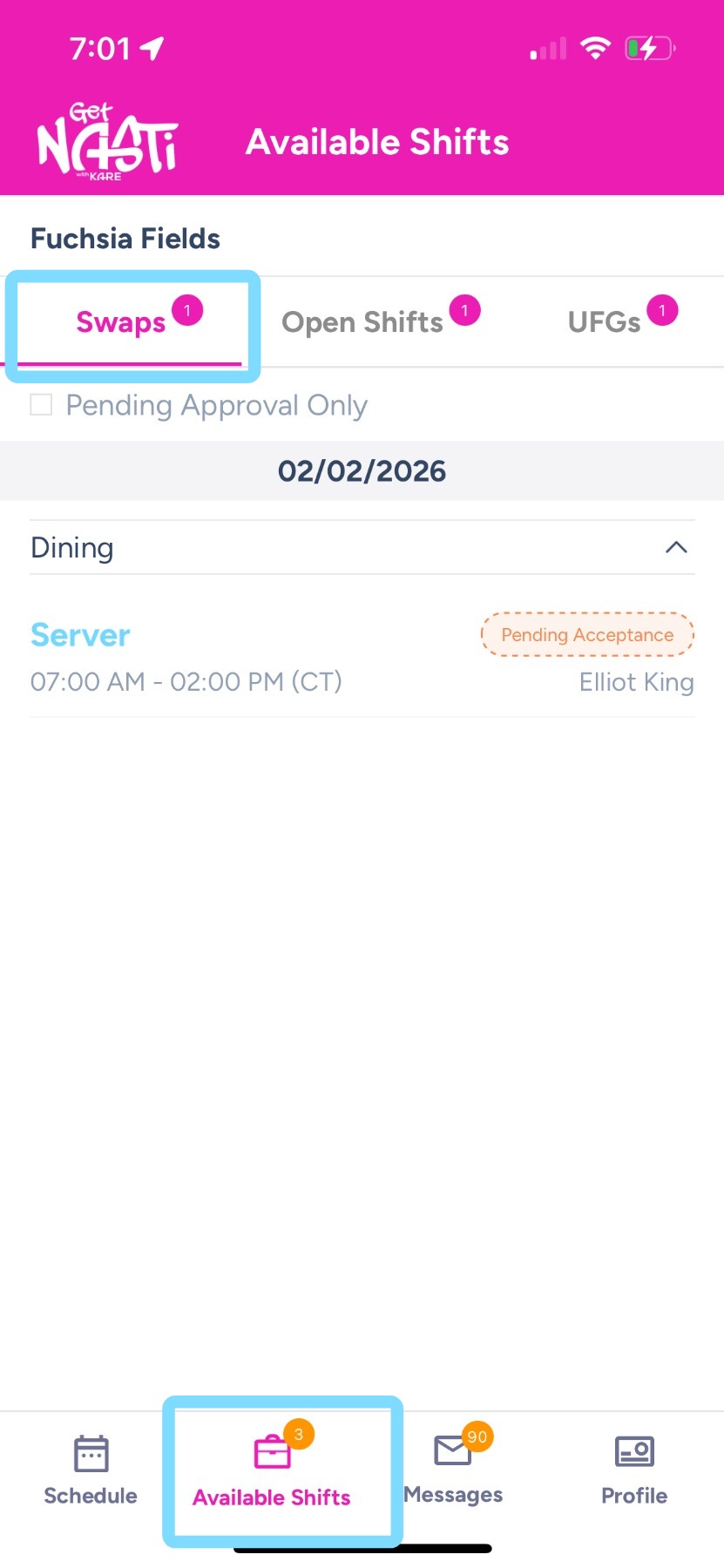
1. Within app, tap on Available Shifts then tap on Swaps
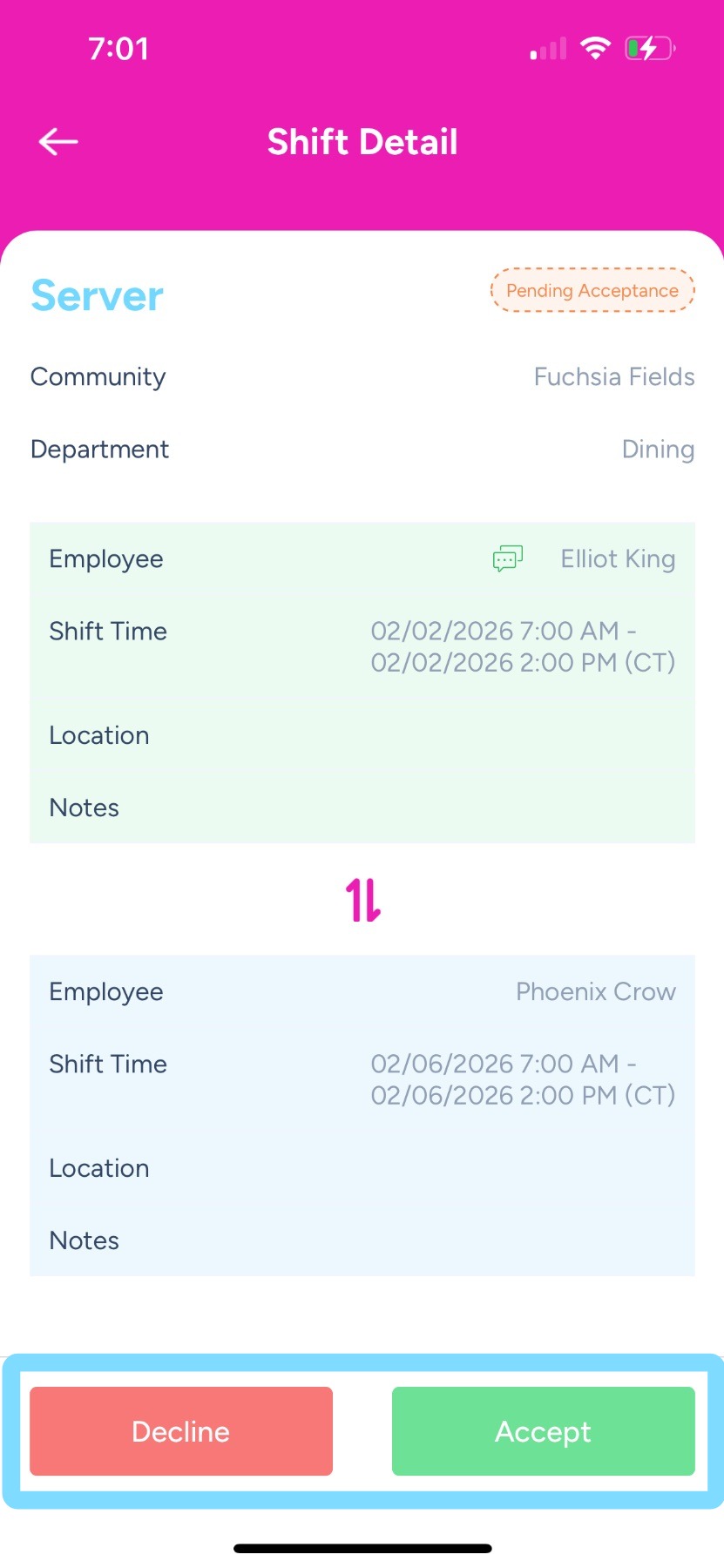
2. Tap Accept to confirm the shift swap, or Decline to reject the request.
If the swap does not require approval, your new shift will appear on your schedule right away.
Note: If your community requires admin or scheduler approval, the swap will not appear on your schedule until it is approved.