How to Manage Shifts Sent to KARE (View and Approve Applicants)
This guide walks you through the process of reviewing and approving KARE Hero applicants so you can efficiently manage staffing coverage. Follow the steps to access applicant details and confidently fill open shifts directly from the NASTi platform.
1. On the Current Schedule, identify shifts sent to KARE by locating shift cards with the KARE icon.
The icon and badges indicate the shift’s current KARE status:
-
KARE icon + OPEN: Sent to KARE, no applicants yet
-
KARE icon + Has Applicants: Hero applicants awaiting approval
-
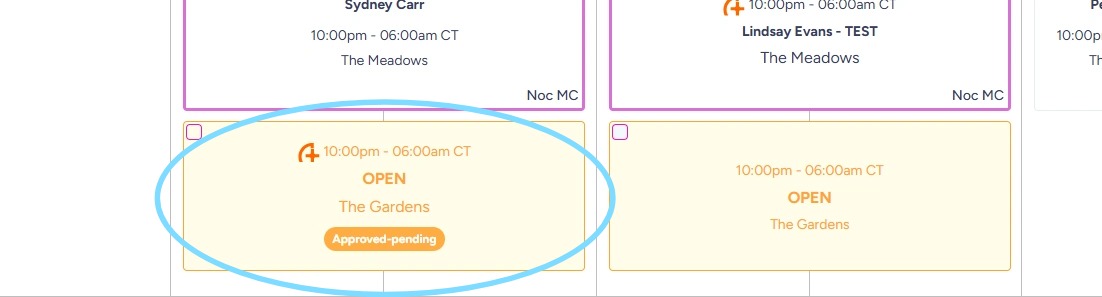
KARE icon + Approved- Pending indicates awaiting Hero to confirm
-
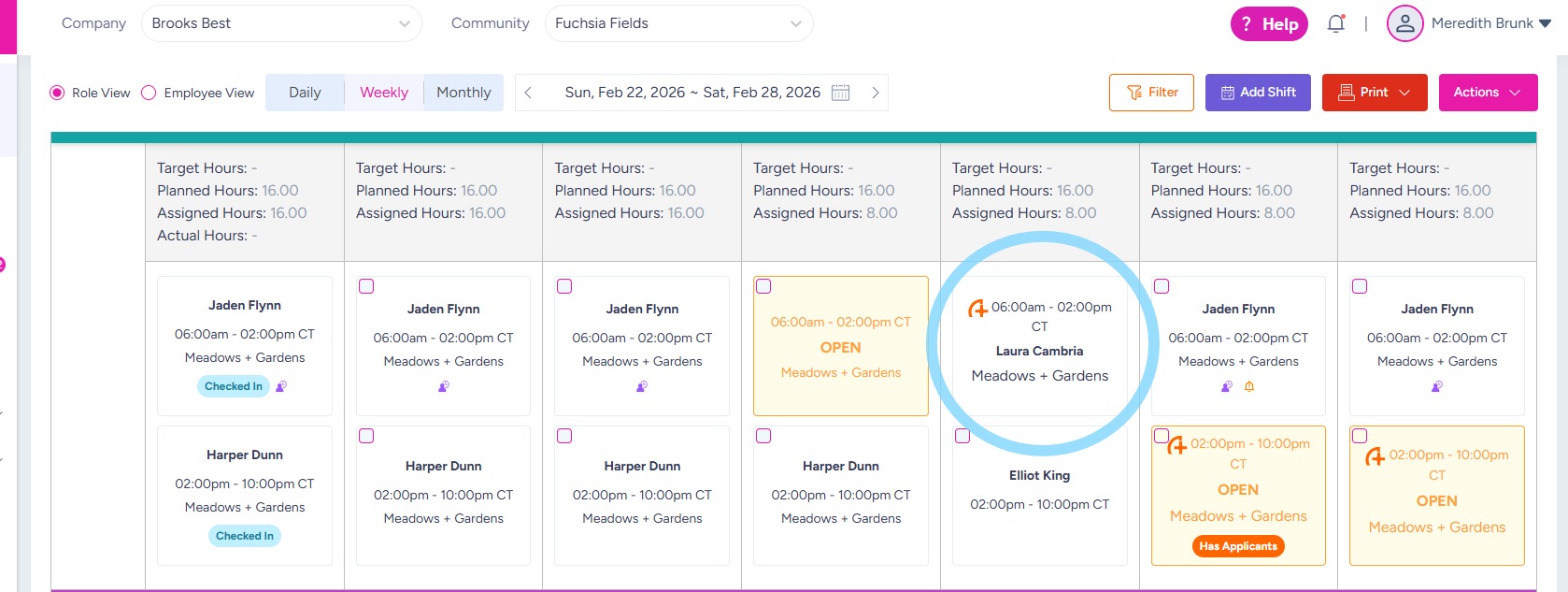
KARE icon + Hero name: Hero approved and assigned
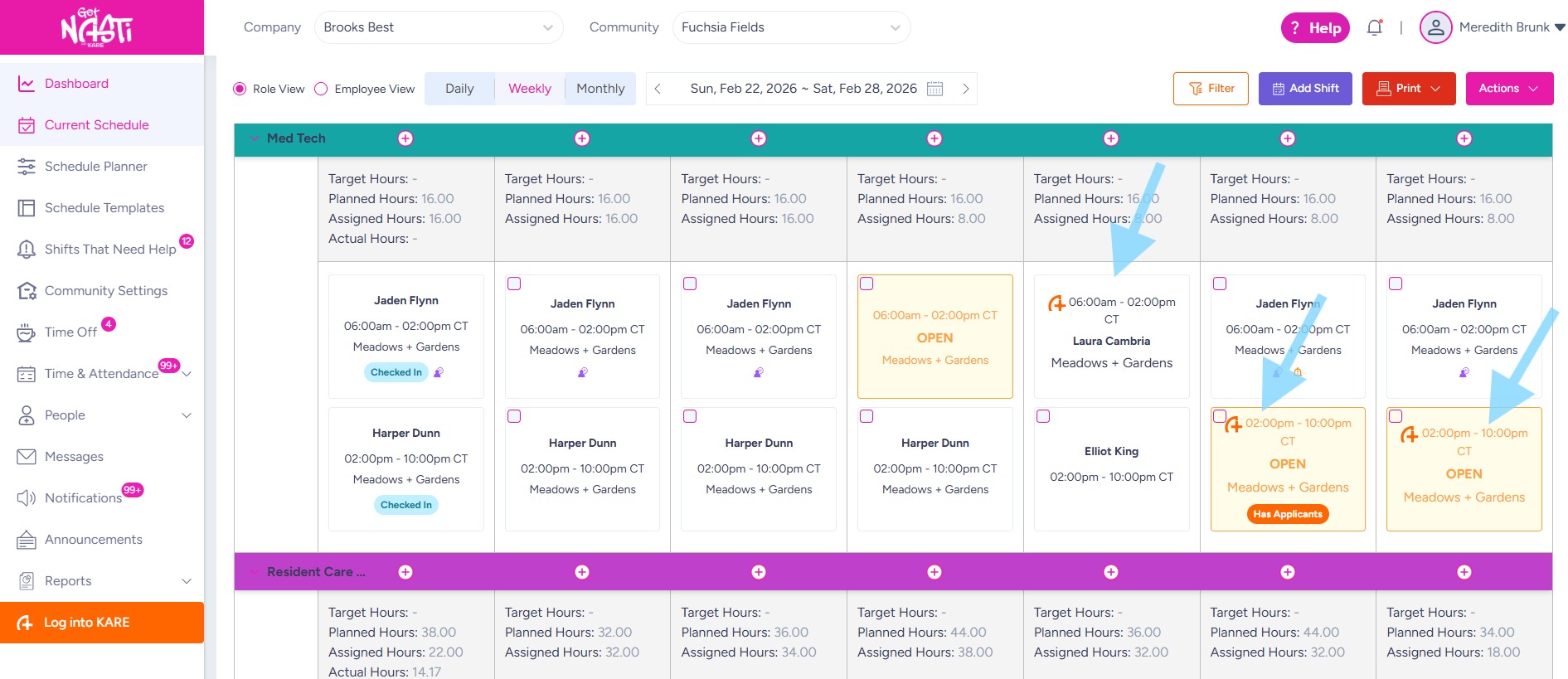
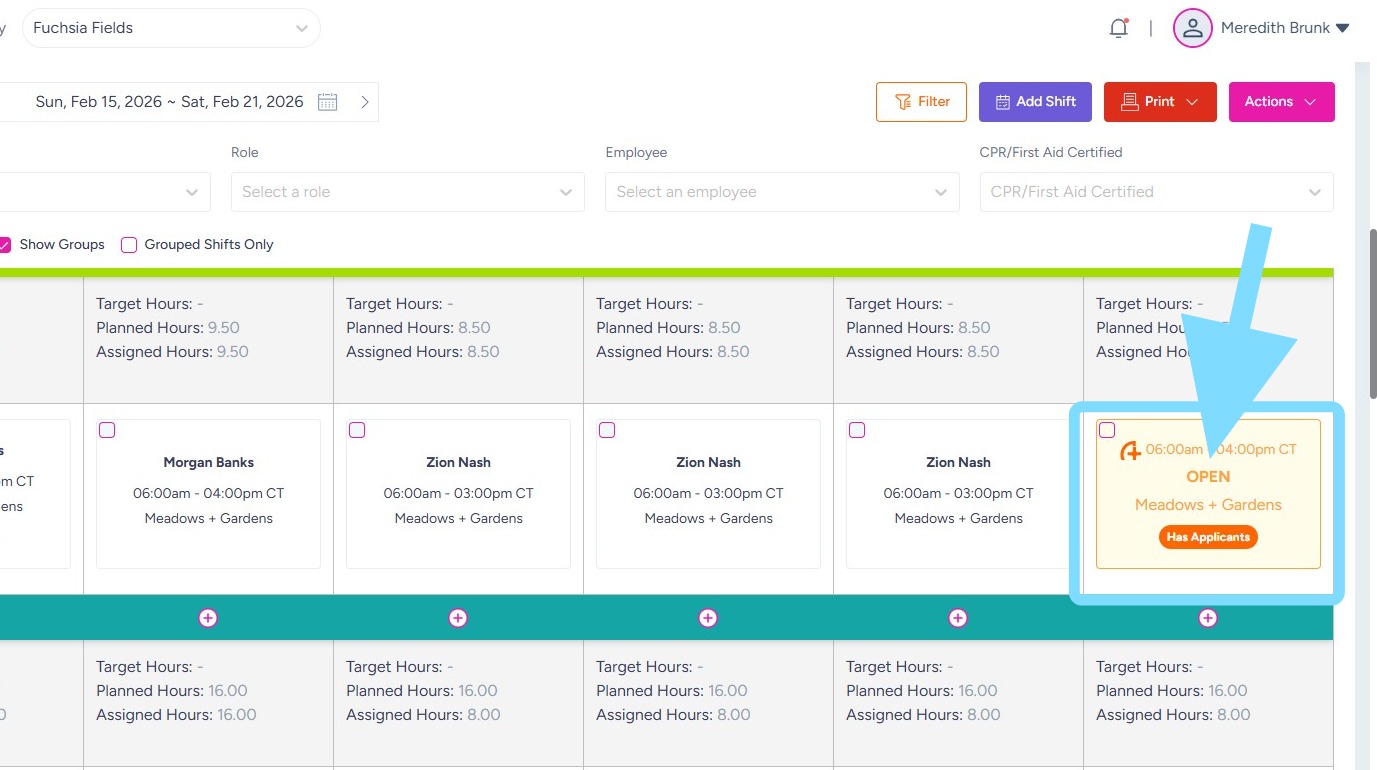
2. Select the shift card to open Shift Details and take action, such as approving applicants.
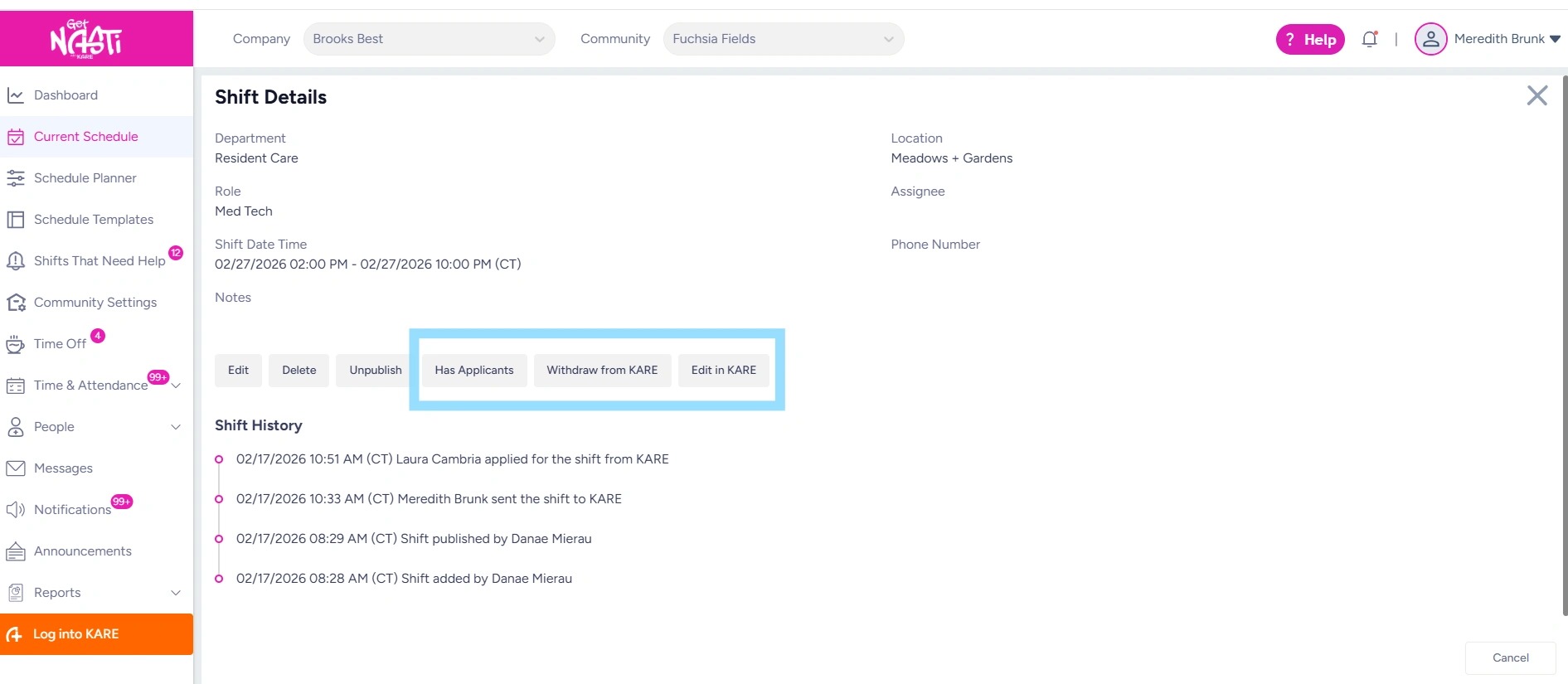
3. Within Shift Details, you will see three options for managing the shift in KARE:
-
Select Has Applicants to review applicants and approve a KARE Hero
-
Select Withdraw from KARE to remove the shift from KARE
-
Select Edit in KARE to modify the shift posting in KARE
To approve a KARE applicant, select Has Applicants.
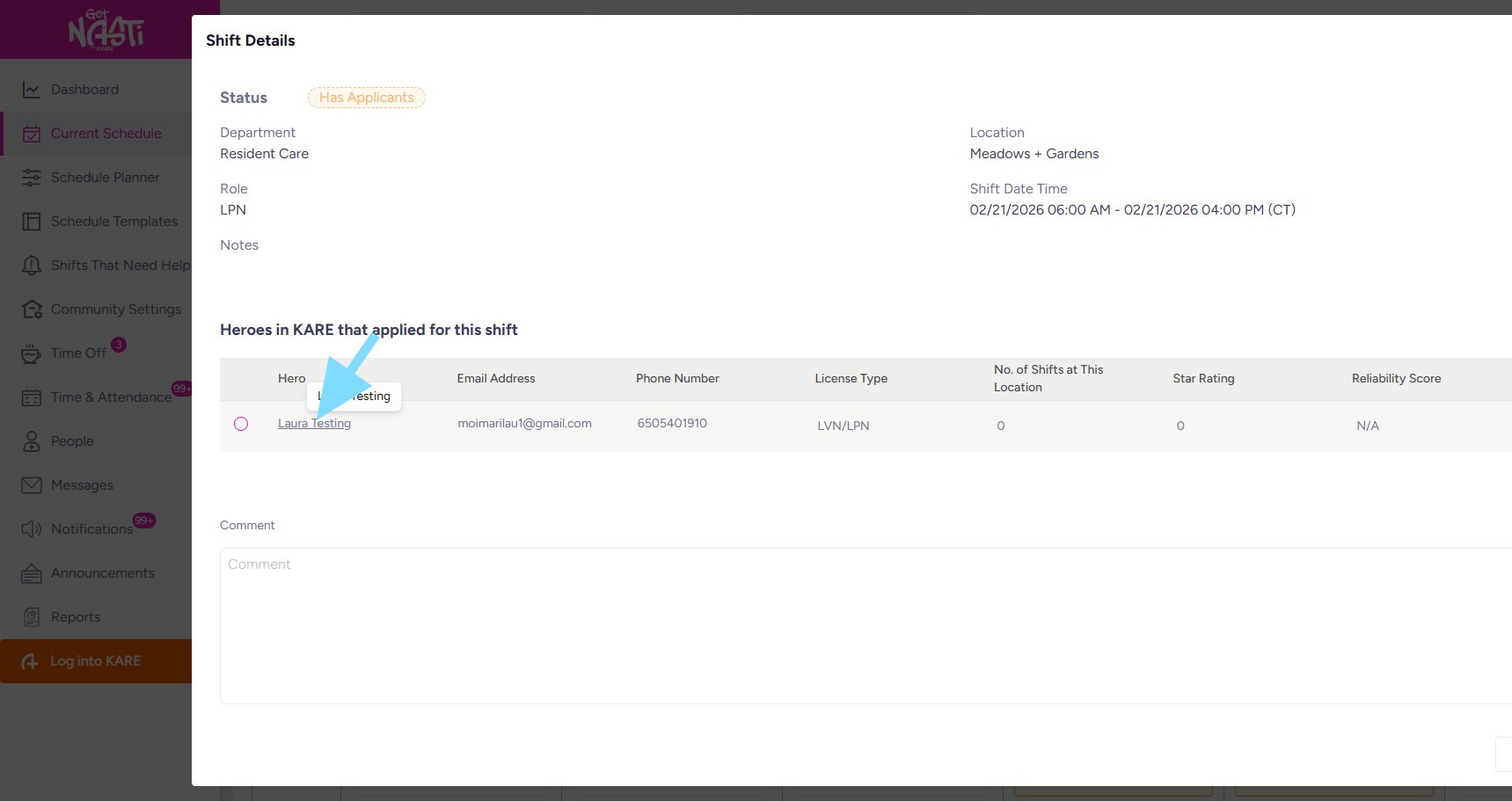
4. Select Hero’s name to view applicant details.
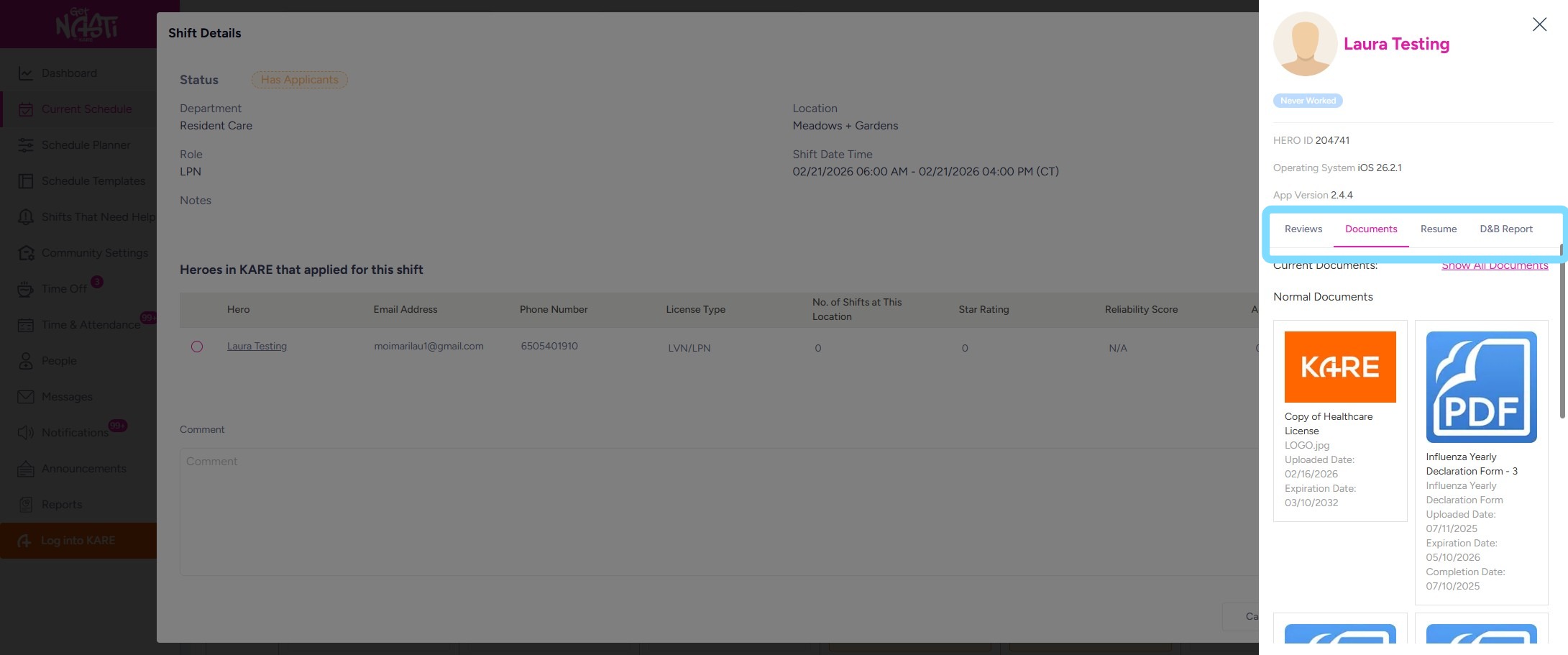
5. Review applicant details.
Select Reviews, Documents, Resumes, or D&B Reports to view additional applicant information.
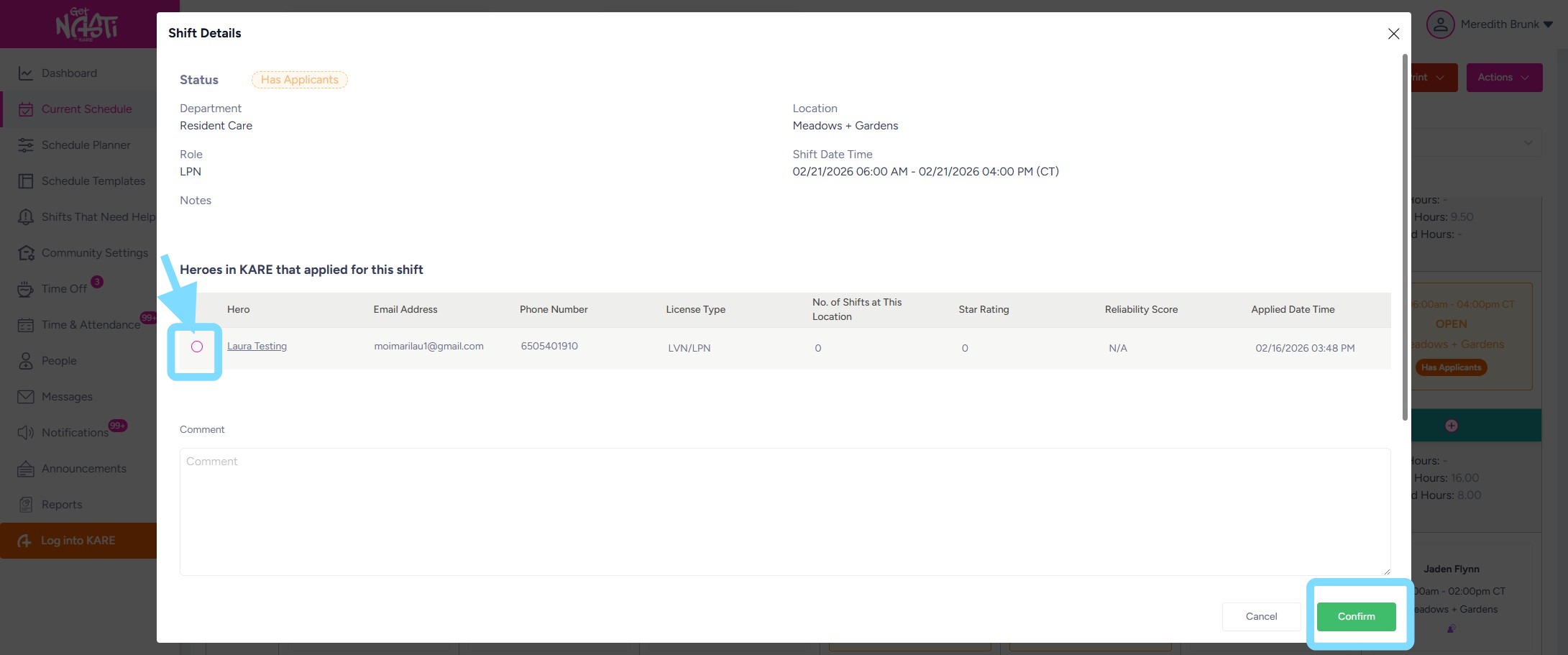
6. Select the applicant by checking the box next to the Hero’s name.
Select Confirm.
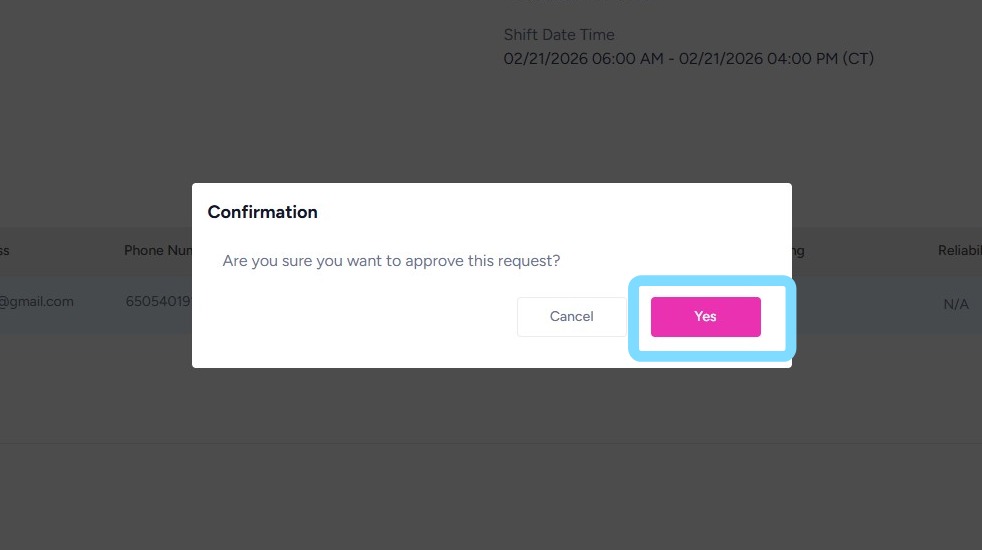
7. Select Yes to confirm approval of Hero.
8. The shift card will display the Approved – Pending badge until the Hero confirms the shift.
9. Once the Hero confirms (either automatically or manually), the Hero’s name will appear on the shift card – your signal that coverage is secured!
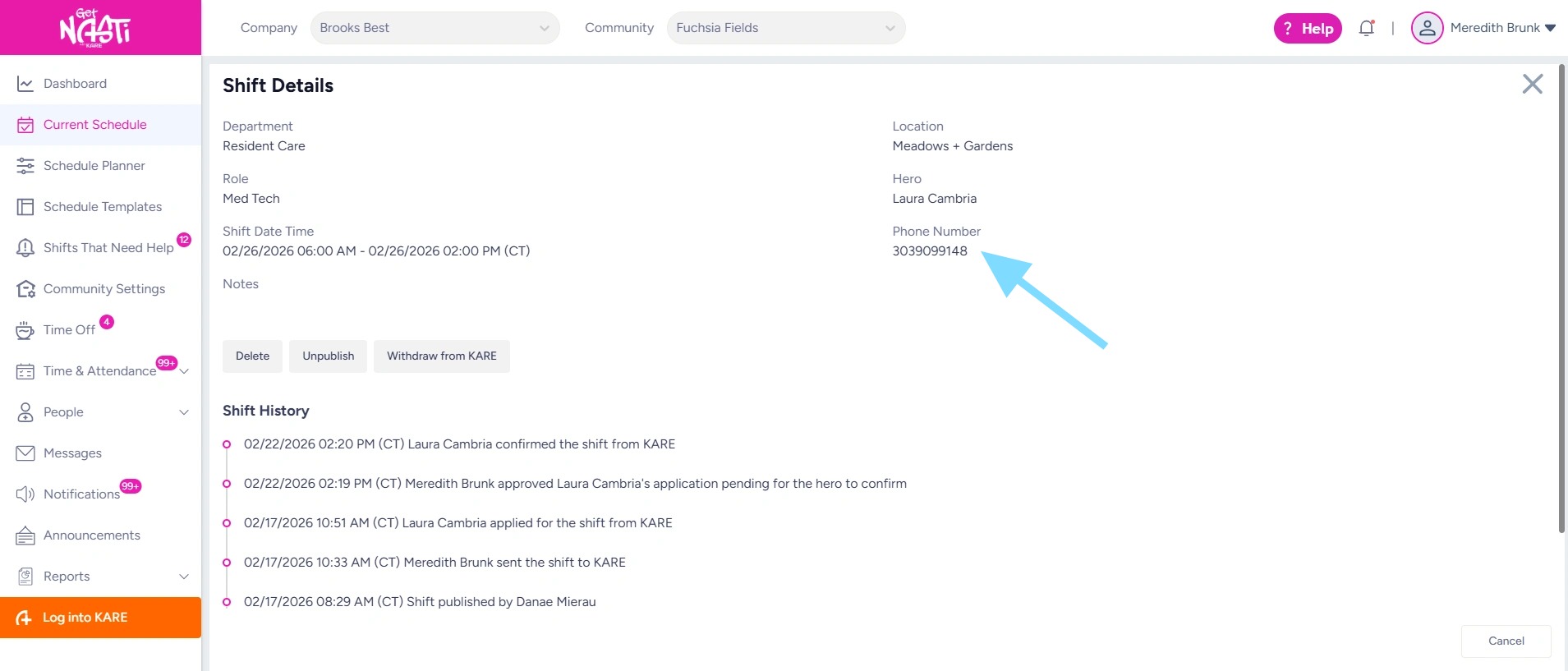
10. To view the Hero information including phone number, click on the shift.
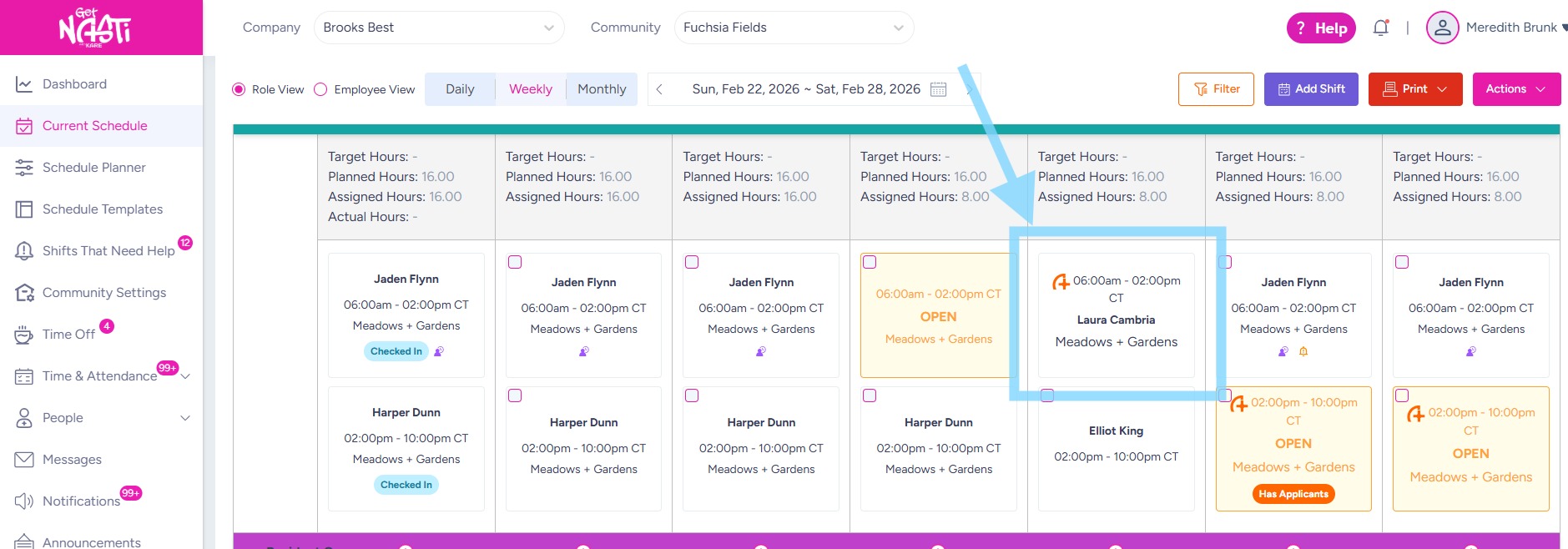
11. Shift Details will display important information, including the Hero’s phone number.