How to Upload Employee List and Send Invites (Bulk Employee Upload and Invite)
This guide walks Admins / HR through uploading an employee list and sending invites in bulk, so the team can get started in NASTi. Once invited, employees receive a link by text or email to open on their phone, download the app, and complete registration—unlocking access to schedules, shift swaps, and reminders. It’s more than filling a roster; it’s about empowering your team to own their shifts and gain the flexibility they crave.
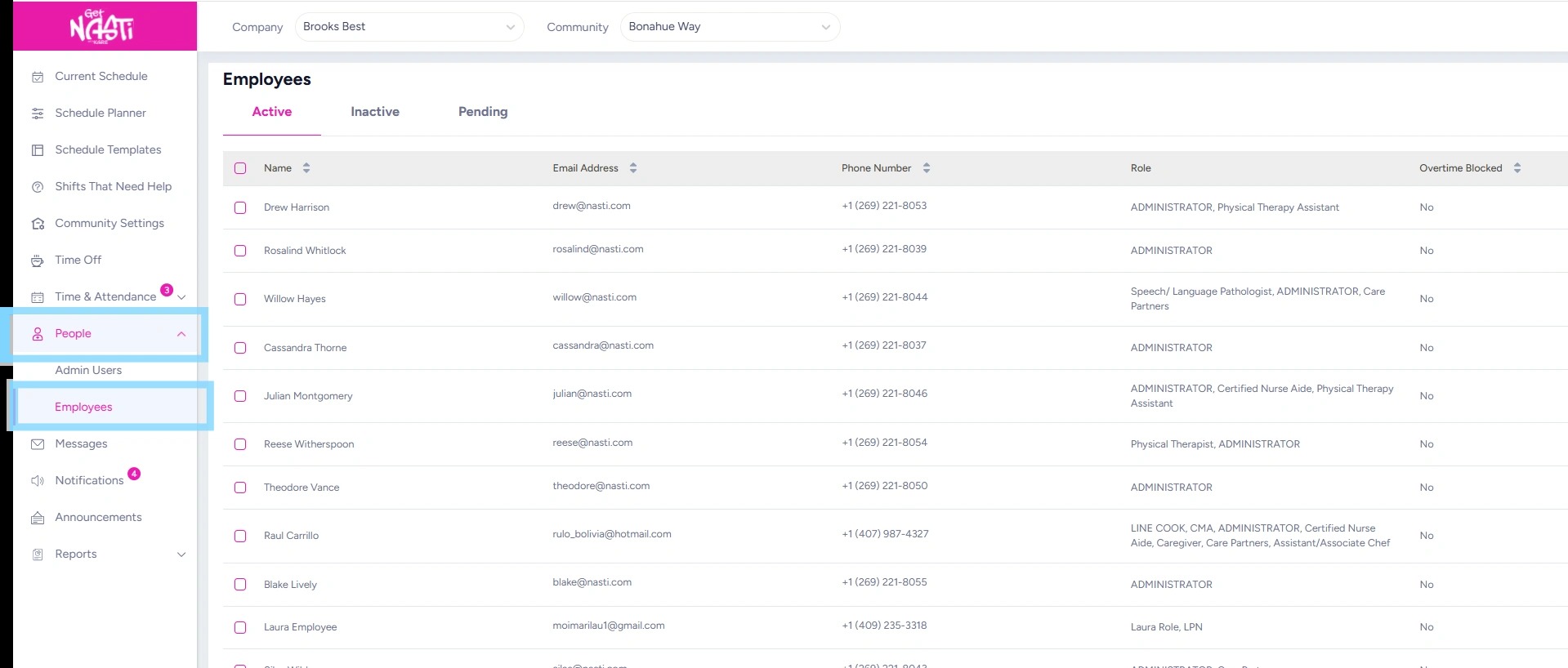
1. Navigate to People
Select Employees
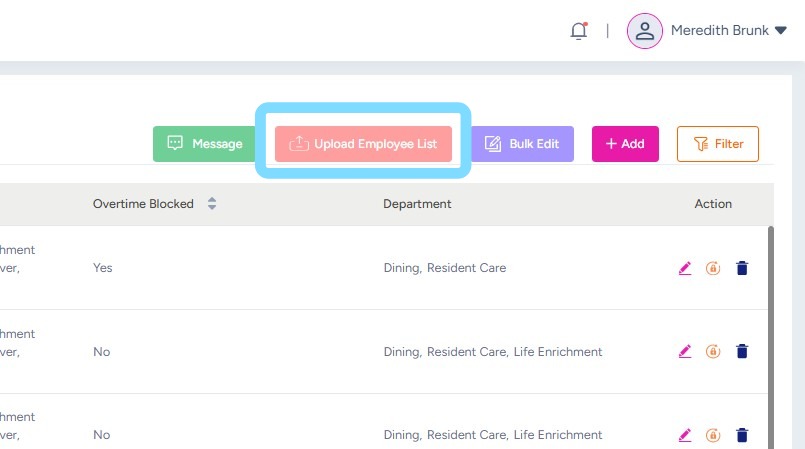
2. Select Upload Employee List to add employees in bulk.
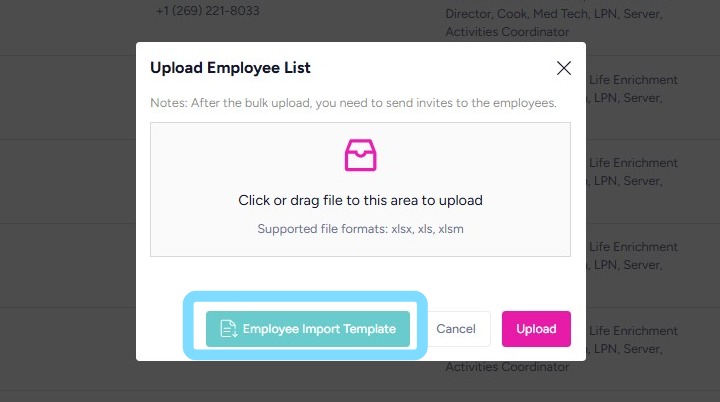
3. Select Employee Import Template
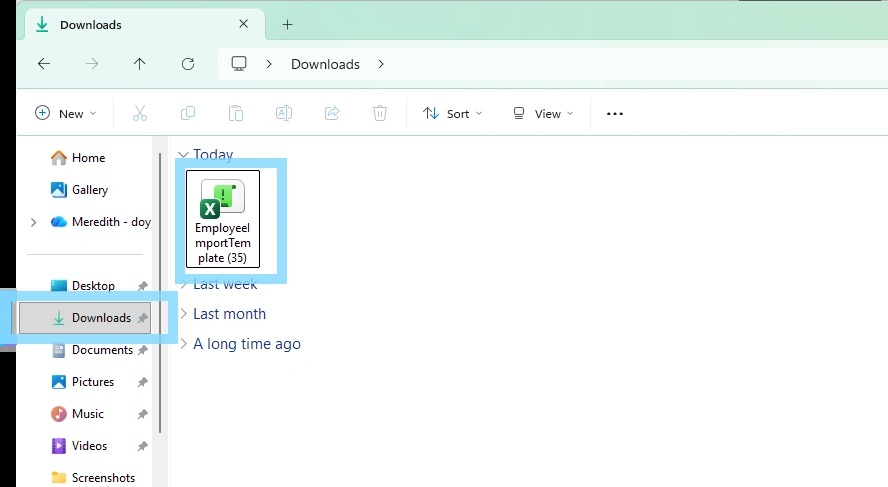
4. This will download an Excel spreadsheet to your computer. Locate the file in your Downloads folder.
Open the spreadsheet to view and begin editing it with employee information.
5. Within Excel spreadsheet, select Enable Editing
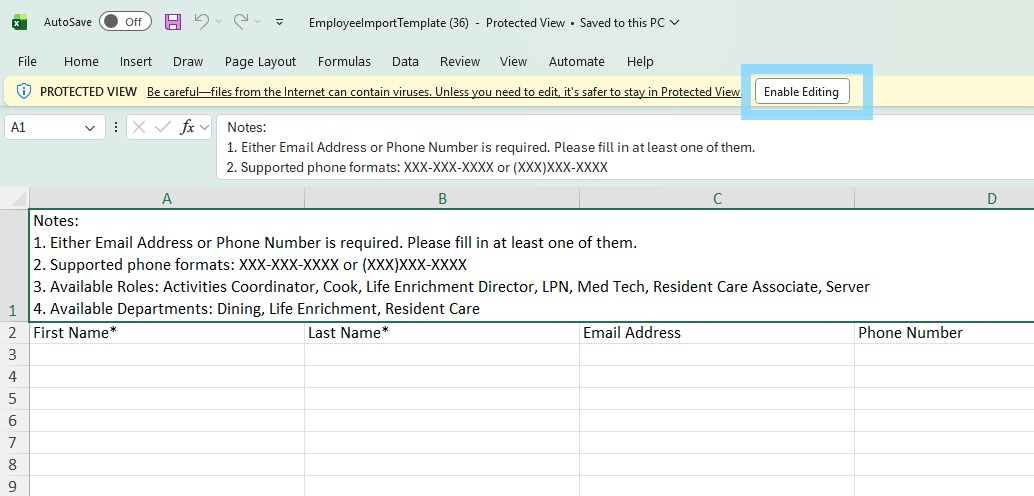
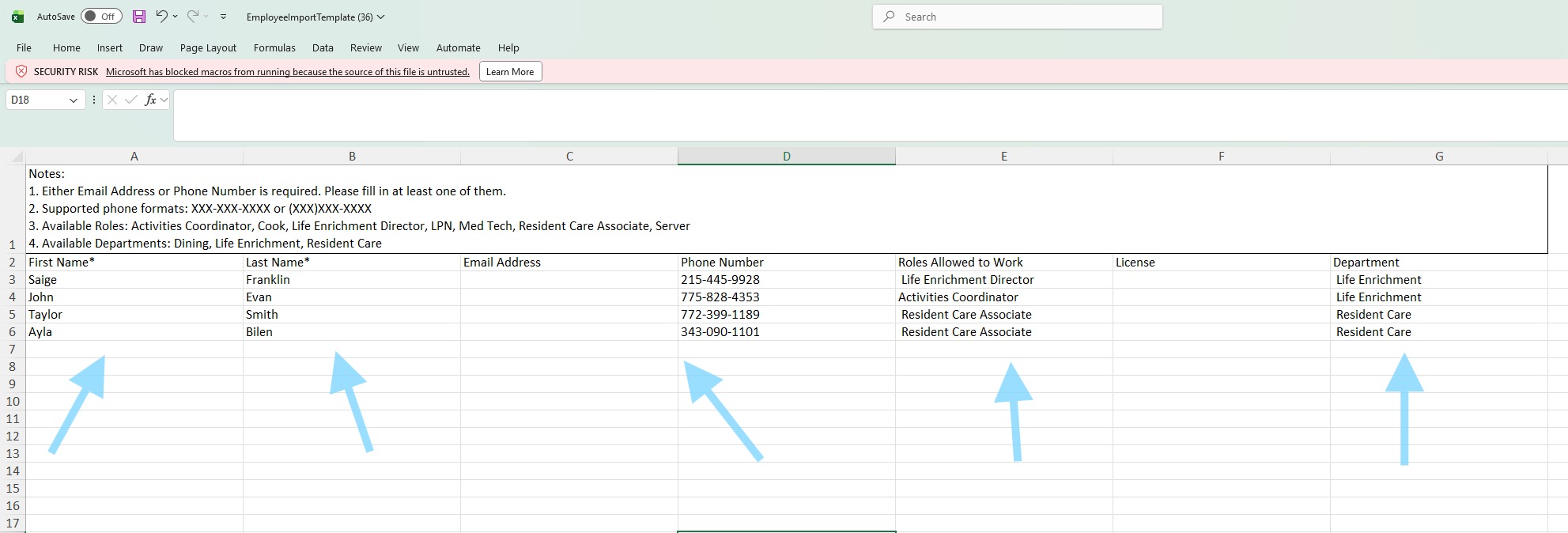
6. Follow instructions within Notes section on spreadsheet, which instruct to add required employee information:
First Name
Last Name
Email Address or Phone Number
Role Allowed to Work (select from dropdown list)
Department (select from dropdown list)
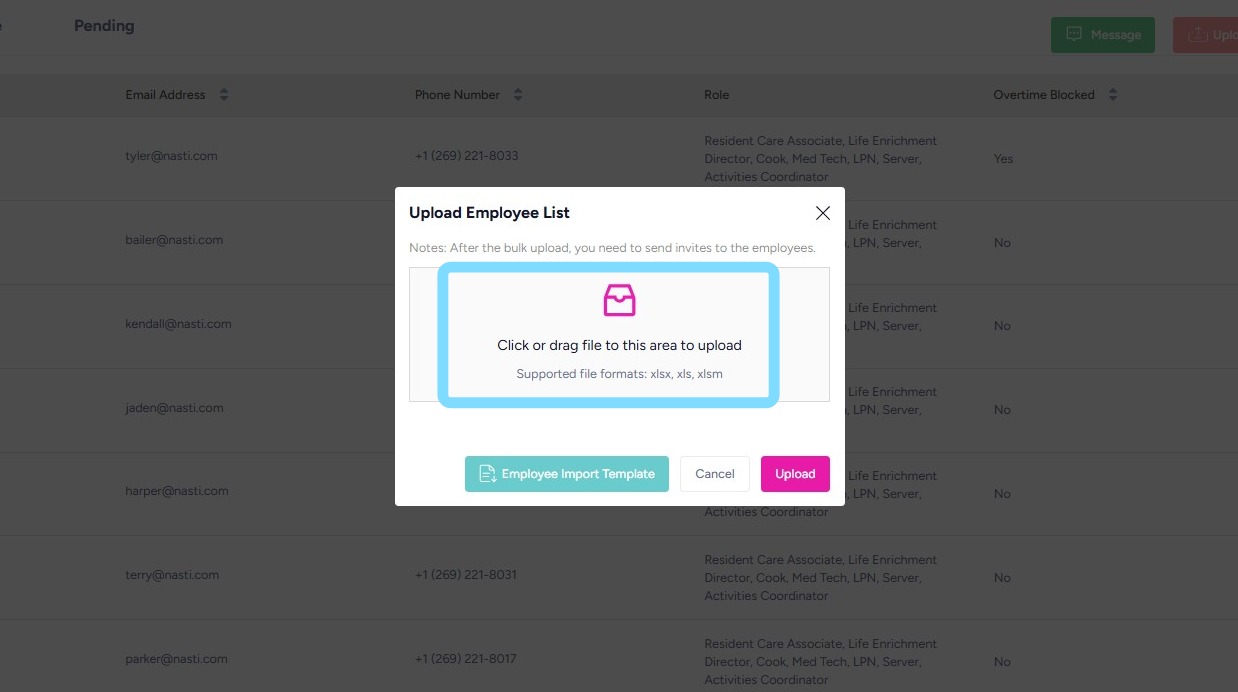
7. Select upload box and choose Excel spreadsheet of employees or drag Excel spreadsheet to this upload box.
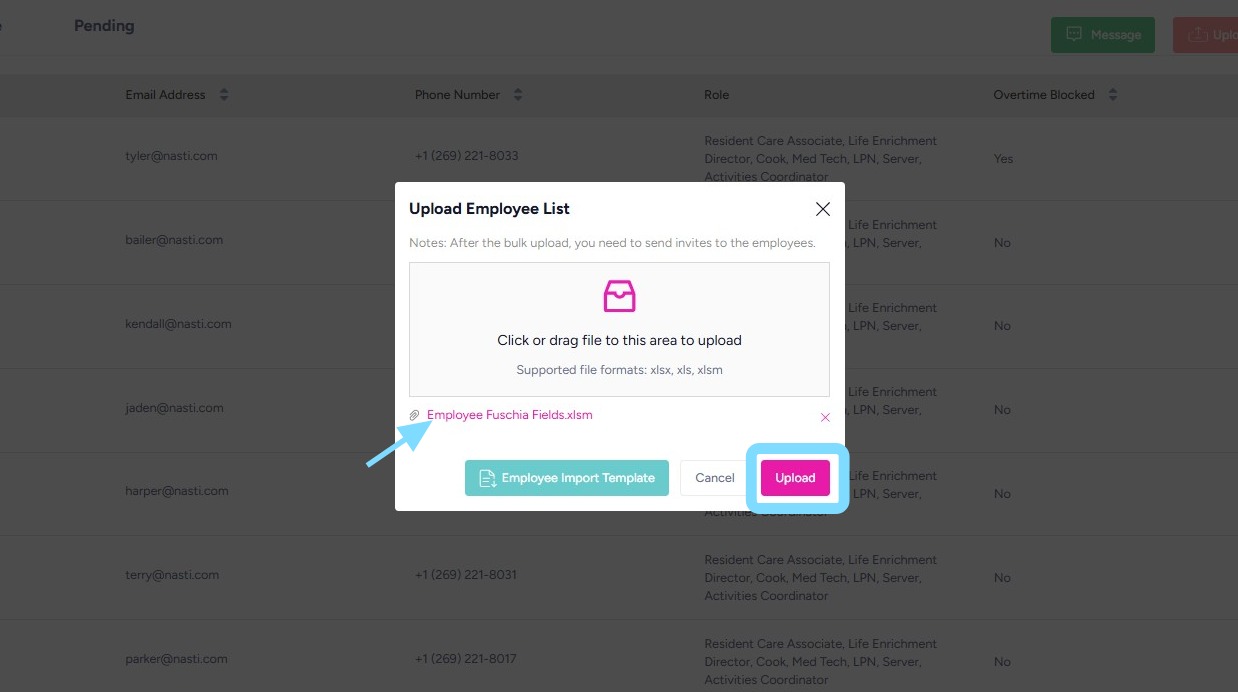
8. Select Upload after confirming that the spreadsheet is attached.
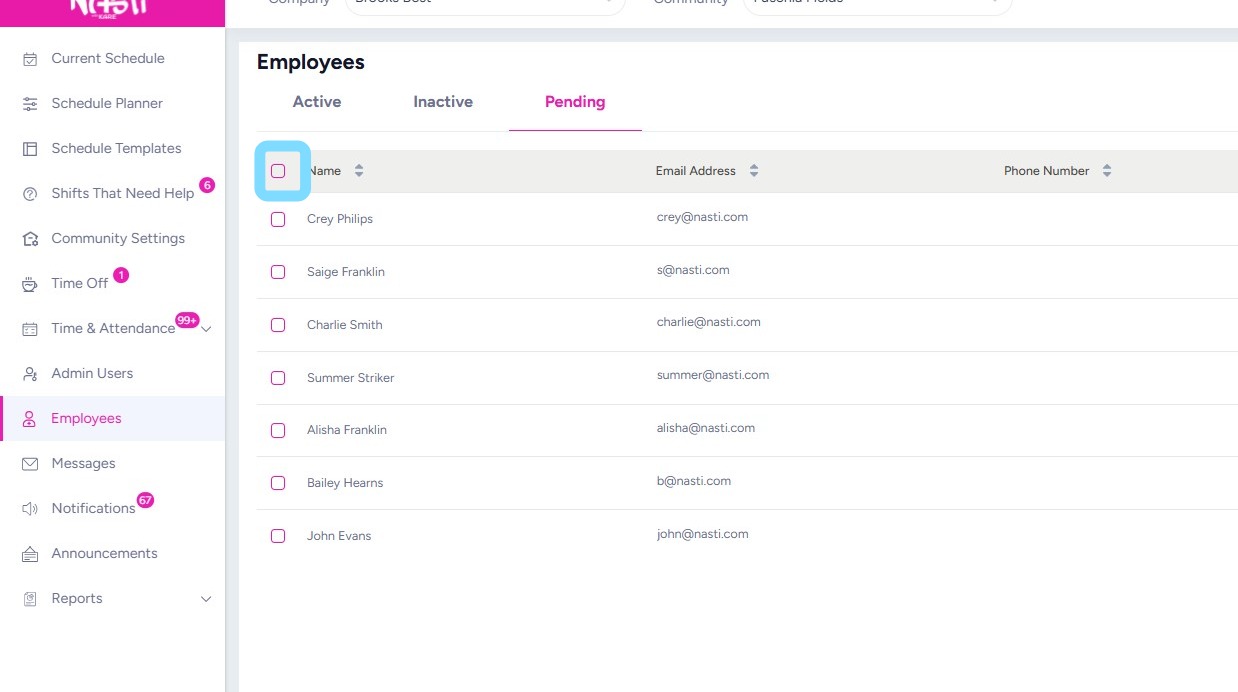
9. The list of employees should now appear within the Employees > Pending tab.
To send invite to employees, check the select all box next to Name
10. Select Send Invite.
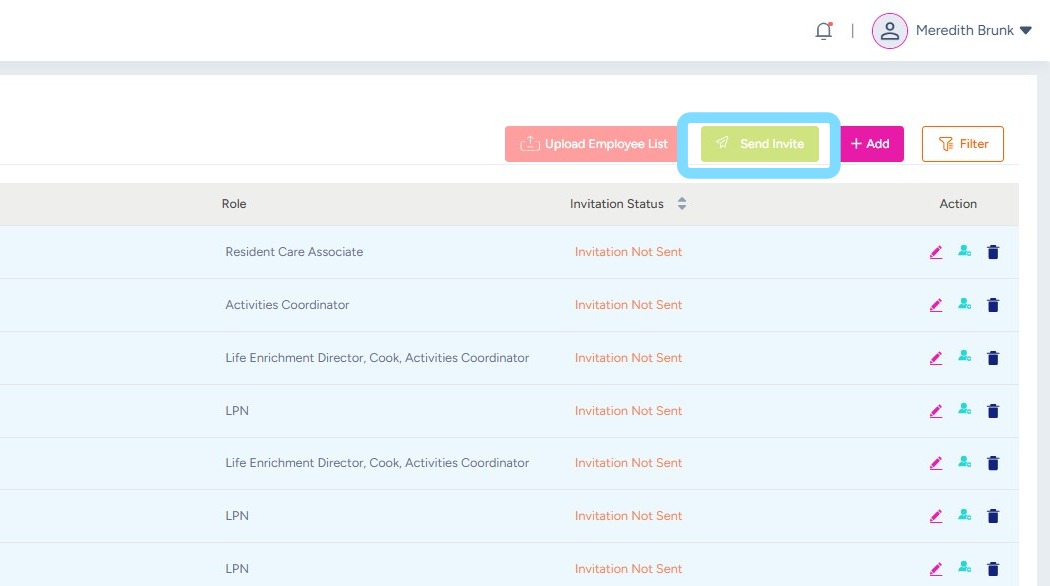
11. Congrats – your employees are invited! They’ll receive a text invite (if phone number added) or email invite to download the NASTi app and get logged in.