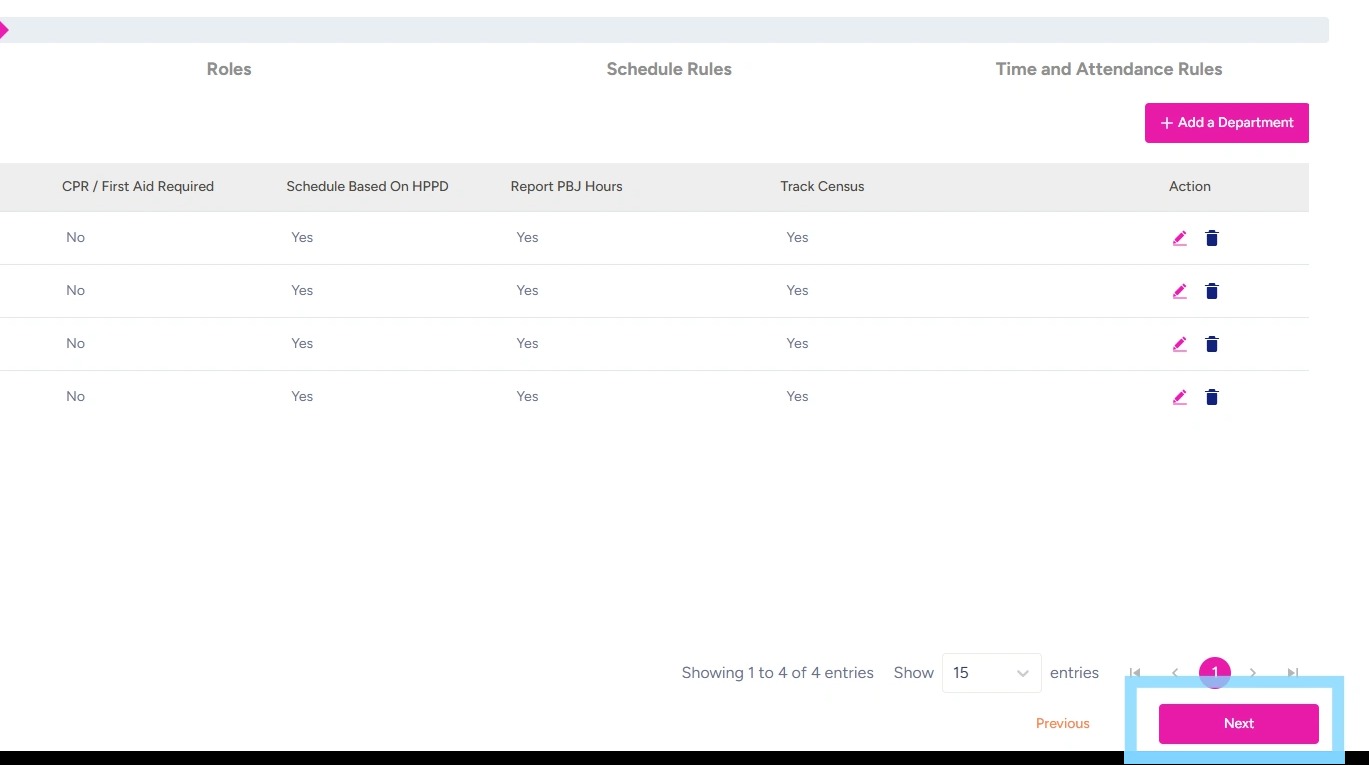
How to Set Up Departments
This guide provides a straightforward approach to setting up departments in NASTi!
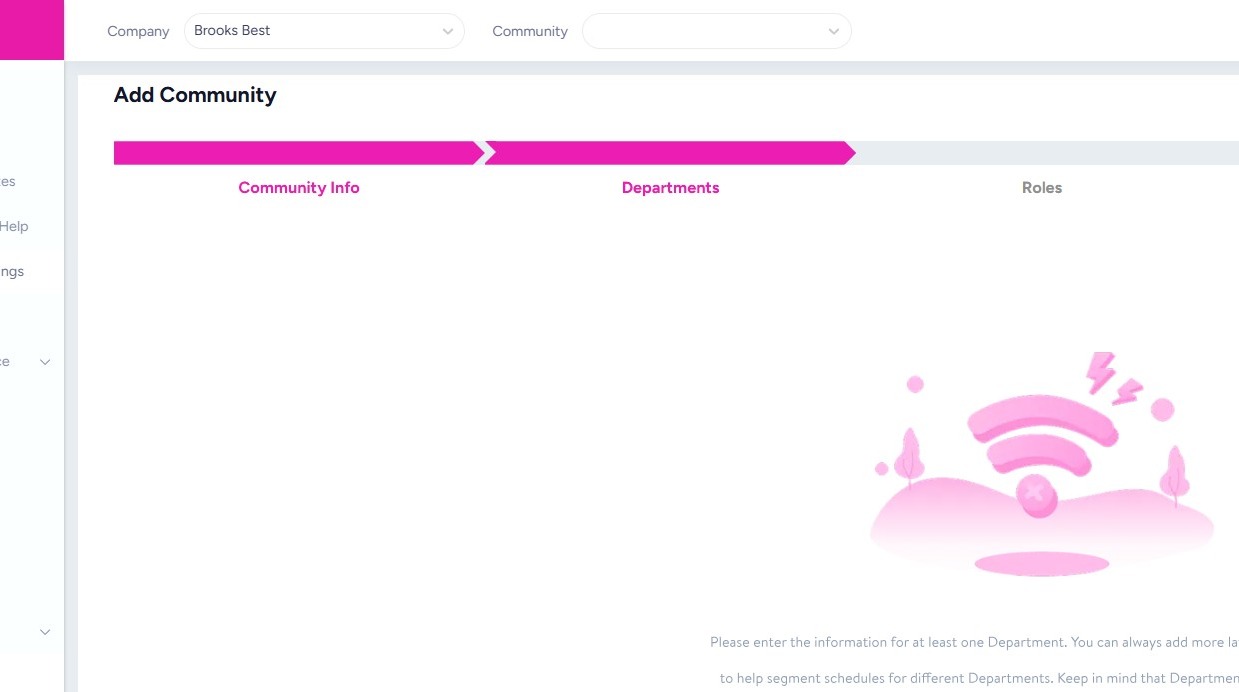
1. Now it’s time to add your Departments!
Departments can be named whatever you’d like. Examples include: Nursing, Resident Care, Dining, Maintenance, Housekeeping, Activities etc.
Please note that team members and admin users can be added to multiple Departments.
Remember you can always add and edit Departments later.
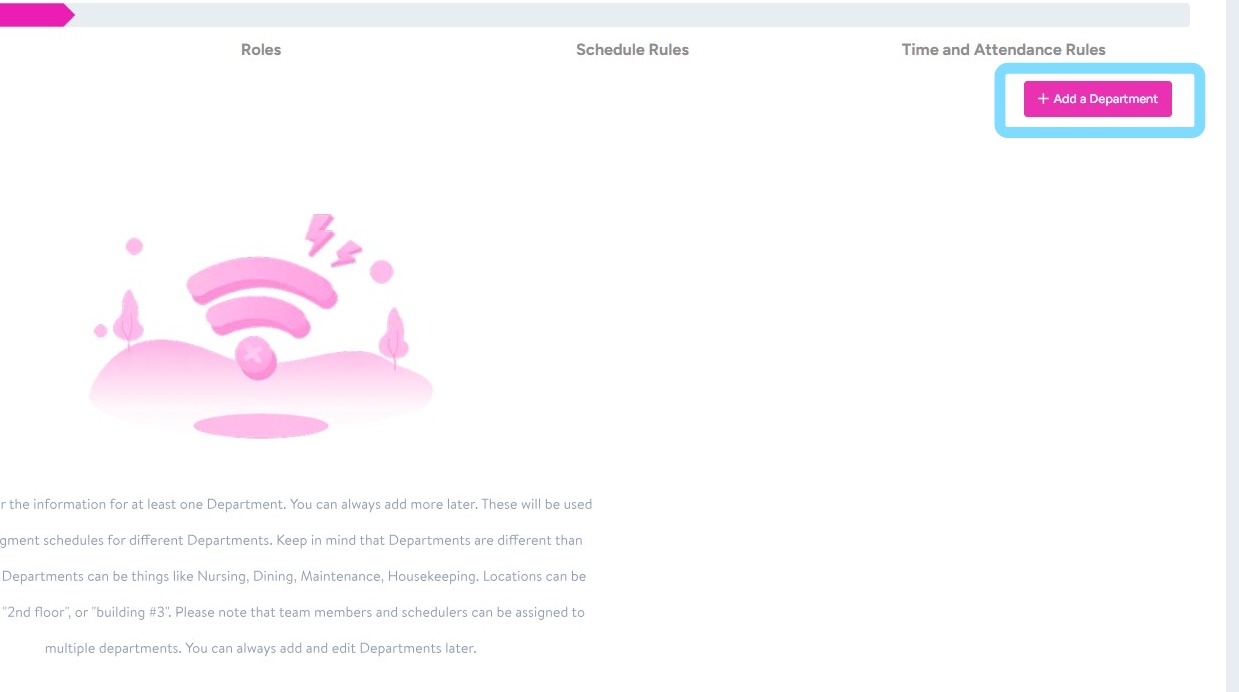
2. Select + Add a Department
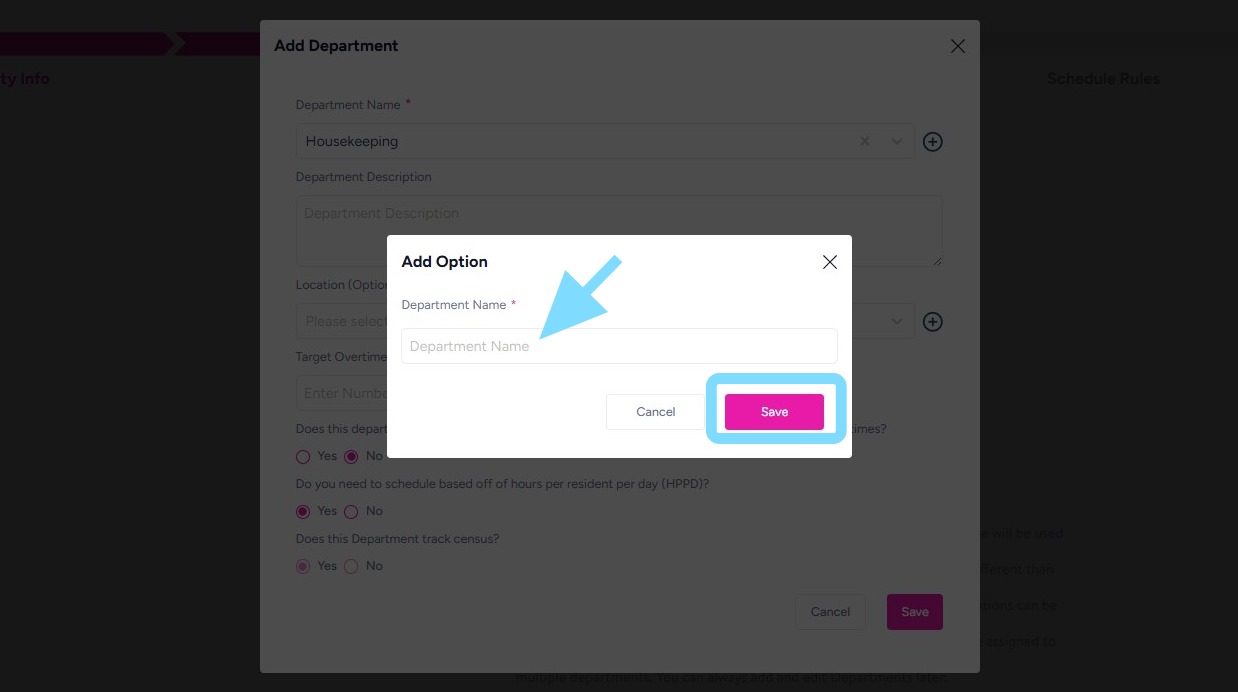
3. Select from Department Name drop down box or select the + to create your Department Name.
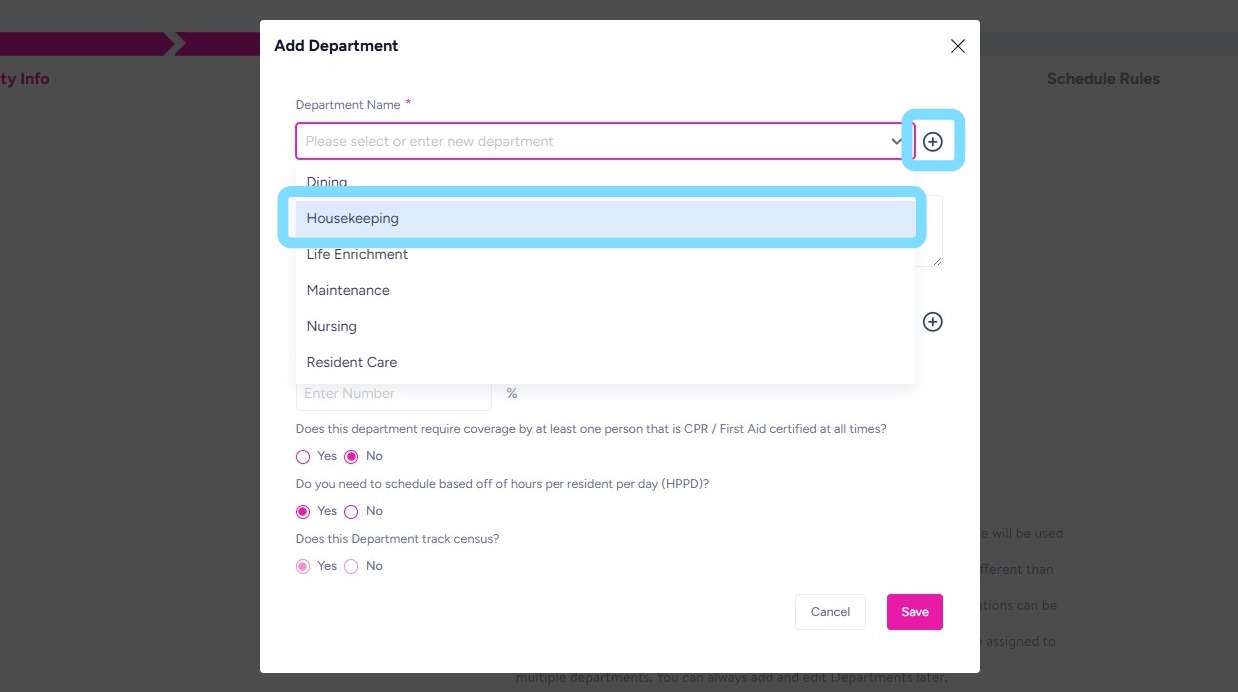
4. If creating Department Name, enter name and select Save
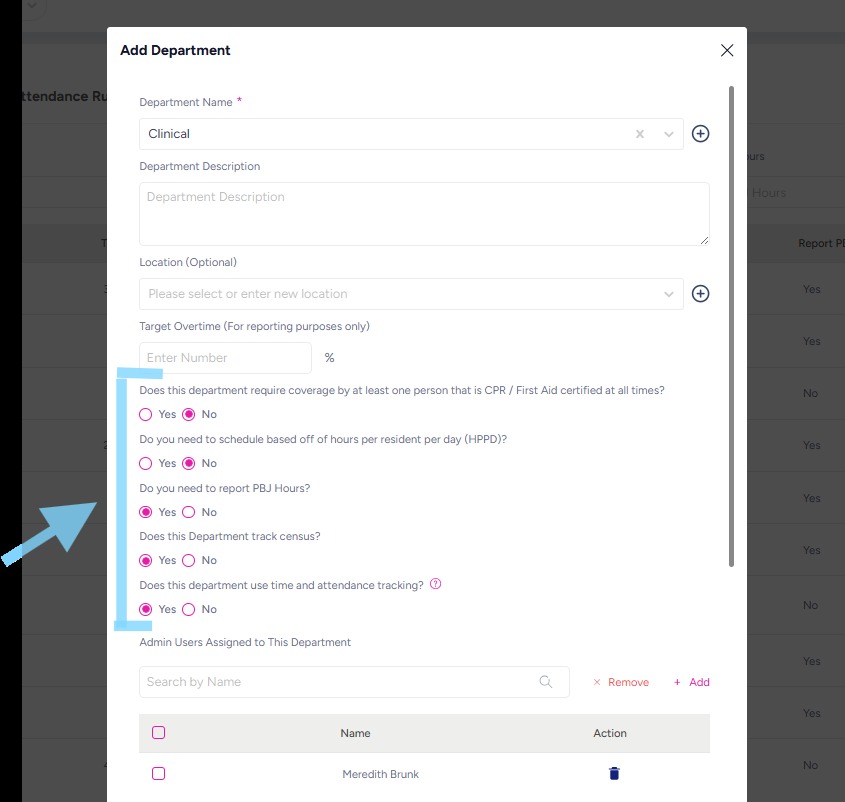
5. You may complete other information as needed. Most users leave the Department Description, Location, and Target Overtime blank. If you want your reports to show target against actual overtime per department, enter a target overtime percentage.
Most important is to select Yes or No for the questions regarding CPR tracking, HPPD, PBJ Reporting, census tracking, and time and attendance tracking.
Note: Time & Attendance tracking should only be turned off for departments that are salaried and frequently work off-site, such as Maintenance or Marketing.
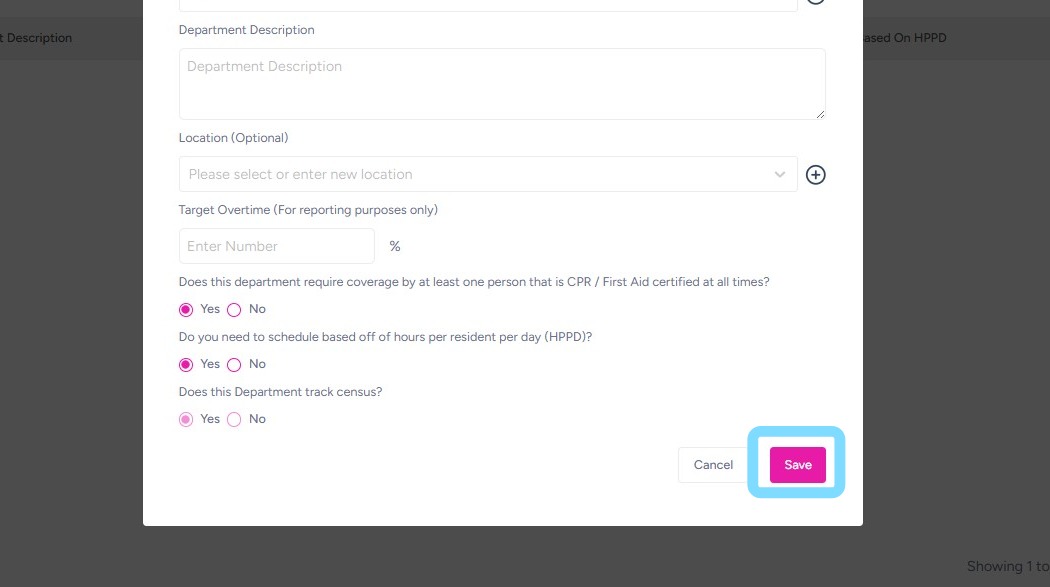
6. Select Save when finished
7. Add additional Departments by repeating the steps above.
Select Next to continue set-up.