How to Publish a Schedule From Draft Mode
This guide walks you through publishing a schedule from Draft mode — a critical step that makes shifts visible to employees, enables time and attendance tracking, and puts the schedule officially in effect. Don’t worry — you can continue to edit a published schedule, and any employees affected by changes will automatically receive a notification.
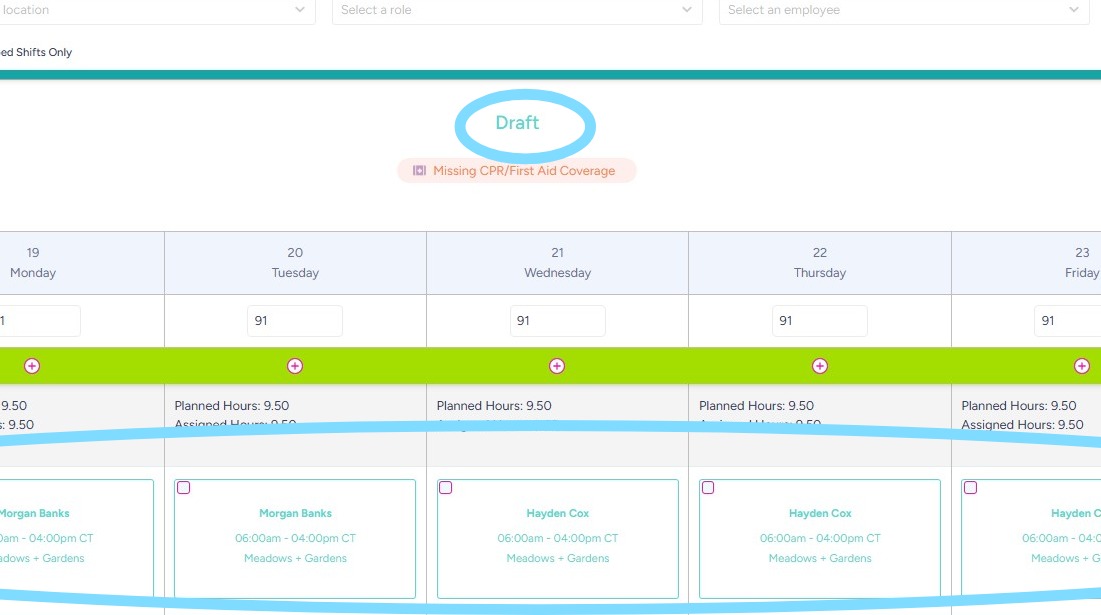
1. Schedules should always be published before shift dates. You can identify a schedule in Draft mode by the Draft label displayed in aquamarine text at the top of the schedule. Shift boxes will also be outlined in the same aquamarine color.
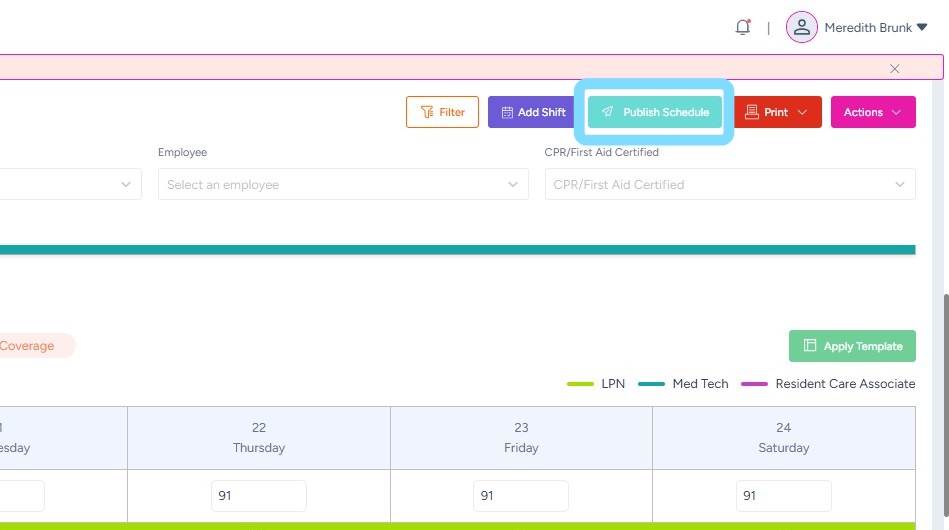
2. To publish, select Publish Schedule
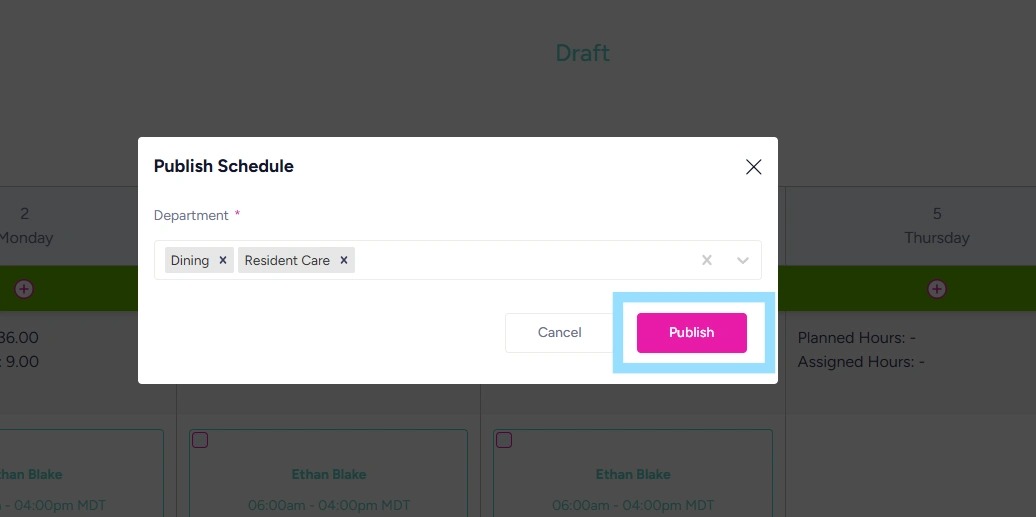
3. For Admin Users overseeing several departments, NASTi allows you to publish multiple department schedules at once. This is helpful when several schedules are still in Draft mode.
-
Select one or more Departments from the dropdown list.
-
Select Publish.
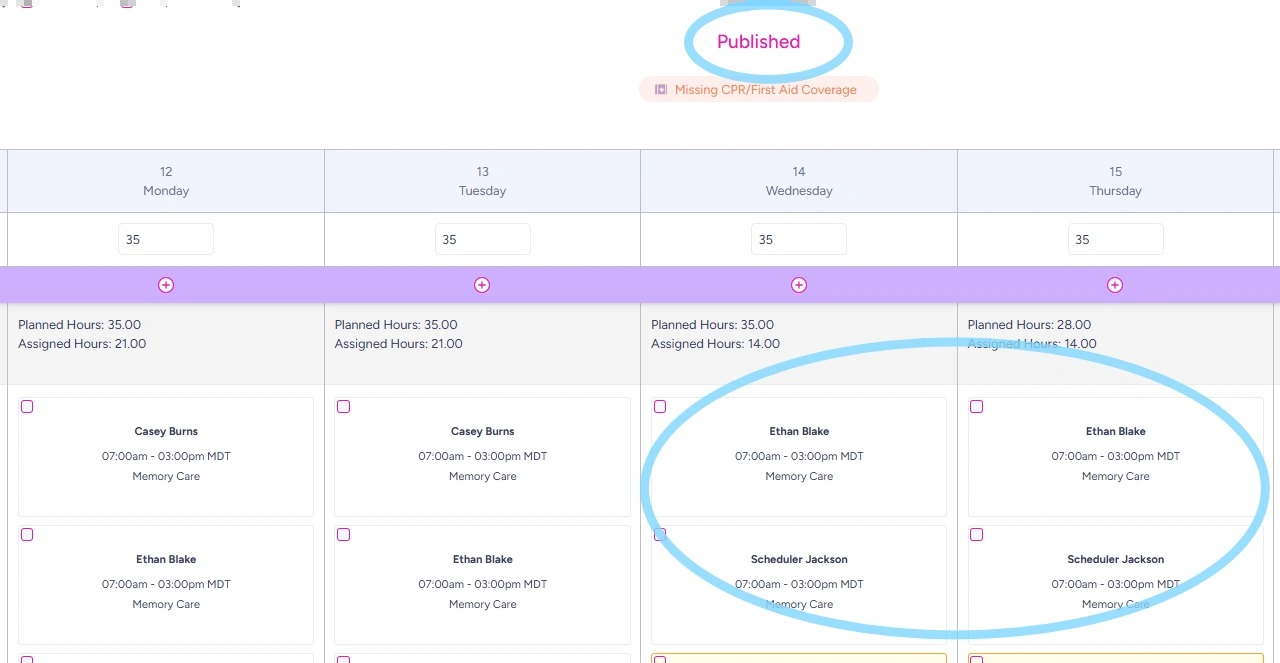
4. When a schedule is published, the status changes to Published in hot pink and shift boxes appear in a neutral color.
Published schedules are live, triggering an in-app notification and making shifts visible to employees.