How to Print a Schedule
Schedules can be printed for offline reference or posting within the community. Use filters such as location, department, role, or employee to customize the schedule view, then print only the information you need.
1. Option 1: Print full schedule
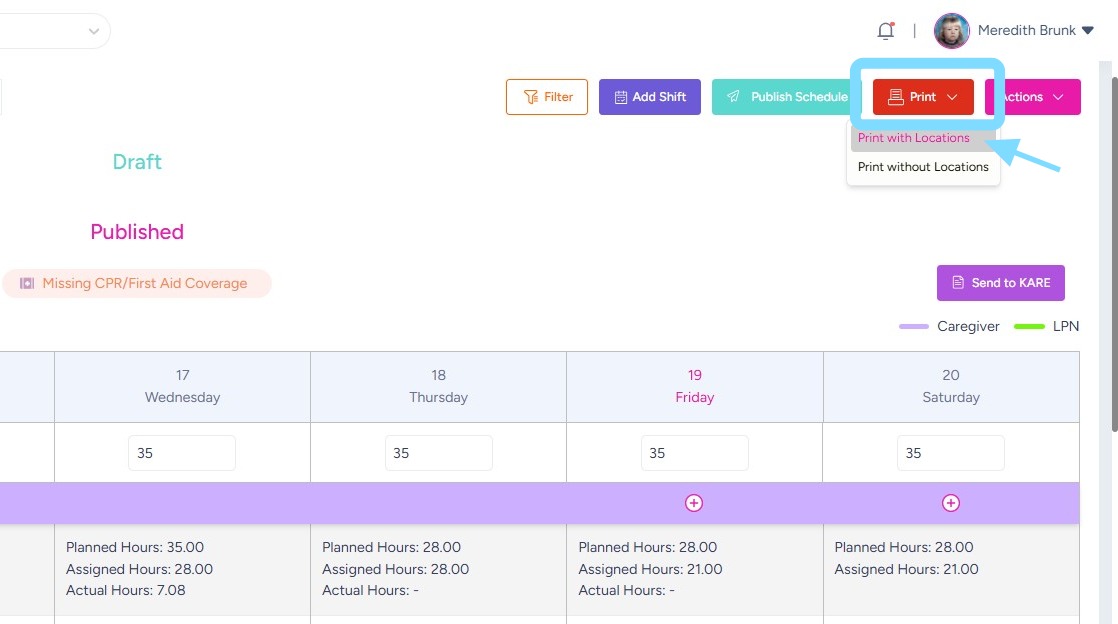
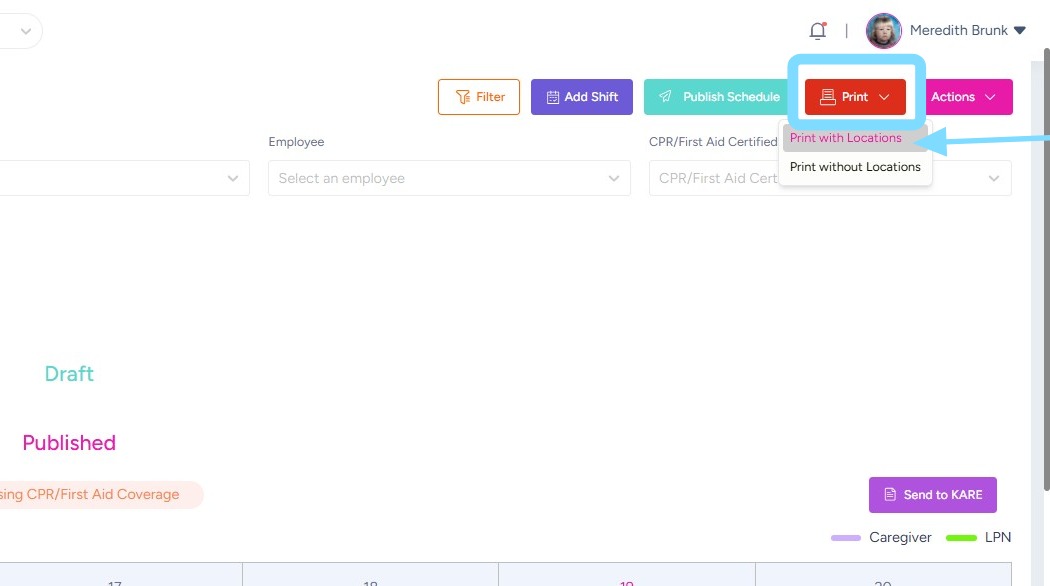
Select Print
Either select Print with Locations or Print without Locations
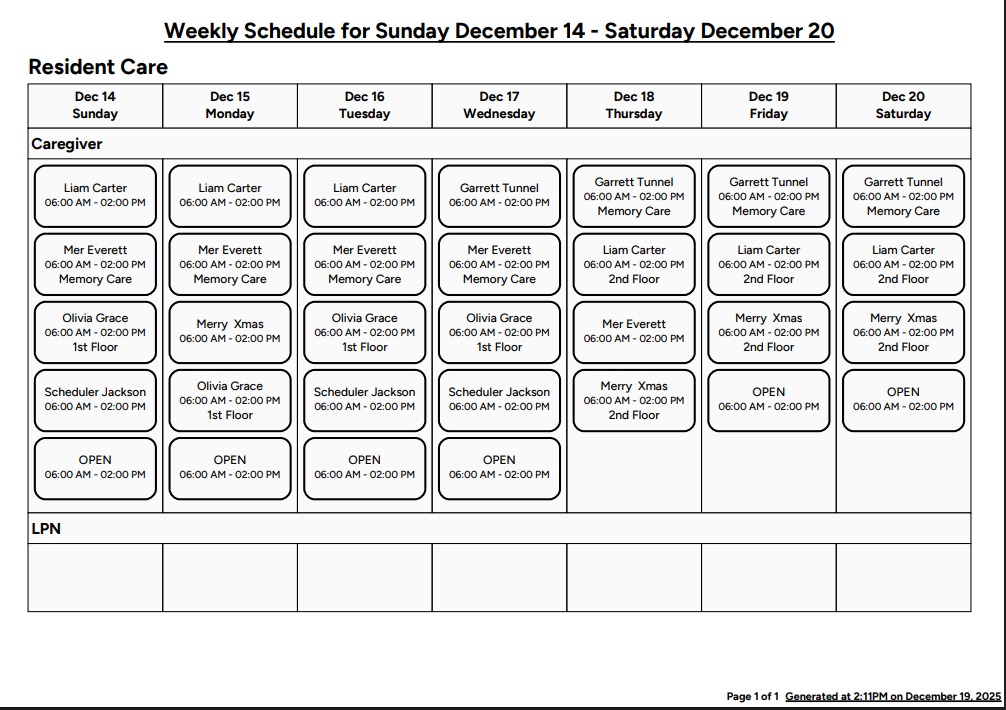
2. [Example of printed schedule with locations]
3. Option 2: Use filters to customize the schedule view and print only part of the schedule.
Select Filter
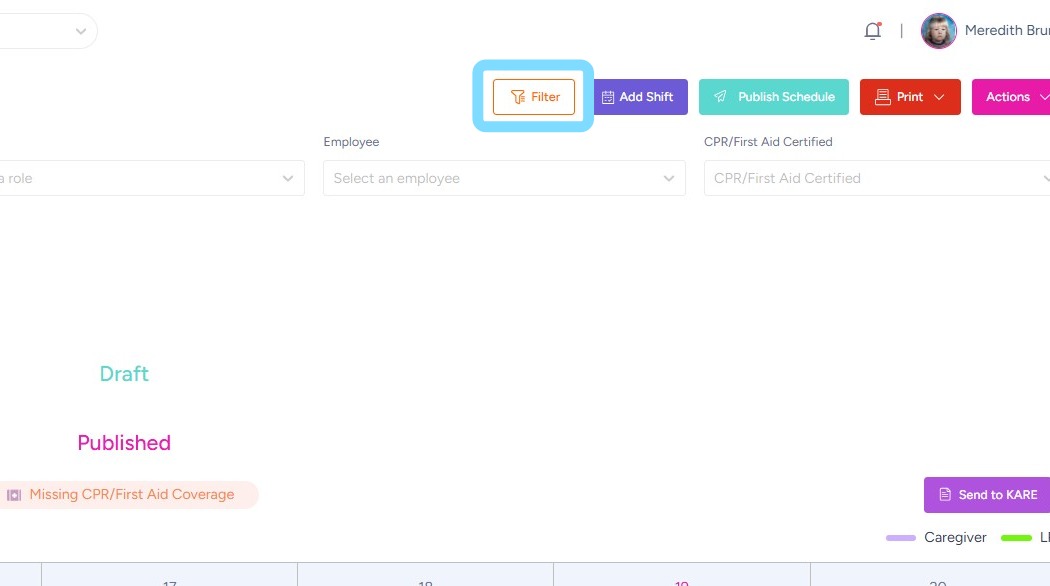
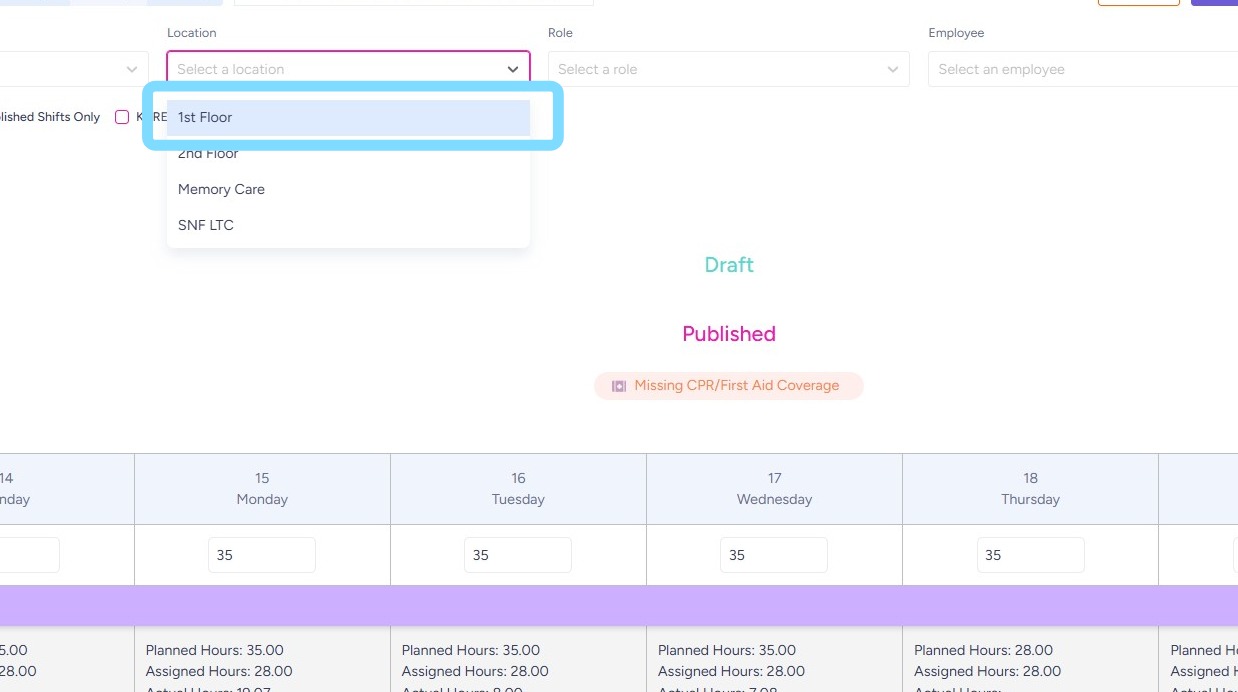
4. Select one or multiple filters from any of the dropdown lists.
Example: Select 1st Floor within Location dropdown box
5. Select Print
Select Print with Locations
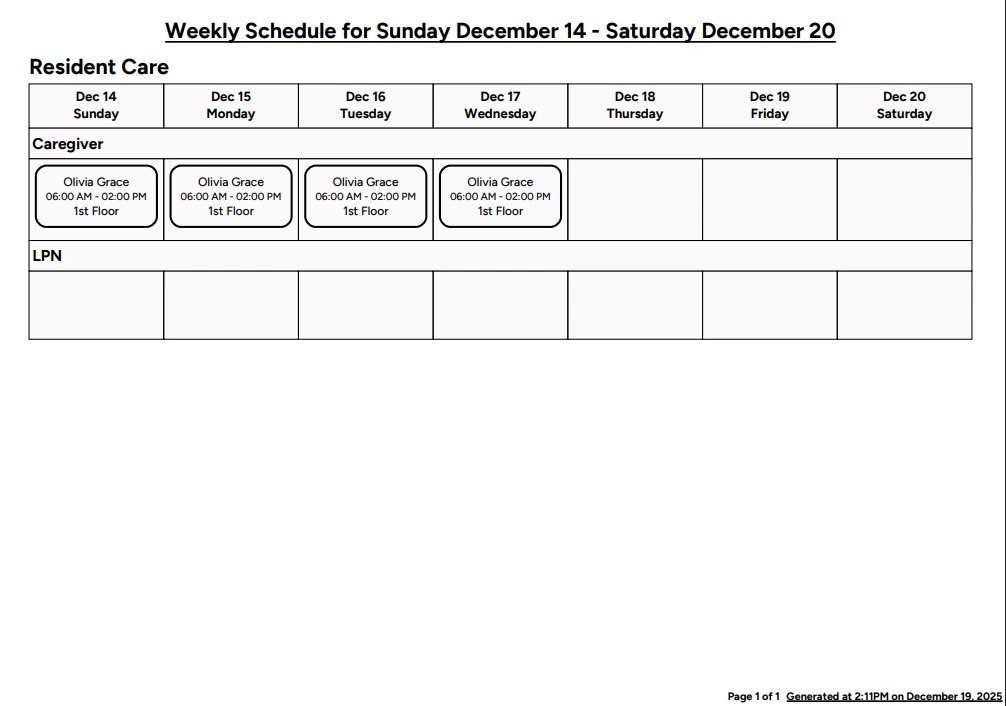
6. [Example of printed schedule filtered by “Location: 1st Floor”]