
How to Manage Shifts That Need Help
This guide is your command center for shifts that require attention. This includes overtime approvals, and based on your Schedule Rules, could include shift swaps, open shift claims, up for grabs shift claims, and call-offs. Review these daily to keep staff working, schedules intact, and chaos out of the system.
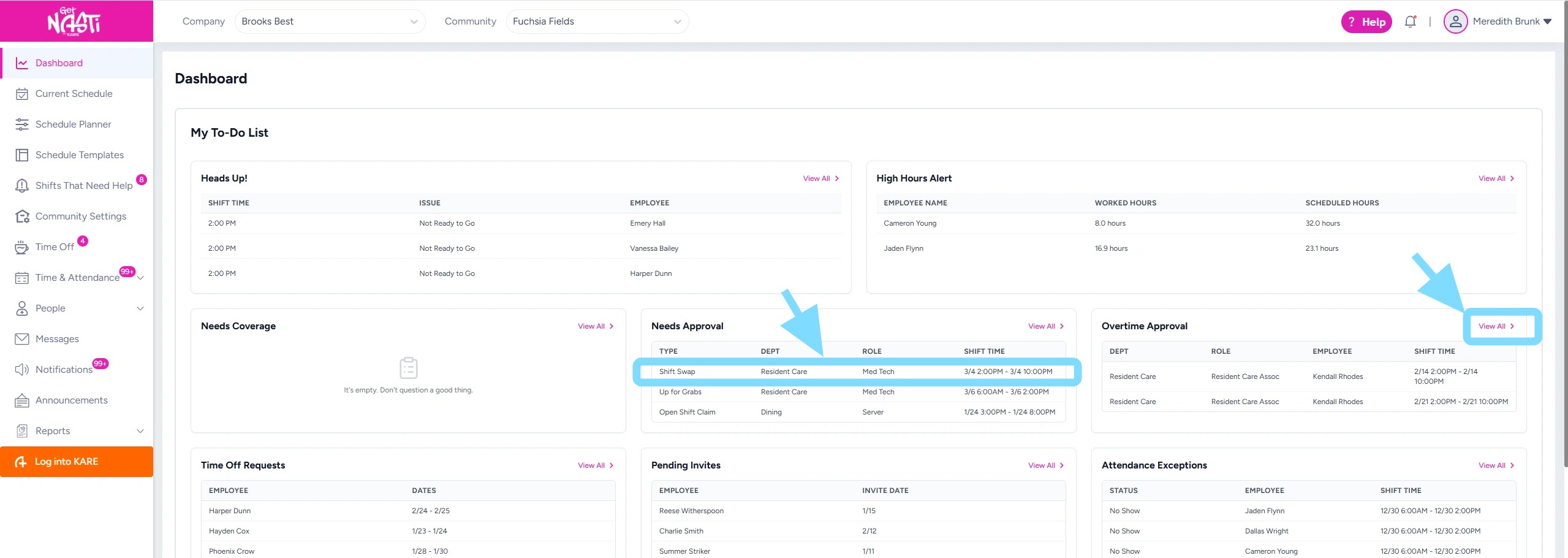
1. From the Dashboard, Admins have at-a-glance visibility into shifts that require attention. Admins can quickly identify:
-
Needs Coverage – Shifts requiring reassignment due to call-offs or terminations
-
Overtime Approval – Shifts pending overtime authorization
-
Needs Approval – Open Shift Claims, Shift Swaps, and Up for Grabs requests awaiting approval
Admins have two options for taking action:
-
Select a specific shift directly from the Dashboard to review and take action.
-
Select View All to navigate to Shifts That Need Help, where the full list and additional filtering options are available (go to Step 3).
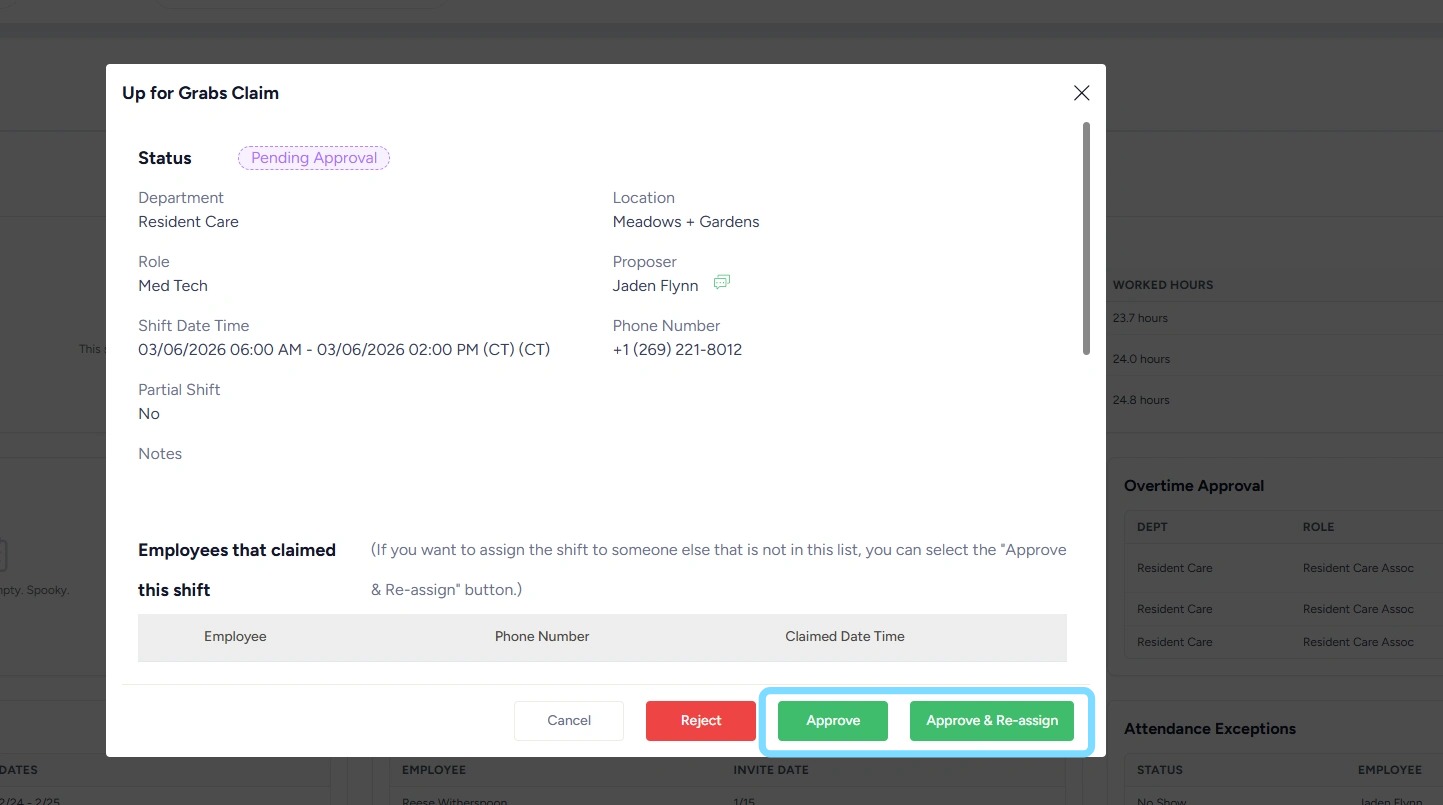
2. If a specific shift is selected from the Dashboard, the shift request details will open for review.
Select Approve to approve the shift change as proposed by the employee, or select Approve & Re-assign to assign the shift to a different employee.
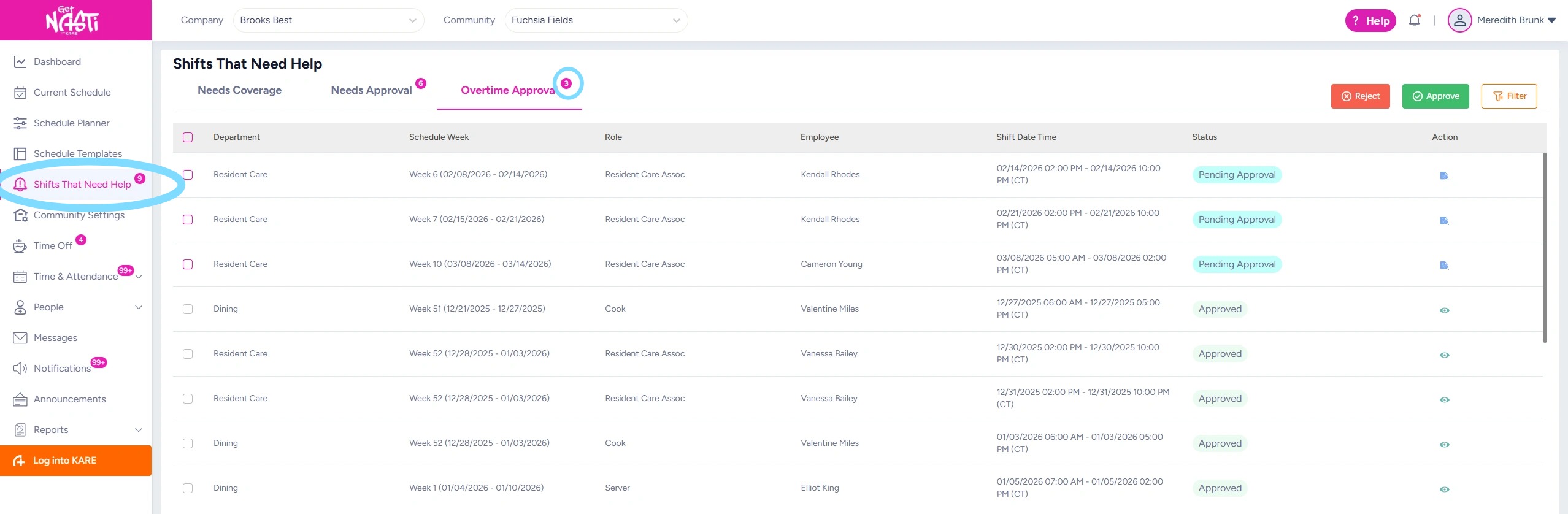
3. Selecting View All from the Dashboard will navigate to Shifts That Need Help, where Admins can view the full list of shifts that require attention within that category.
A number badge on each tab indicates how many new items require action.
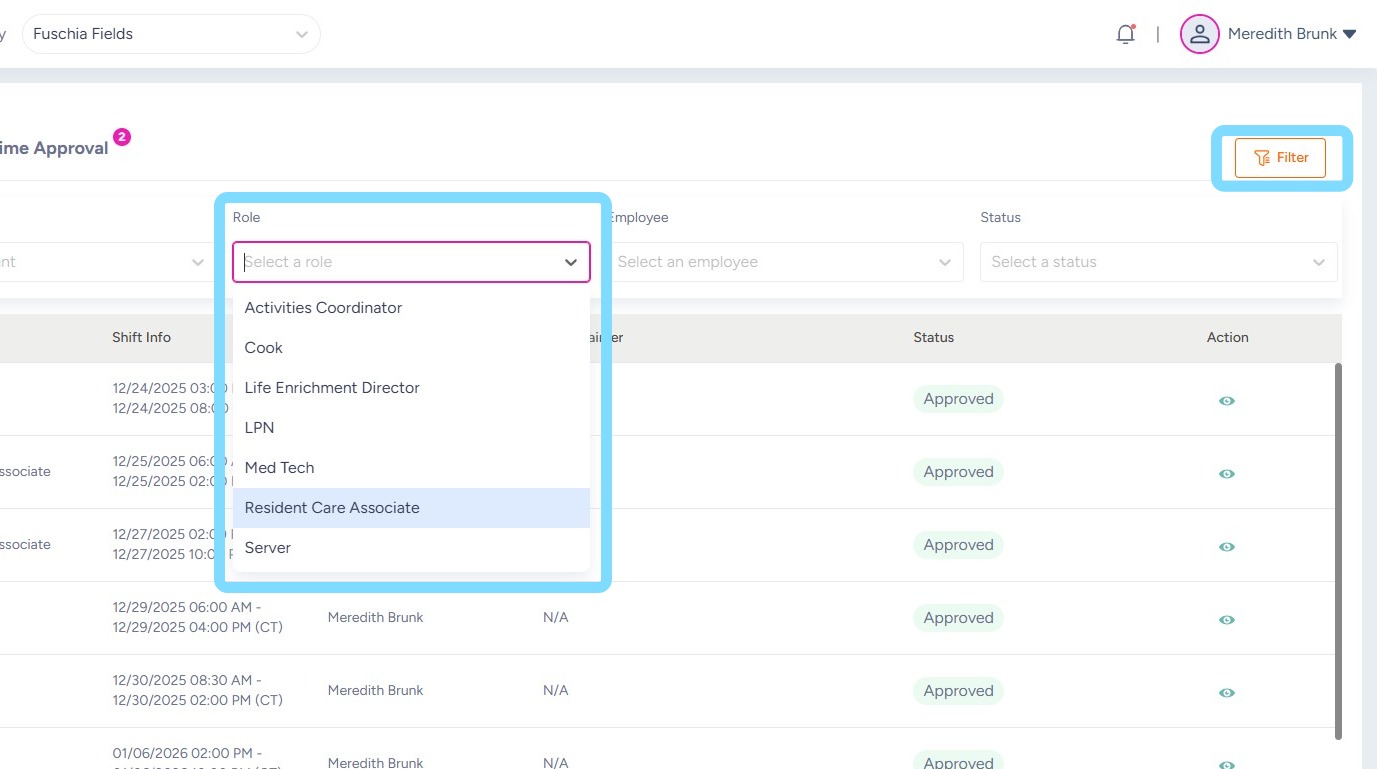
4. Admins may use the Filter icon the choose from dropdown lists and filter what they see by Type, Description, Role, Employee, and Status.
In this example, the user is filtering items by Role – Resident Care Associate
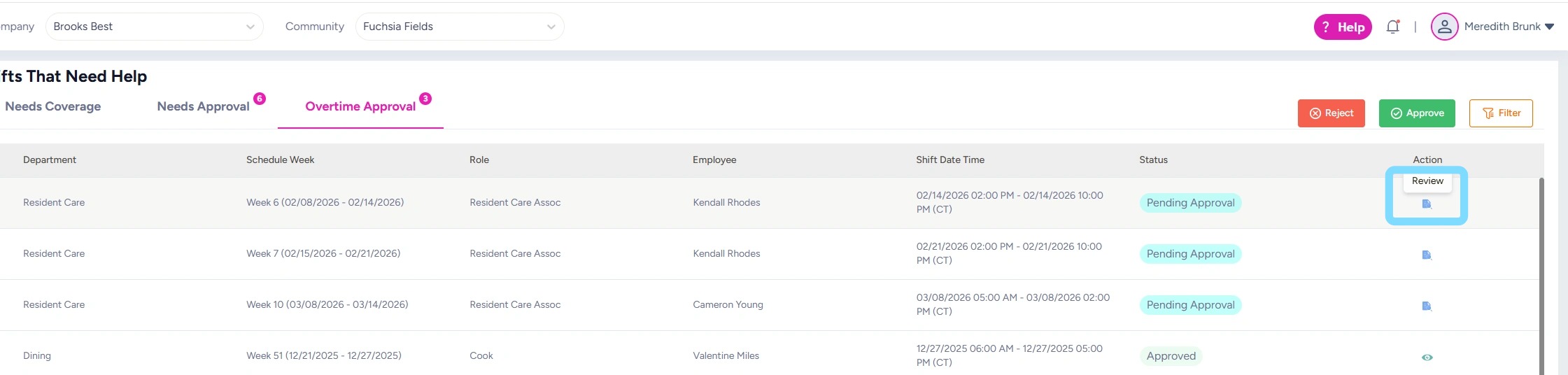
5. To take action on a shift, select Review icon.
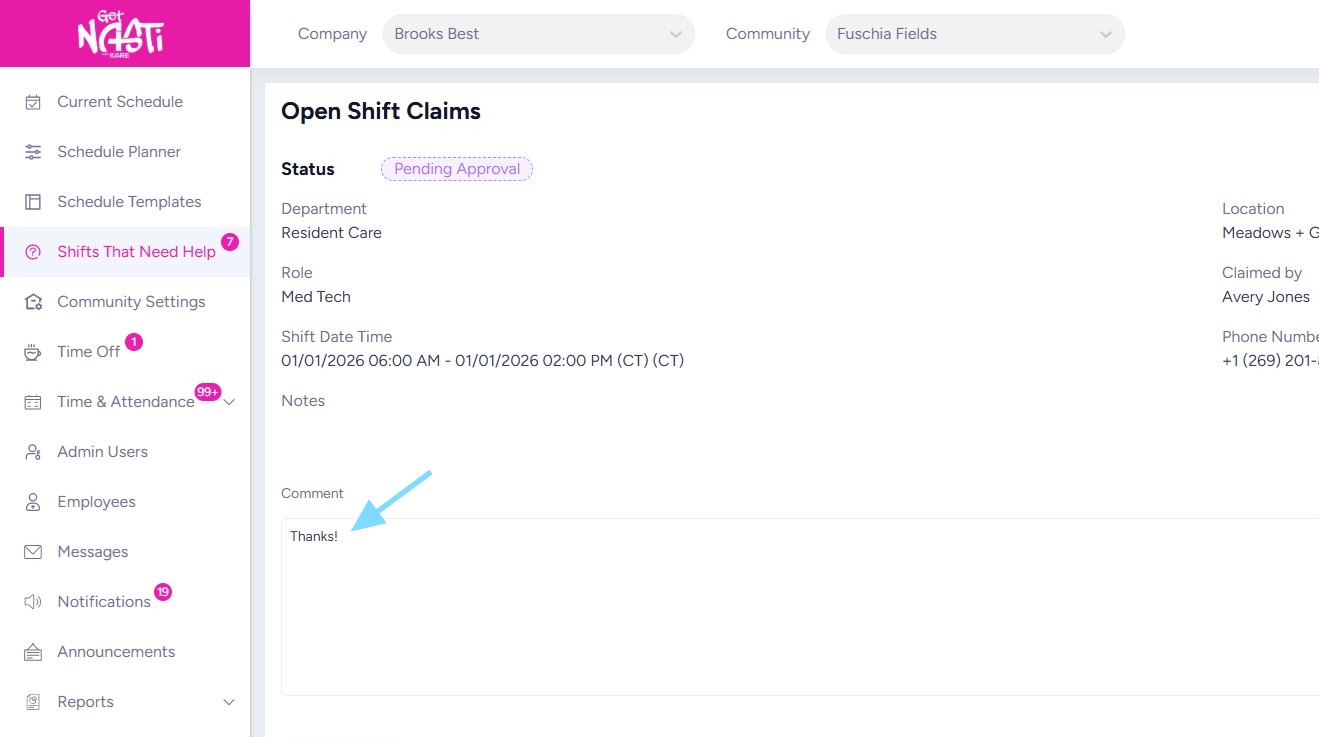
6. The Admin may enter a comment
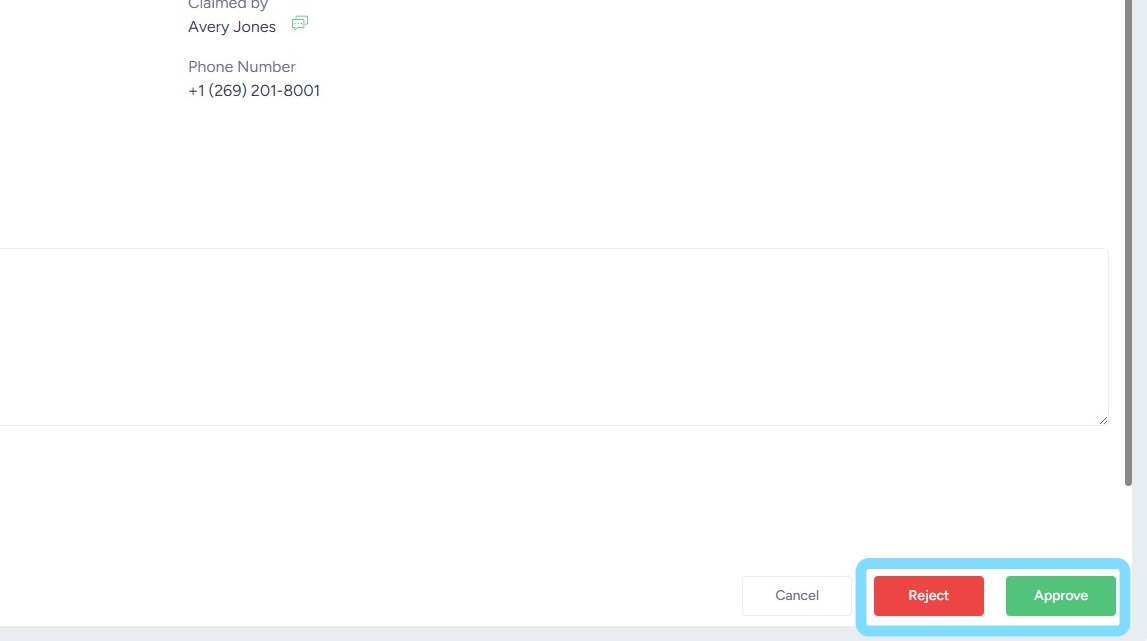
7. Select Approve or Reject to take action on the item.
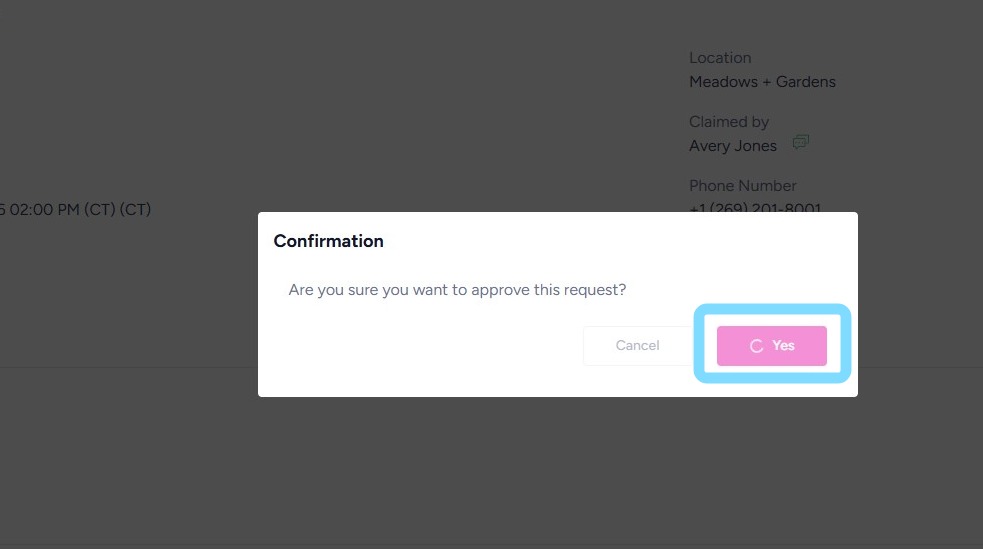
8. Select Yes to confirm action.
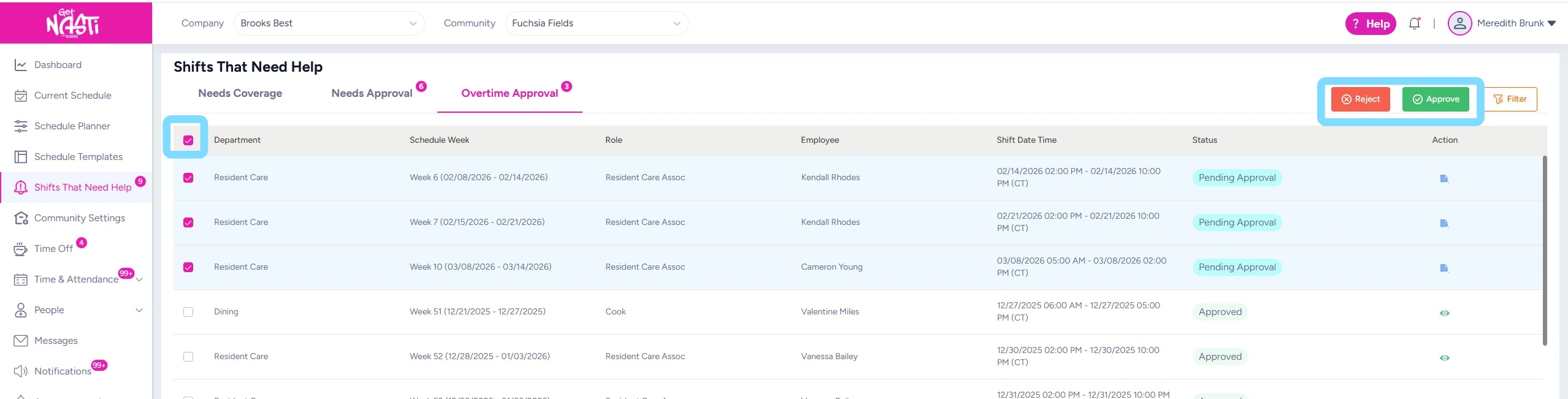
9. Within some categories, such as Overtime Approvals, the Admin may take action on items in bulk by checking the select all box by Department
Then select Reject or Approve.
10. Congrats, you’re crushing it!
Checking and clearing your Dashboard each day helps ensure shifts that need attention are covered and your schedule stays tight.
12. Congrats, you’re crushing it! Reviewing these daily will ensure coverage stays tight.