How to Manage Employee Shift Change Requests (Approve, Reject or Re-assign Shifts)
This guide provides a straightforward way to manage employee shift changes, ensuring approvals, rejections, and reassignments are handled quickly and efficiently. By following these steps, users can navigate pending requests, add comments, and confirm actions with confidence—streamlining shift management while giving staff the autonomy to own their shifts and save the day. Less chaos. Better coverage. Stronger resident care. ✌️
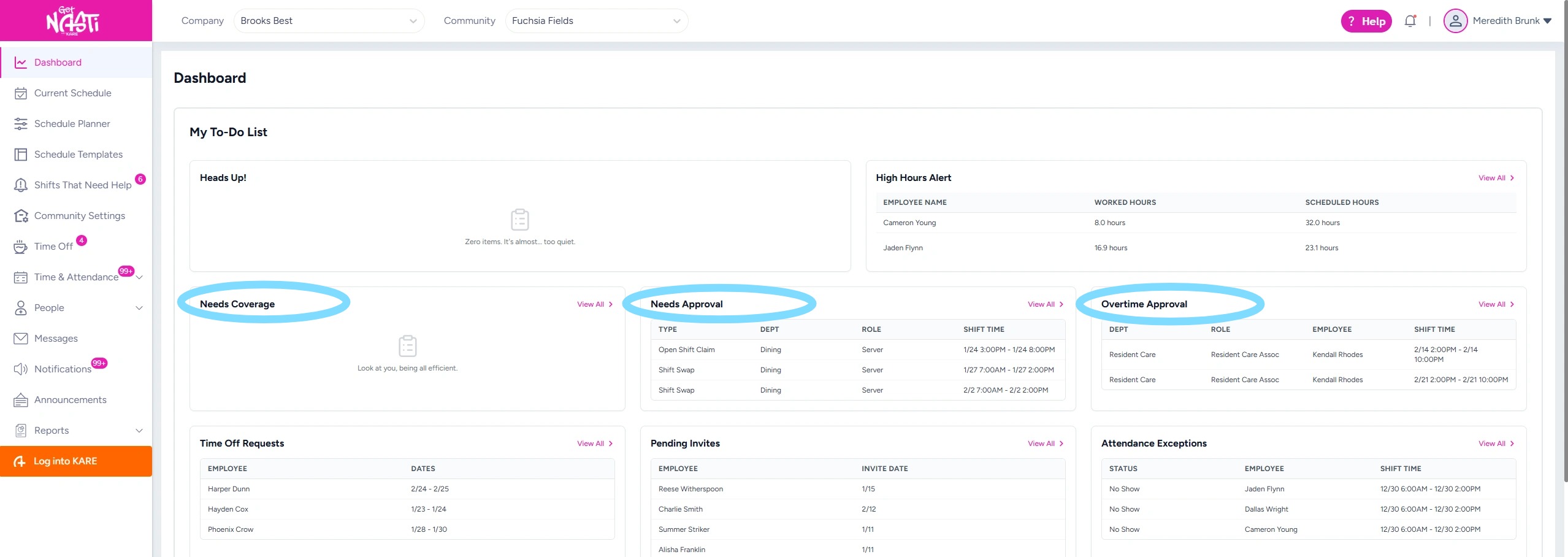
1. From the Dashboard, Admins can view and manage shifts that require attention or approval. These are organized into the following categories:
-
Needs Coverage – Shifts requiring reassignment due to call-offs or terminations.
-
Needs Approval – Open Shift Claims, Shift Swaps, and Up for Grabs requests awaiting your approval.
-
Overtime Approval – Shifts requiring overtime authorization before being finalized.
Taken action on individual items (see Steps 2 and 3) or select View All to review and manage items in bulk (see Step 4).
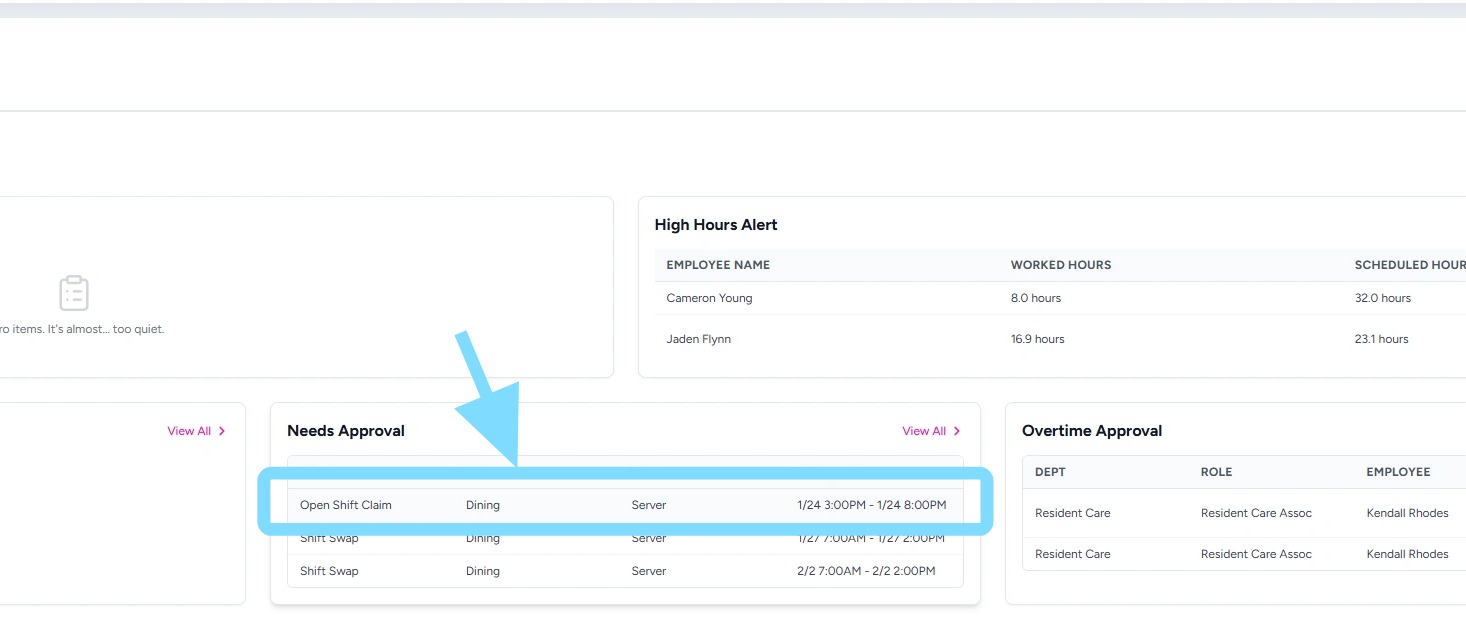
2. Select any individual shift to view details and take action.
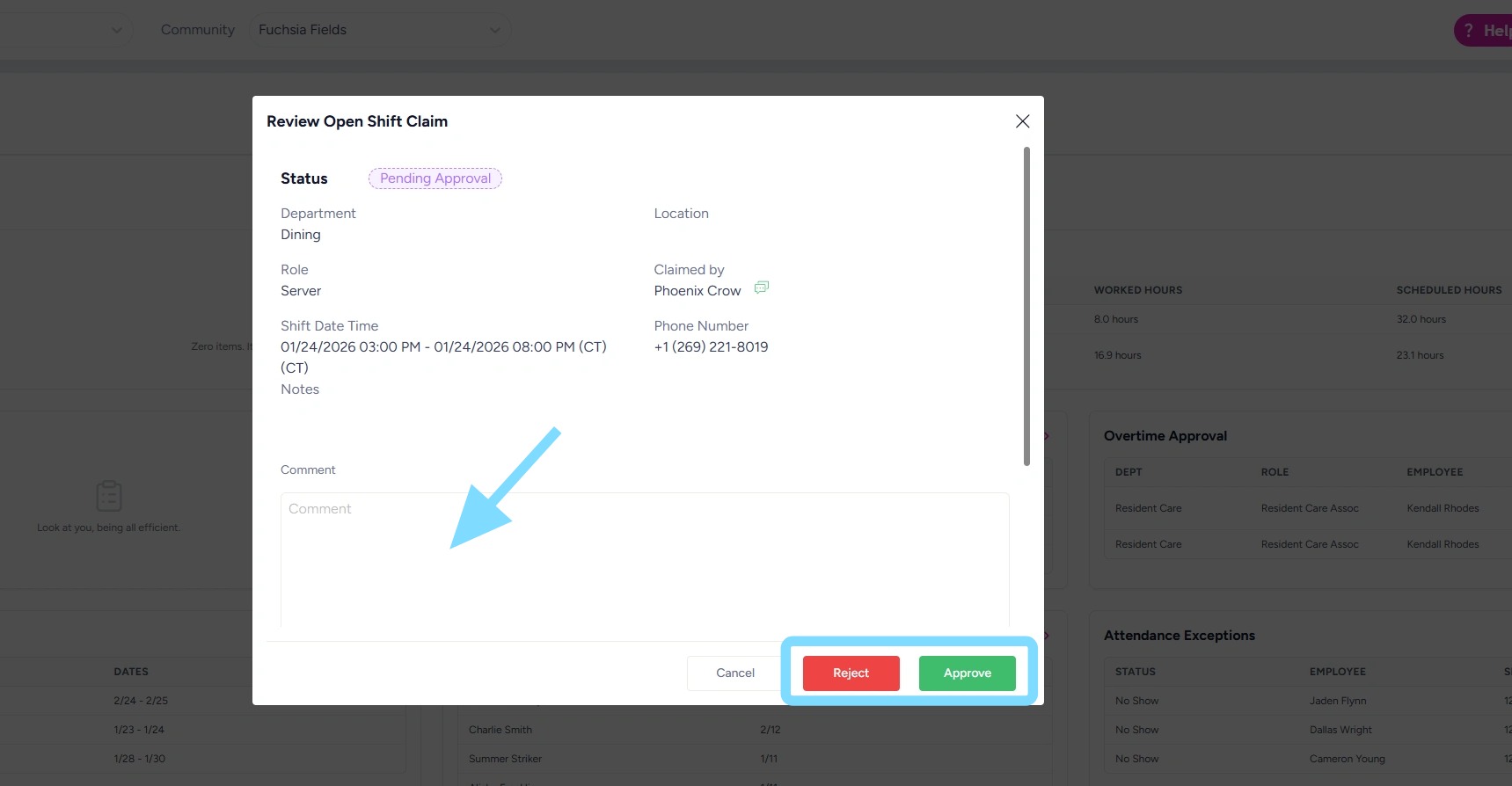
3. Review the shift details, add a comment if desired, then select Approve or Reject to take action.
4. To review all items in this category at once and then take action, select View All.
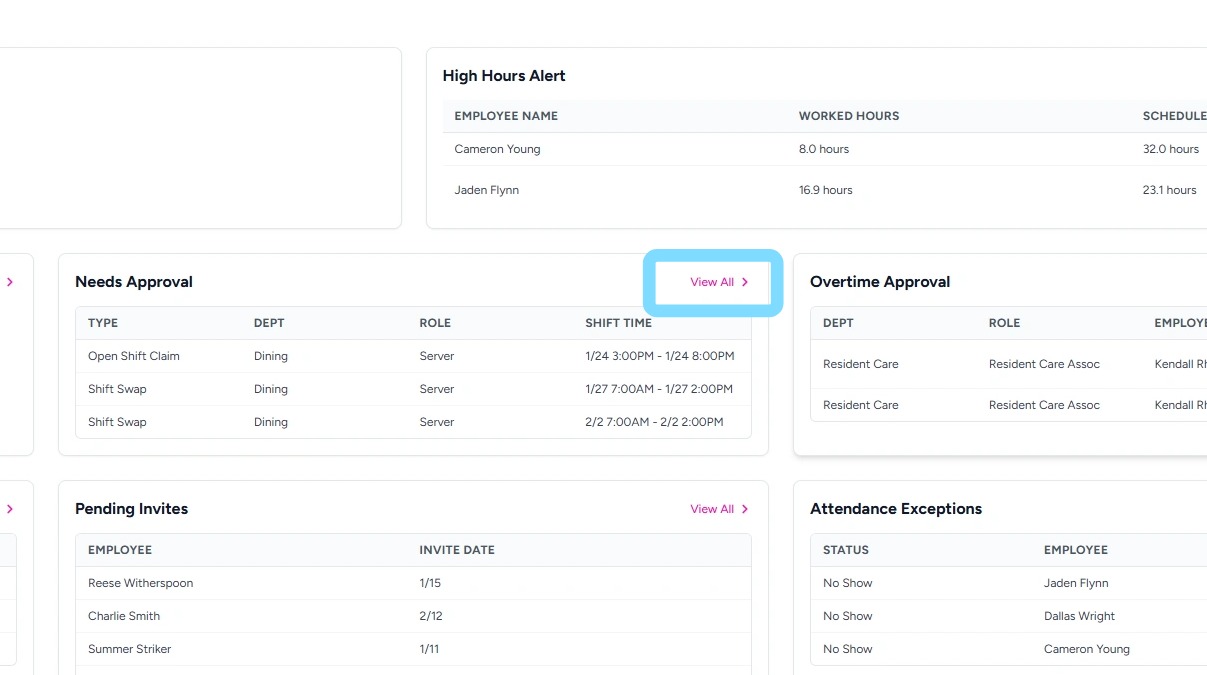
5. This will take the Admin to Shifts That Need Help > Needs Approval, where the full list and history of shifts within this category can be viewed and action can be taken.
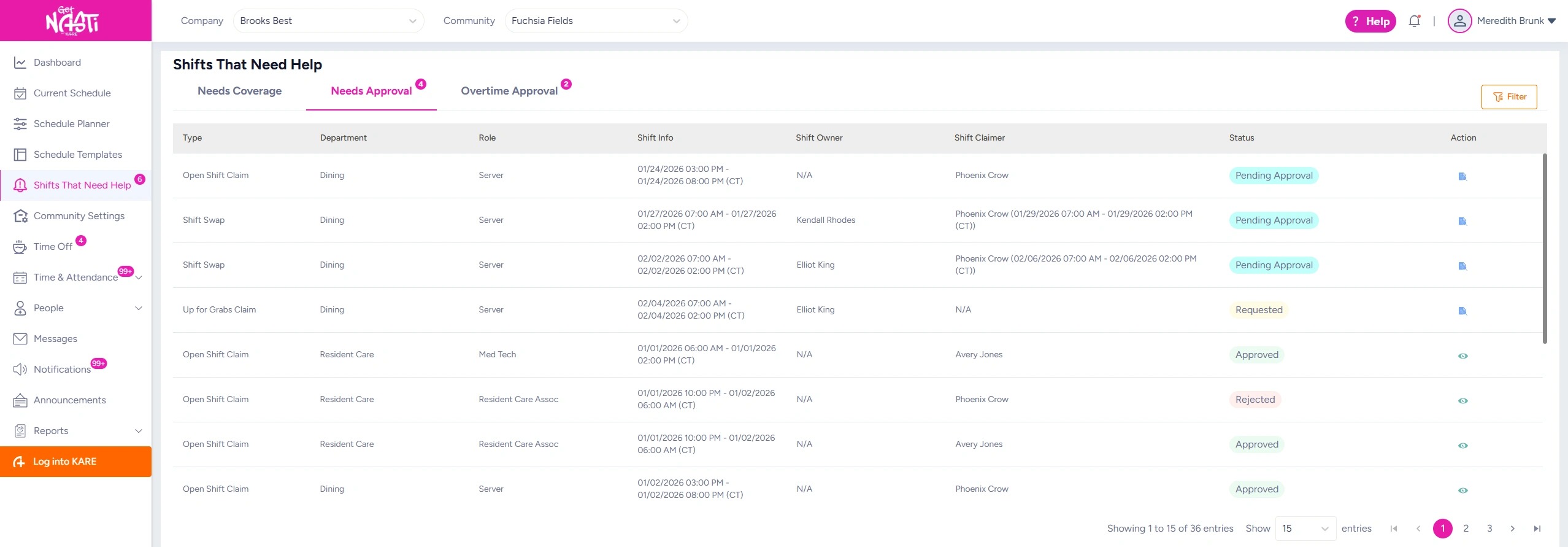
6. Items that require action will display a Pending Approval status, marked by an aqua badge.
To take action, select the Review icon.
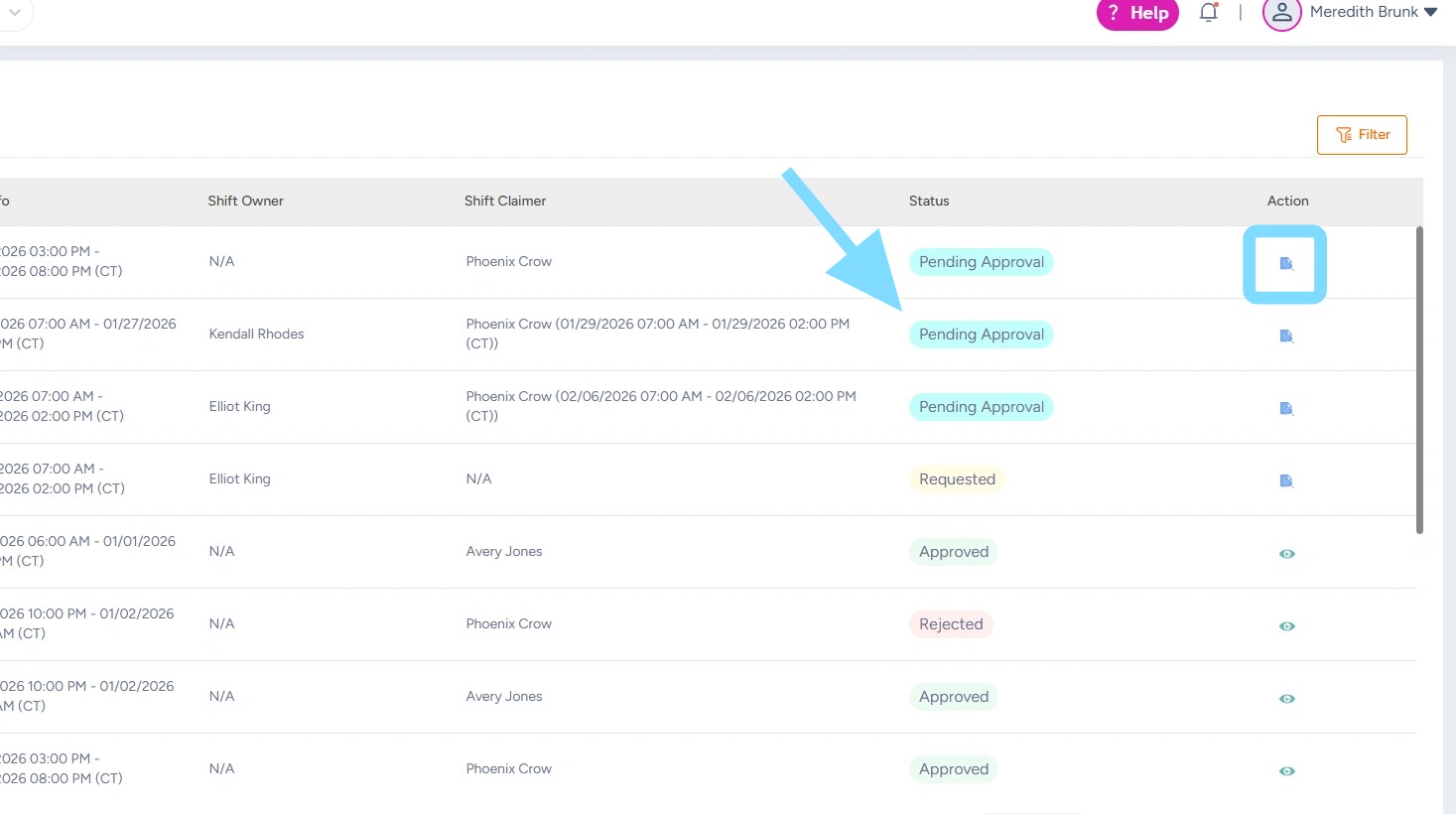
7. Enter a comment, if desired, then select Approve or Reject to take action.
Depending on the type of shift change or request, Admins may also need to select an employee when approving a swap or reassignment.
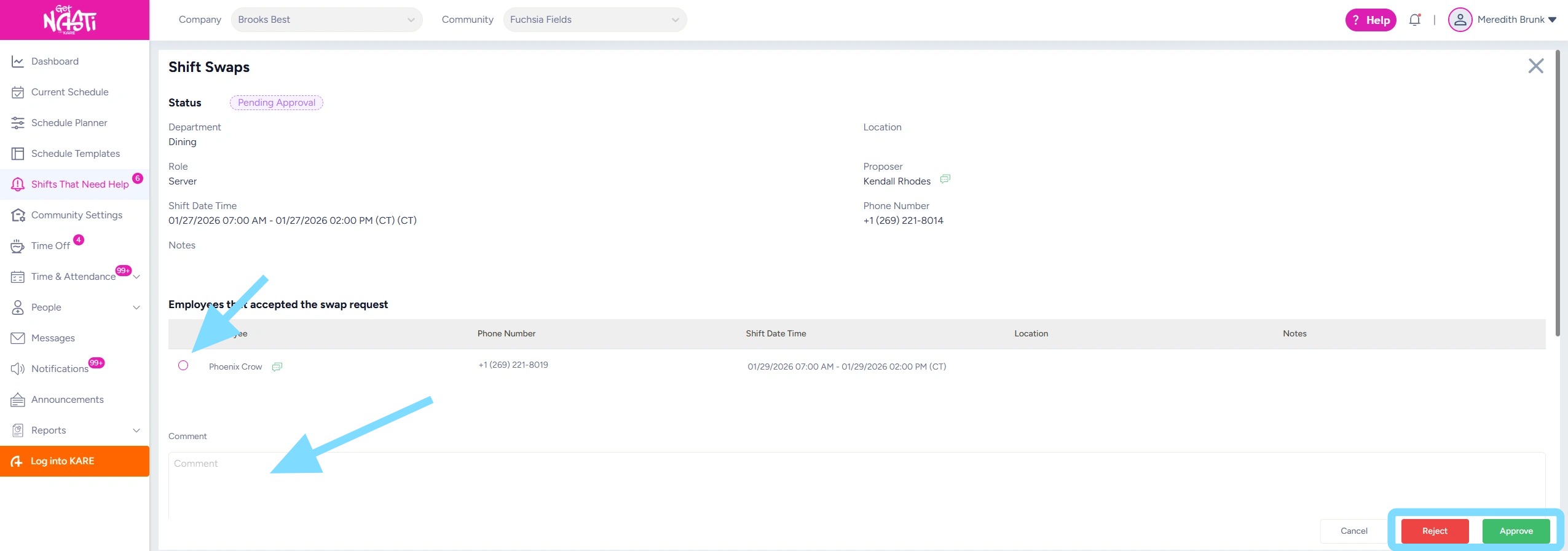
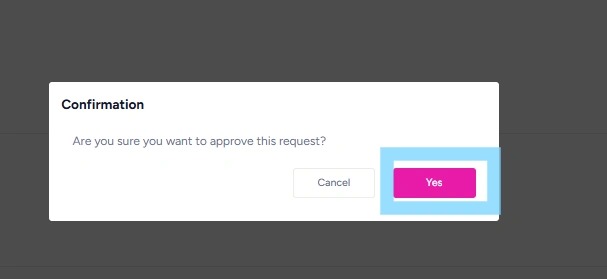
8. Select Yes to confirm action.
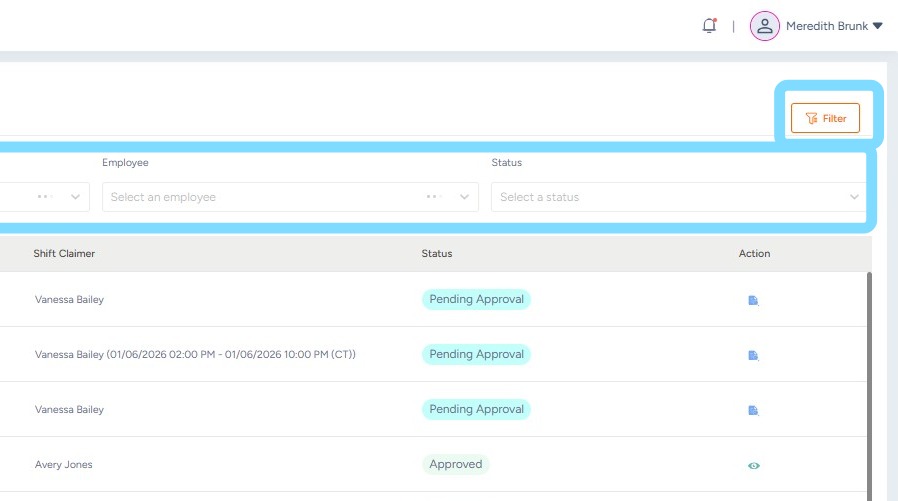
9. Remember that filtering is available when viewing and managing the list. Select the Filter icon, then choose the desired options from the dropdown menus.