
How to Manage Notifications
This guide supports you in managing notifications so you can stay organized and focused. Learn how to filter and clear notifications to prioritize what matters and cut through the noise. Notifications alert you to key schedule and workforce updates, such as when a schedule is published, employee no shows, delayed check-ins or early check-outs, time-off request submissions, shifts swaps, etc.
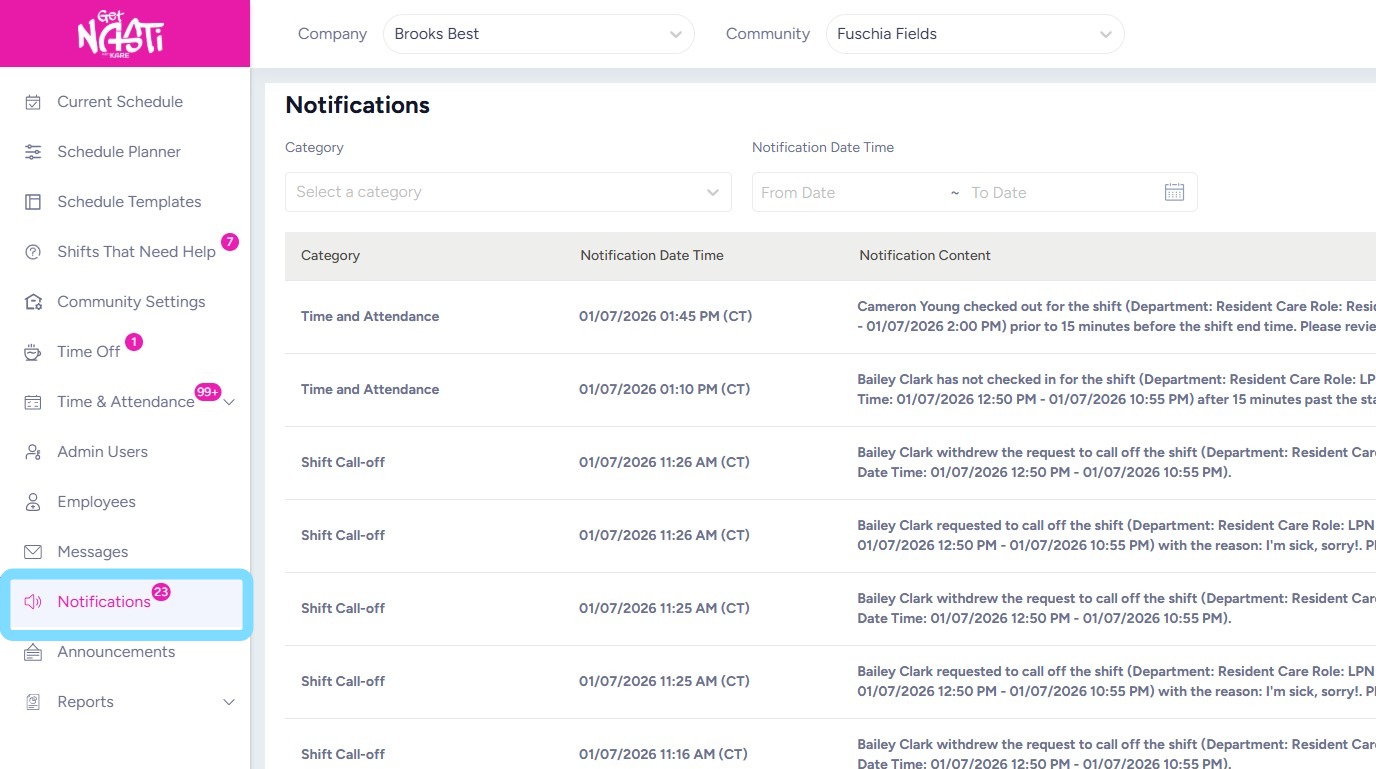
1. Navigate to Notifications
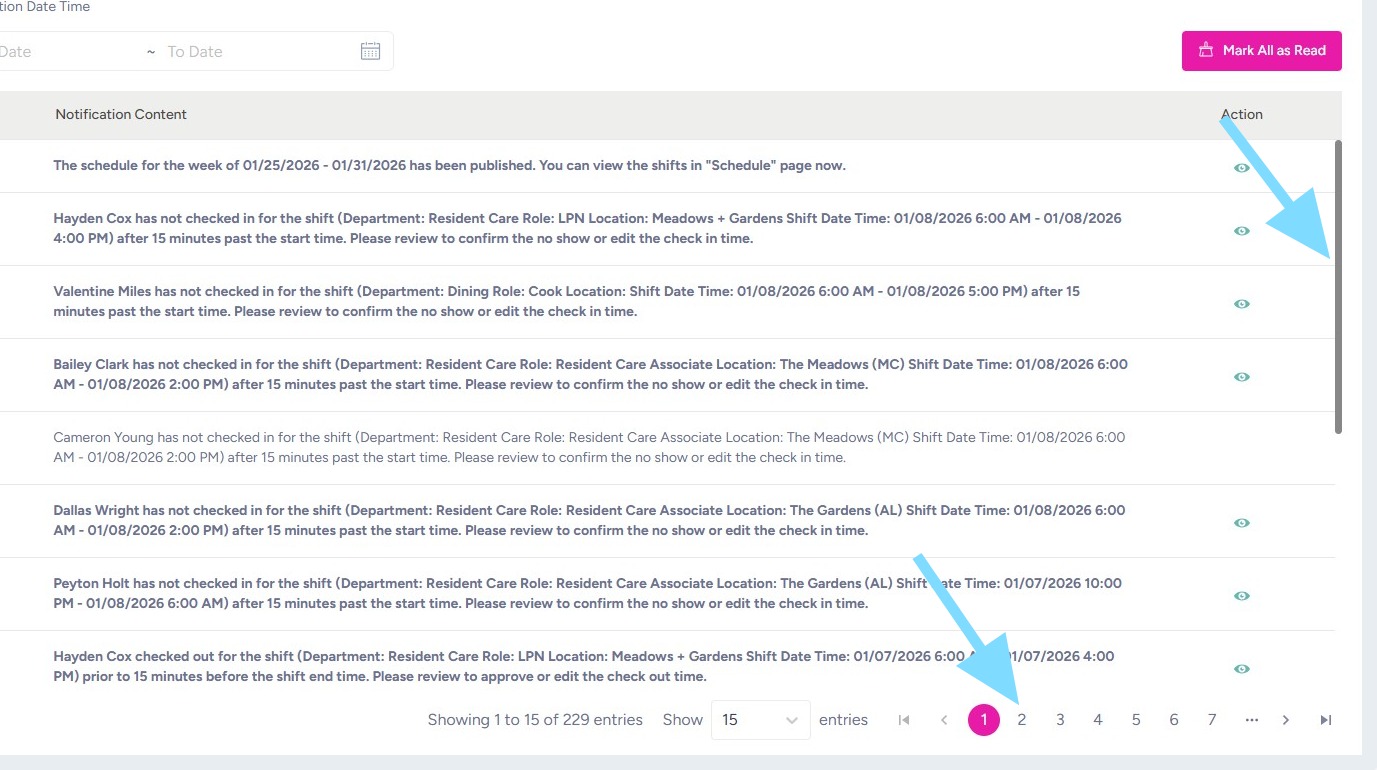
2. Navigate through notifications by using the scroll bar and/or tabbing through the pages.
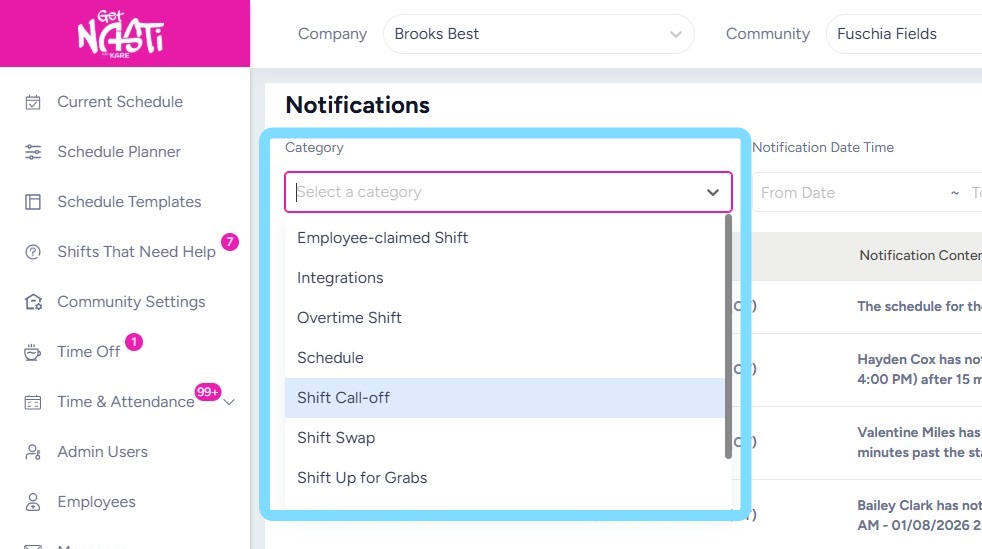
3. To filter notifications by type, select from the Category dropdown list.
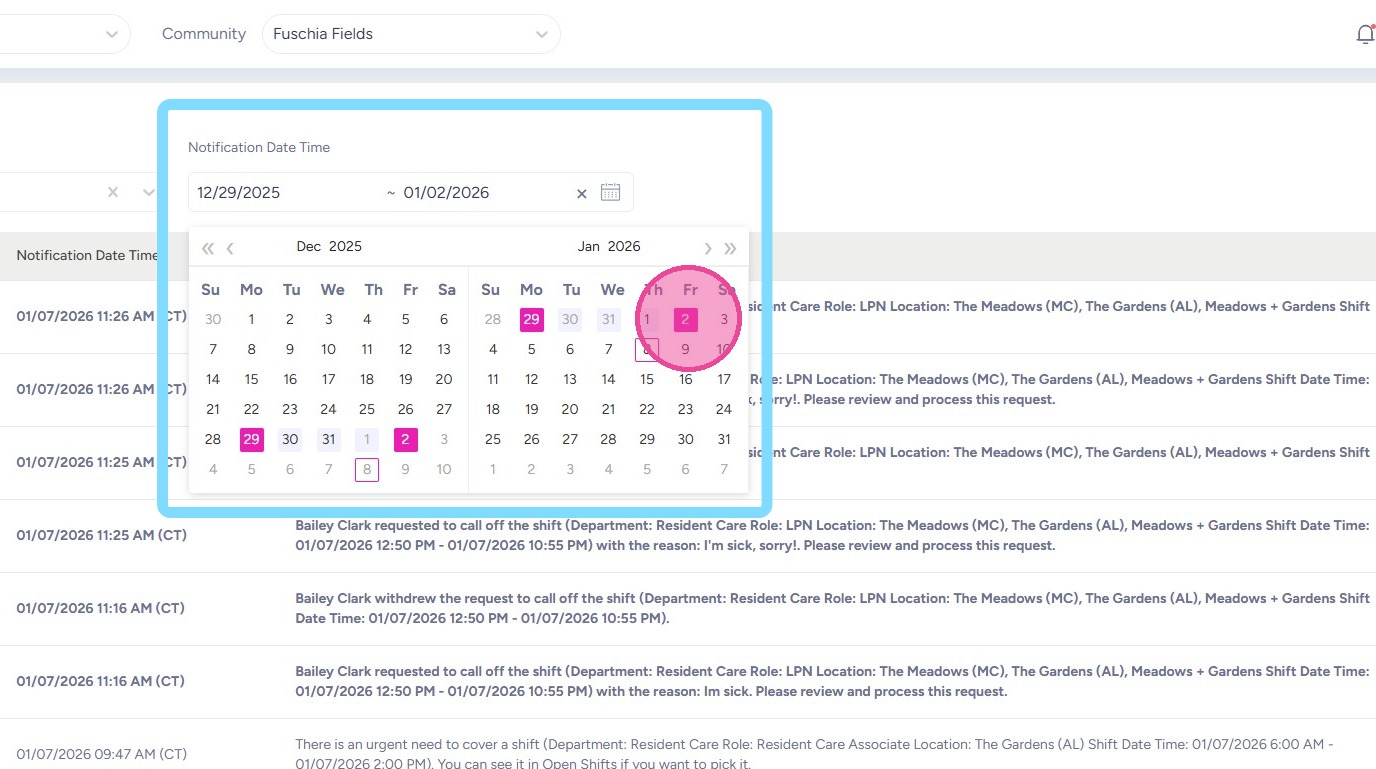
4. To filter notifications by date, select from the Notification Date Time dropdown list.
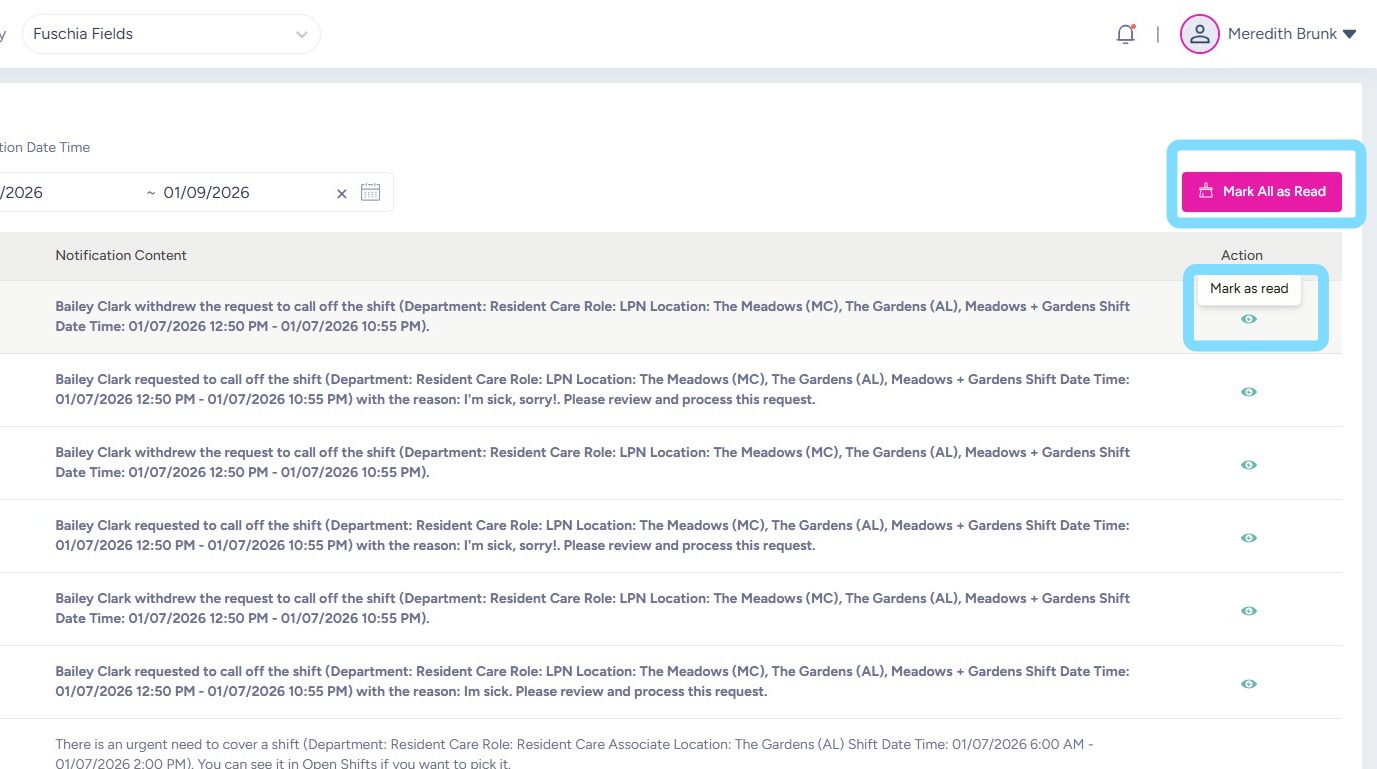
5. To clear the notification, mark it as read.
A user may select an individual notification to Mark as Read
or
Mark All as Read to clear all notifications.
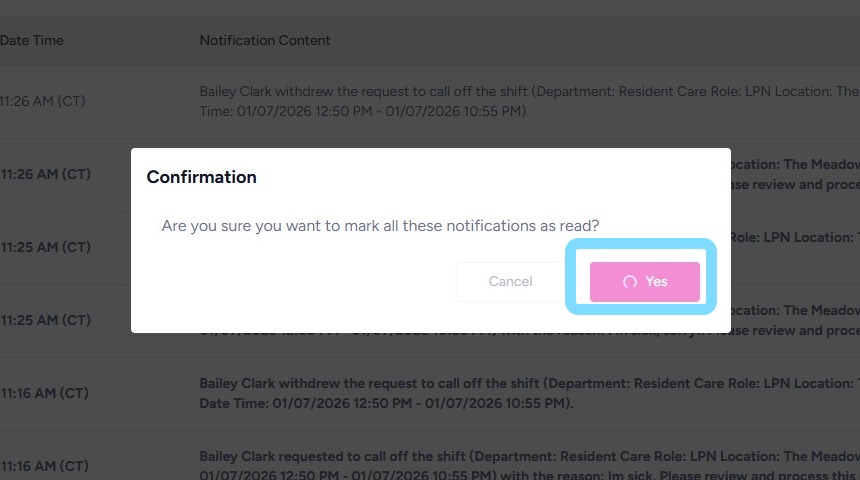
6. Select Yes to confirm marking all notifications as read.
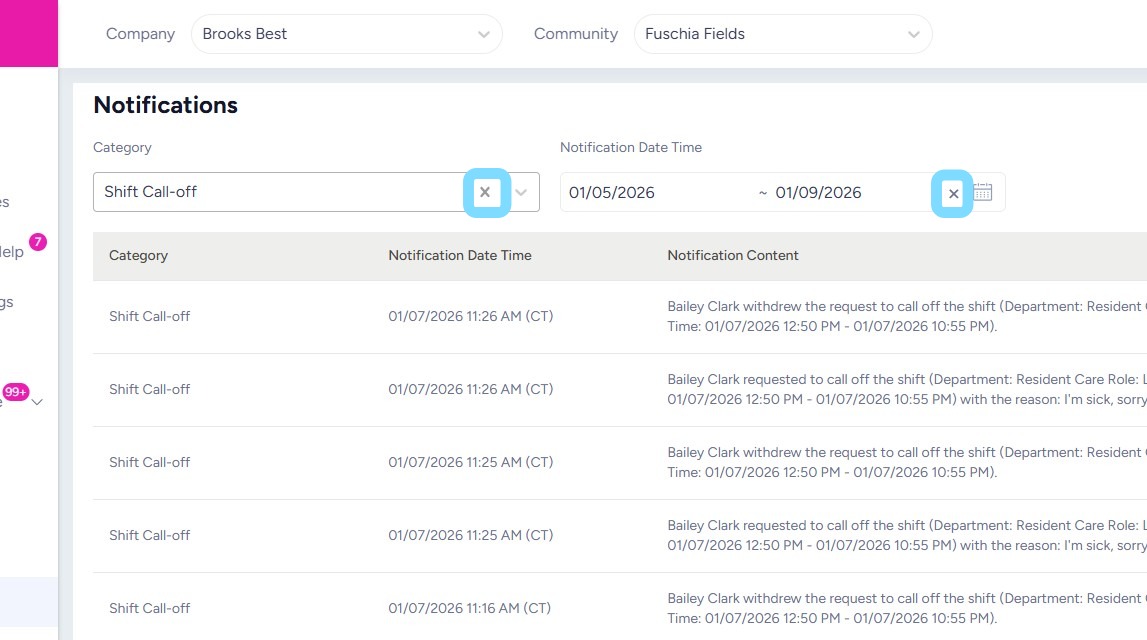
7. To clear filters and return to viewing all notifications, select the x within the drop down box.
8. Congratulations! You’re a pro at managing your notifications!