How To Help an Employee Who Didn’t Receive an Invite
This guide walks admins through how to troubleshoot when an employee hasn’t received their invite, including what to check, how to resend it, and how to direct them to additional support.
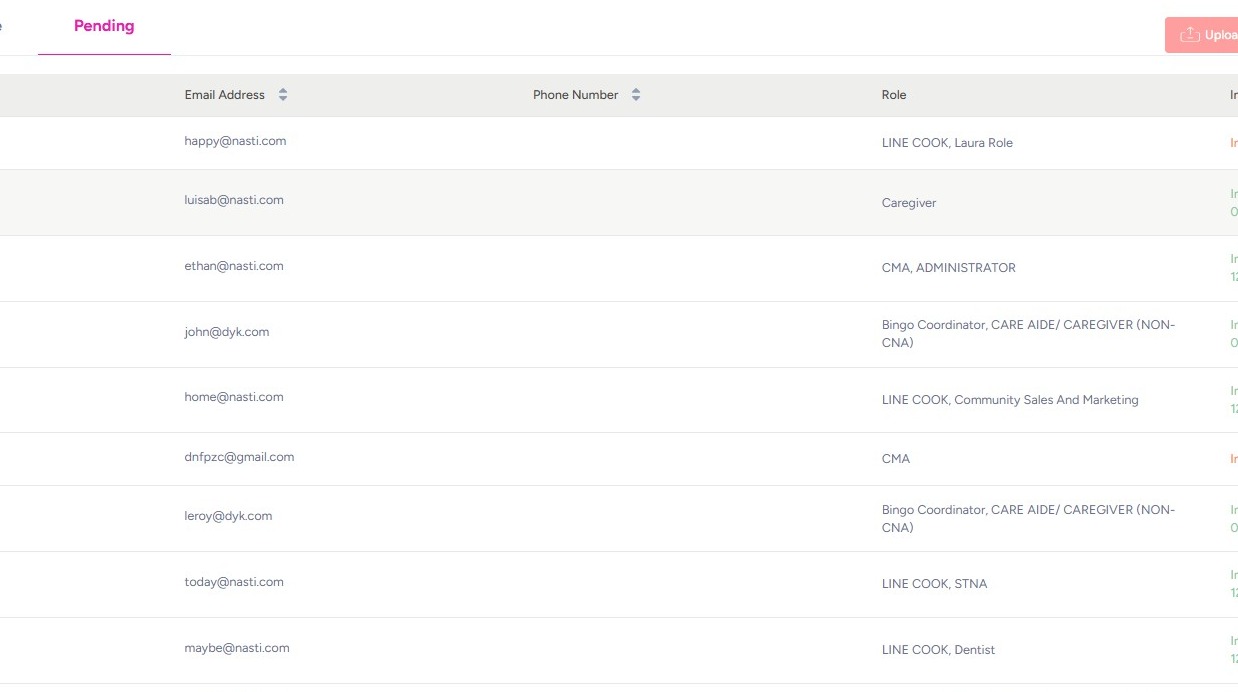
1. If an employee hasn’t seen their invite, ensure correct contact information and try re-sending the invite.
Navigate to People
Select Employees
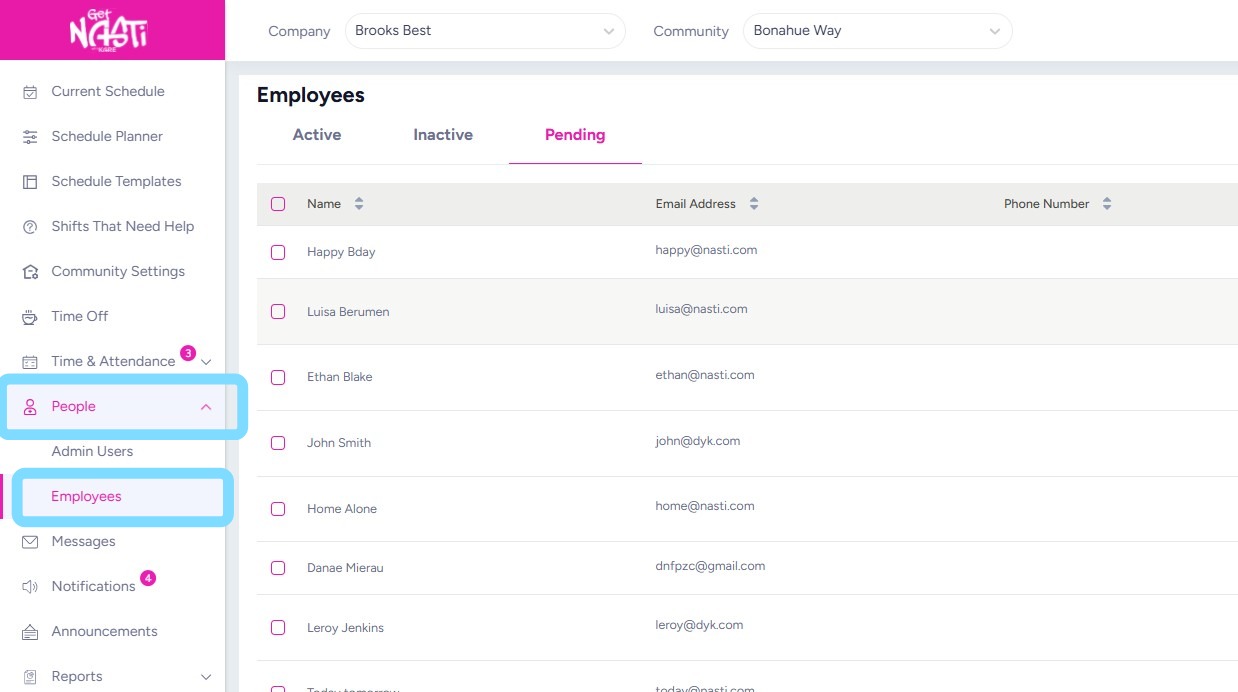
2. Select Pending
Note: Employees who have been added to NASTi but have not yet logged in or completed registration will appear under Pending.
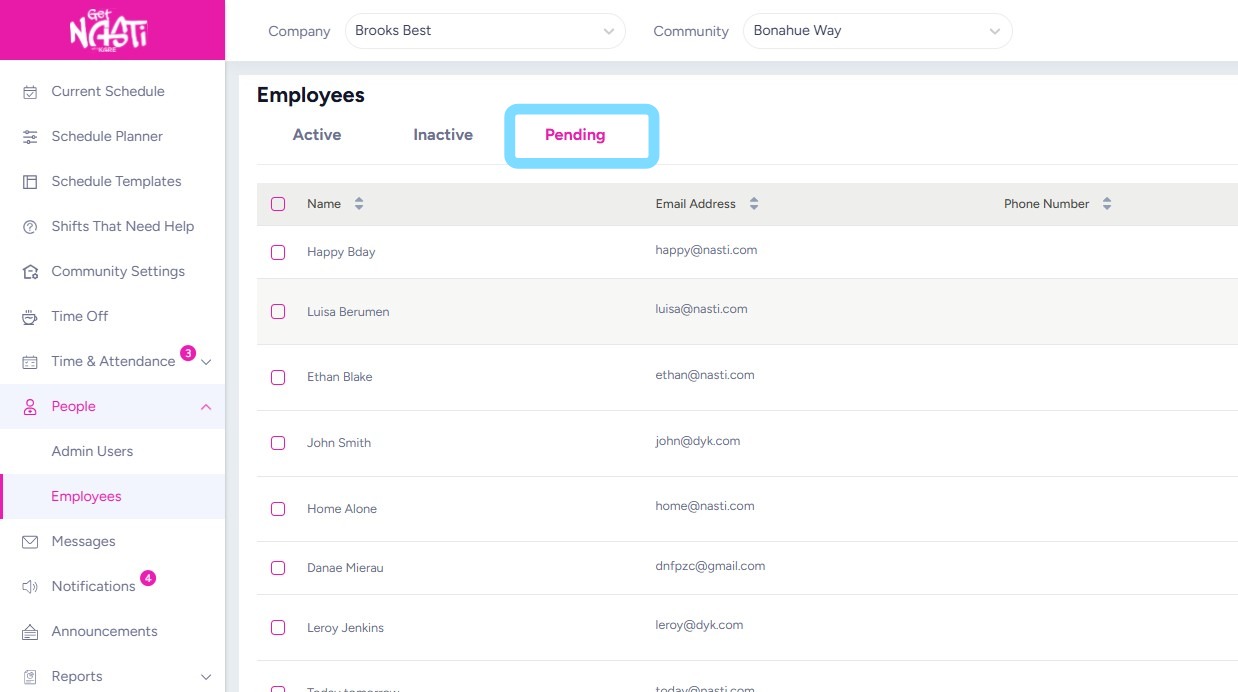
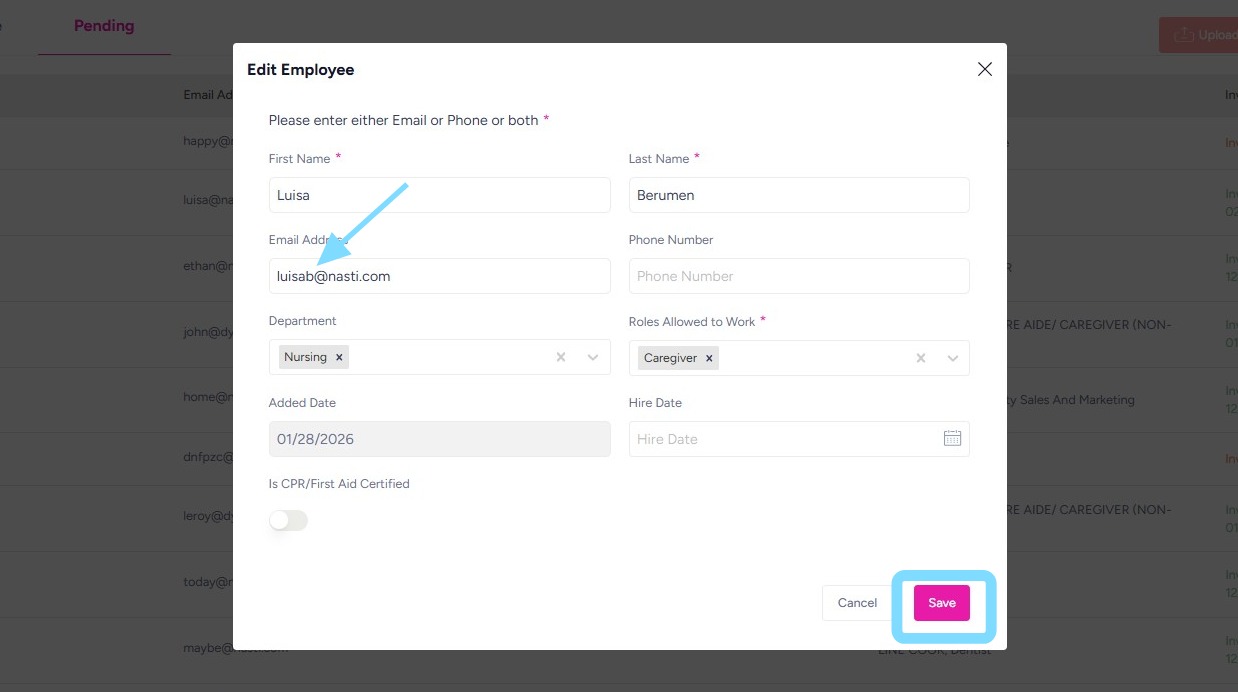
3. Check that the employee’s email or phone number is correct. If there is a typo that needs to be fixed, select Edit.
If the employee’s email or phone number is correct, skip to step 5.
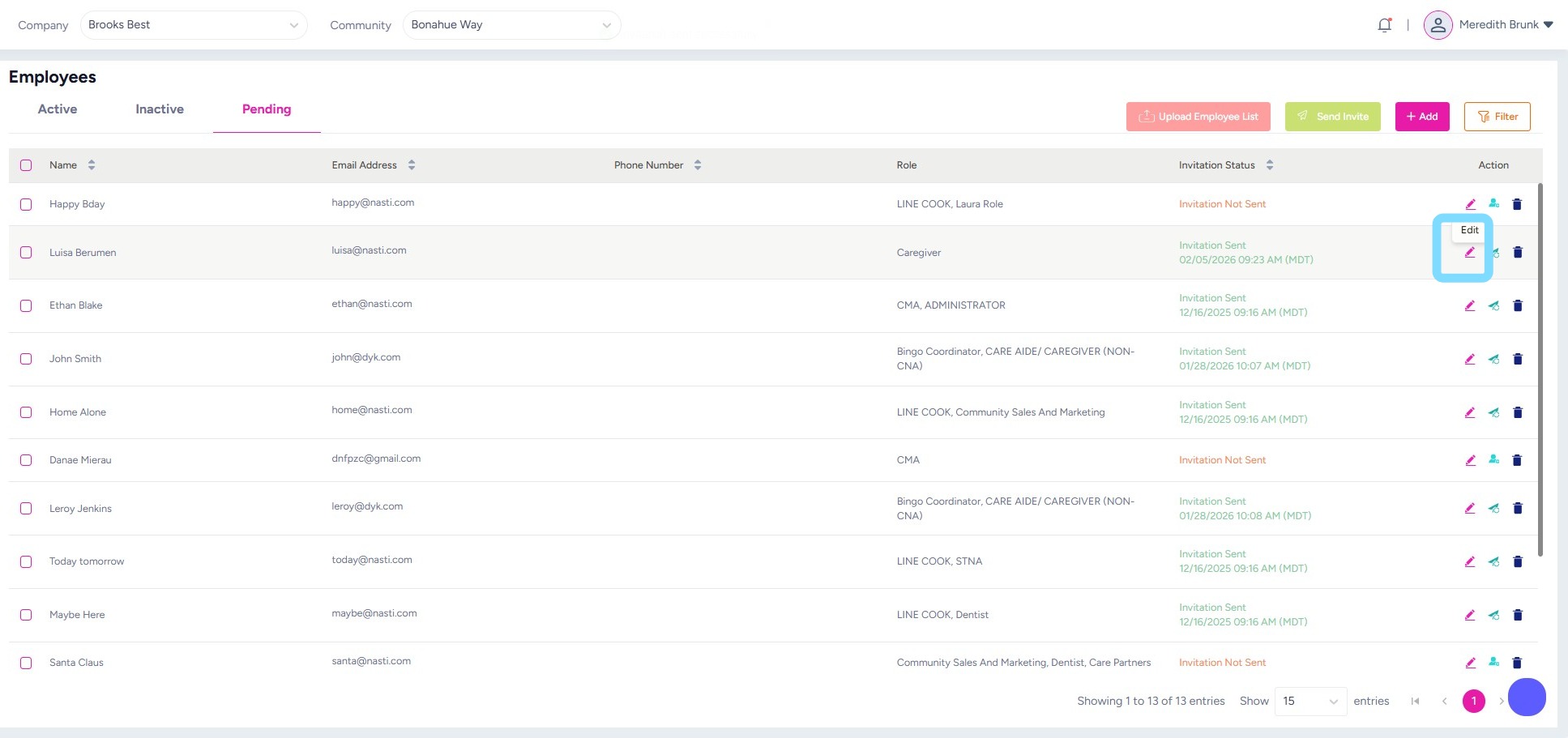
4. Within the employee information, make edits as needed.
Select Save
5. Resend the invite by selecting airplane icon / Resend Invite icon.
6. If the employee still does not receive the invite to log in, have them reach out to NASTi Support Team.