How to Group Shifts
This guide explains how to organize and label groups of shifts so they’re easier to identify and assign to employees. With Group Shifts option, Admin Users can “tag” a group of shifts by color-coding and labeling in order to bring clarity when viewing or working within the schedule.
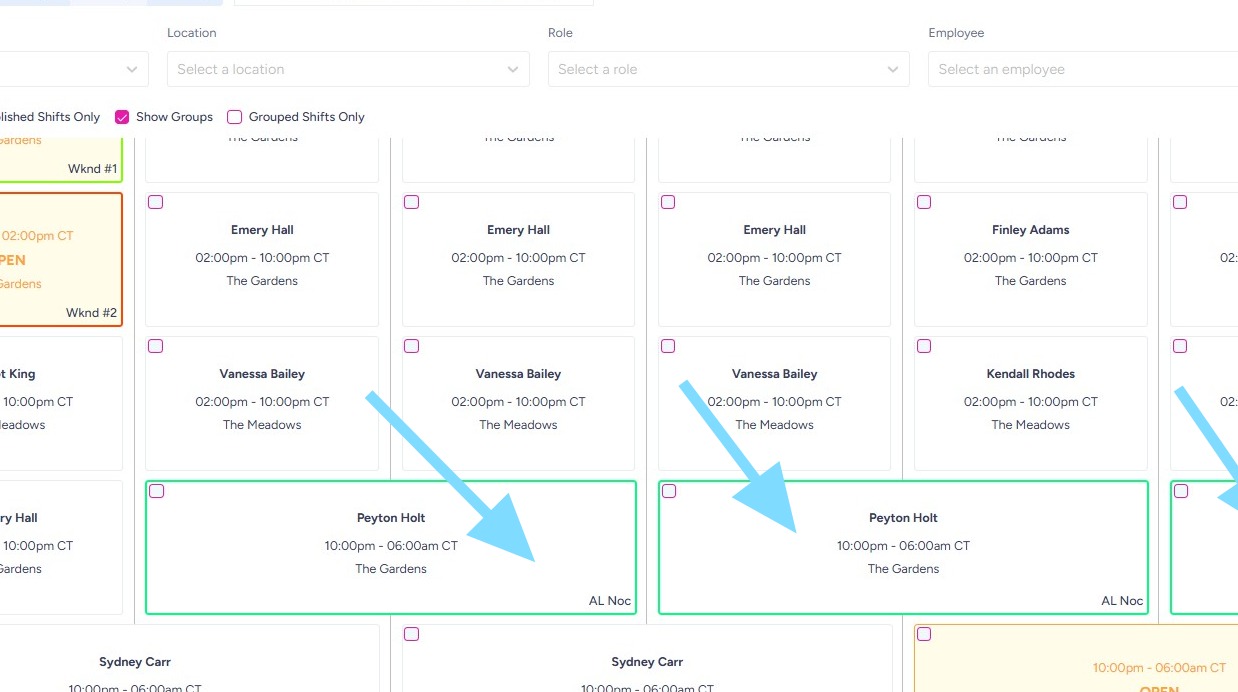
1. Shifts can be grouped together – color-coded and labeled- to make them easy to identify and assign. In this example, Wknd #2 shifts appear in red and Wknd #1 shifts appear in neon green.
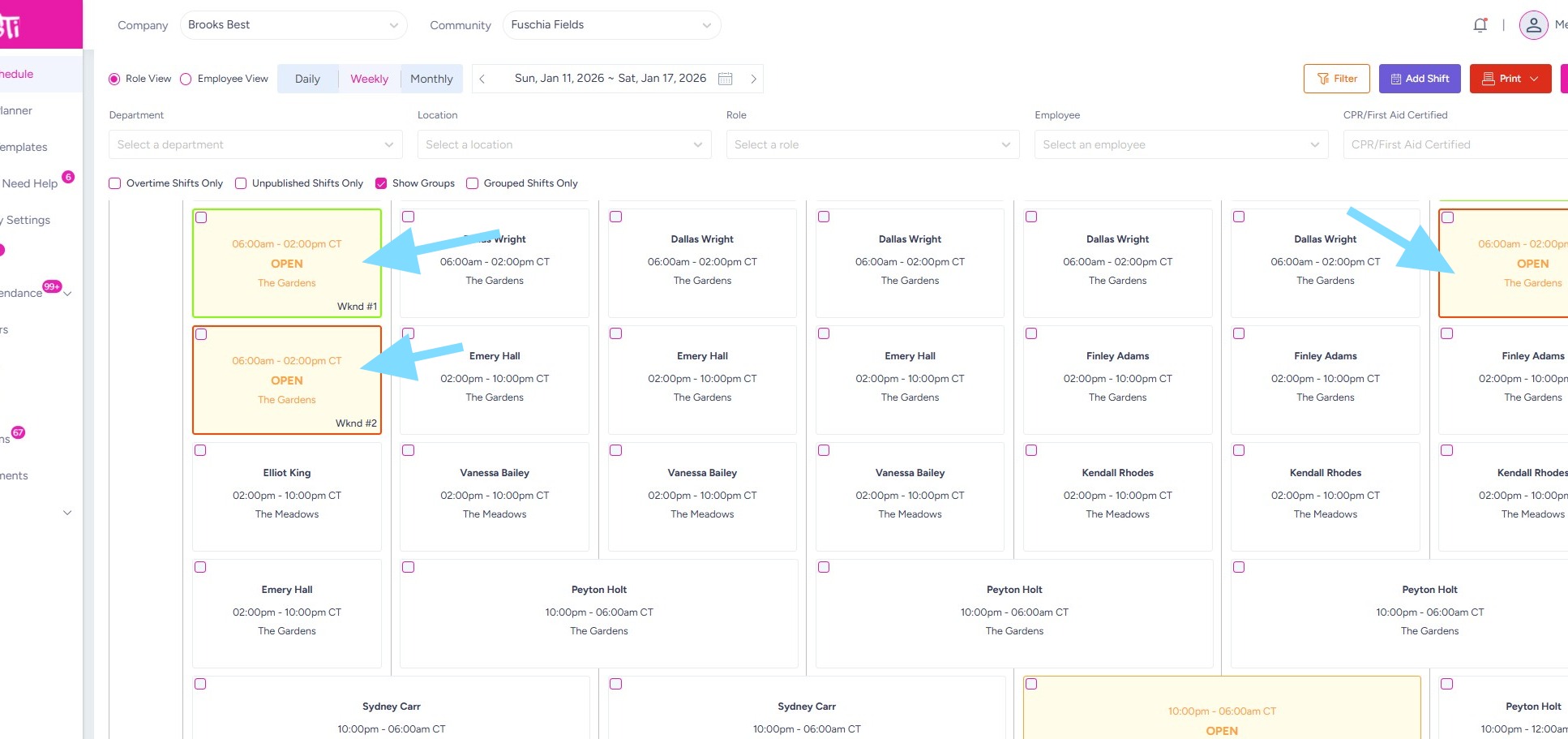
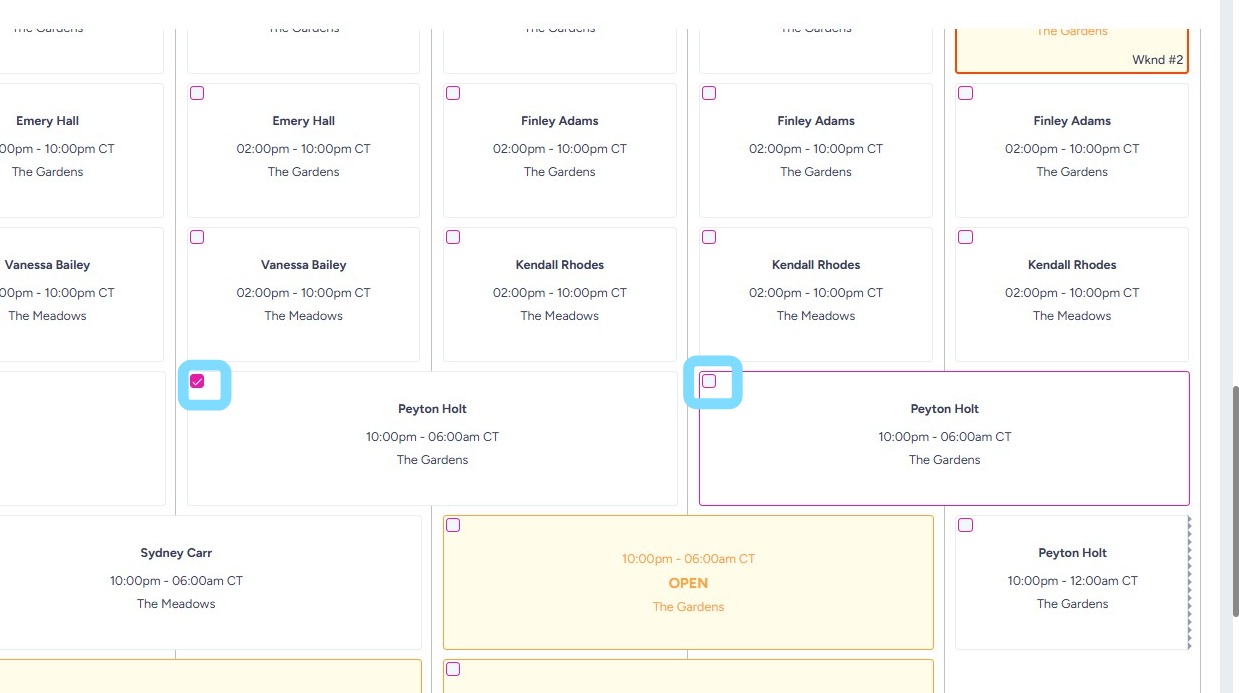
2. To group several shifts together and label them, check the boxes within the shifts to be grouped.
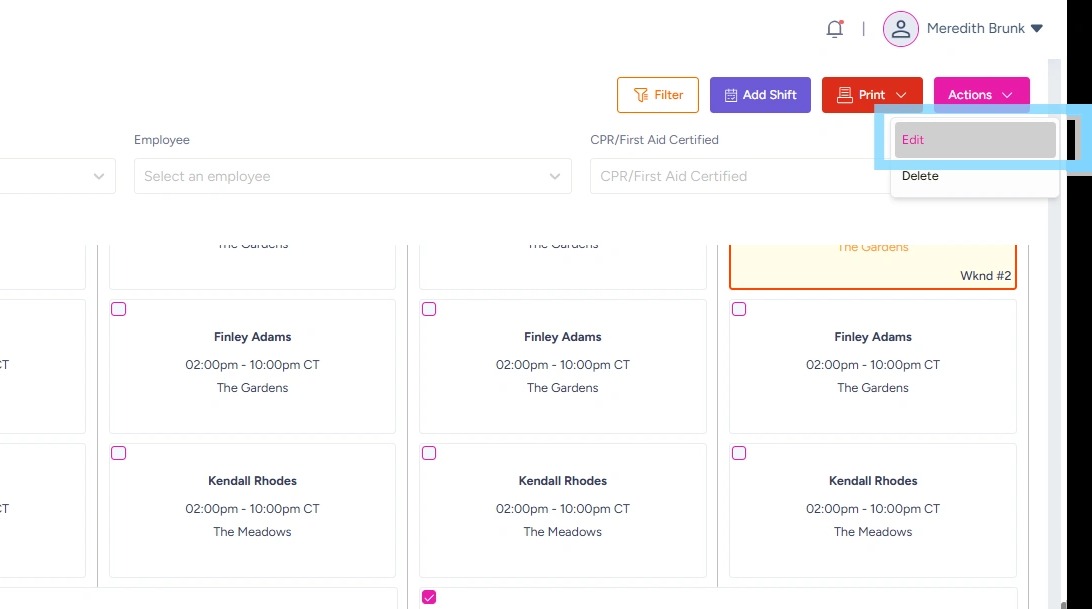
3. Select Actions
Select Edit
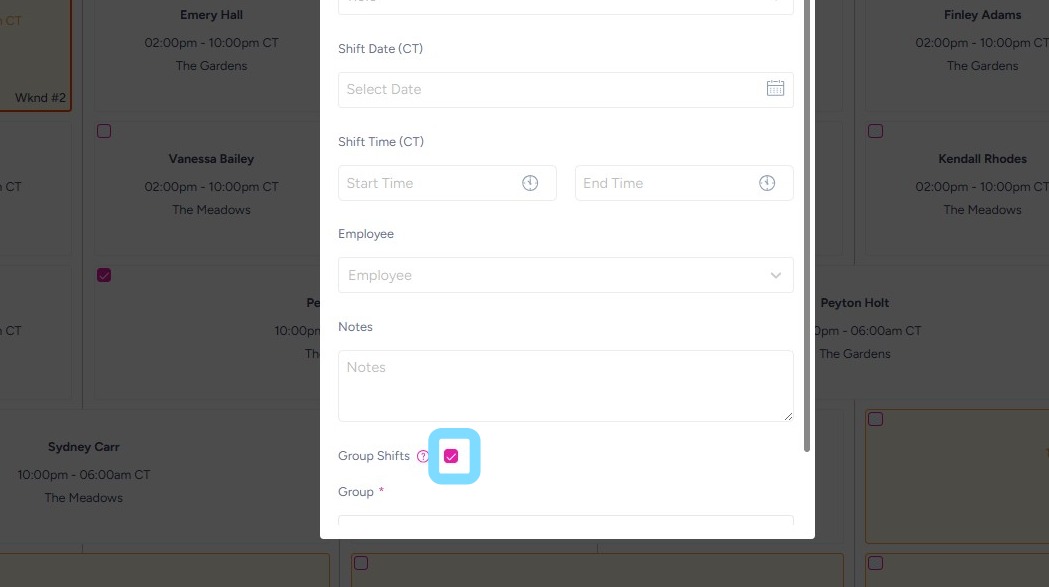
4. Check the box next to Group Shifts.
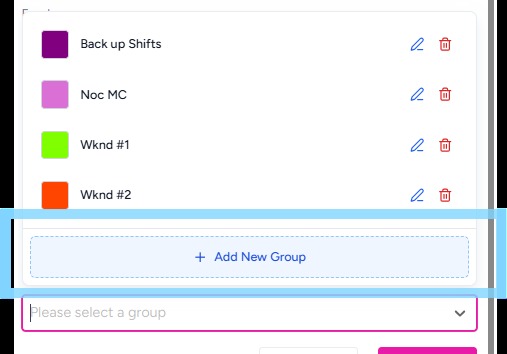
5. If groups have already been created, the user may select from dropdown list.
To create a new group, select +Add New Group
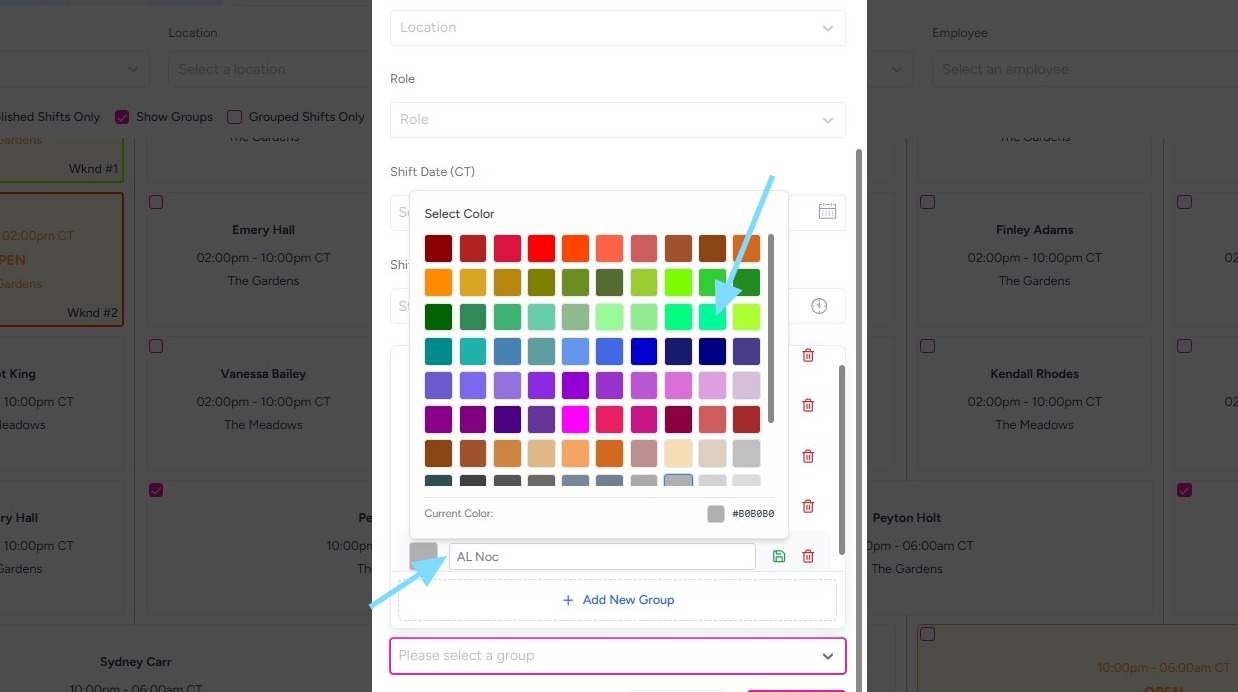
6. Select a color for the group.
Create a label for the group.
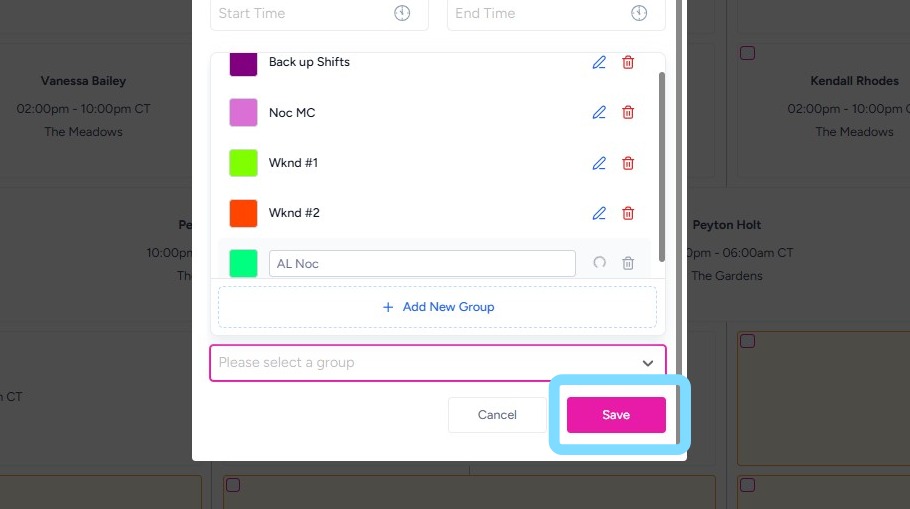
7. Select Save.
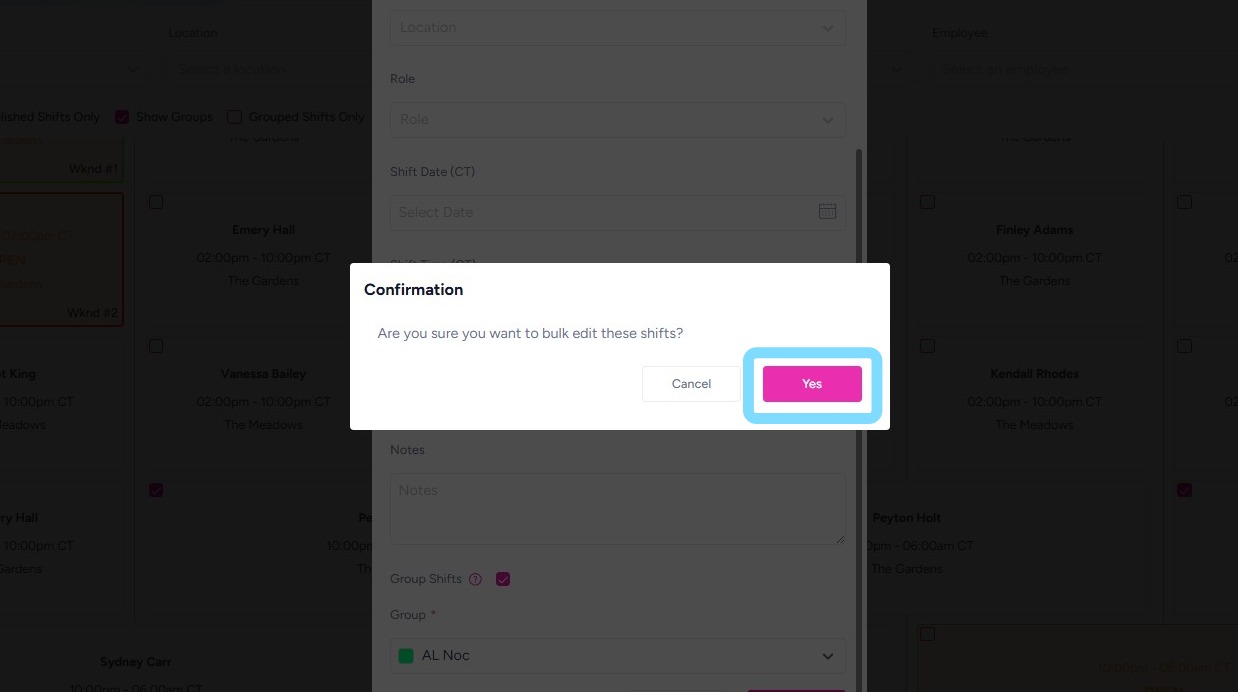
8. Select Yes to confirm.
9. Congrats – clarity achieved! Note the group of shifts color-coded and labeled!