How to Edit Employee Time Clock Entries
This guide outlines the steps for Admin Users to easily adjust employee time clock entries in relation to scheduled shifts. Note: Employee time can be edited only in relation to a scheduled shift. Time clock entries must align with an existing scheduled shift.
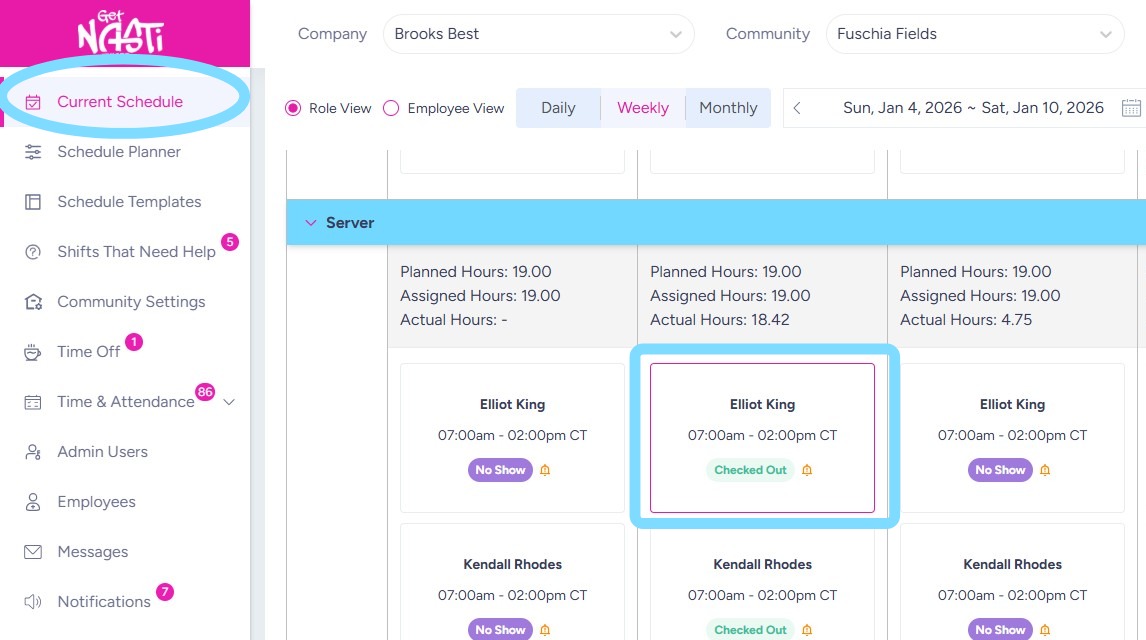
1. Within Current Schedule, select the employee’s shift for which the time clock entry needs to be edited.
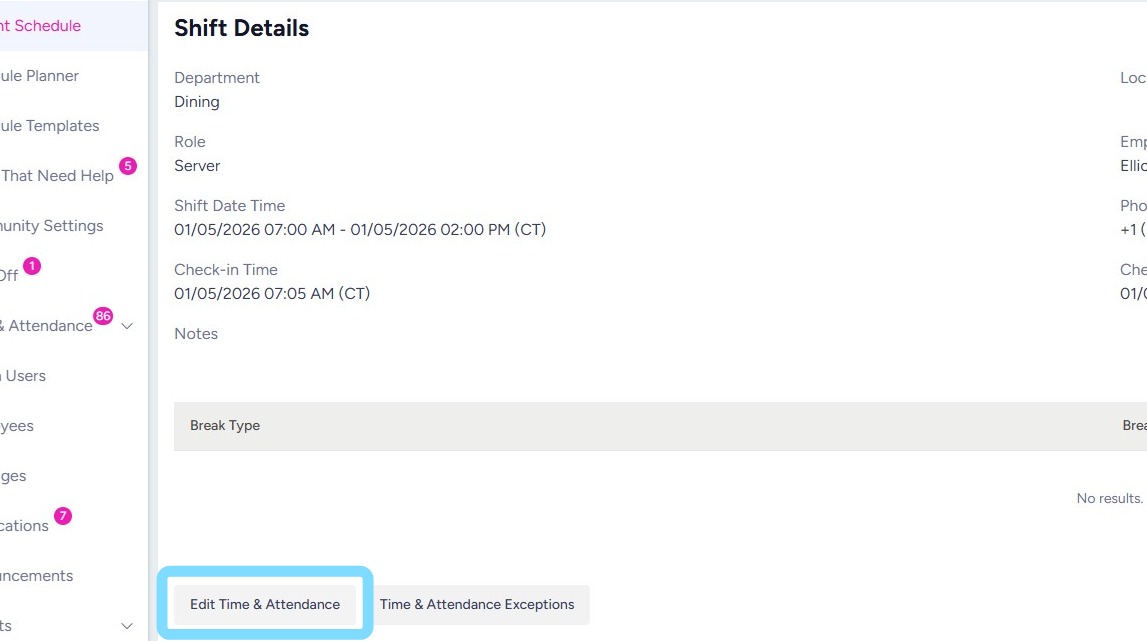
2. Select Edit Time & Attendance
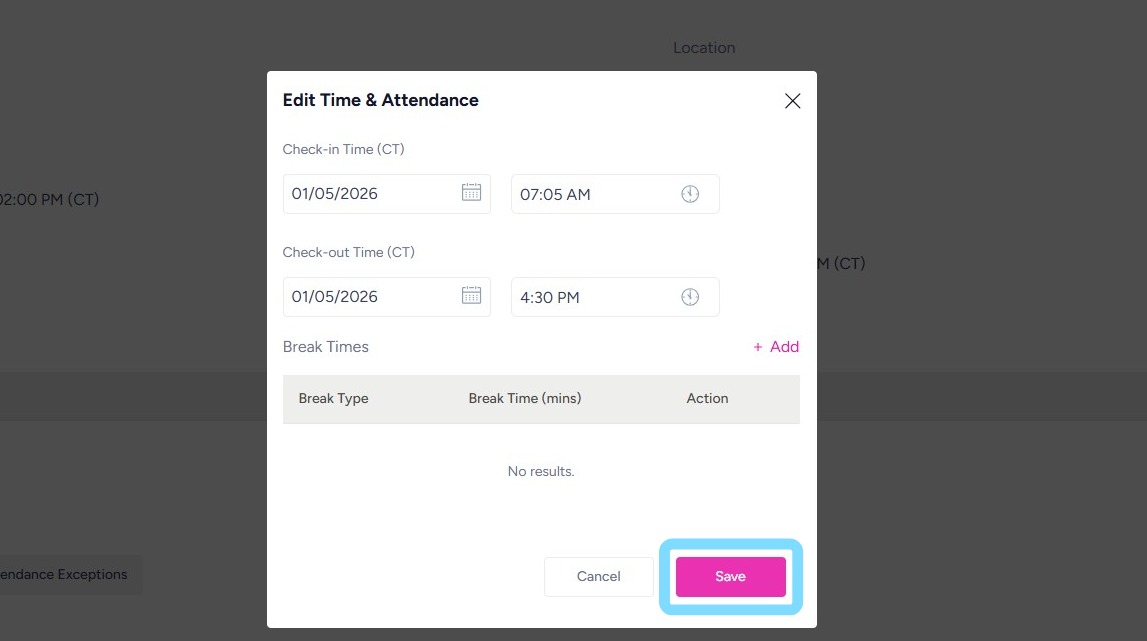
3. Edit the Check-in Time, Check-out Time and/or Break Times.
In this example the Check-out Time is being edited.
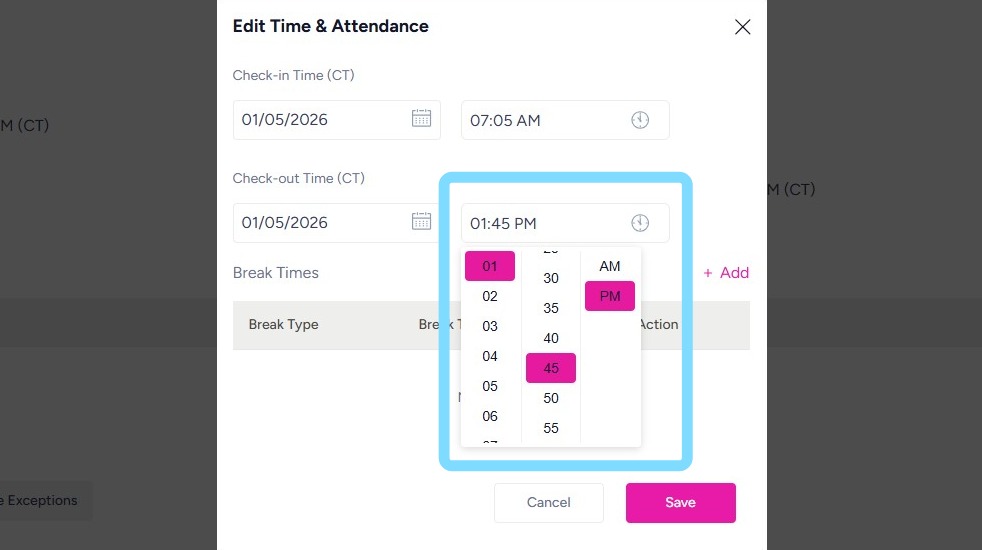
4. Select Save.
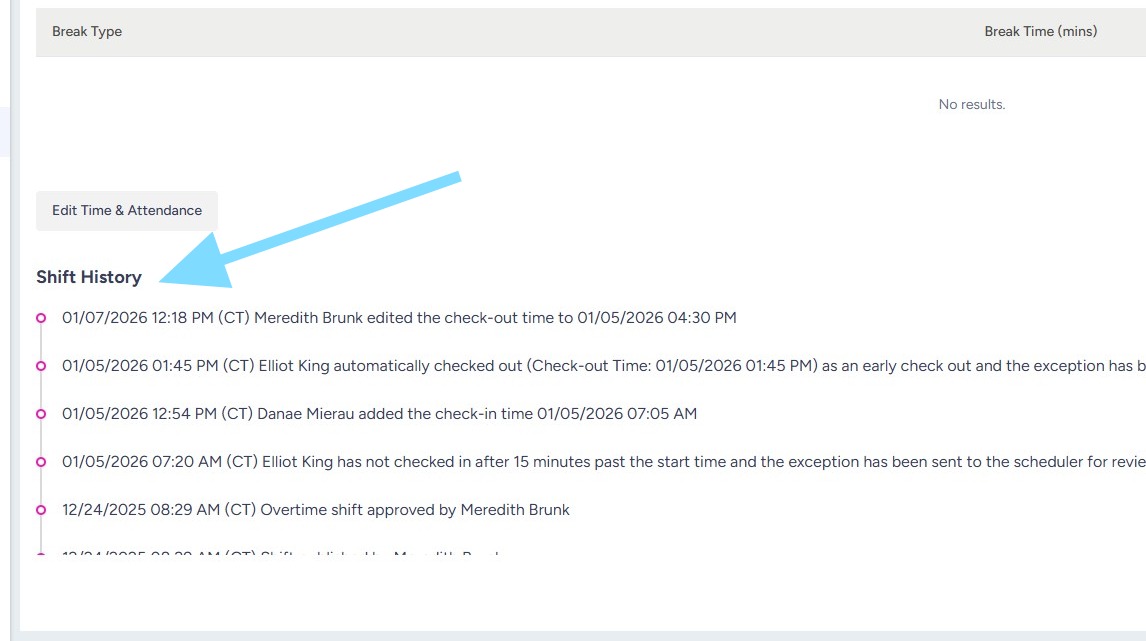
5. The time clock edit is now complete. The user can see a history of the shift edits, including time clock edits within the Shift History.
Note: if time clock edits are made on shifts that have already been approved in Payroll, the Admin User will need to re-approve this employee’s hours for that payroll week.