How to Edit Template and Apply Updated Template to Schedule
Made by Meredith Brunk with Scribe
Learn how to make changes to an existing Schedule Template and apply those updates to future schedules. This guide walks you through editing shifts, roles, times, and coverage within a template, then reapplying the updated template so your Current Schedule reflects the latest changes.
Template Configuration
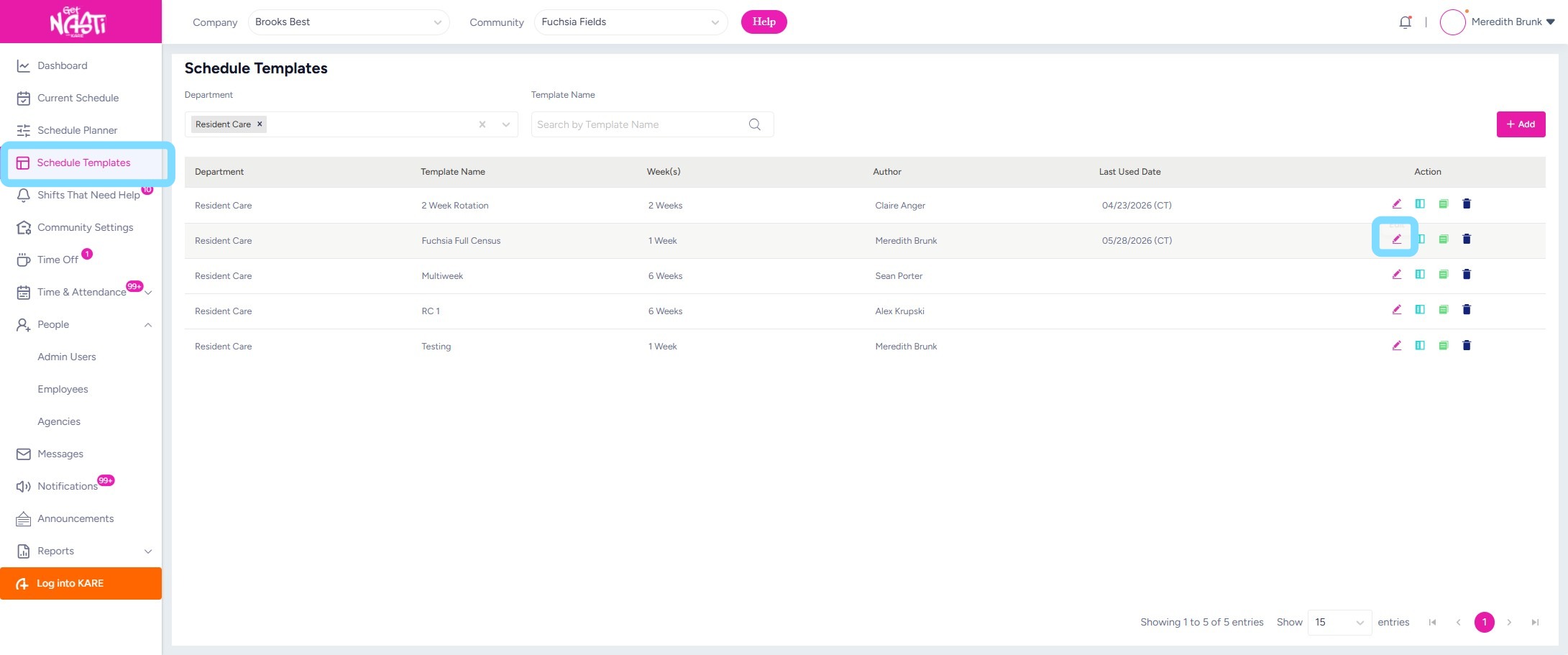
1. Navigate to Schedule Templates
Find your template to be edited
Select Edit icon
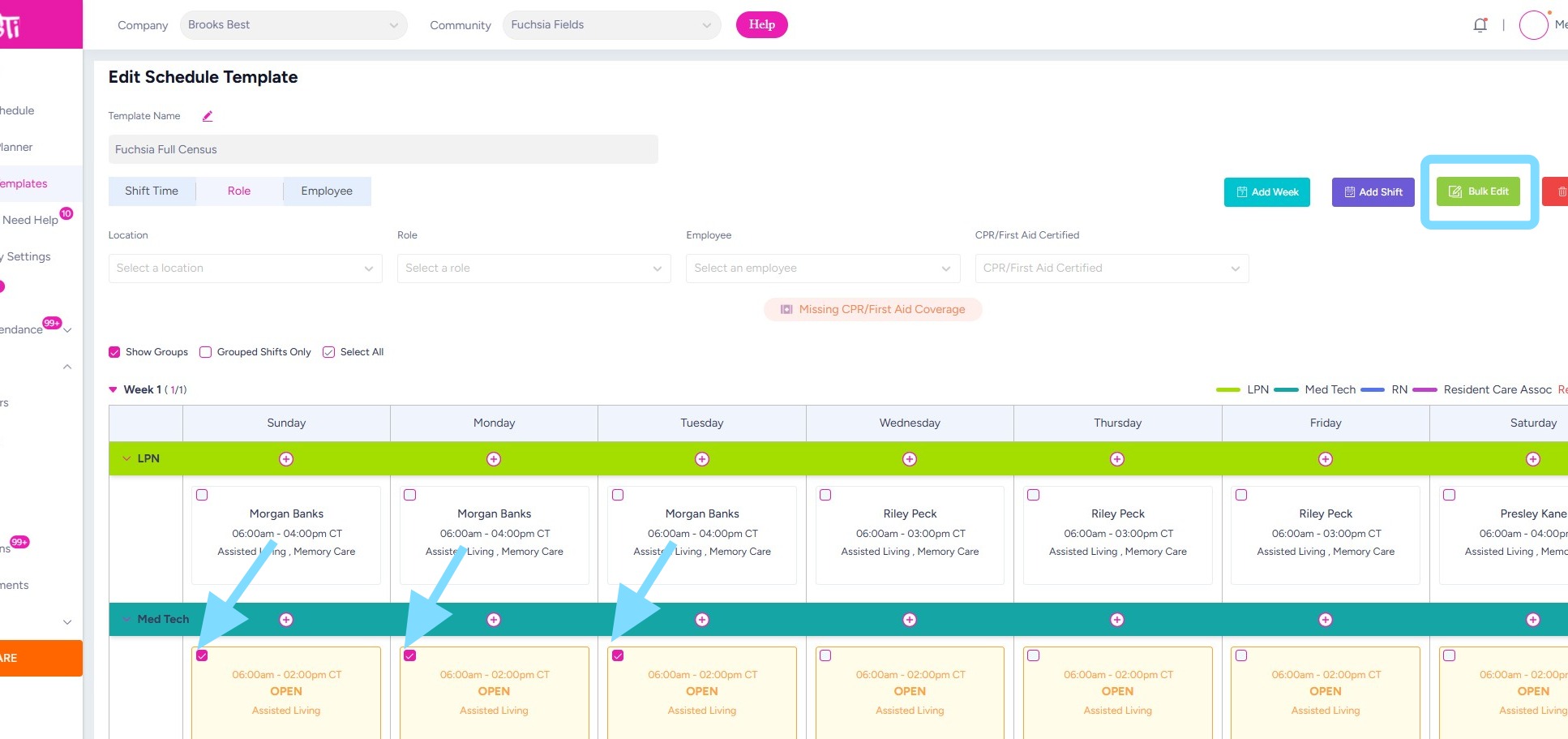
2. To edit shifts within the template, select the checkbox within the shifts you would like to make an update, then click Bulk Edit.
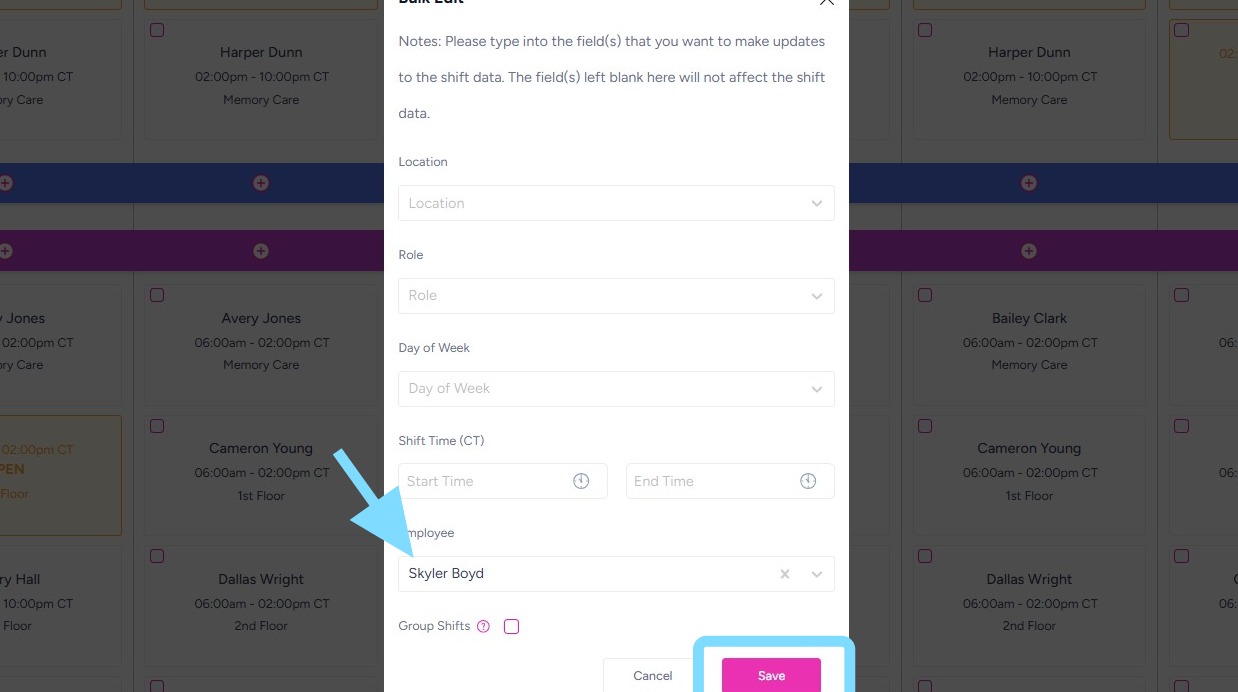
3. Make changes to those shifts then select Save.
(In this example the set of open shifts are assigned to an employee – Skyler Boyd).
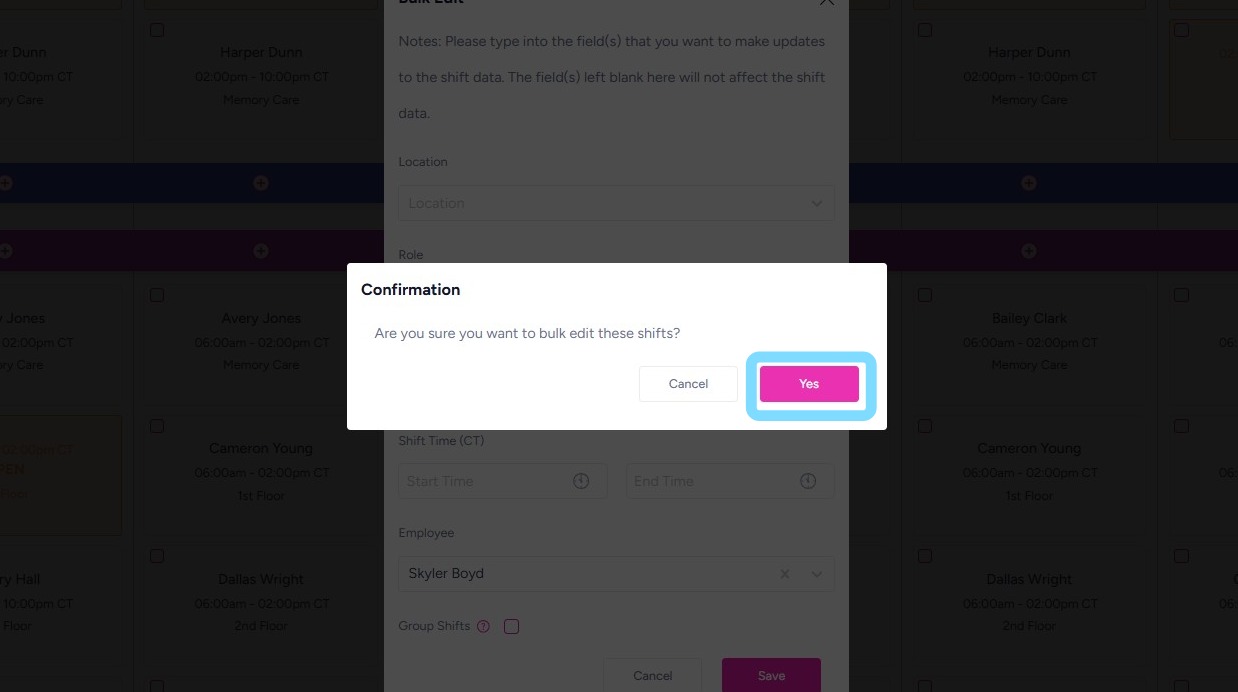
4. Select Yes to confirm the bulk edit action.
Applying Updated Template to the Schedule –
5. You may now apply the updated Schedule Template to your planned schedule.
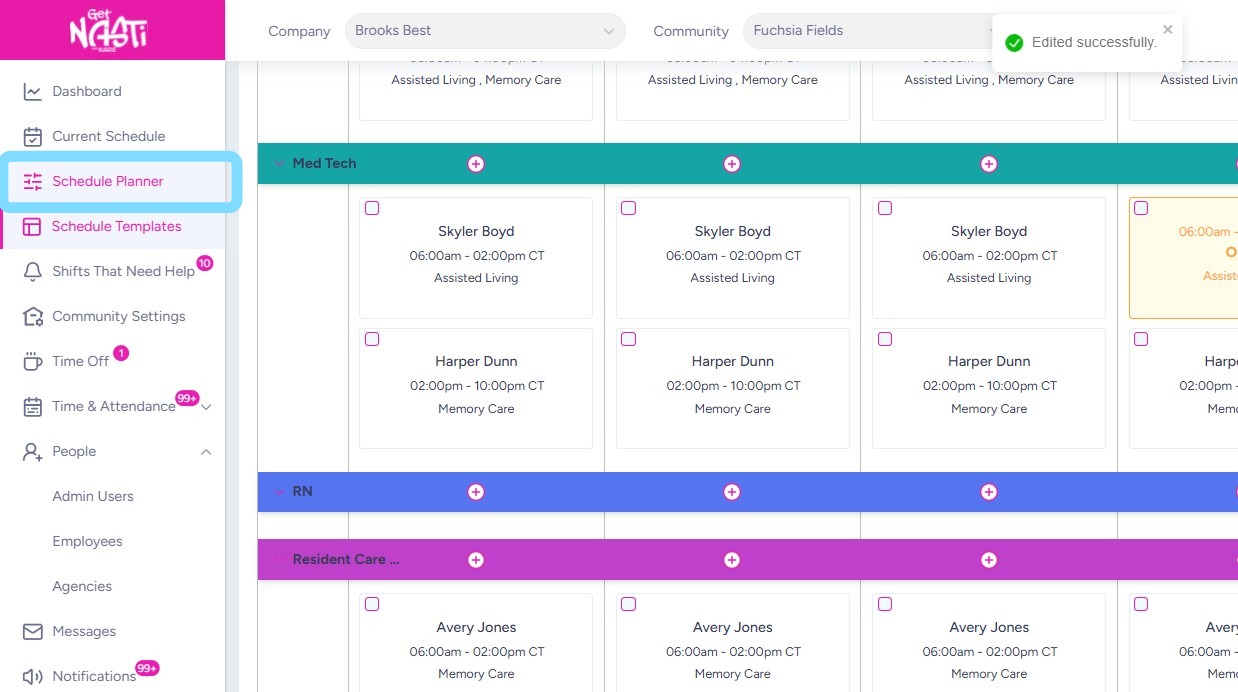
Select Schedule Planner to begin applying the updated template.
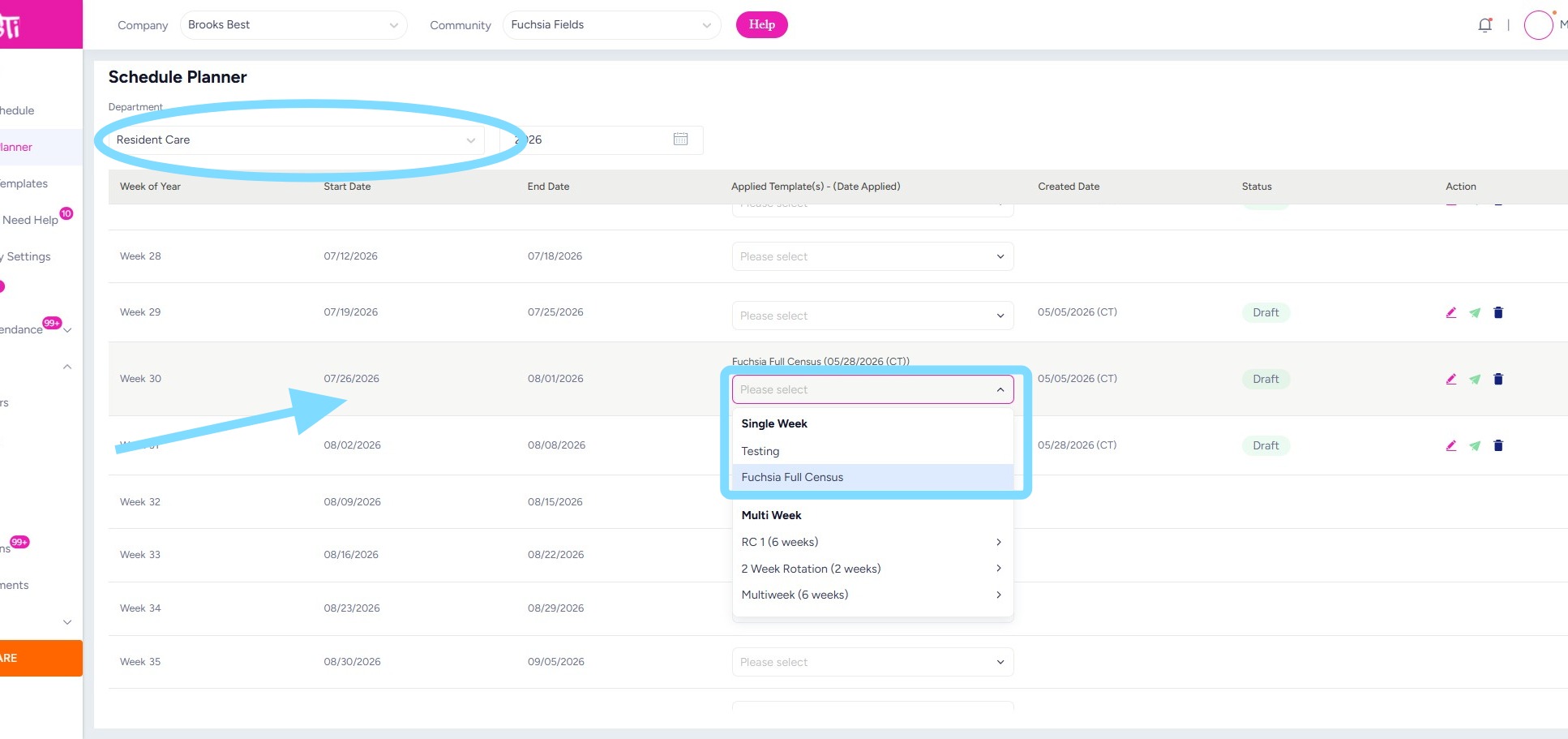
6. Ensure you are viewing the correct department.
Navigate to the week where you would like the updated template to begin.
Then, select the appropriate template from the dropdown list.
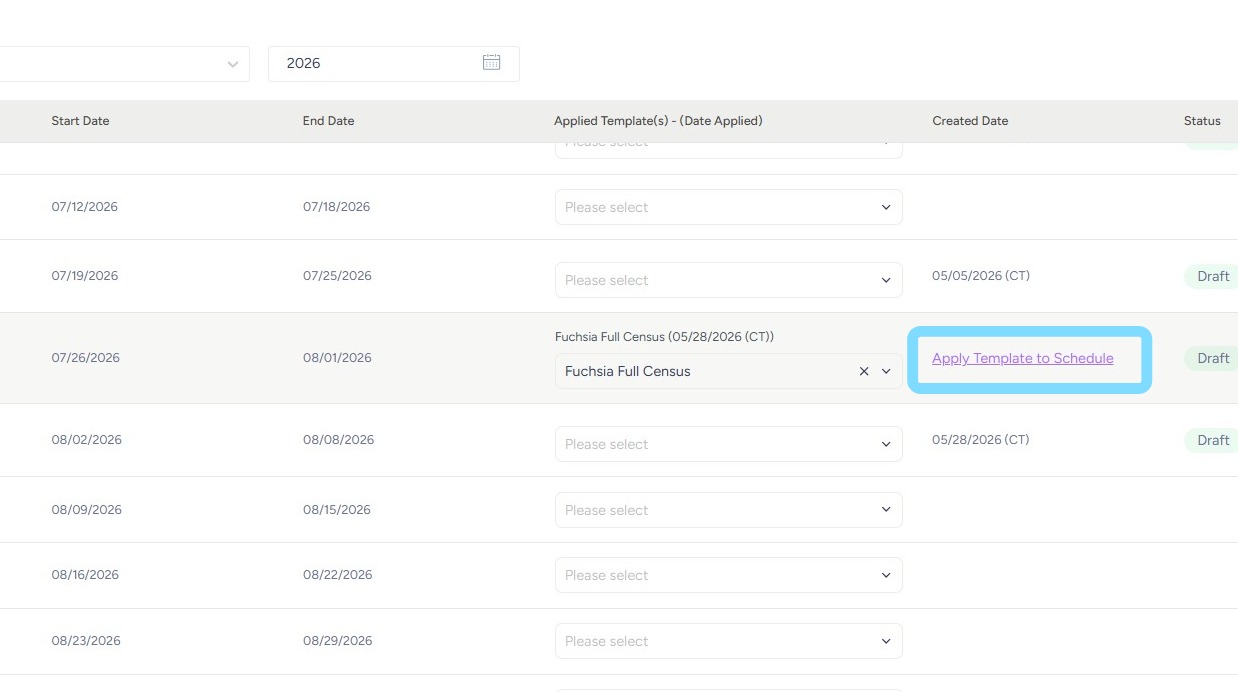
7. Select Apply Template to Schedule
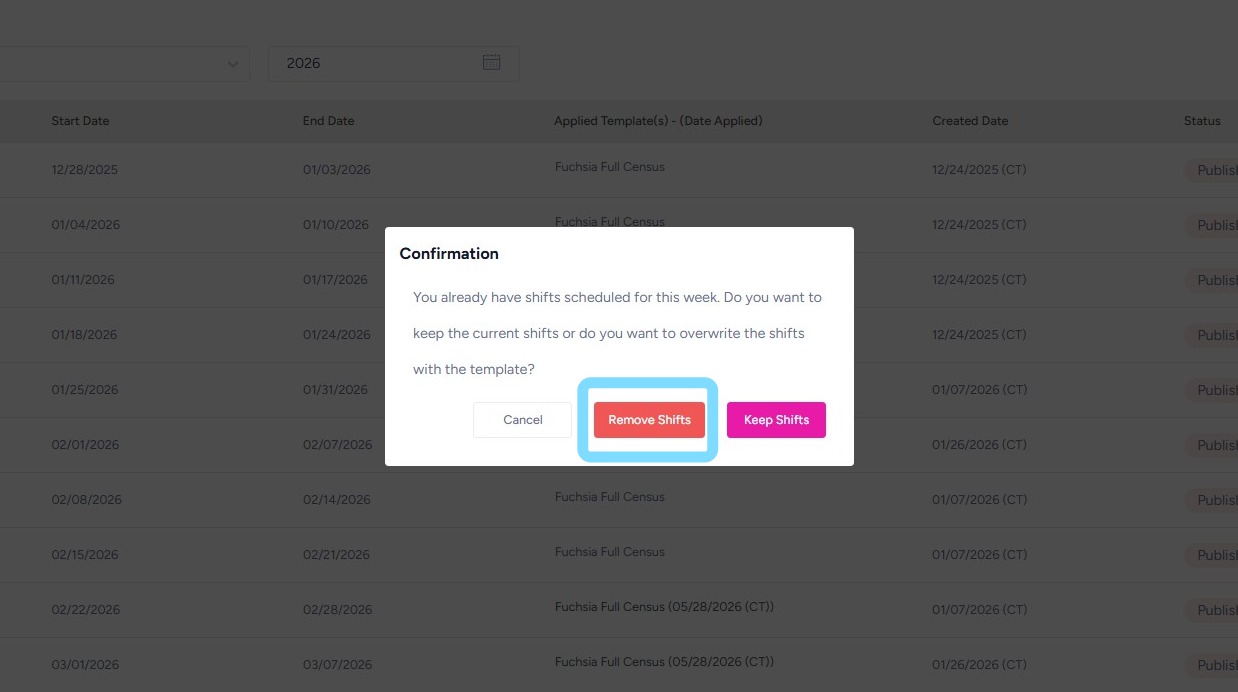
8. Select Remove Shifts to apply this updated Schedule Template and remove what was previously scheduled.
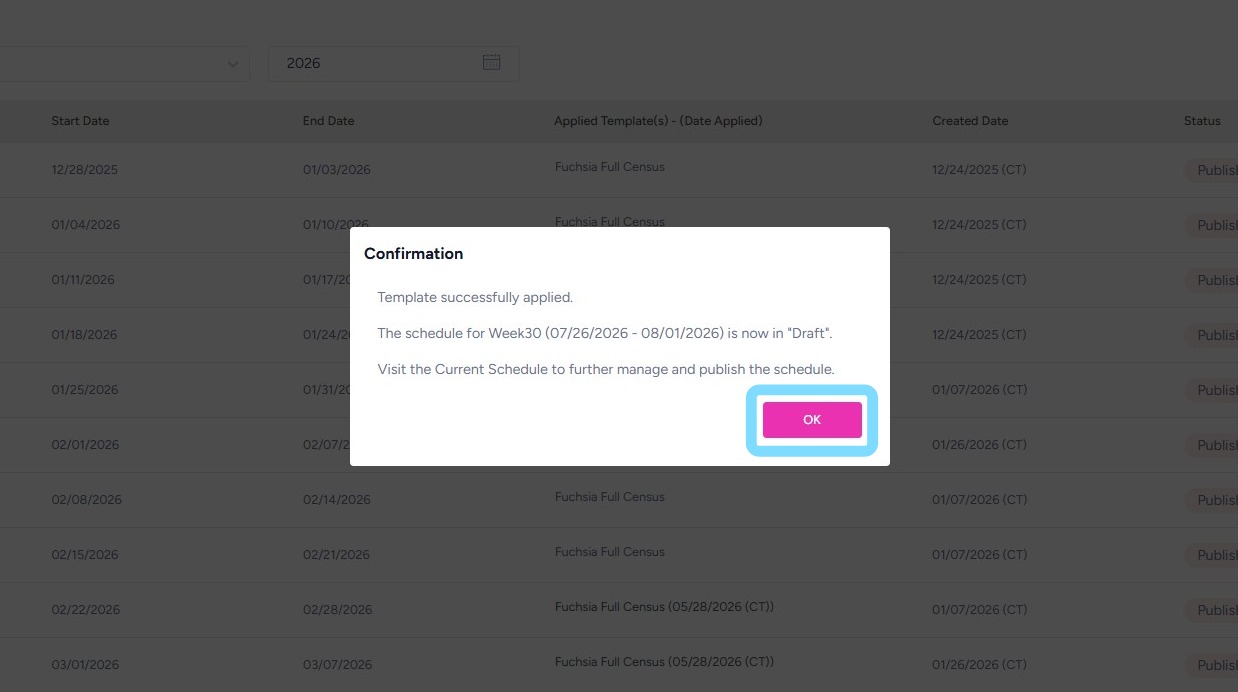
9. Select OK to finalize. Now your updated Schedule Template has been applied to the week(s) ahead. Congrats!