How to Edit Employee Information
This guide walks Admin Users through editing employee information (name, hire date, roles, departments, CPR certification, termination date) to keep records accurate and schedules running smoothly for employees and the community. It also highlights common setup issues that can impact registration and scheduling, along with guidance on key editable fields.
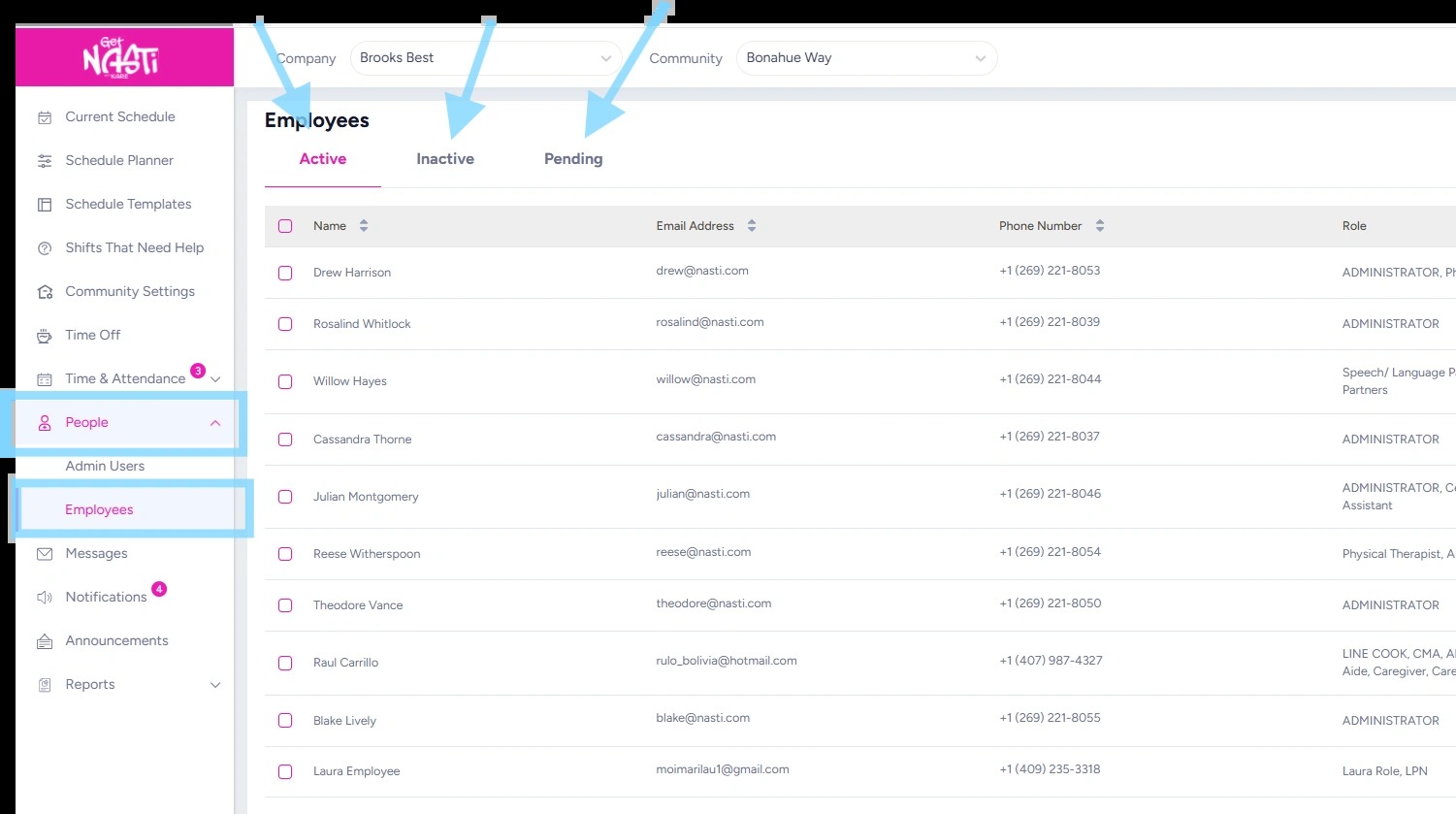
1. Navigate to Employees
Note: Employees are organized into three tabs and can be found in one of the following tabs:
-
Active – Current employees who are registered and active in the NASTi app.
-
Inactive – Employees who have been terminated.
-
Pending – Employees who have been added by an admin but have not yet been invited or have not completed app registration.
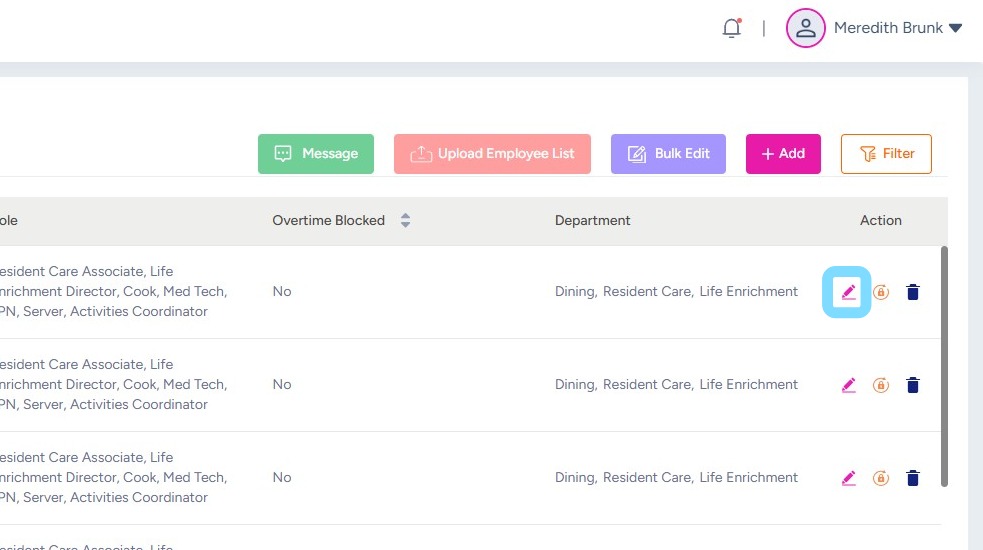
2. Select the Edit icon to open employee profile
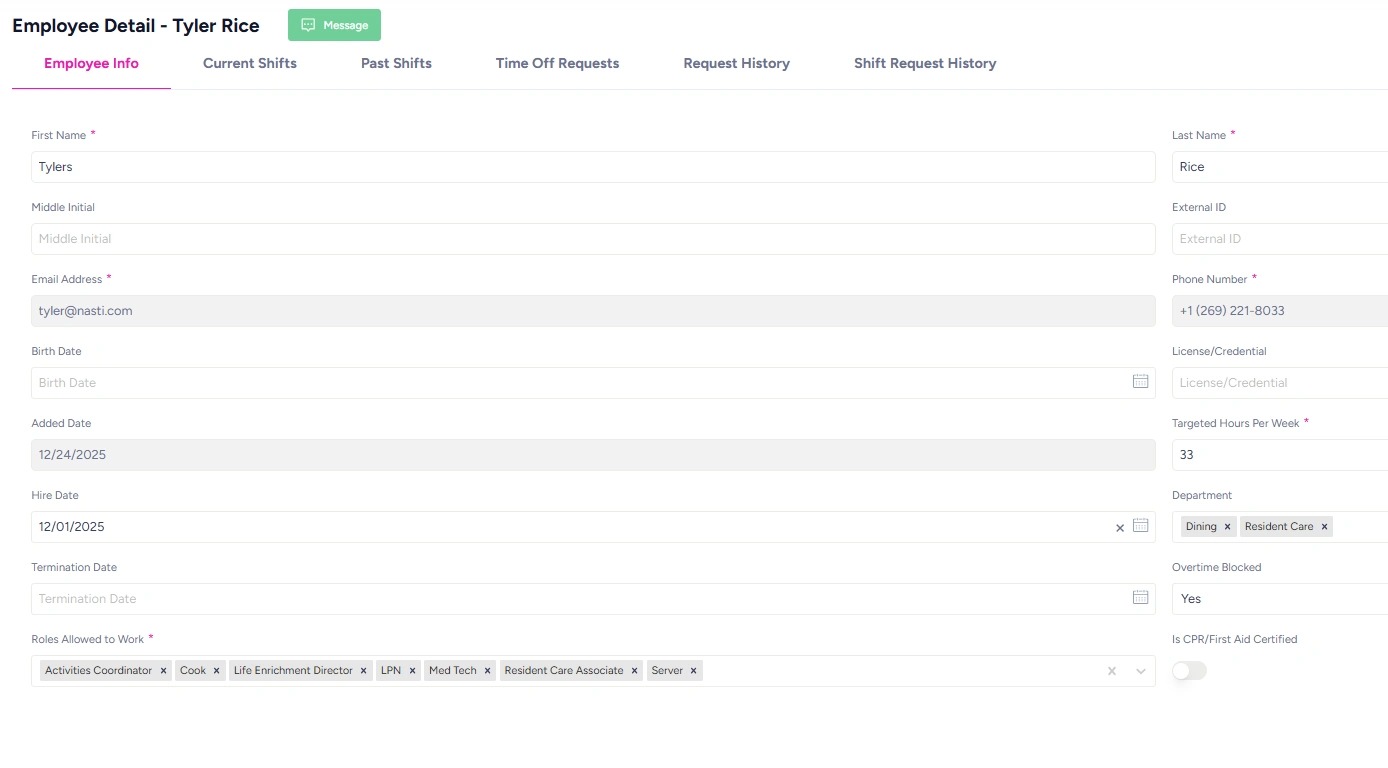
3. Make edits to the employee’s information as needed. Greyed-out fields are locked and cannot be edited. Note that some fields may become locked after an employee logs in and verifies their information. If you need additional assistance, contact the NASTi Support Team.
Common scenarios and what to check:
- Employee can’t register? Verify that their Name, Phone Number, and Email Address are entered correctly. Make any necessary updates and resend the employee invite.
- Deactivating or terminating an employee? Enter a Termination Date to ensure schedules and employee records remain accurate.
- Employee doesn’t appear when assigning a shift? Confirm they are assigned to the appropriate Role and Department.
- Managing employee workload? Use Target Hours Per Week to help identify employees who may be scheduled beyond their preferred hours.
- Tracking certifications? Update CPR Certification status as needed to help maintain compliance.
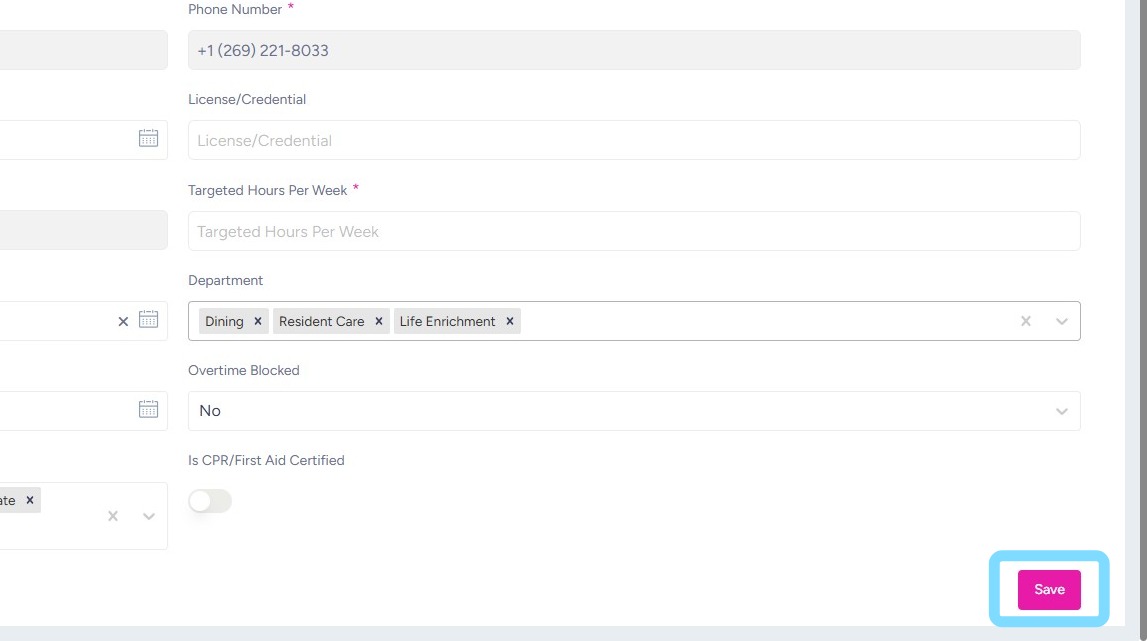
4. Once edits have been made, select Save