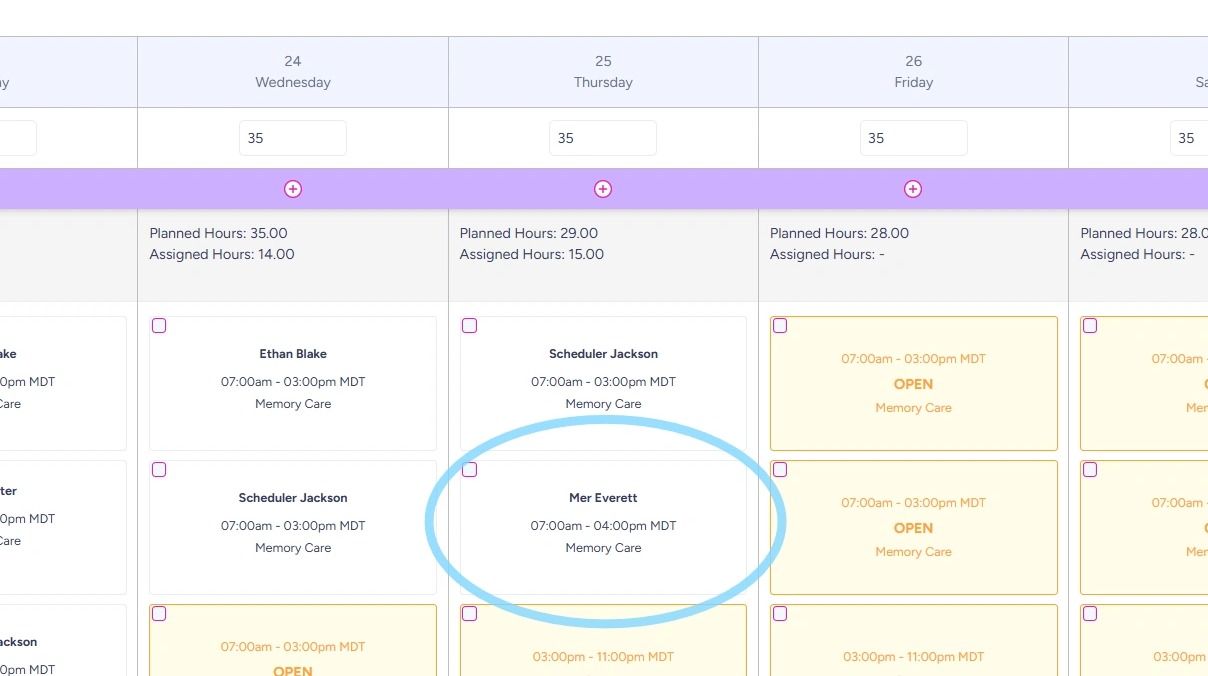
How to Edit A Shift
This guide provides a straightforward approach to editing published shifts, helping managers quickly make updates and keep staff aligned in real time. It outlines two simple methods for making shift changes. Any employees impacted by shift edits will be notified through the NASTi app.
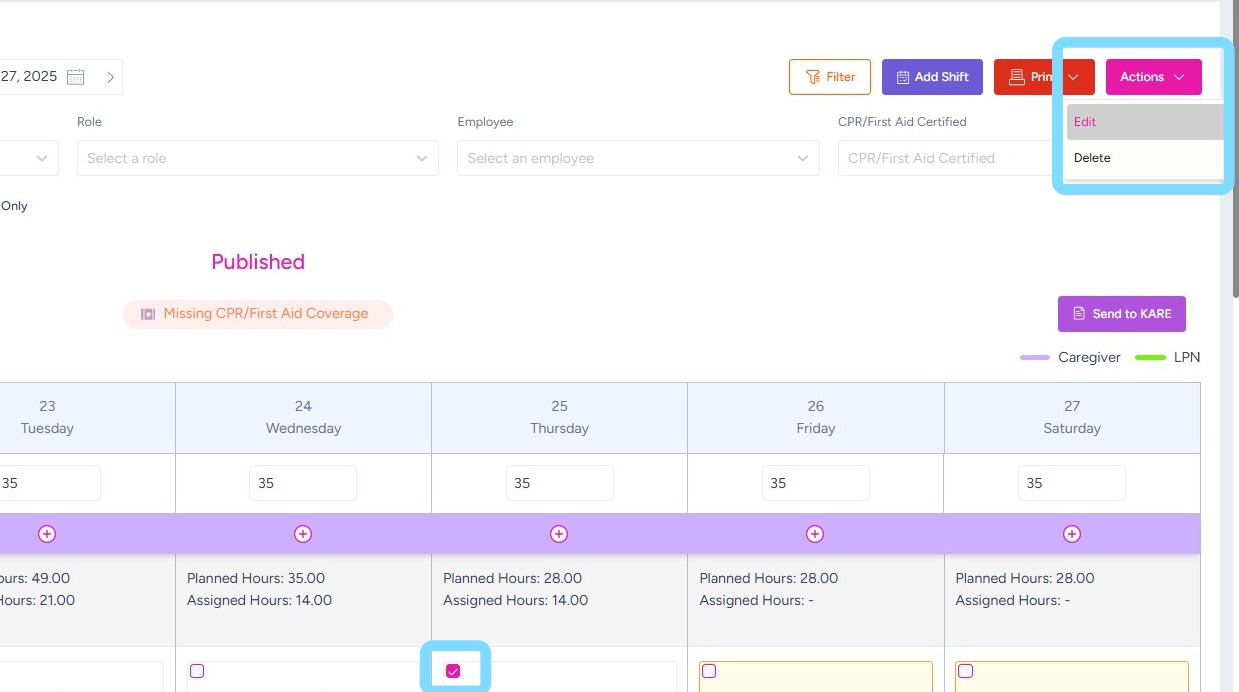
1. There are two options to edit shifts:
Option 1: Select the checkbox next to the shift, then choose Action → Edit. Now proceed to Step 4
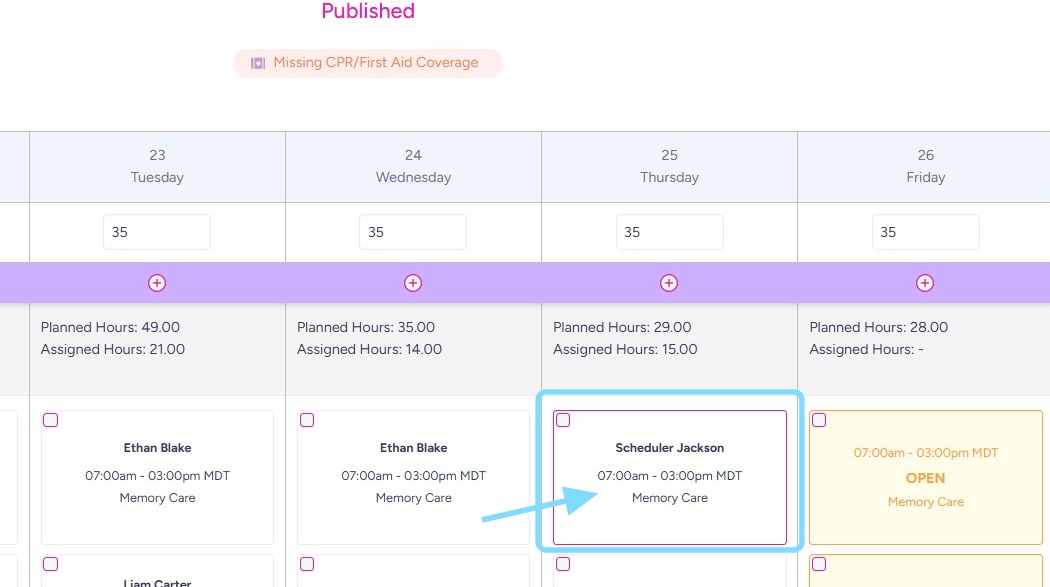
2. Option 2: Click on shift box to open the Shift Details
3. Within Shift Details, select Edit.
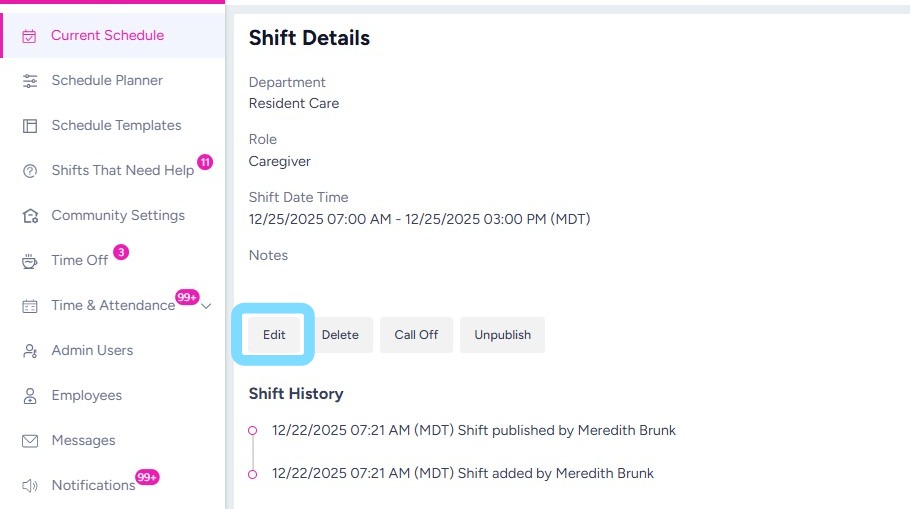
4. Edit any relevant details for the selected shift, such as date, time, role, or assigned employee.
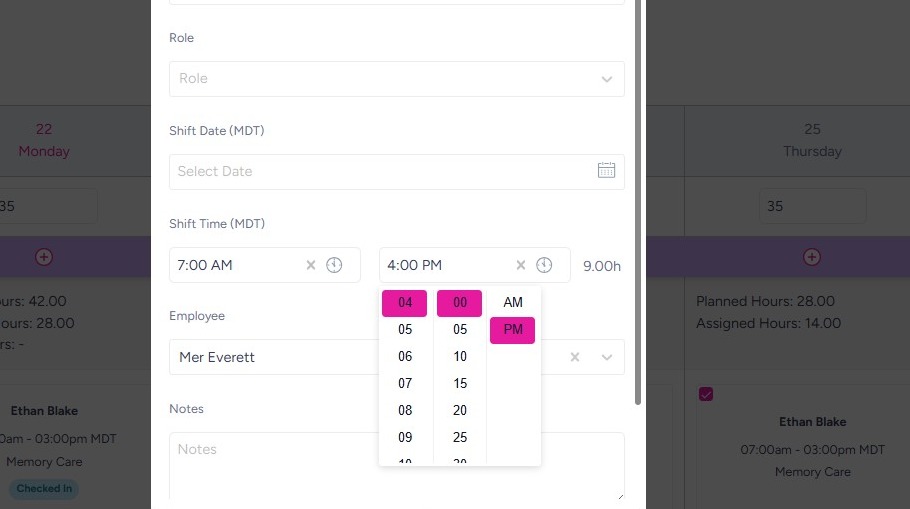
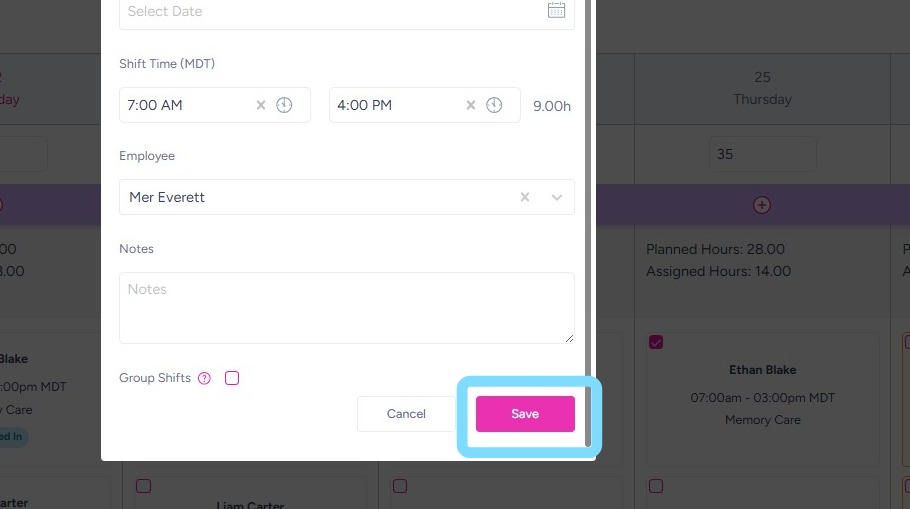
5. Select Save
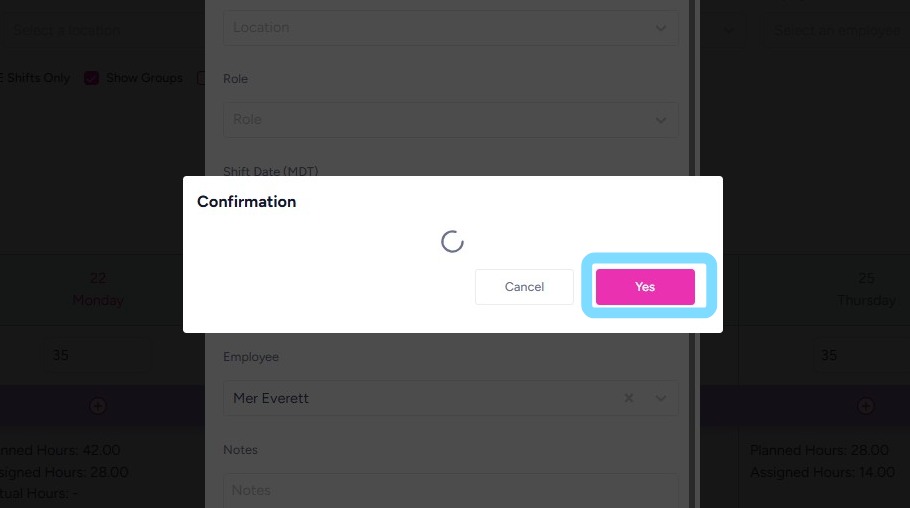
6. Select Yes to confirm shift edit
7. Current Schedule will now reflect shift edit(s).
Any employees affected by shift edit will be notified via the NASTi app.