How to Delete Shifts on Published Schedule
By following these simple steps, users can quickly delete shifts on the schedule, helping maintain an accurate and up-to-date schedule.
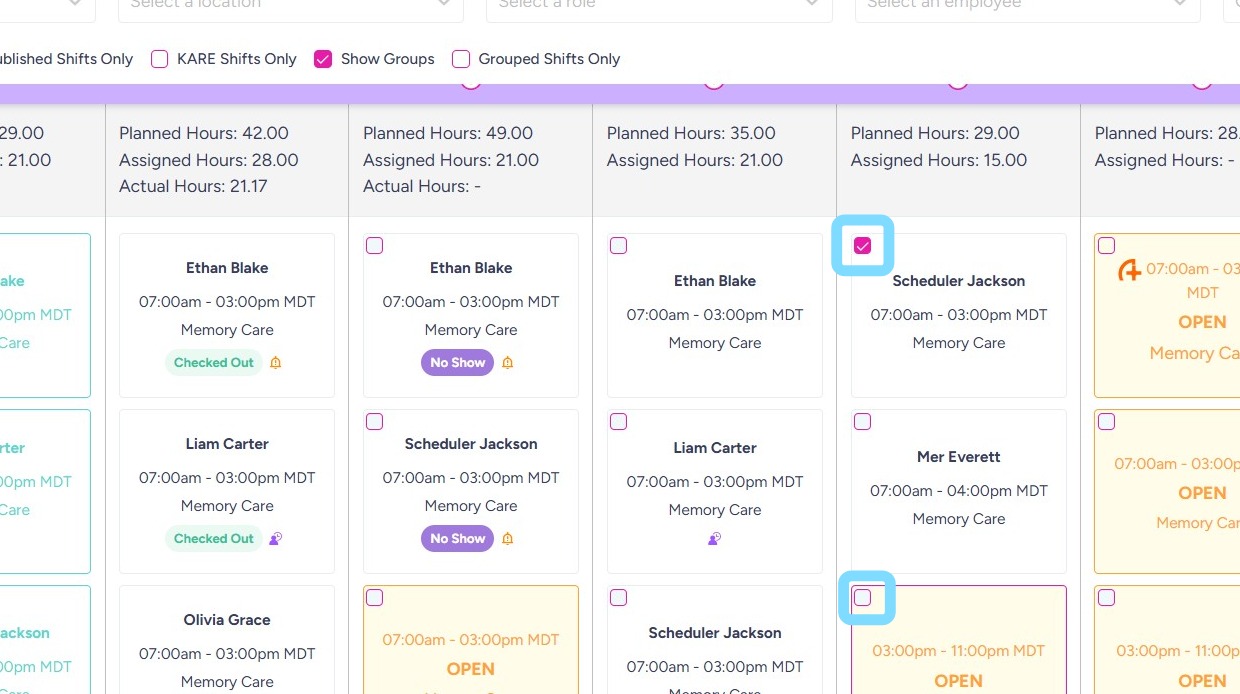
1. Selects the shift(s) to delete by checking the box within each shift.
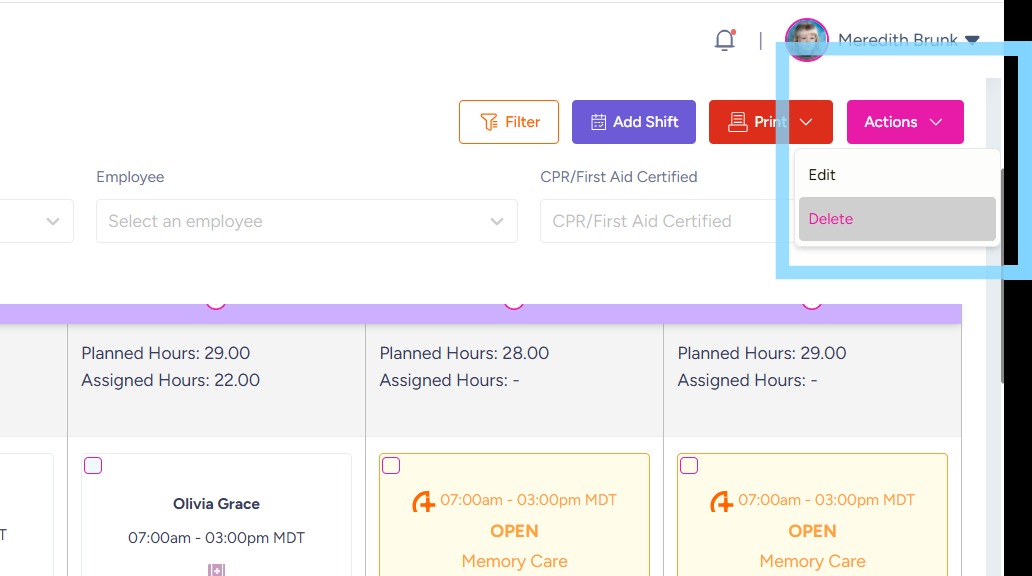
2. Select Action
Select Delete
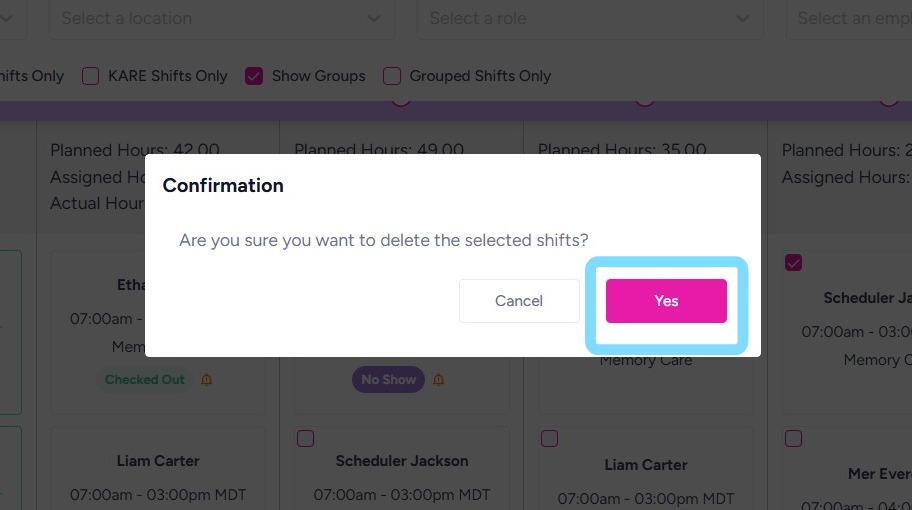
3. Select Yes to confirm deletion of shift(s)
These shifts are now removed from the published schedule. Any employees affected by the shift deletion will receive a notification via the app.