How to Clear Time & Attendance Exceptions
Made by Meredith Brunk with Scribe
This guide provides a straightforward process for reviewing and clearing time and attendance exceptions. Admins will receive notifications for each Time & Attendance Exception that requires action, such as shifts that are a No Show, Early or Late Check In, Early or Late Check Out, Break Time Exceptions, etc.
1. To review and clear out all time and attendance exceptions:
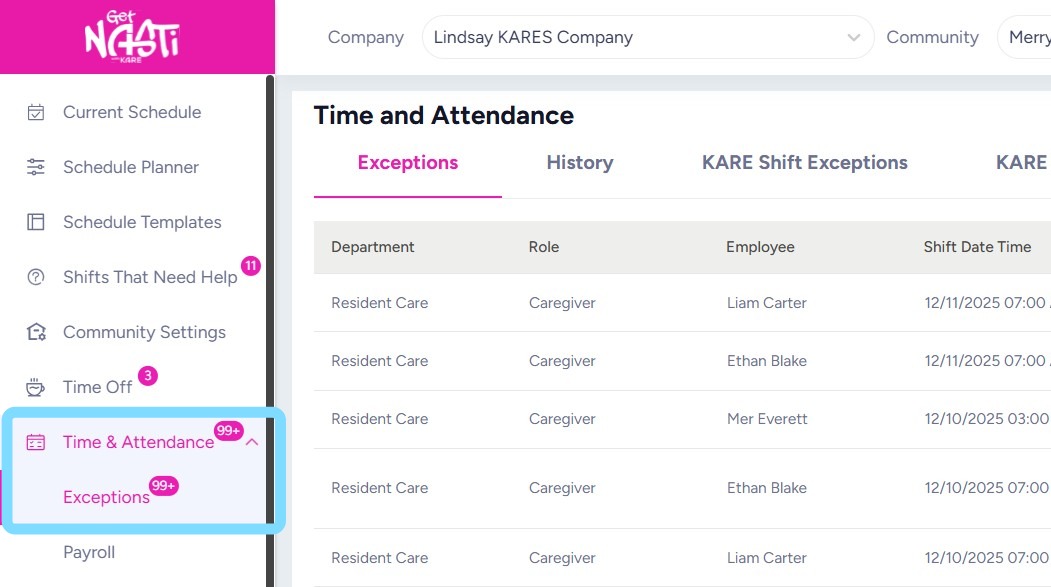
Select Time & Attendance
Select Exceptions
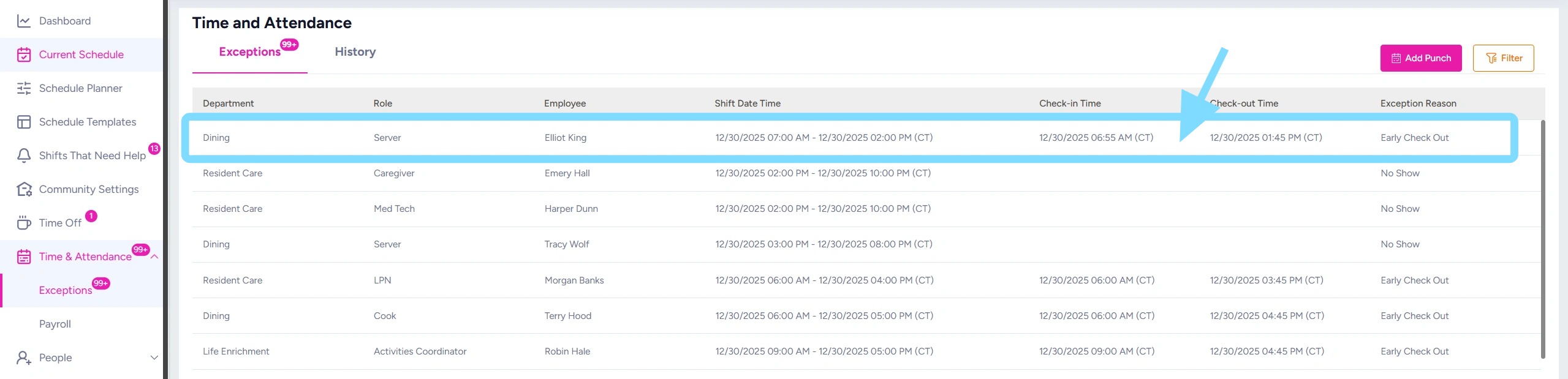
2. Select the exception to clear by clicking on the exception line.
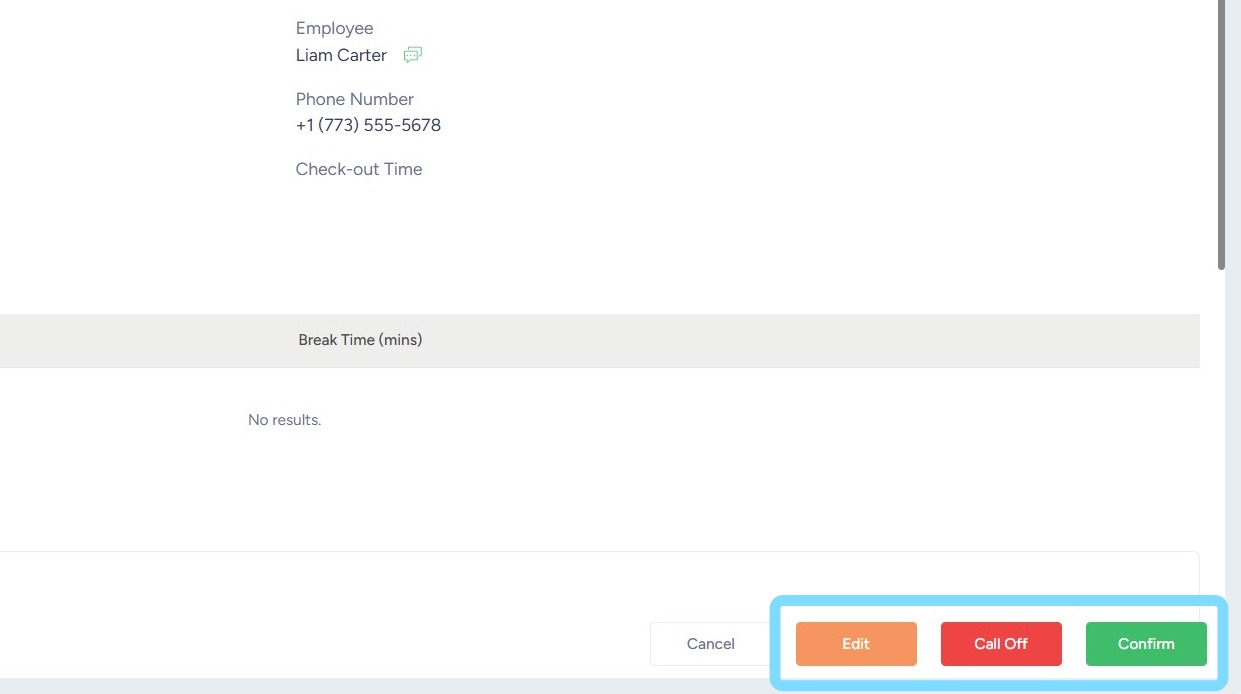
3. Take action as needed by selecting Edit, Call Off, or Confirm
Once action is taken, the exception will be cleared meaning that it will no longer appear as a notification. There will be record of this exception, what action was taken by whom and when within the Employee History and Shift Details.