How to Approve Open Shift Claims
This guide shows how to review and approve Open Shift Claims so open shifts are filled quickly by internal employees ready to work! Note: Open Shift Claims only require approval if your community’s Schedule Rules are set to require it. Otherwise, claims made by eligible employees who meet overtime rule requirements are automatically approved by the system. These claims will be visible in Shift Details, but no manager action is required.
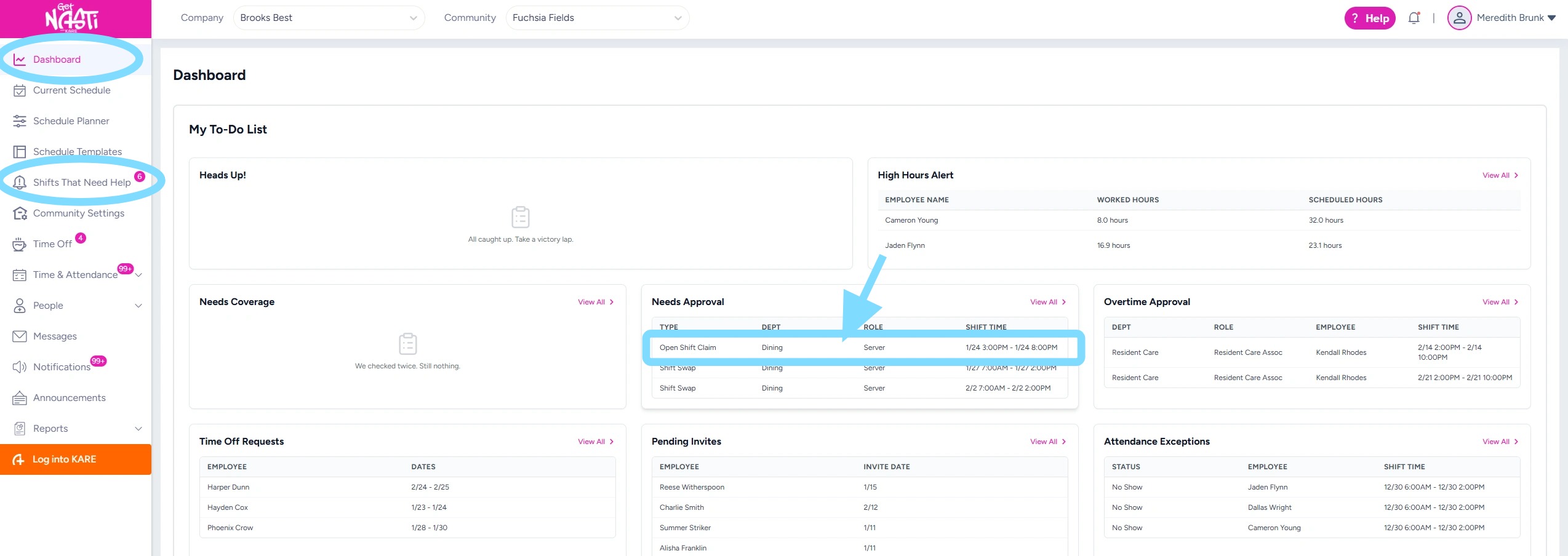
1. Open Shift Claims can be managed and approved from two locations:
-
Dashboard > Needs Approval
-
Shifts That Need Help (see Step 3)
From the Needs Approval box, select the Open Shift Claim to review and take action.
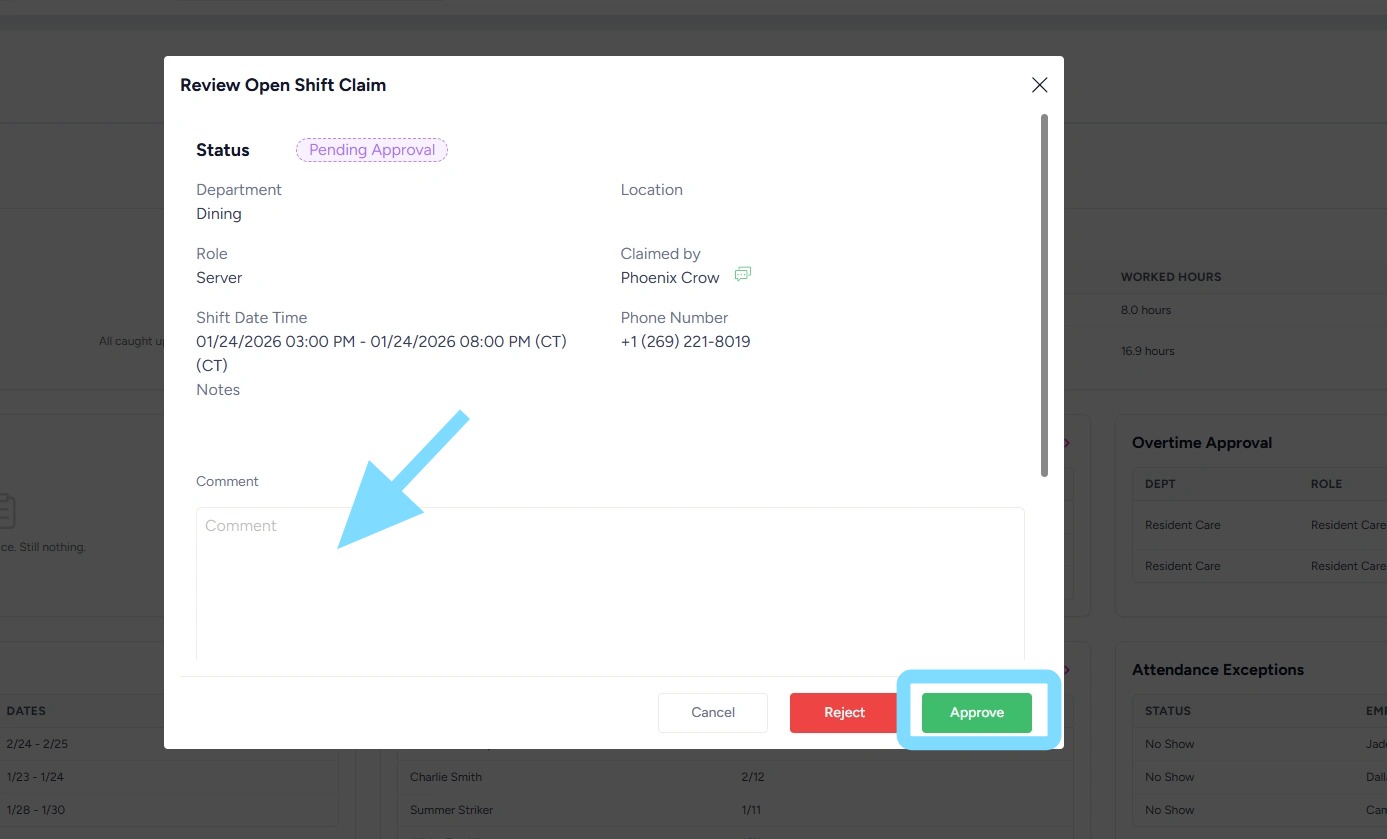
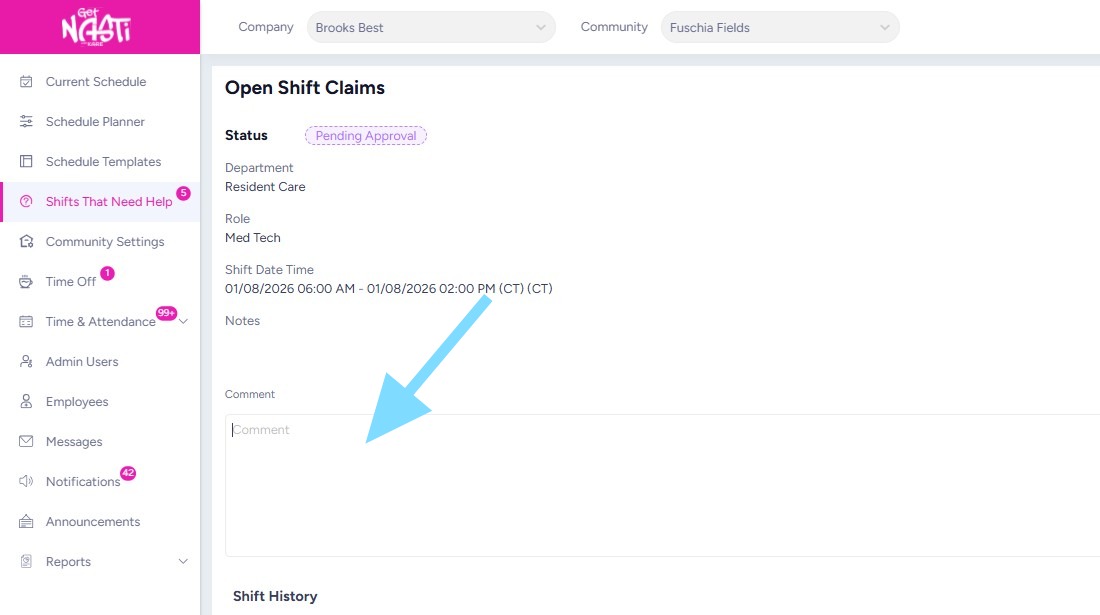
2. The Open Shift Claim details will open for review.
The Admin may enter a comment (optional), then select Approve.
3. If Admin wants to see full list of Open Shift Claims, navigate to Shifts That Need Help
Select Needs Approval
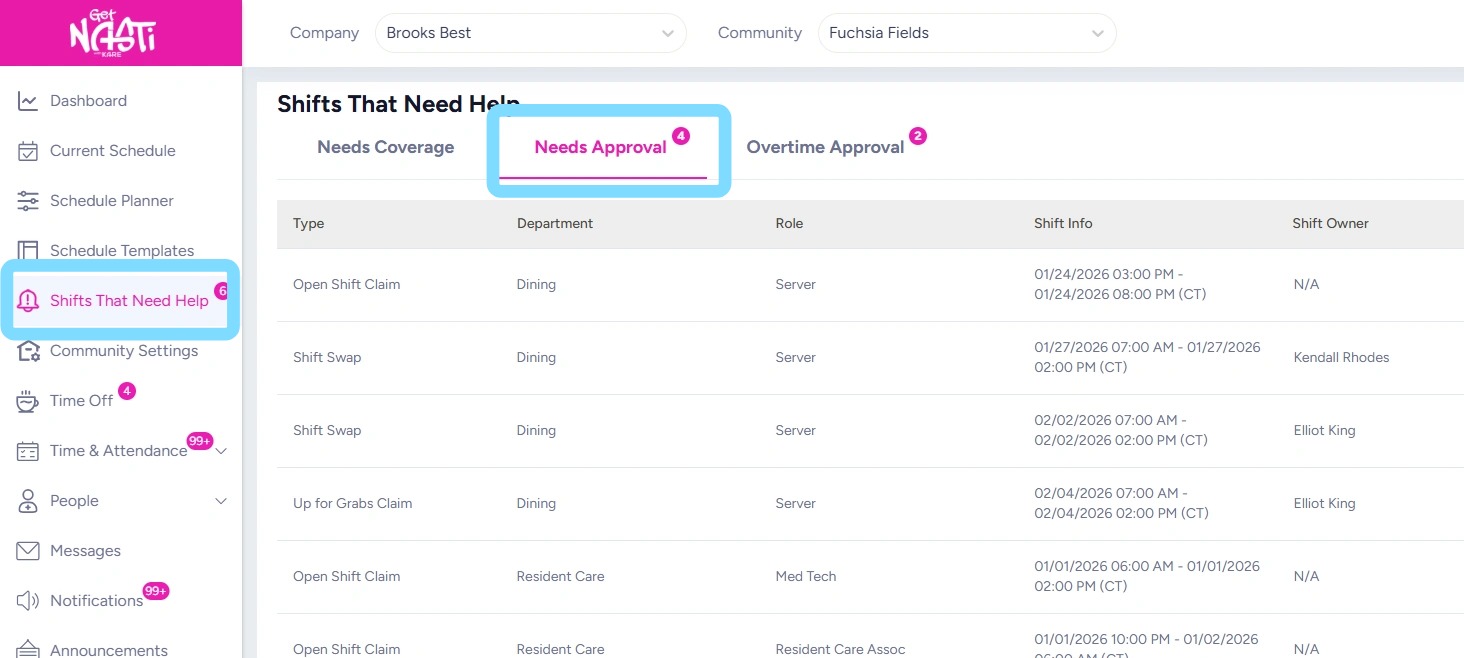
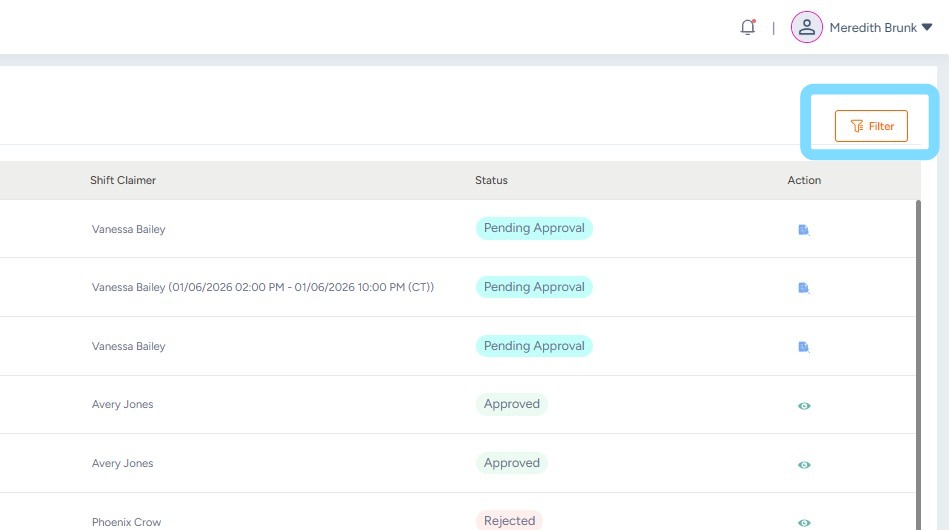
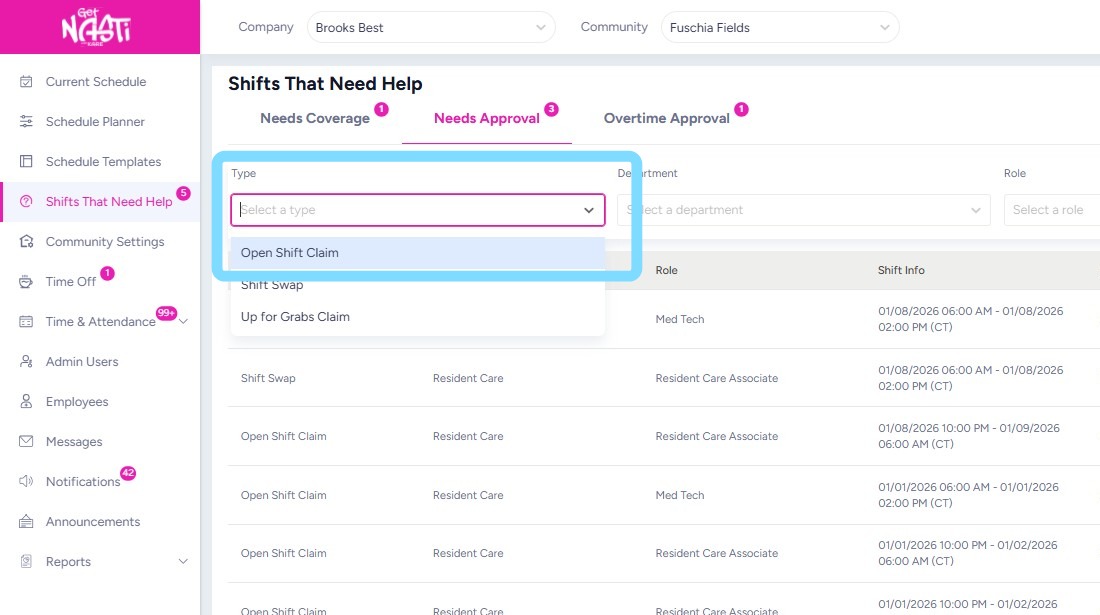
4. The Admin may review and take action on Open Shift Claims from this full list or specifically filter for Open Shift Claims by type.
If filtering, select Filter icon.
5. Select Open Shift Claim
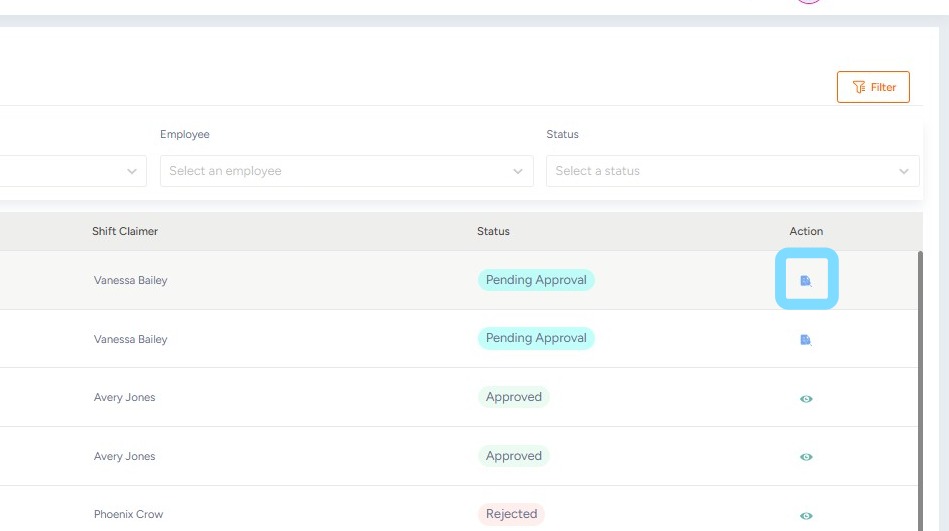
6. Select Review icon to approve a pending request.
Note the statuses: Pending (aqua badge), Approved (green badge) or Rejected (red badge).
7. Enter a comment.
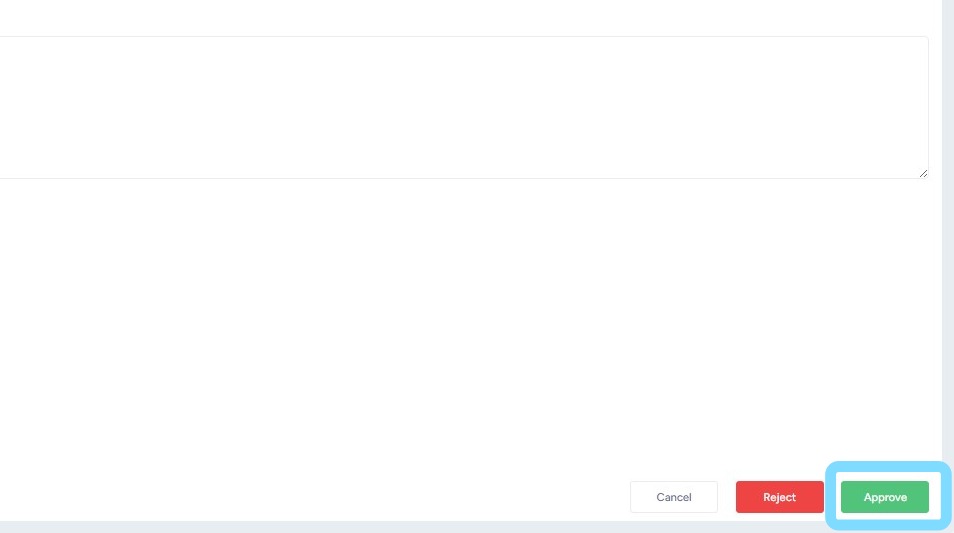
8. Select Approve
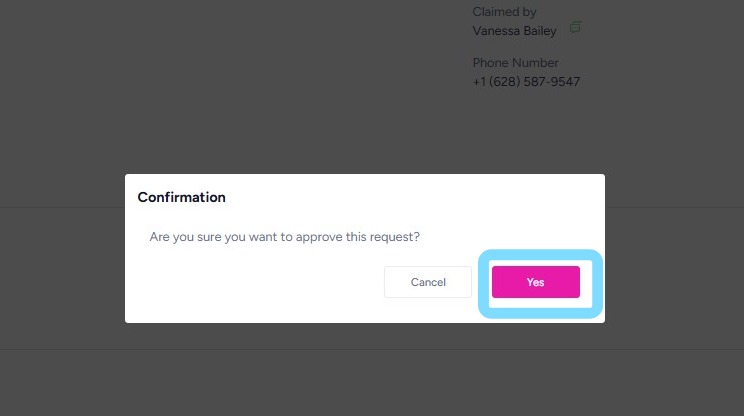
9. Select Yes to confirm approval