How to Add Punch or Time Entry for Employee
This guide shows you how to quickly add time for employees so every hour worked is captured and counted. Follow a few simple steps to keep schedules clean, attendance accurate, and payroll on point. When employees forget their phone or experience automatic check-in issues, this is how you keep time, pay, and accountability locked in. 💥
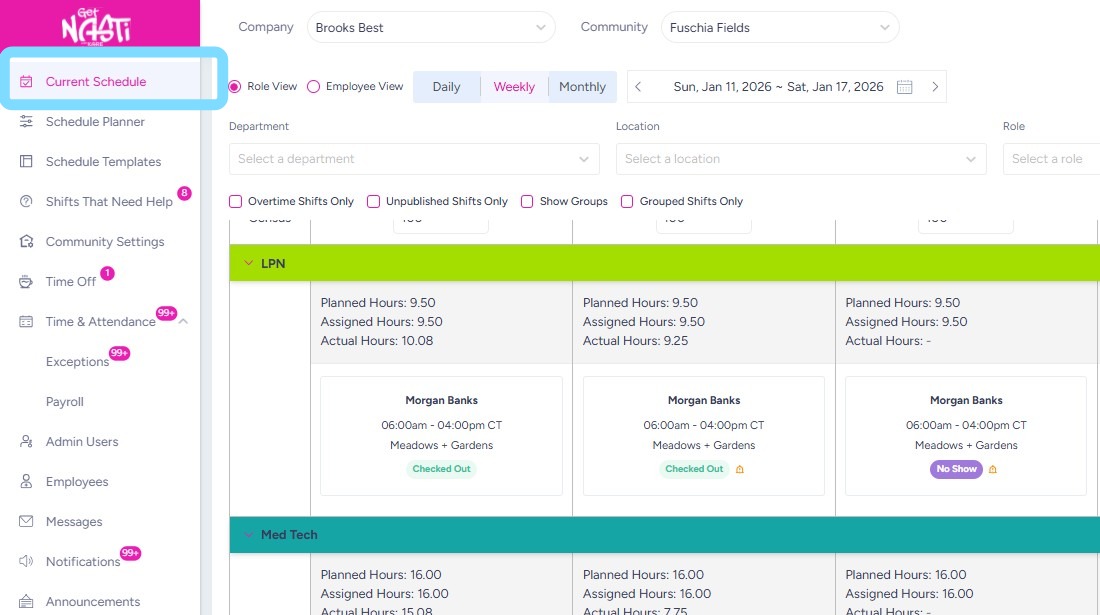
1. Navigate to Current Schedule
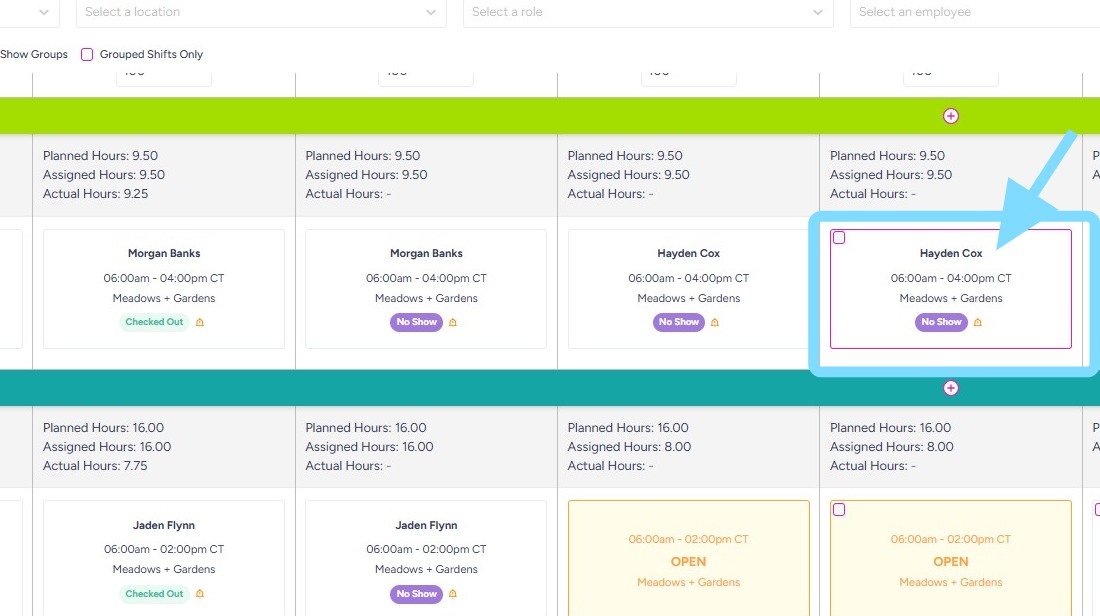
2. Select the shift that needs a time punch.
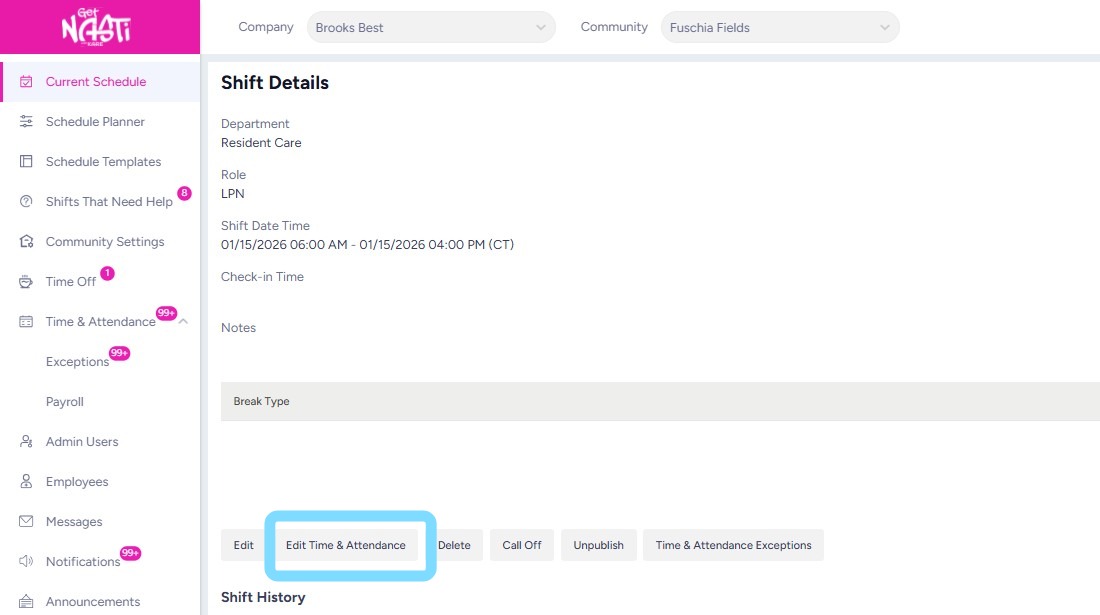
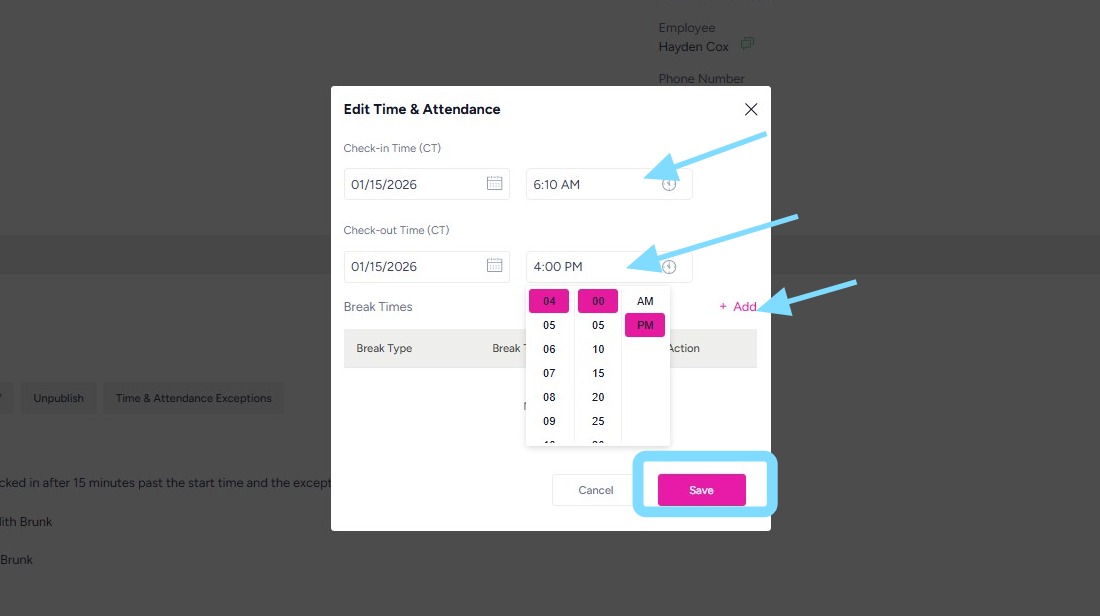
3. Select Edit Time & Attendance
4. Enter Check-in Date and Time
Enter Check-out Date and Time
Add Break Time if applicable
Select Save
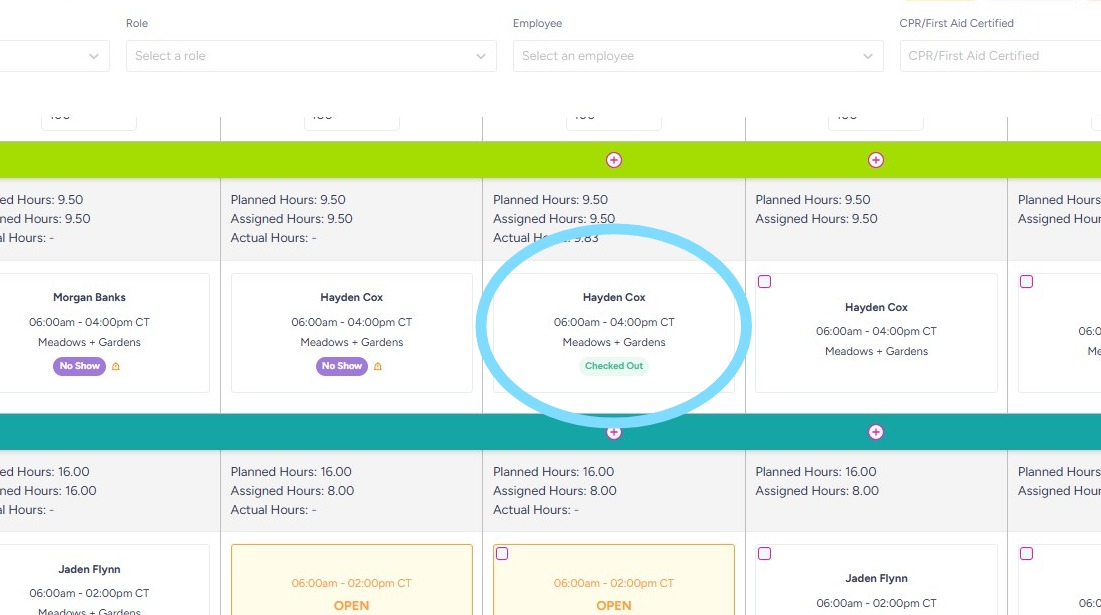
5. Done!! Shift box now shows green Checked Out badge indicating time has been entered for shift.