How to Add a Manual Punch or Time Clock Entry for an Employee Without Scheduled Shift
This guide shows you how to quickly add manual time for employees who didn’t have a scheduled shift — so every hour worked still counts and gets paid.
1. Note: Use this to add a shift and punch time for employees who worked when a schedule was published but no shift was scheduled for this employee.
If the Admin User needs to punch time for an already scheduled shift, follow the How to Add Time Entry or Punch Time for an Employee Shift user guide
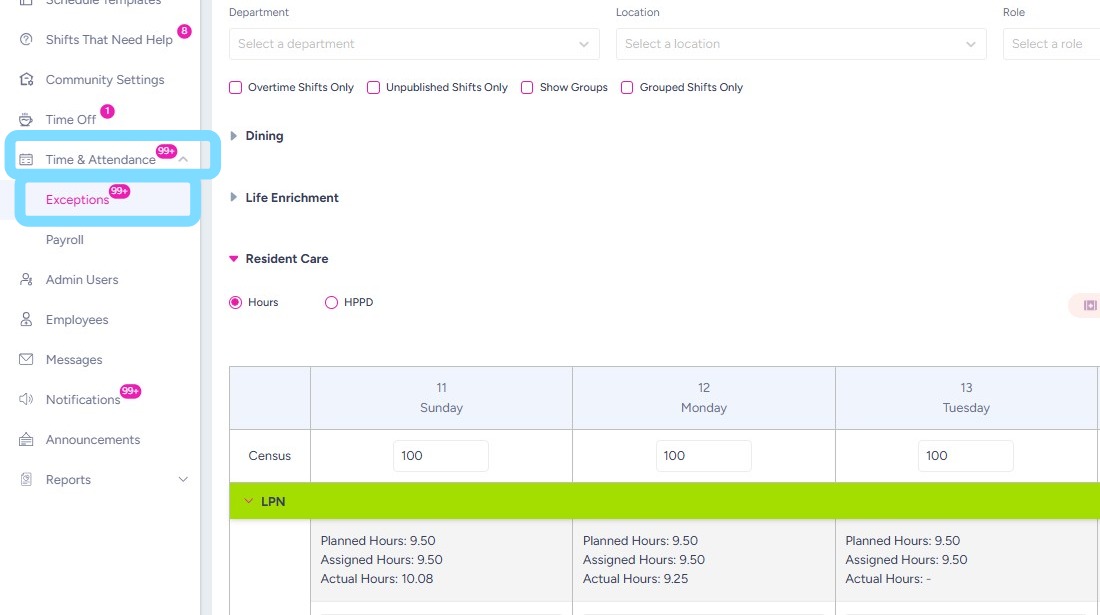
2. Navigate to Time and Attendance
Select Exceptions
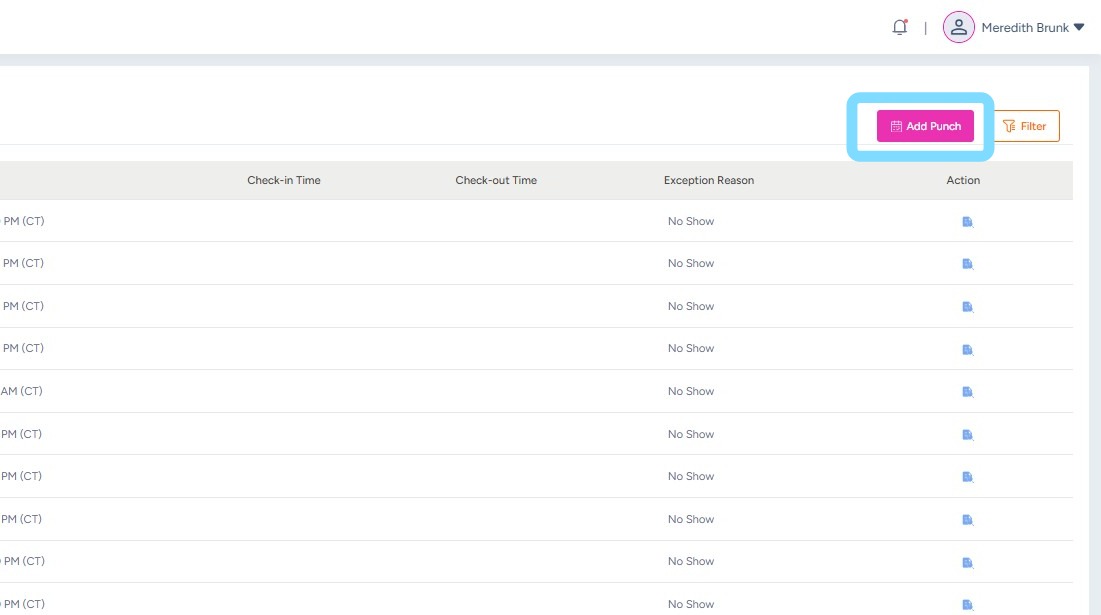
3. Select Add Punch
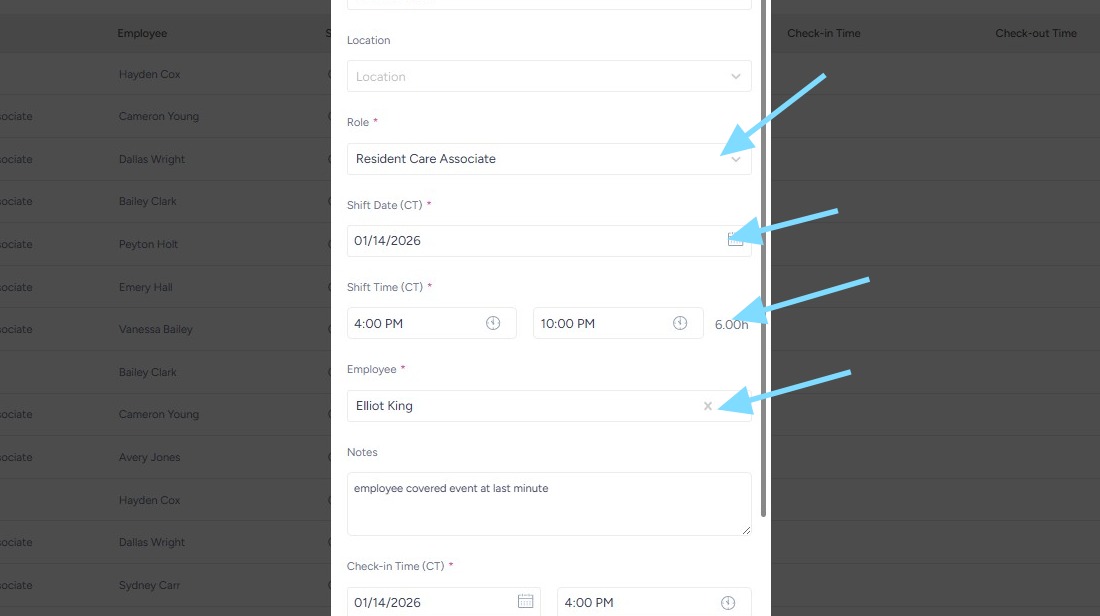
4. Fill out shift information:
Department
Role
Shift Date
Shift Time
Employee
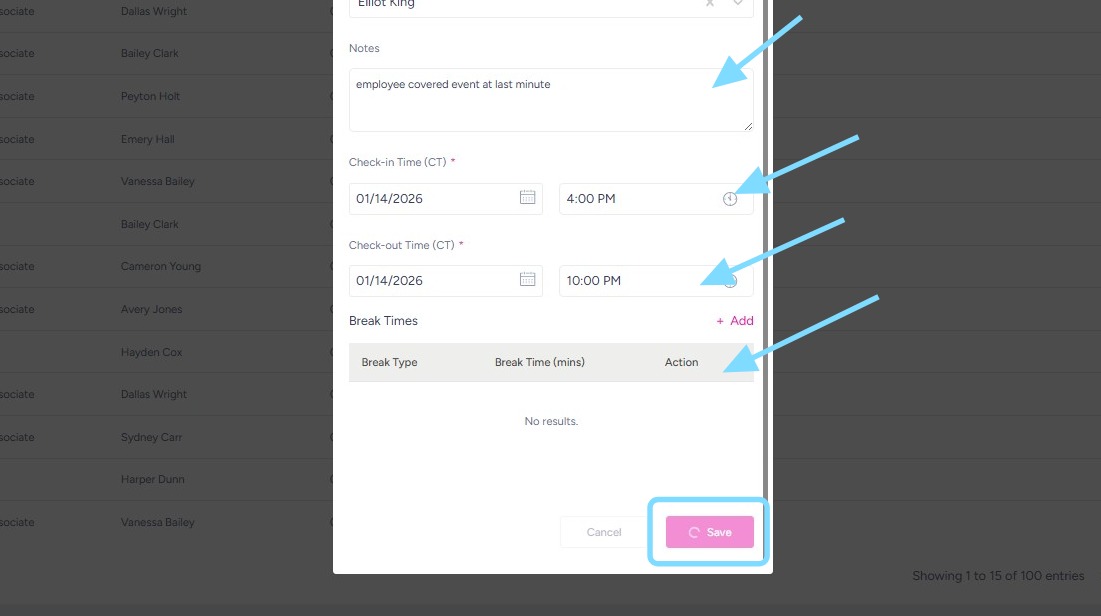
5. Add Check-in and Check-out Times
Add Break Times if applicable
Optional: Add Notes if helpful
Select Save