How to Add and Invite an Admin User
Adding admin users builds your leadership bench by giving the right people the power to manage schedules and time and attendance within their assigned departments or across the community (based on departments and permissions assigned to them). This guide provides simple steps for adding and inviting admin users, ensuring that your leaders are set up to manage effectively.
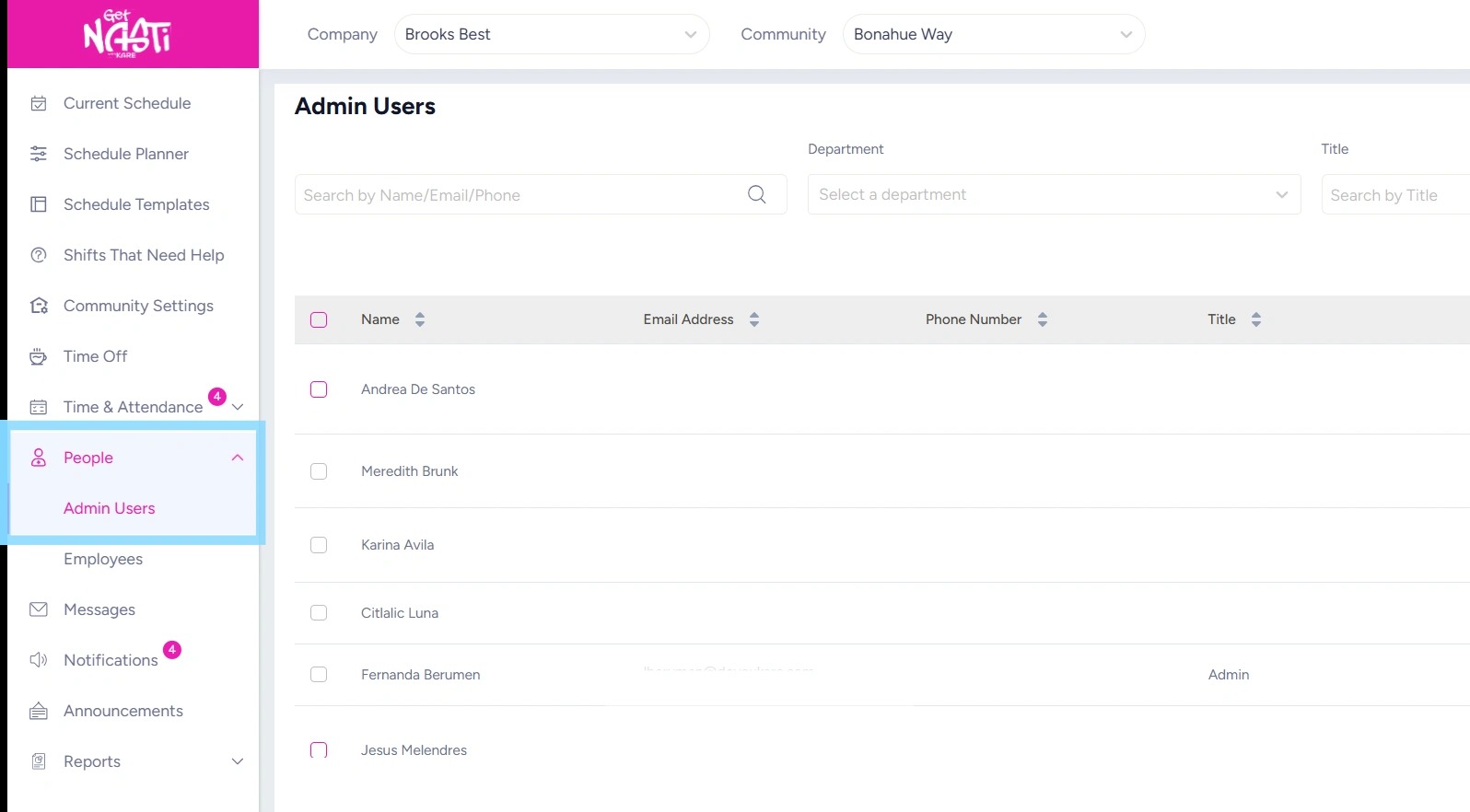
1. Navigate to People
Select Admin Users.
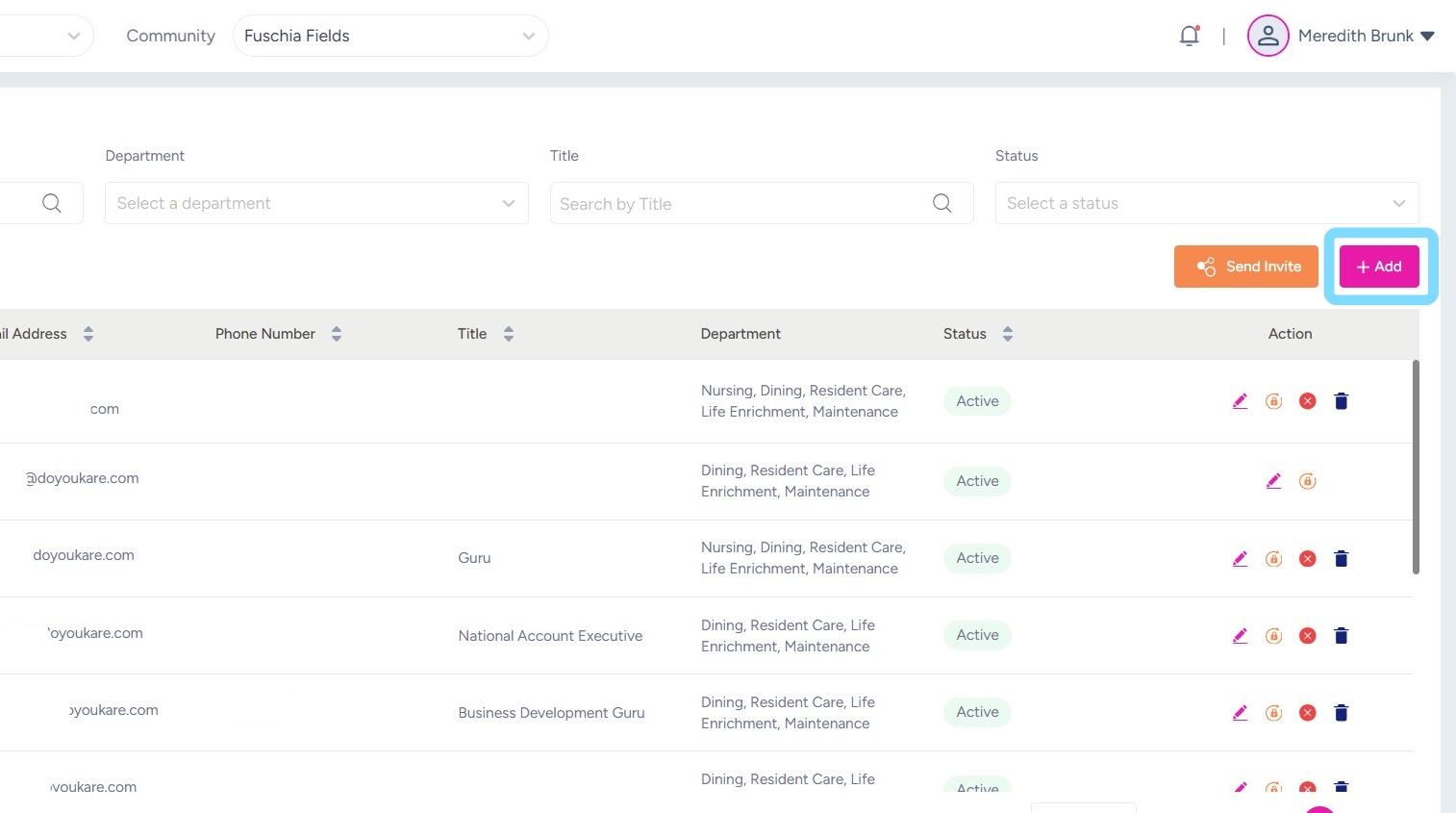
2. Select +Add
3. Enter First Name, Last Name and Email Address
Select Department(s) to assign.
Note: the Admin User will only have access to view and work within the Departments assigned to them. Additional Departments can always be added by editing the Admin User profile at a later time.
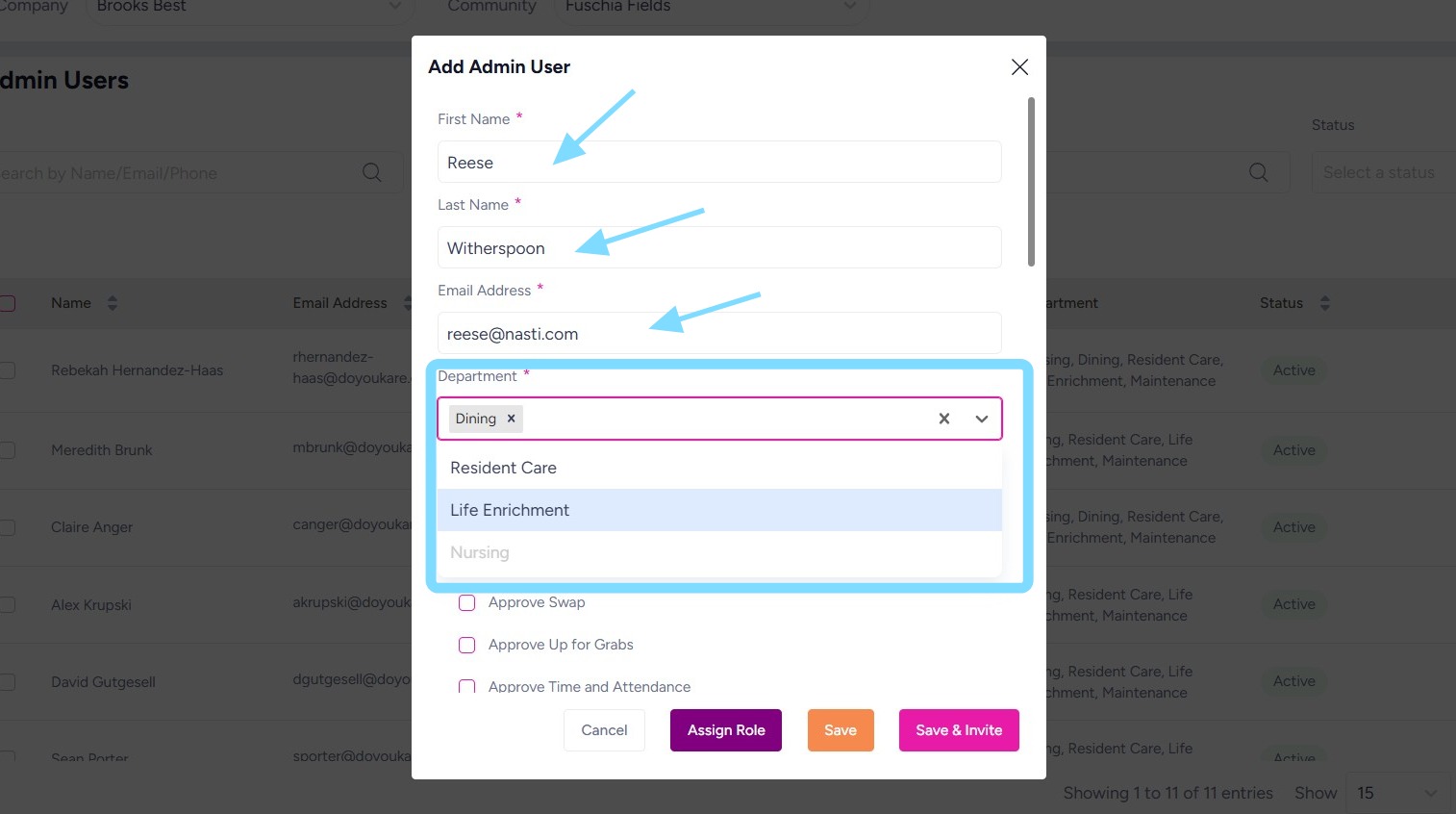
4. Select boxes next to permissions to allow Admin User those specific permissions. These can always be edited later.
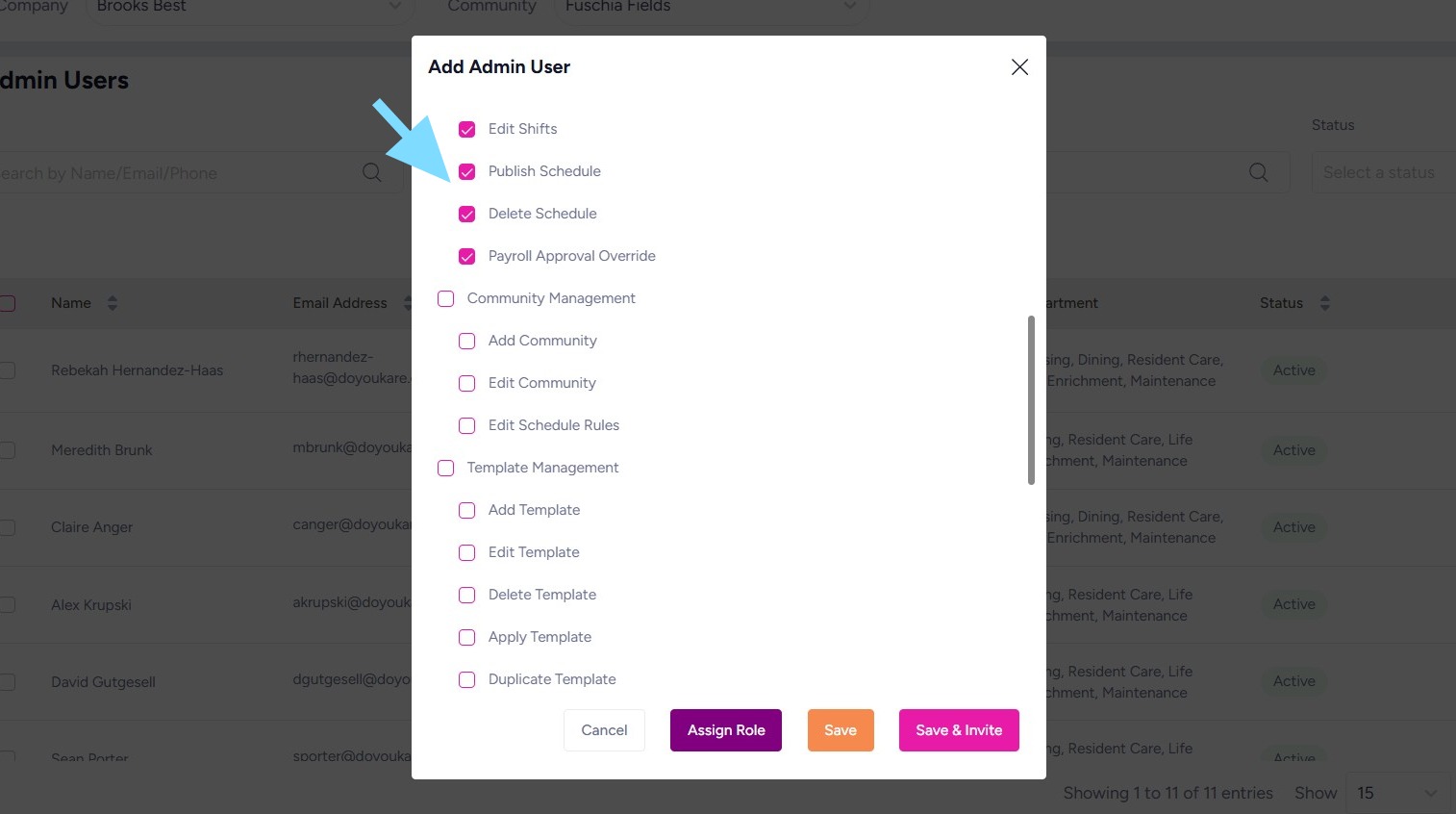
5. If the Admin User will cover shifts, select Assign Role
If Admin User will not cover shifts, select Save & Invite and skip to Step 8.
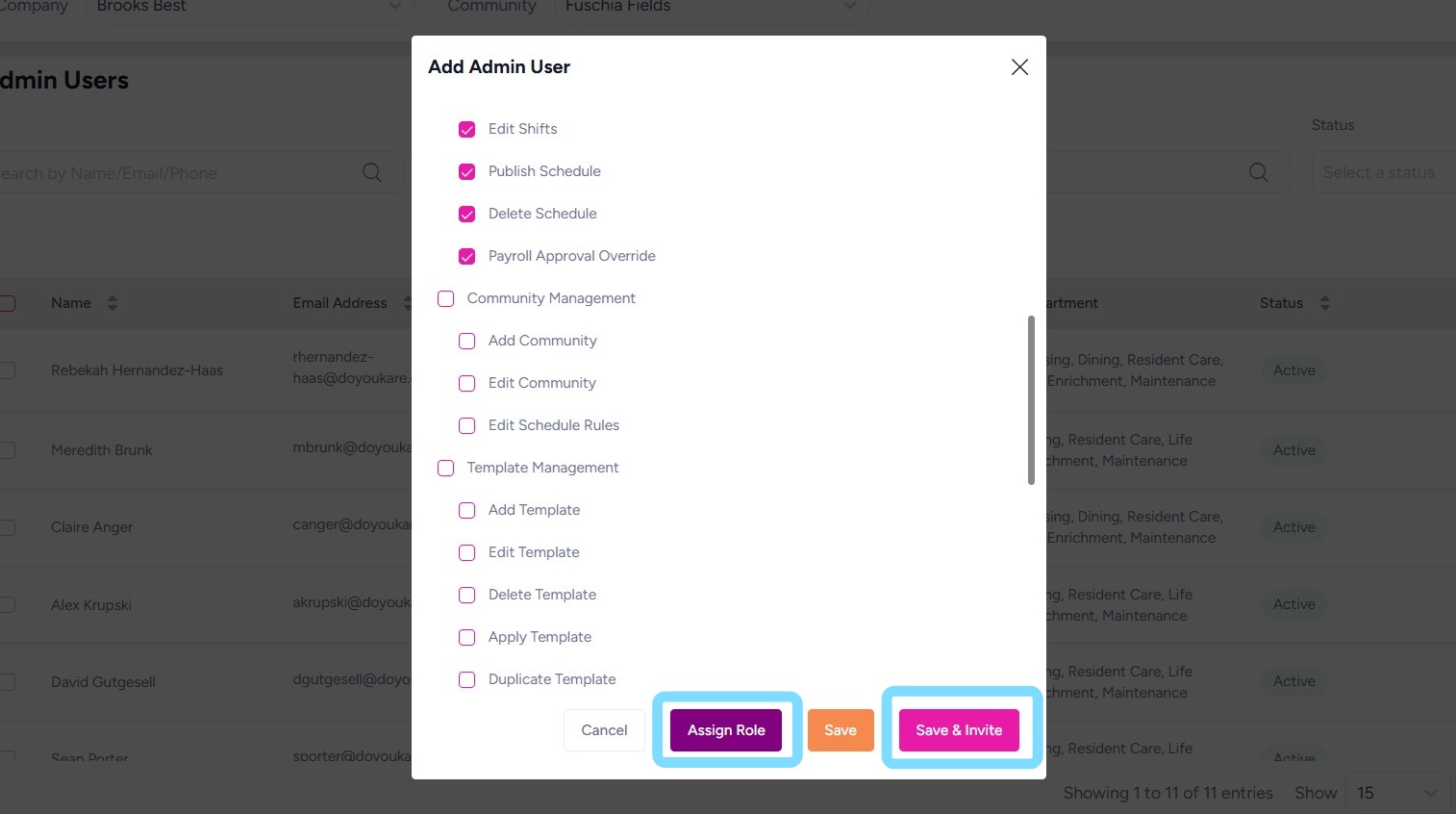
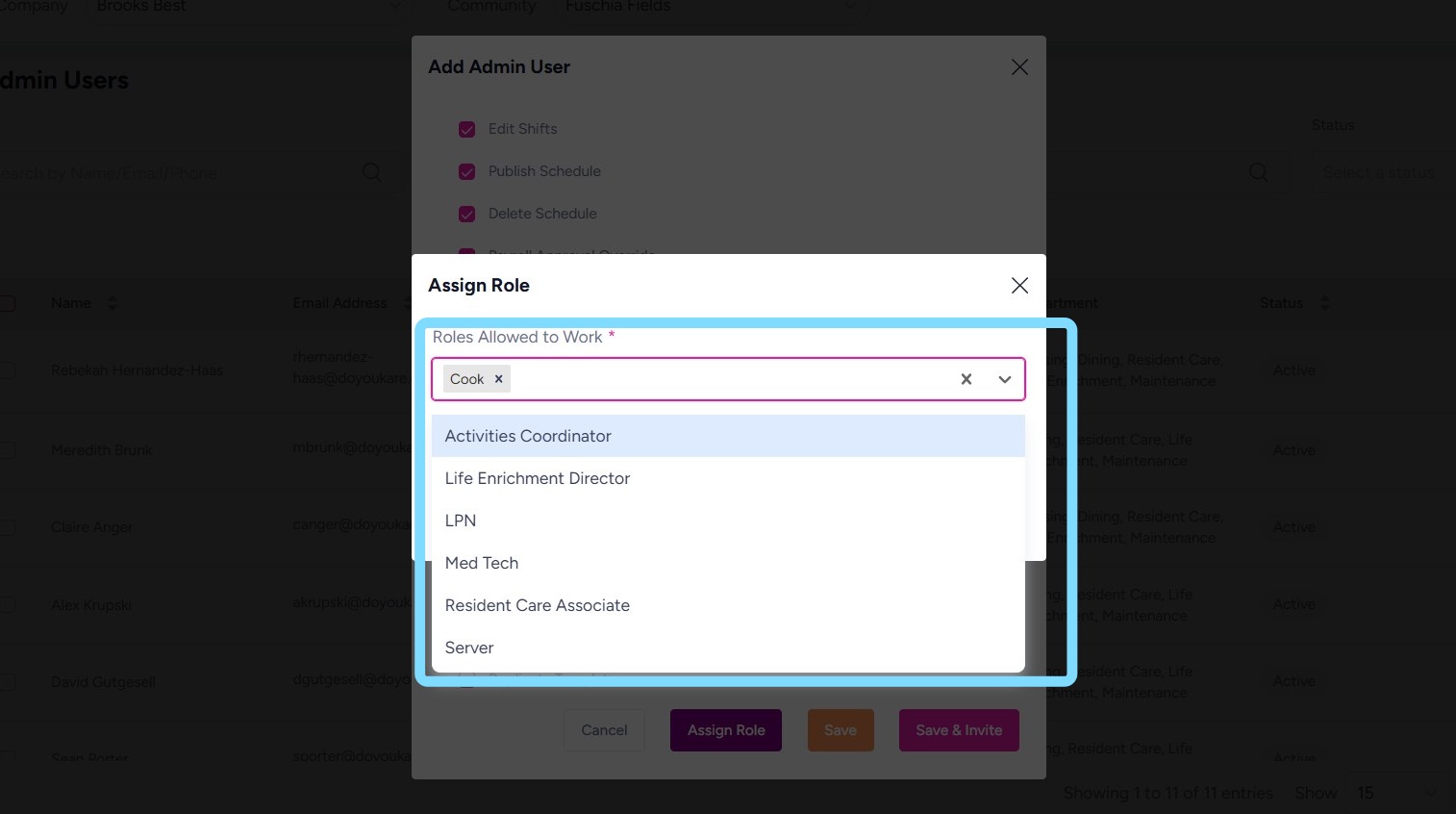
6. If Assign Role was selected: Select role(s) from dropdown list.
Note: the Admin User will only have ability to cover shifts for roles assigned to them.
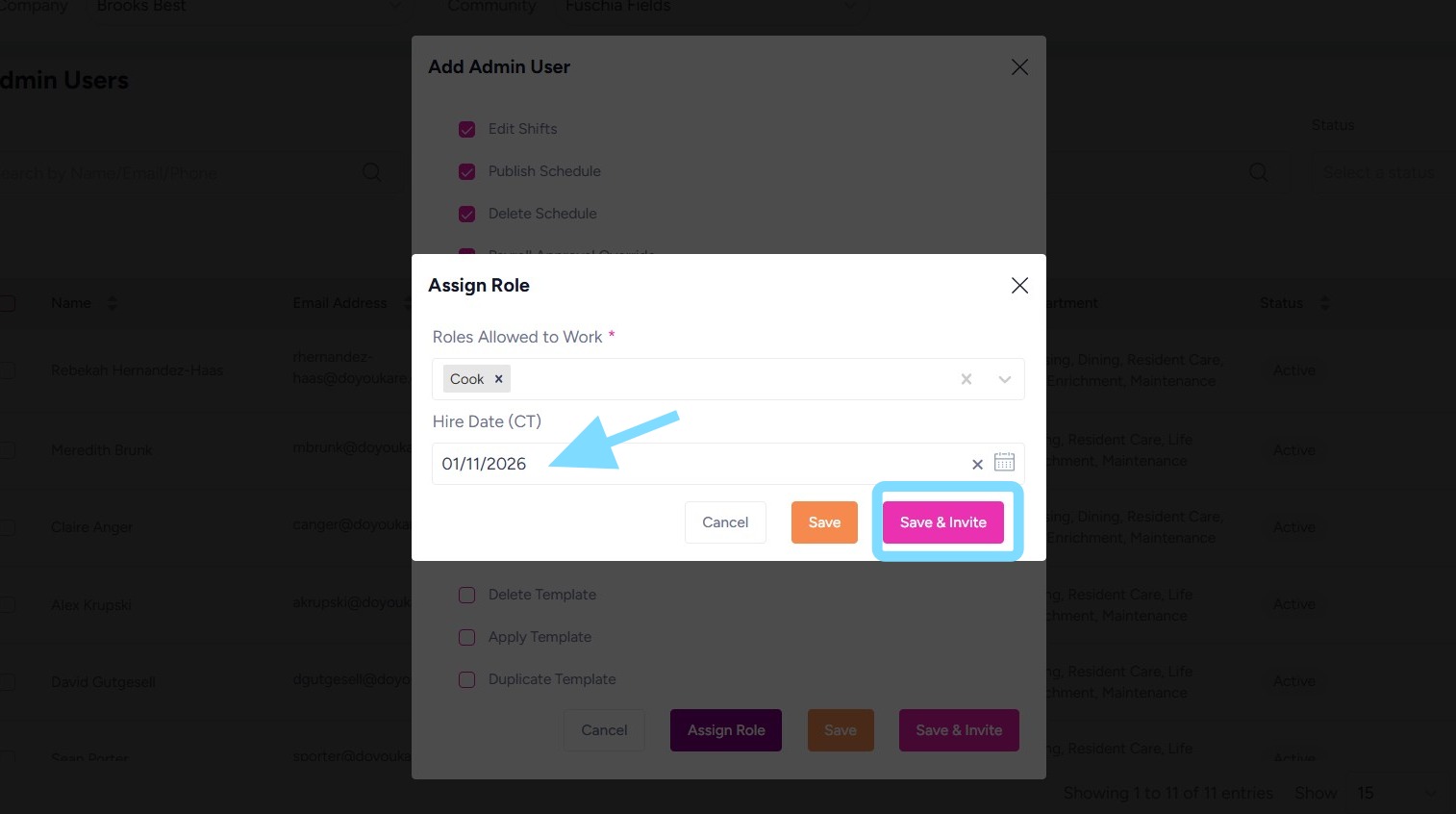
7. Optional: enter Hire Date
Select Save & Invite
8. Congrats, your admin is invited! Repeat these steps to add and invite additional Admin Users.
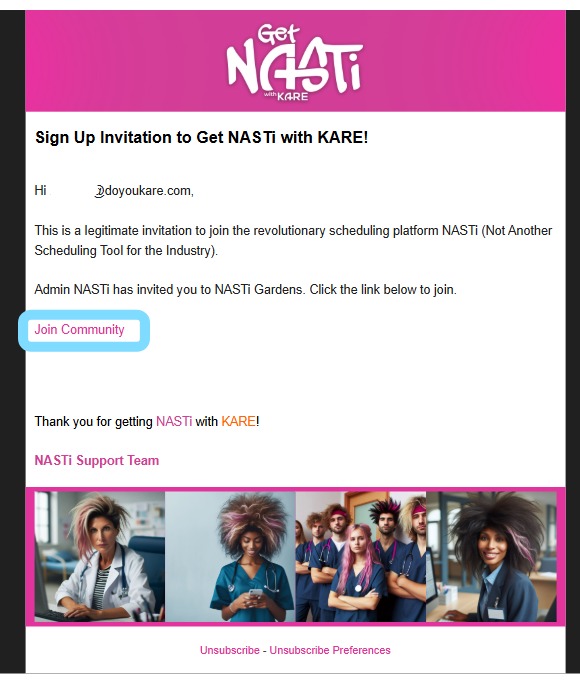
The Admin User should find an email invite from nasti@doyoukare.com and click on the Join Community link to access the community as an Admin User.