How to Add an Employee
This guide walks you through adding a new employee to the NASTi platform so you can build coverage faster, support resident care, and give employees the flexibility they need—all in an app built for senior living. Note: To add a full employee roster or list, see user guide How to Upload Employee List and Send Invites (Bulk Employee Upload and Invite)
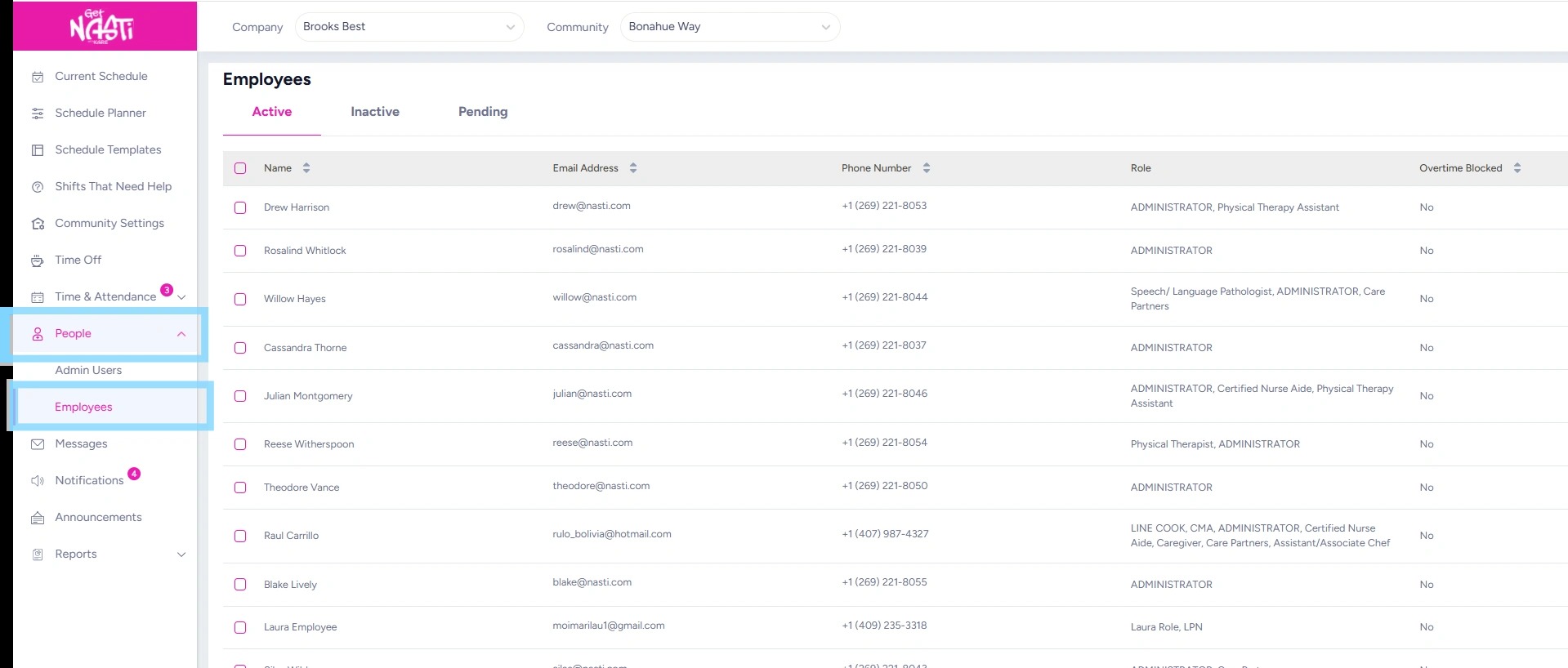
1. Navigate to People
Select Employees.
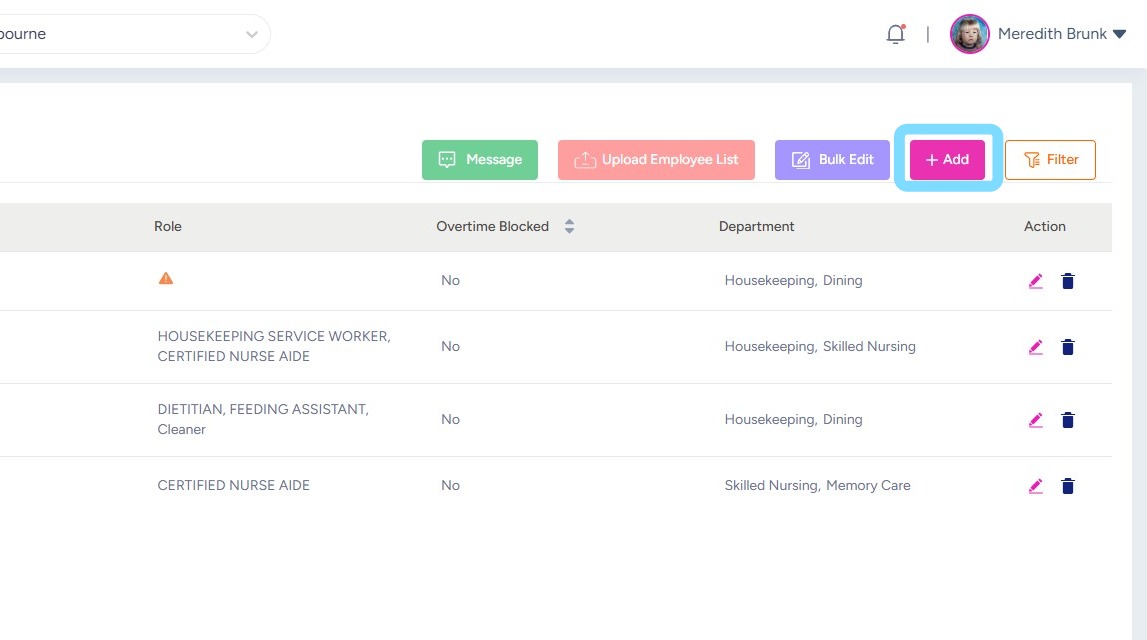
2. Click + Add.
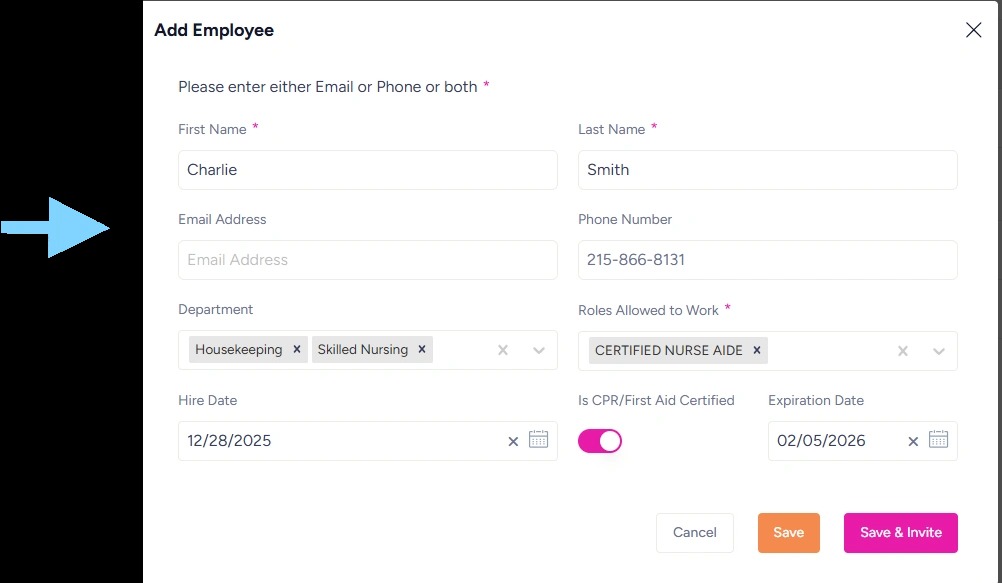
3. Enter the following in the open fields:
First Name
Last Name
Phone Number or Email Address
Department (select one or multiple from dropdown list)
Roles Allowed to Work (select one or multiple from dropdown list)
Other fields are optional to complete.
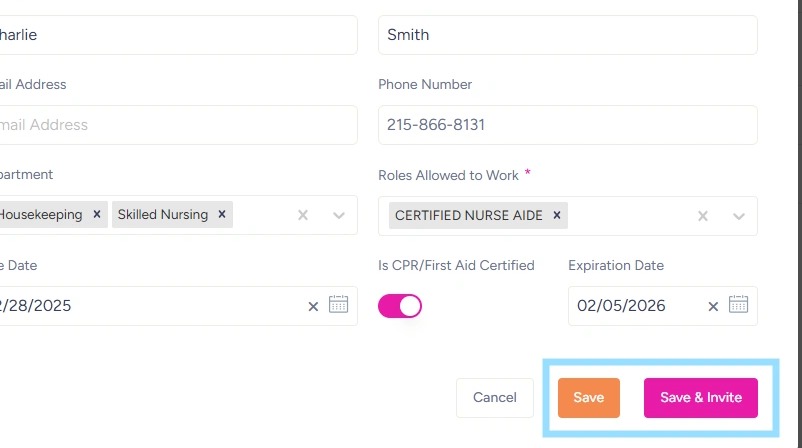
4. Select Save or Save & Invite
Save & Invite will result in an invite sent to employee’s phone number or email address immediately.
5. Congrats! Your employee is loaded into NASTi.
Employees aren’t able to register for the NASTi app unless they receive an invite from a community, so don’t forget to send invites!