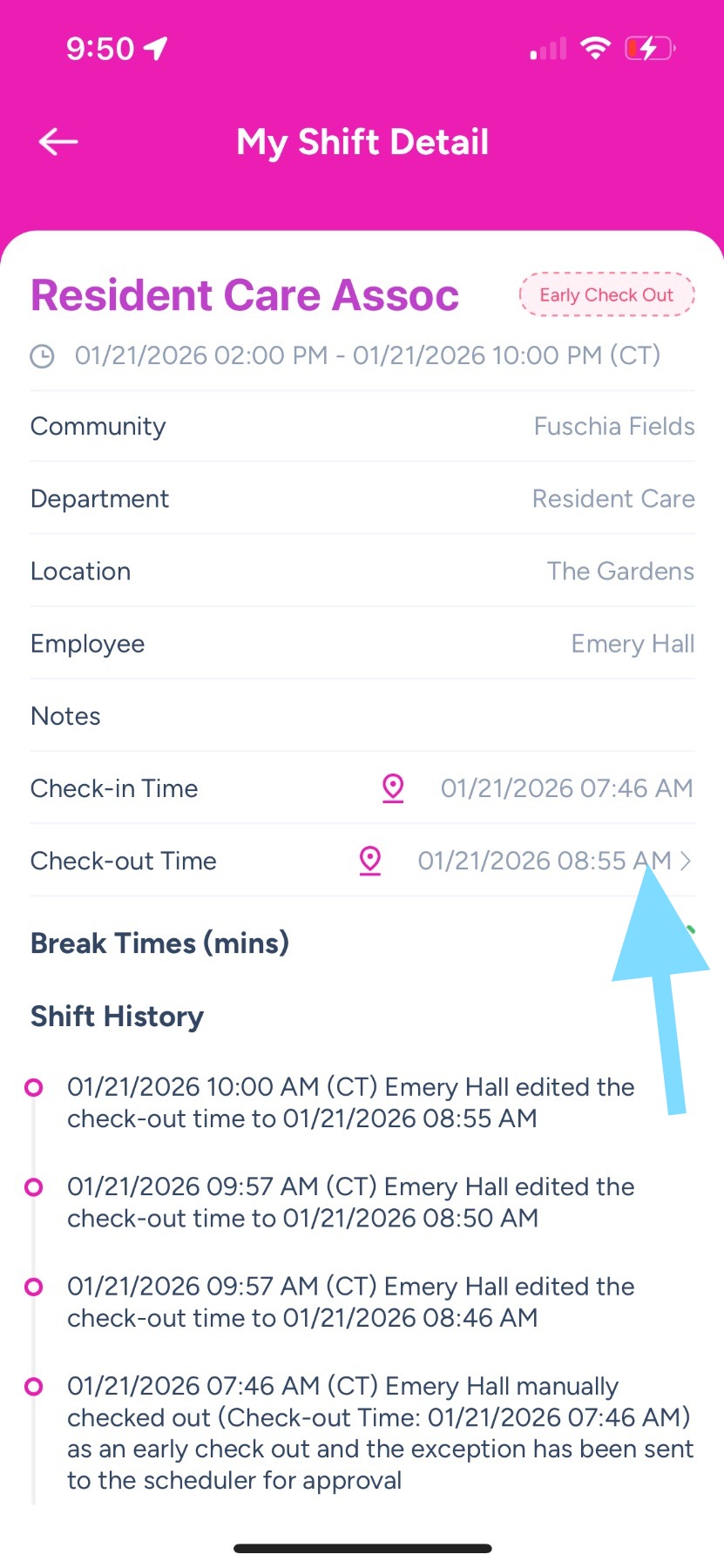
Employee Guide – How to Edit Check-out Time
Is your check-out time wrong? Here are three quick steps to fix it and keep your time accurate. Note: if you’re having trouble editing time, this is likely due to the rules set up by your community, which prevents check-out time exceeding a certain amount of time past shift end time. If this is the case, you’ll need to let your Admin know so they edit your check out time.
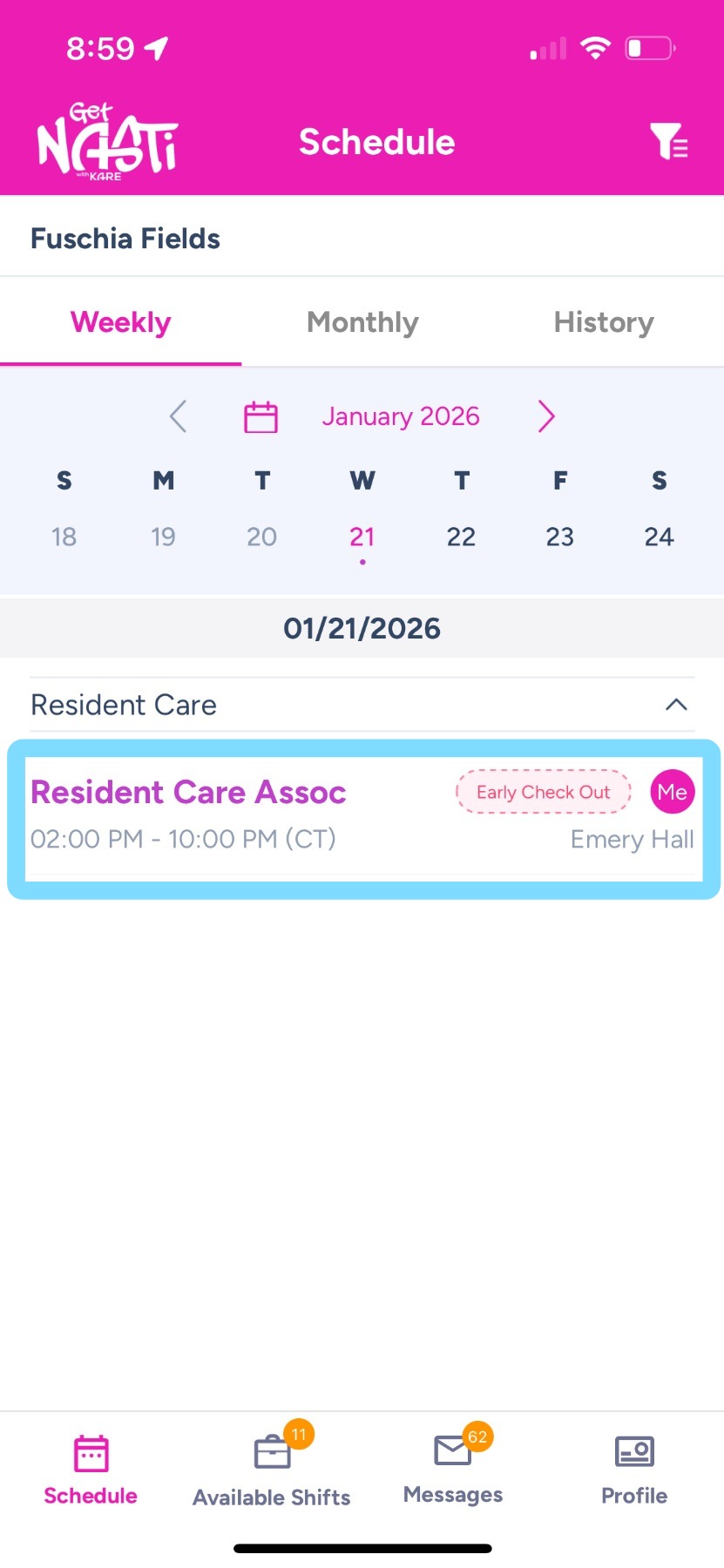
1. Tap on shift to be edited.
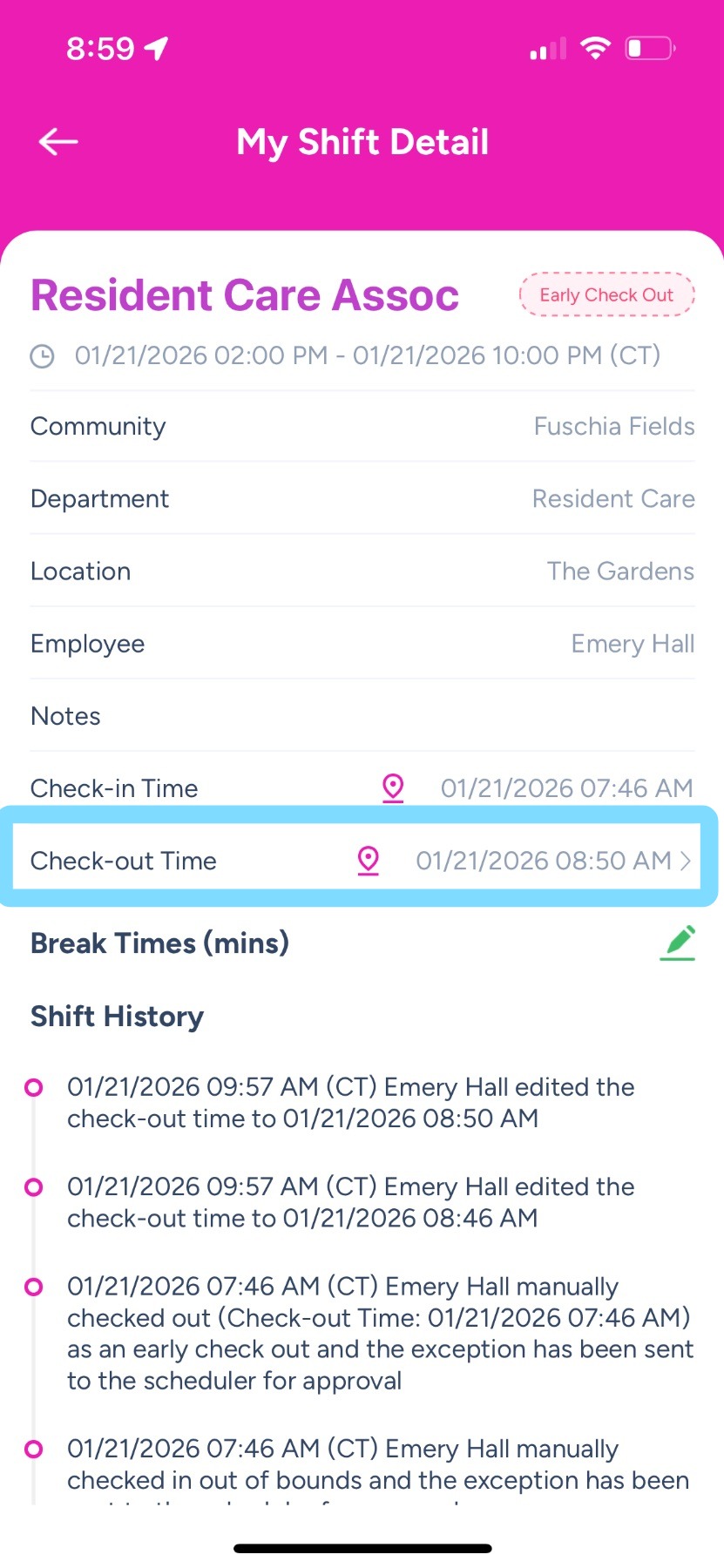
2. Tap on Check-out Time.
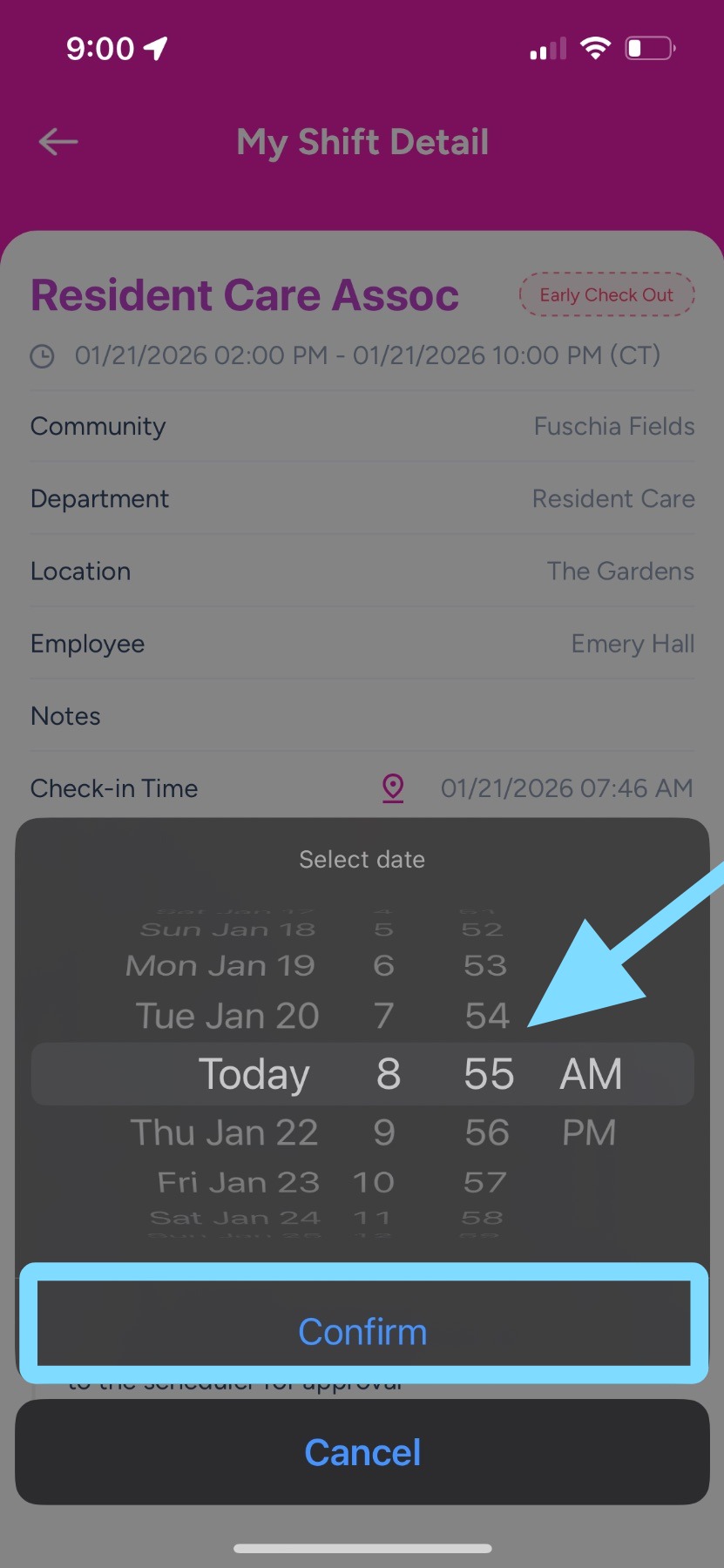
3. Edit time.
Select Confirm.
4. Done – your check-out time is now edited!