Employee Guide – How to Claim Up for Grabs Shifts
This guide provides a straightforward process for employees to claim available shifts labeled as “Up for Grabs” through the app. It simplifies the claiming process, ensuring you can quickly add shifts to your schedule. Additionally, it highlights the potential need for approval, keeping you informed about community rules. By following this guide, you can efficiently manage your work schedule and maximize your shift opportunities.
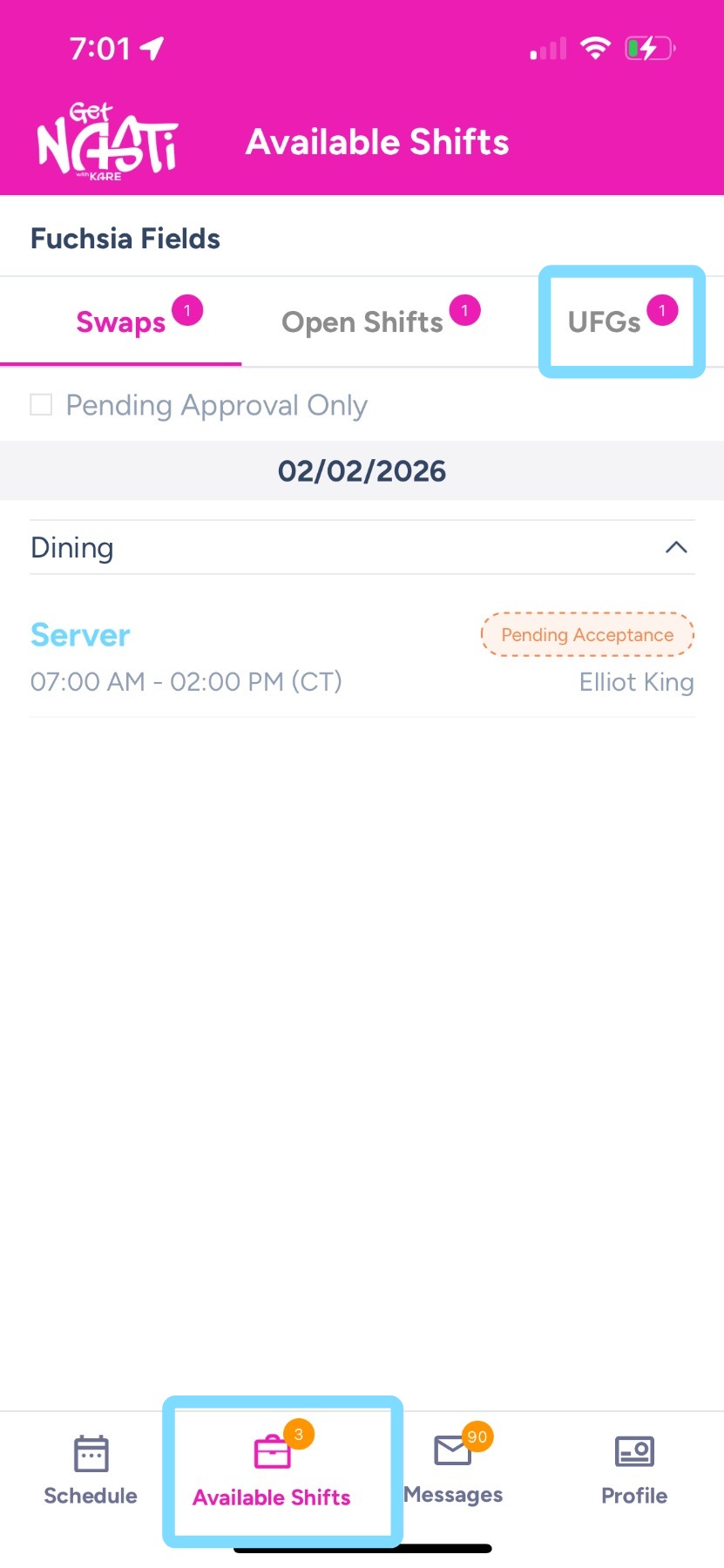
1. Within app, tap on Available Shifts then tap on UFGs
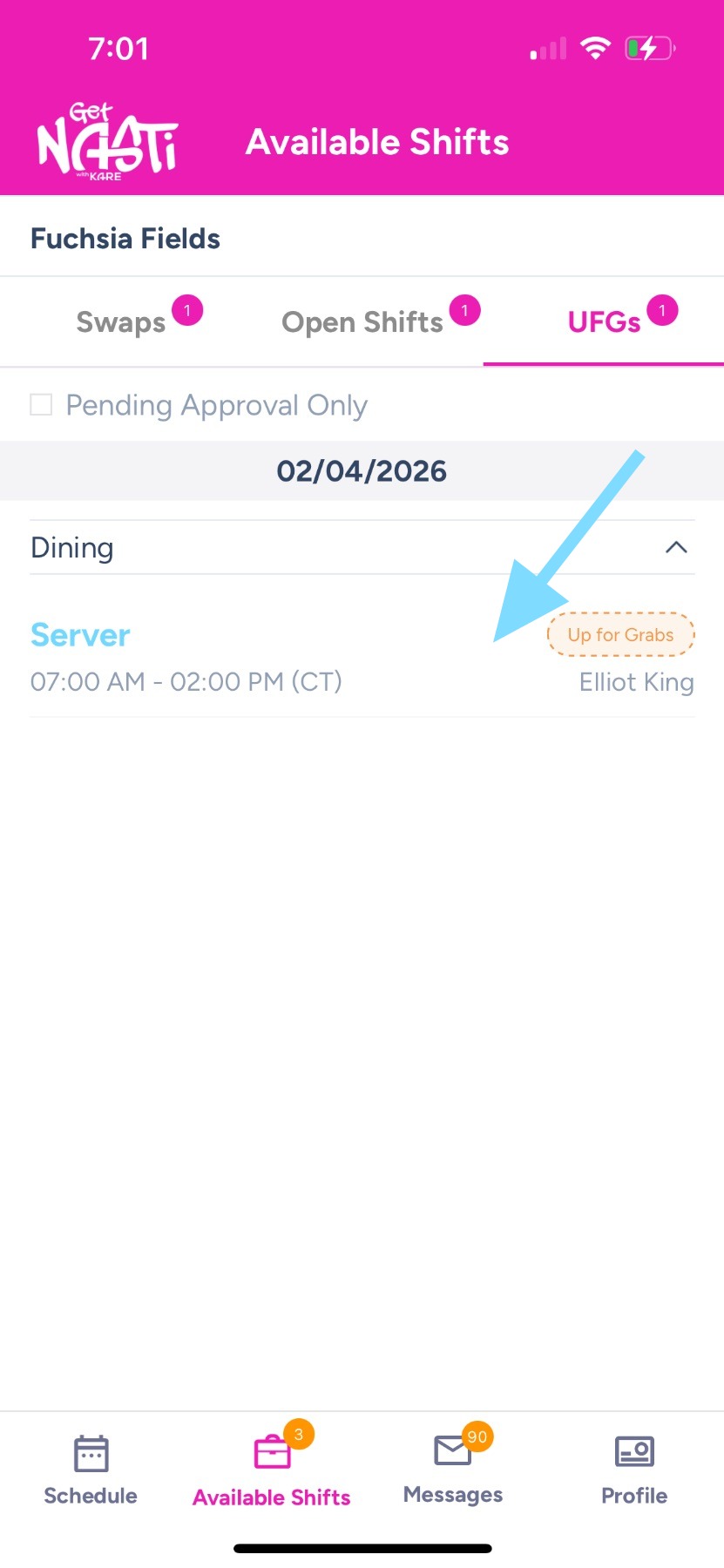
2. See list of shifts that need coverage and were put Up for Grabs. To claim a shift, tap on the shift.
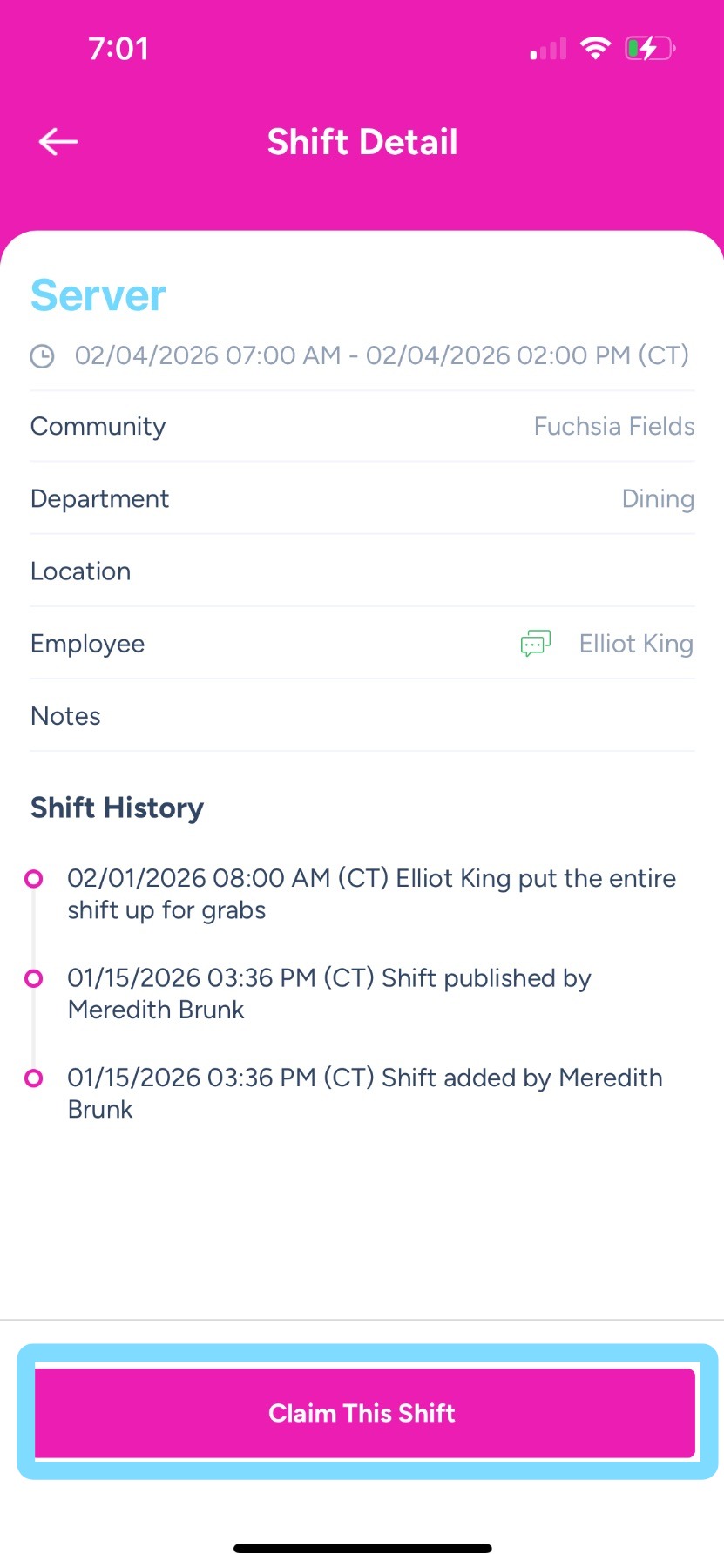
3. Tap Claim This Shift.
Done! The shift is claimed and will be added to your schedule.
Note: If Up for Grabs claims require scheduler or admin approval based on your community’s rules, the claim will be sent for approval and the shift will not appear on your schedule until it is approved.