Employee Guide – How to Check In Manually
Automatic check-in having a moment? No worries. This guide shows you how to manually check in only if automatic check-in isn’t working, so your time stays accurate and your shift stays on track. Follow the quick steps in the NASTi app to lock in your attendance and keep things running smoothly.
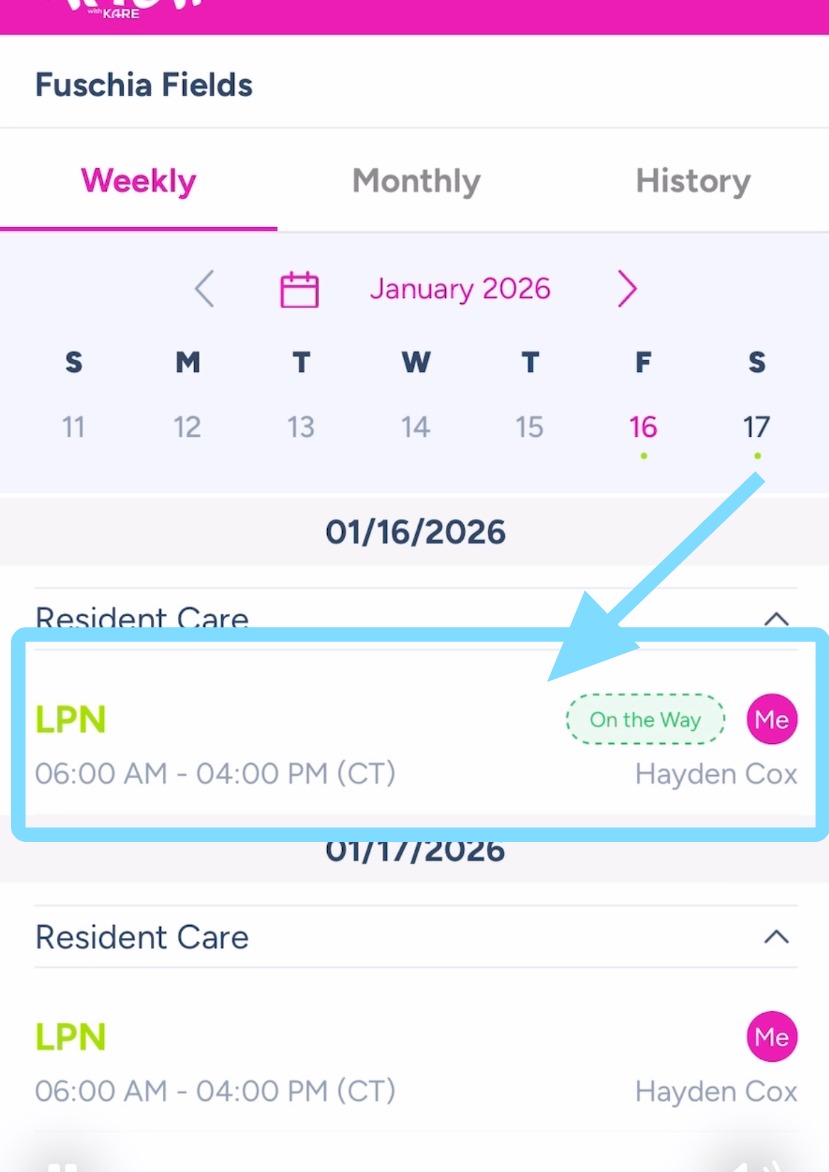
1. If you need to check-in manually due to automatic check-in not working, open your NASTi app and tap on current shift.
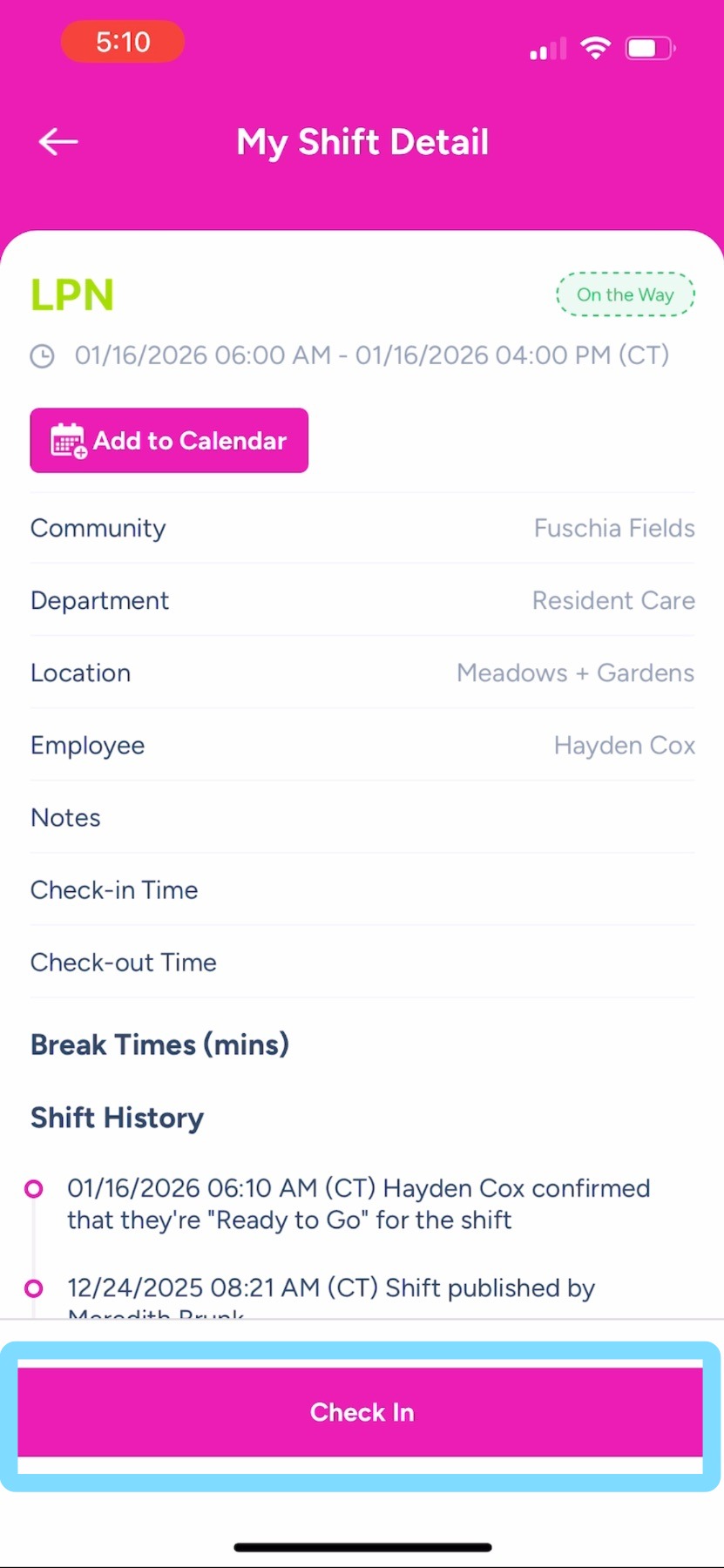
2. Tap on Check in
Note: If Check In isn’t visible, it’s likely because your community has rules in place that control how early or late check-ins are allowed around your shift start time.
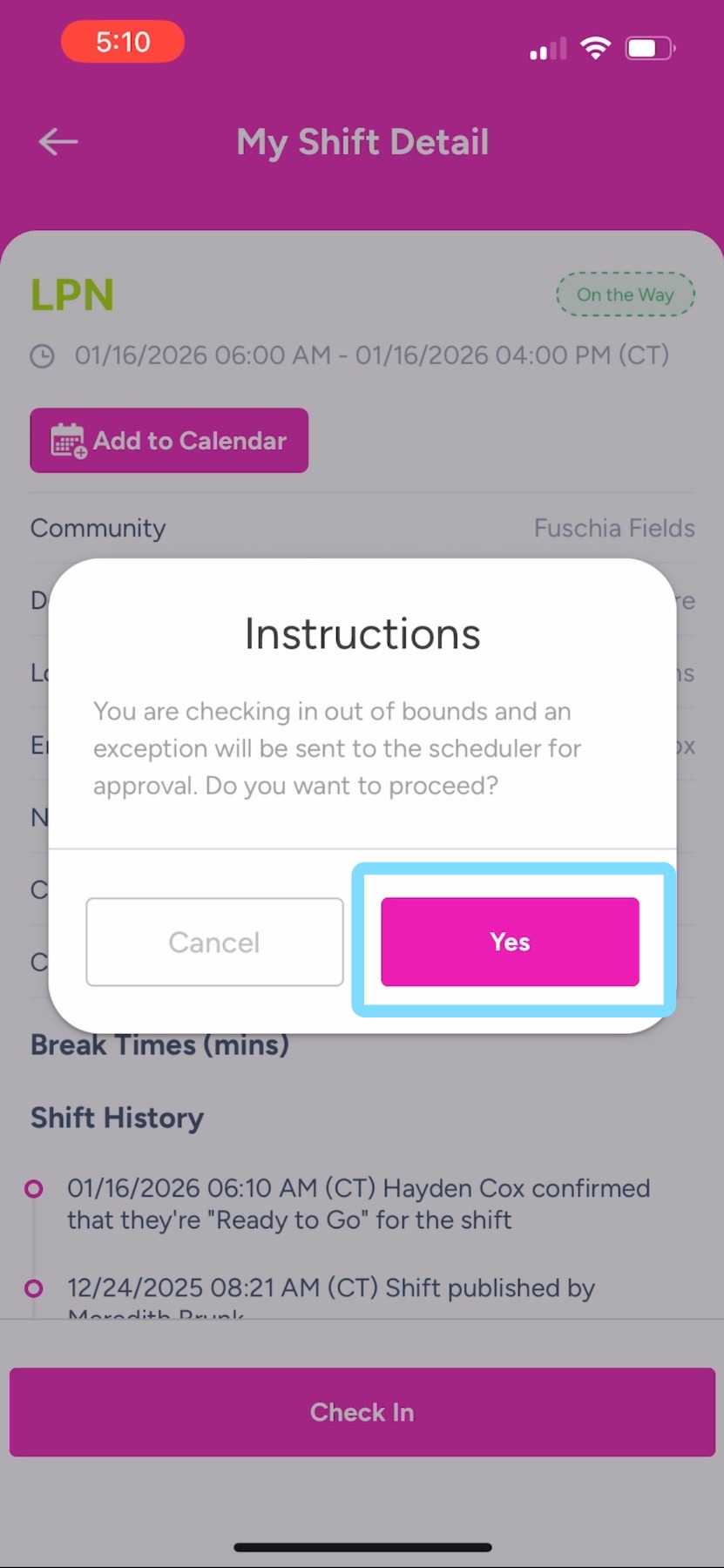
3. Tap Yes to confirm that you are checking in.
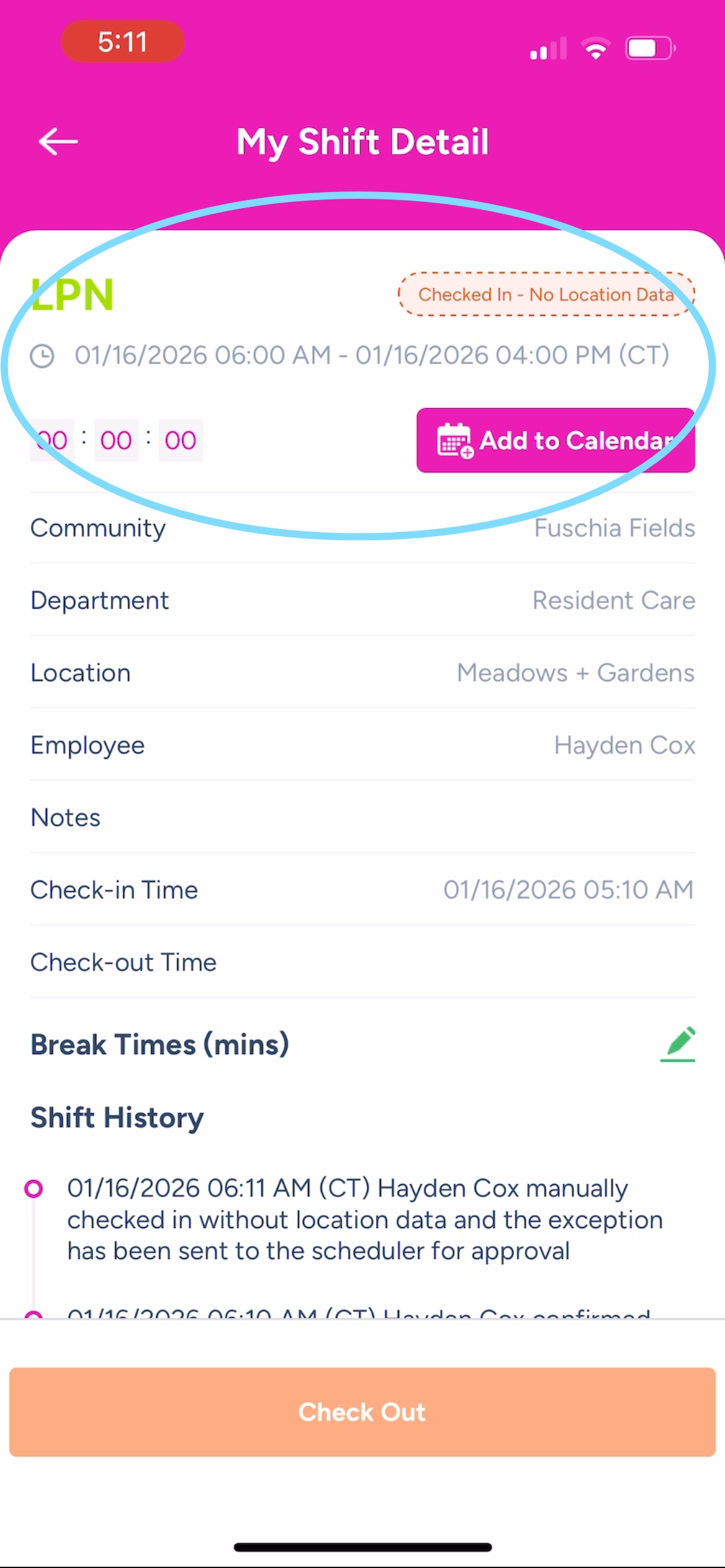
4. Done! You’ll see your badge indicating that you are checked in.