How to Cancel a Time Off Request
This guide explains how Admins can cancel an employee’s time off request when plans change. Cancelling a request makes the employee available for scheduling again and ensures accurate tracking of time off.
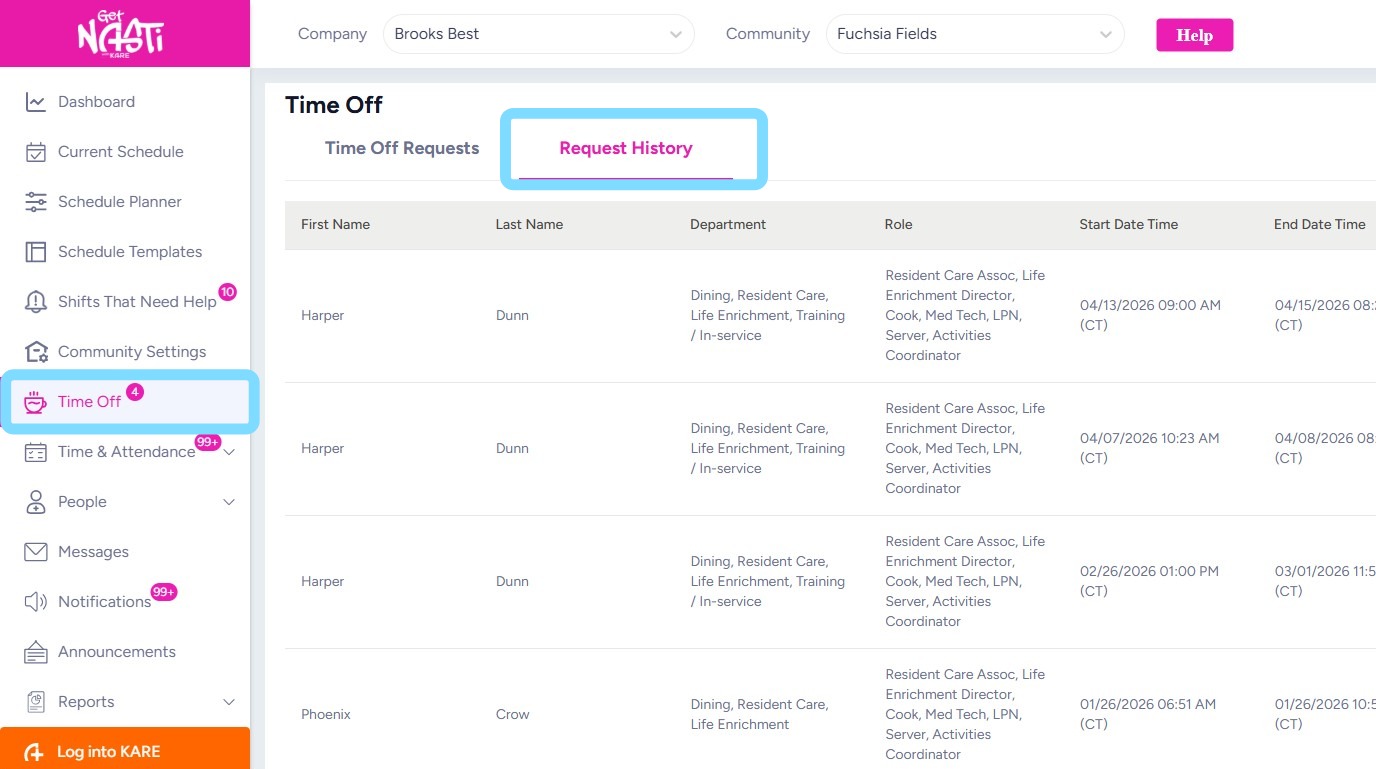
1. Navigate to Time Off.
Select Request History to view all completed time off requests.
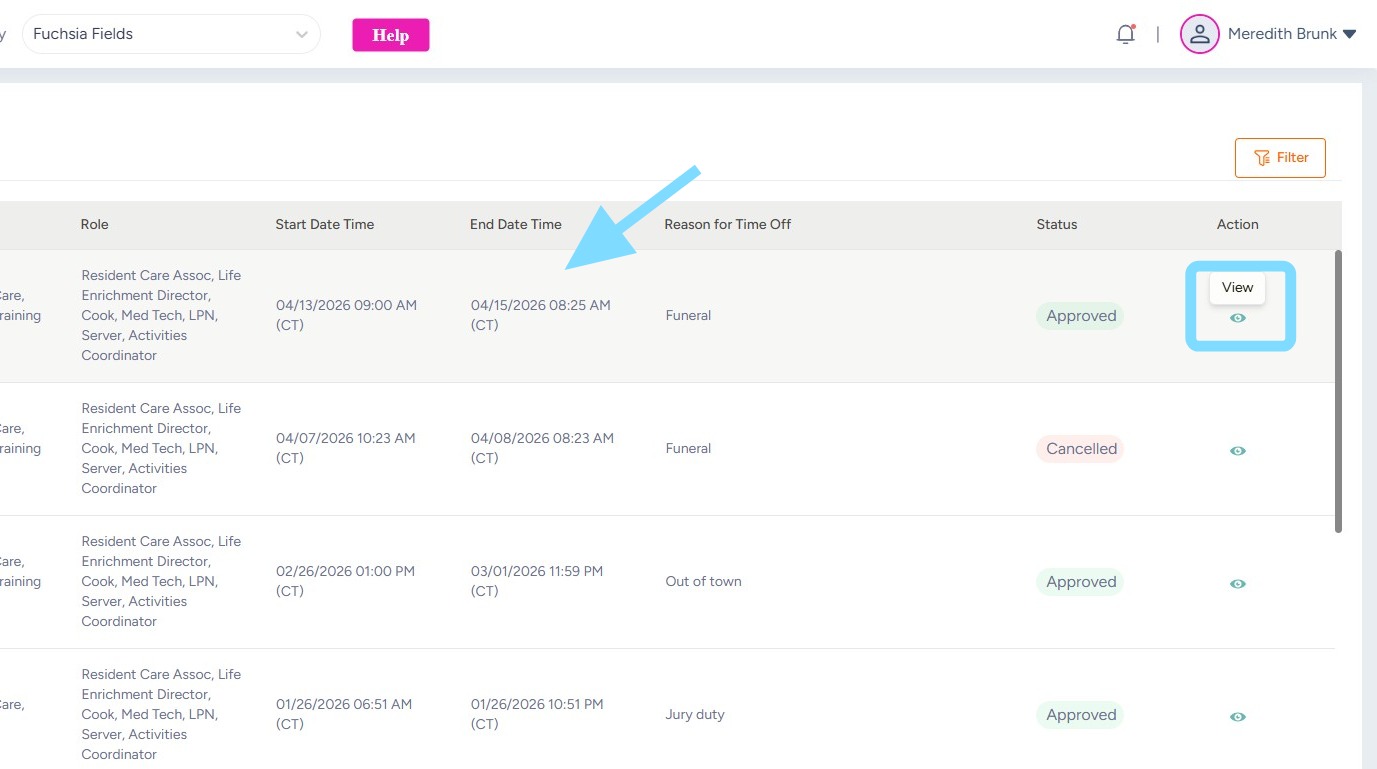
2. Find the time off request to be cancelled
Select View.
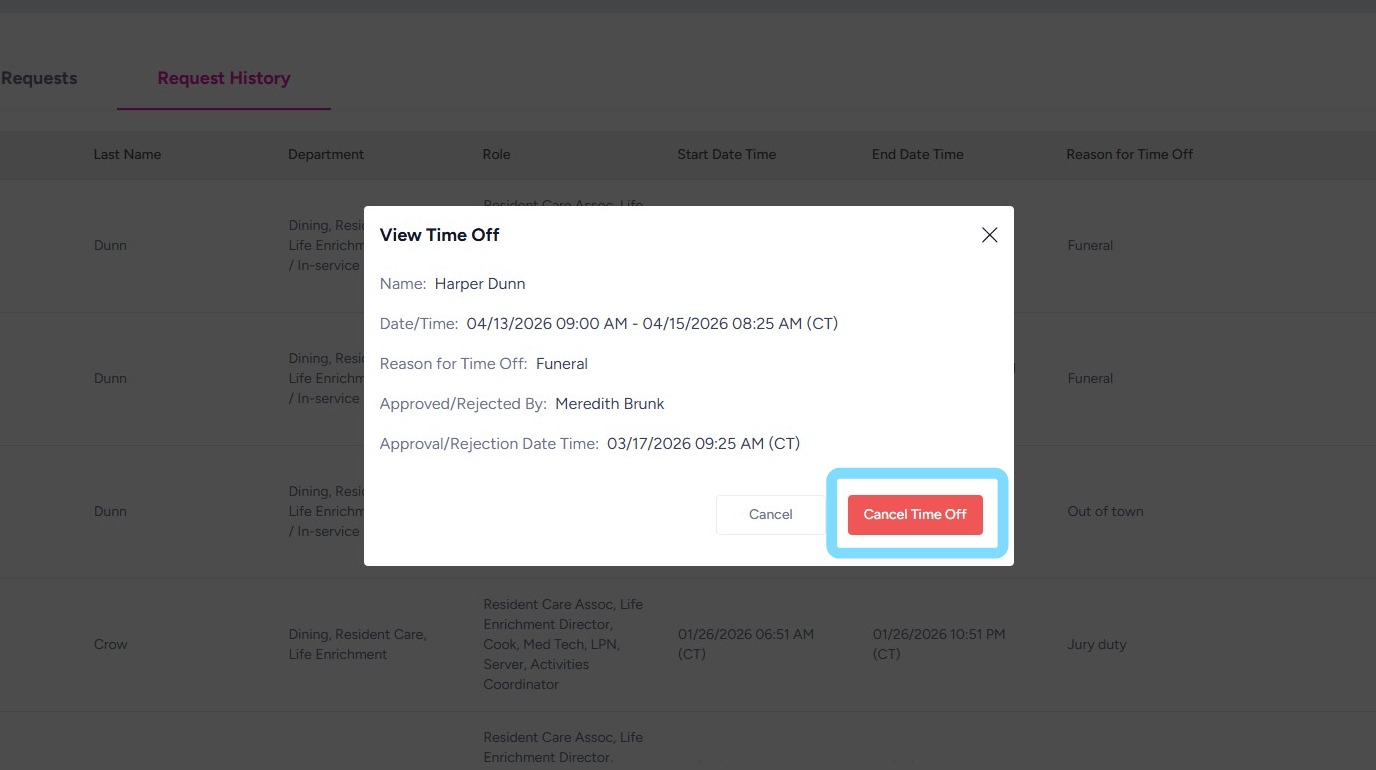
3. Select Cancel Time Off
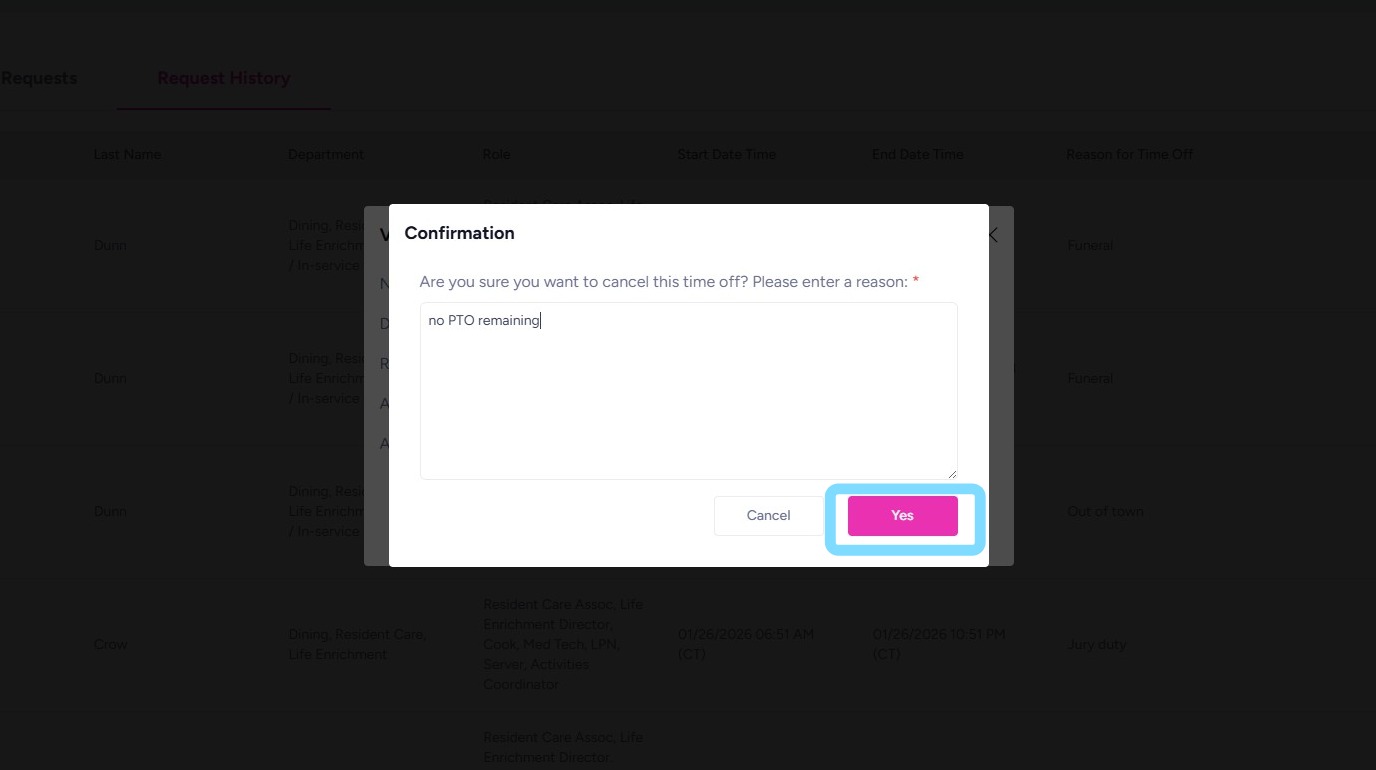
4. In the comment section, indicate a reason for the time off cancellation.
Select Yes to confirm cancelling the time off.
5. You did it!
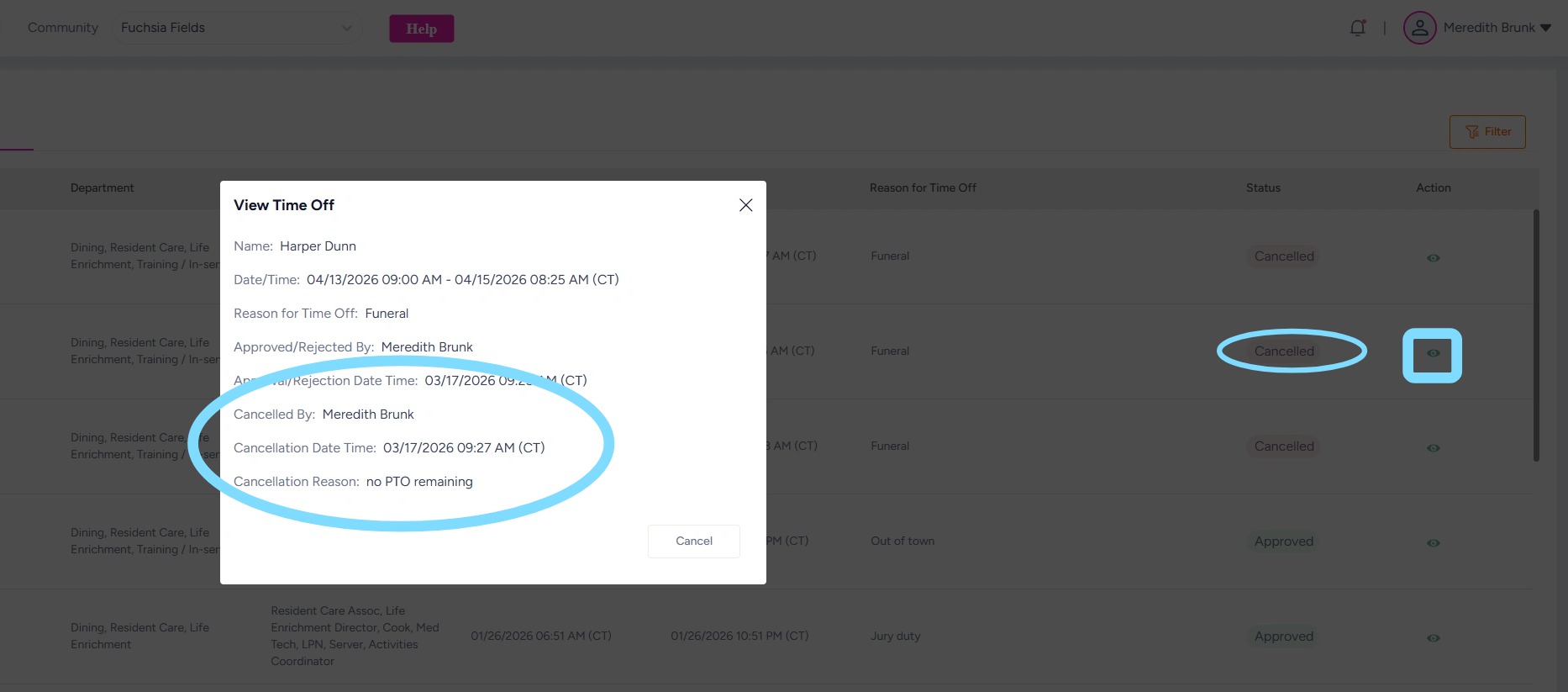
The cancelled time off request can now be viewed within Request History, marked with a Cancelled badge.
Select the View icon to review the cancellation details.