Employee Guide – How to Add Shifts to Google Calendar
This guide shows you how to add your work shifts to your Google calendar so you stay organized and never miss a shift. You’ll also learn how to remove shifts if plans change.
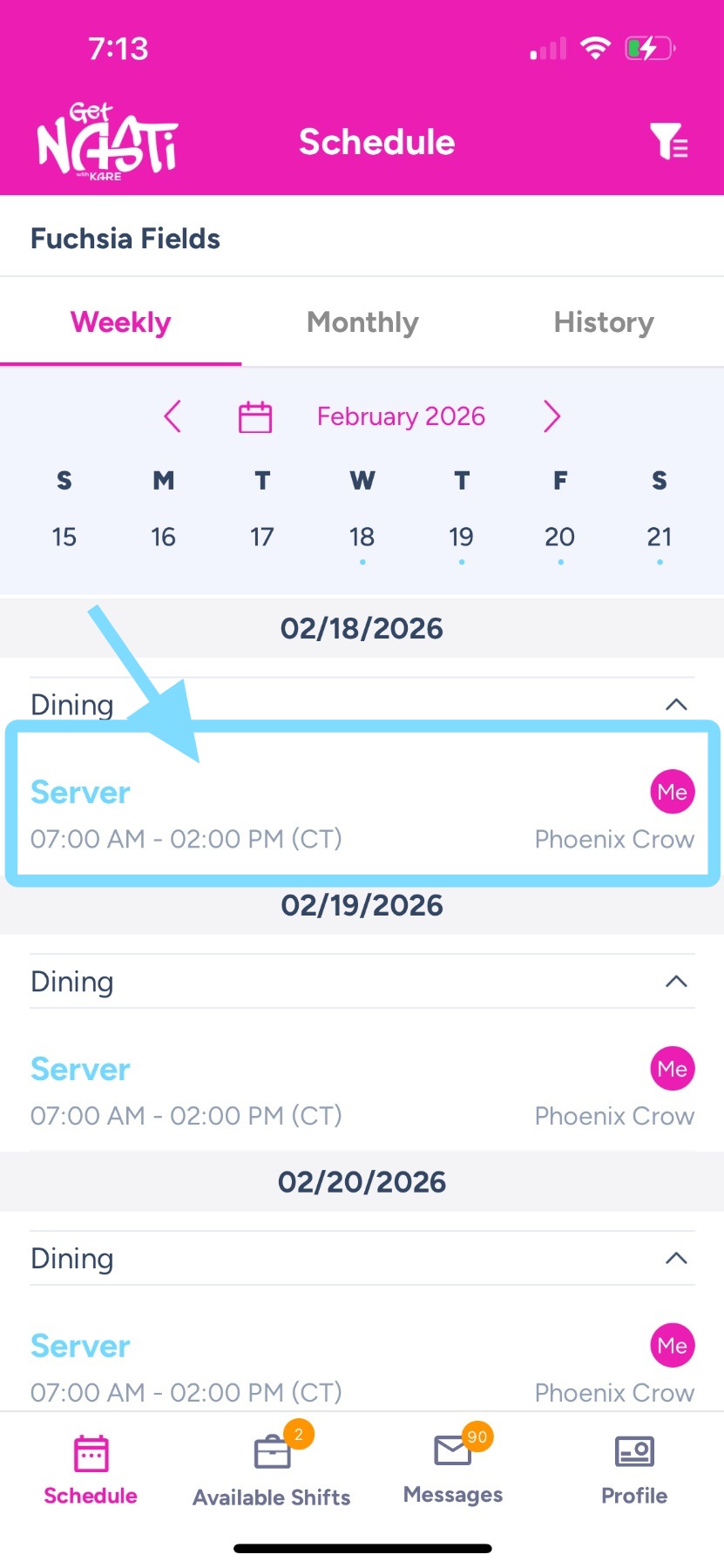
1. Tap on shift
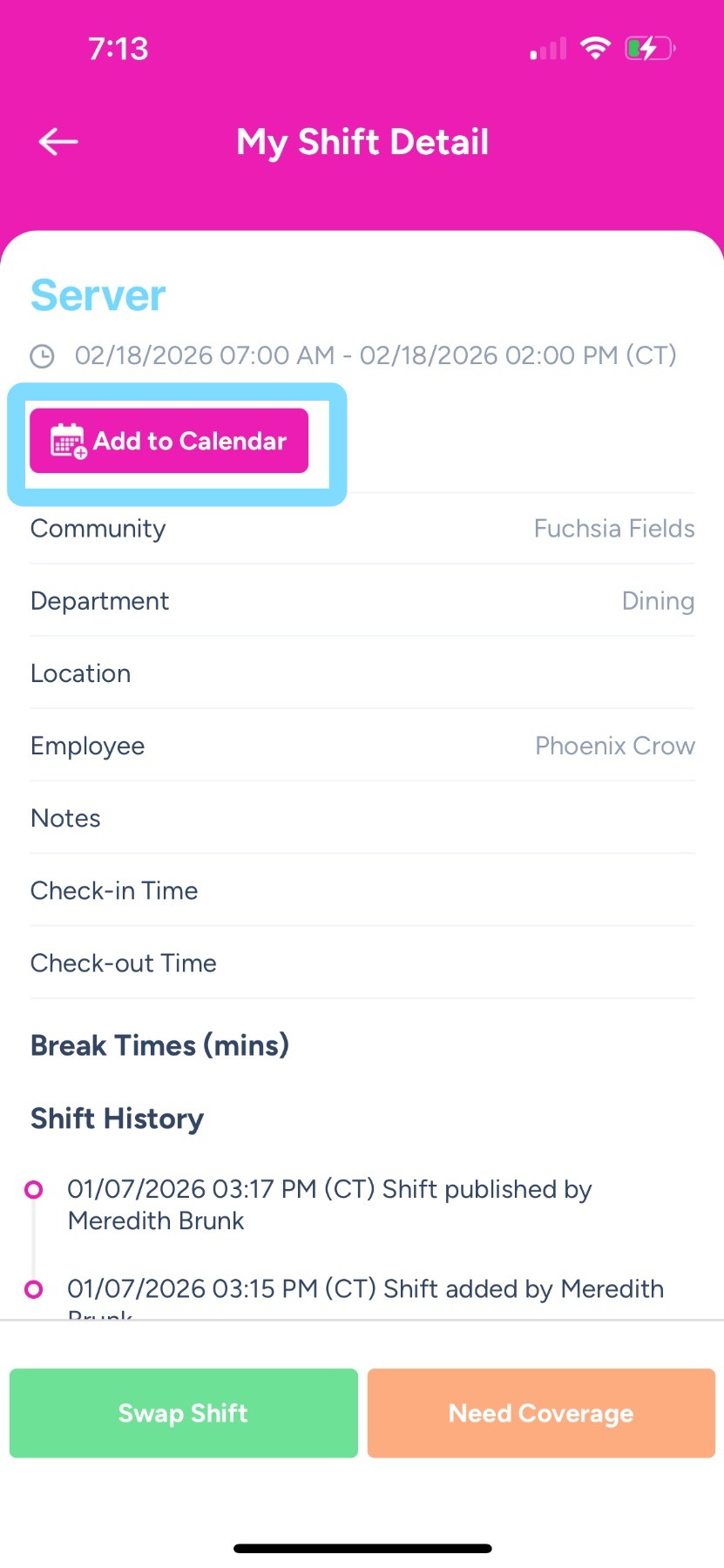
2. Tap Add to Calendar
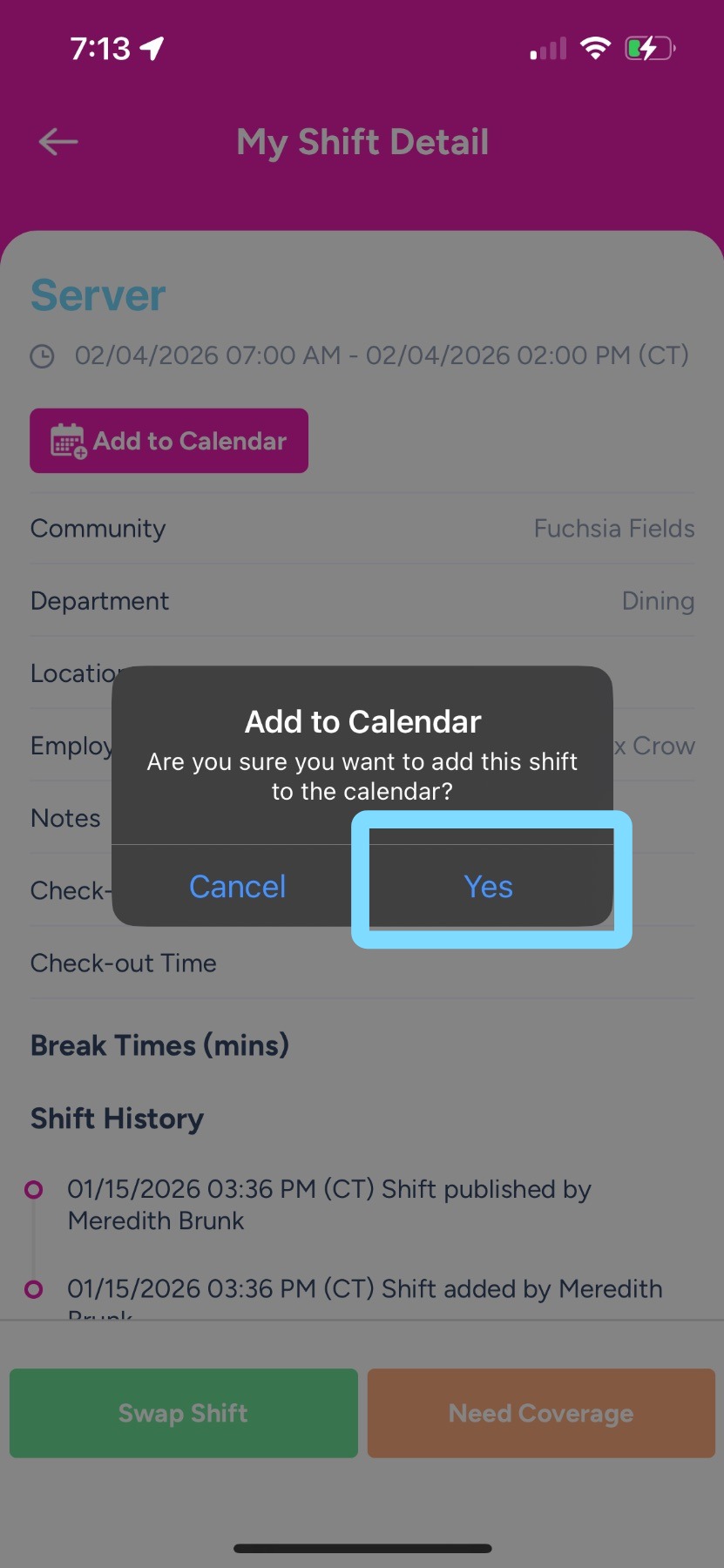
3. Tap Yes to confirm adding shift to your calendar.
Note: you may be prompted to enable access to Calendar.
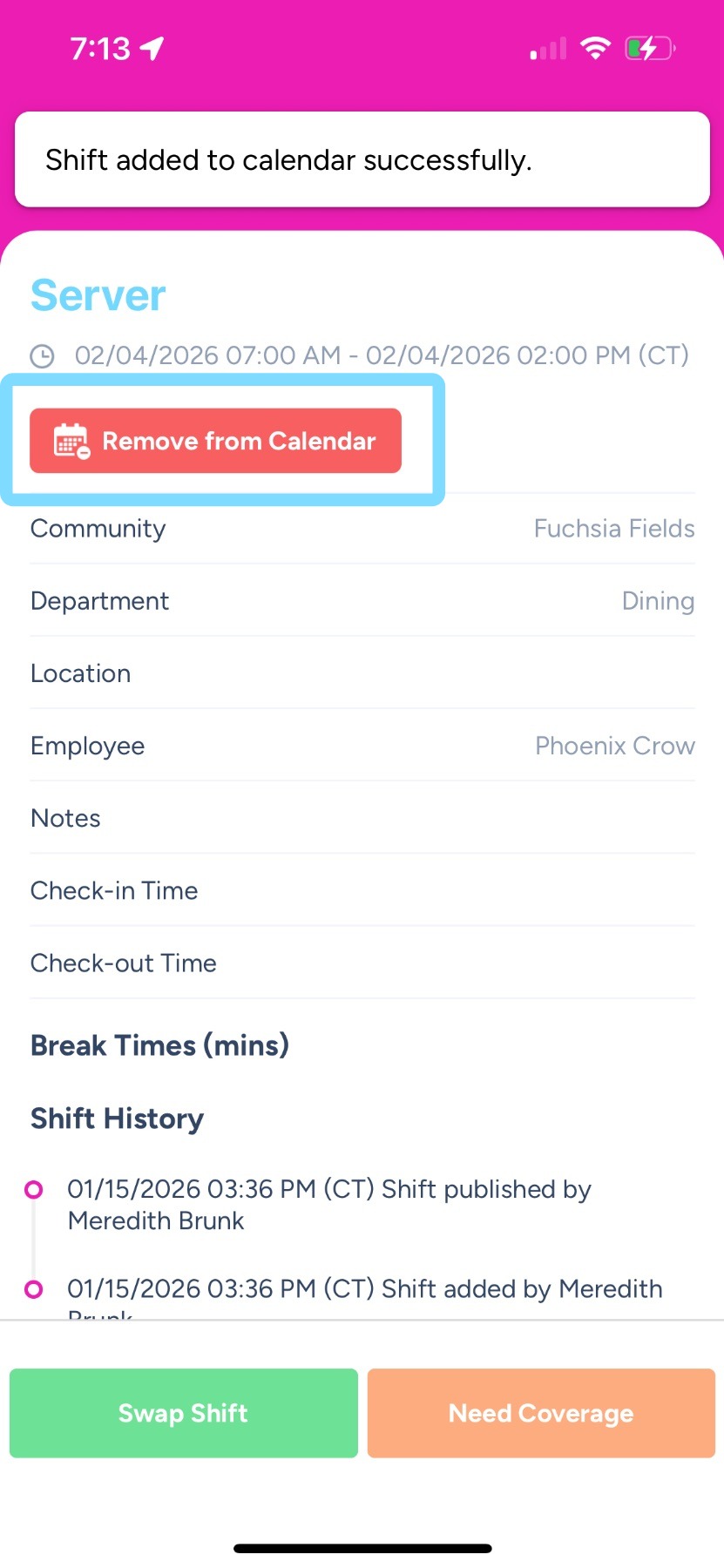
4. Done! You shift is not added to your calendar.
You may remove the shift from your calendar by tapping Remove from Calendar